How to Add Related Template Builder to Single Post
You can create an Elementor template and then assign it to the Related Template option.
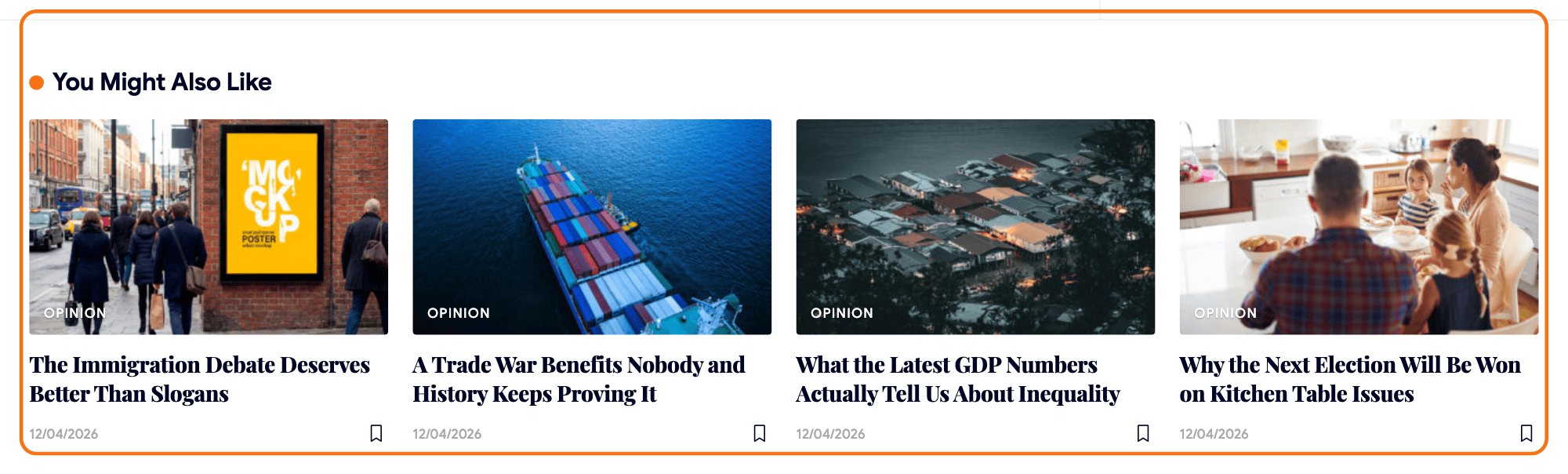
To get started, follow the steps below:
-
Navigate to Dashboard > Ruby Templates > Add New Template, give the template a title such as "Related Posts", and click Edit with Elementor. To learn more about templates, you can refer to this documentation: Ruby Templates
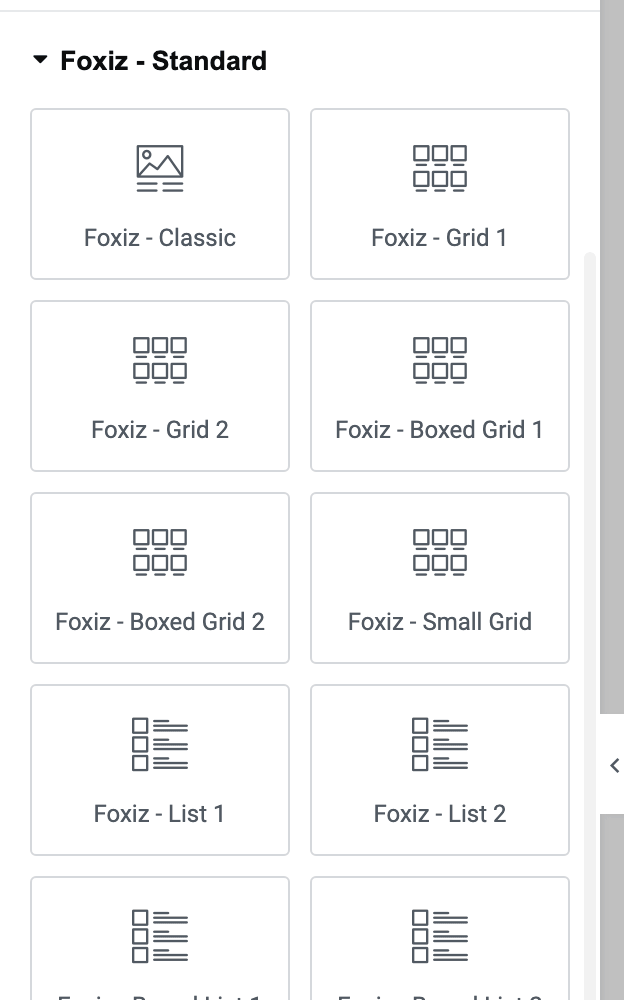
In Elementor, drag one listing block onto the canvas, for example Foxiz - Grid 1 from the Foxiz - Standard group of the panel, and click it so its settings open in the left panel.
-
In that block's Content tab, open Template Builder - Global Query and find Query Mode.
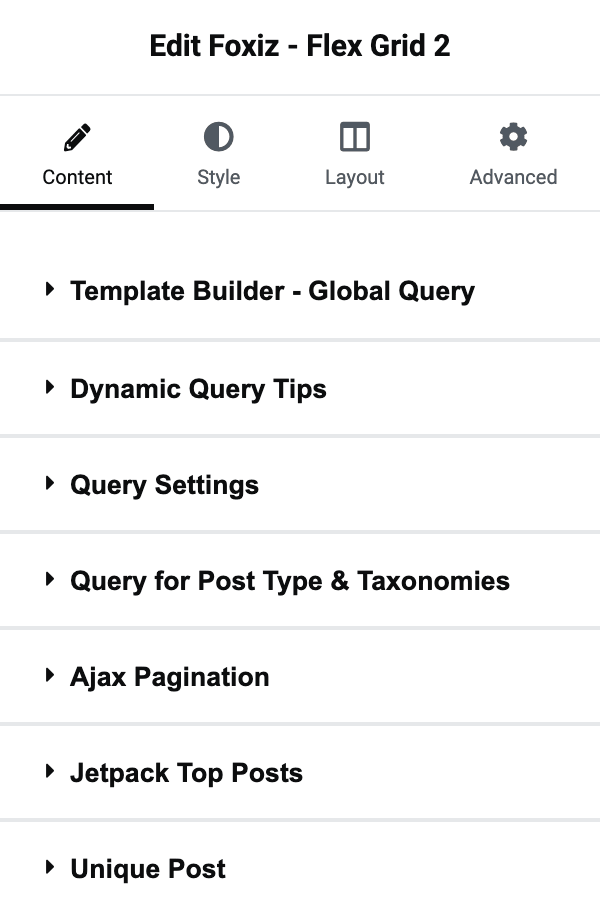
That whole section is registered only while you are editing a Ruby Template, so the same block dropped on an ordinary page or in a post has no Query Mode control at all.
-
Select Use WP Global Query for displaying the main blog listing.
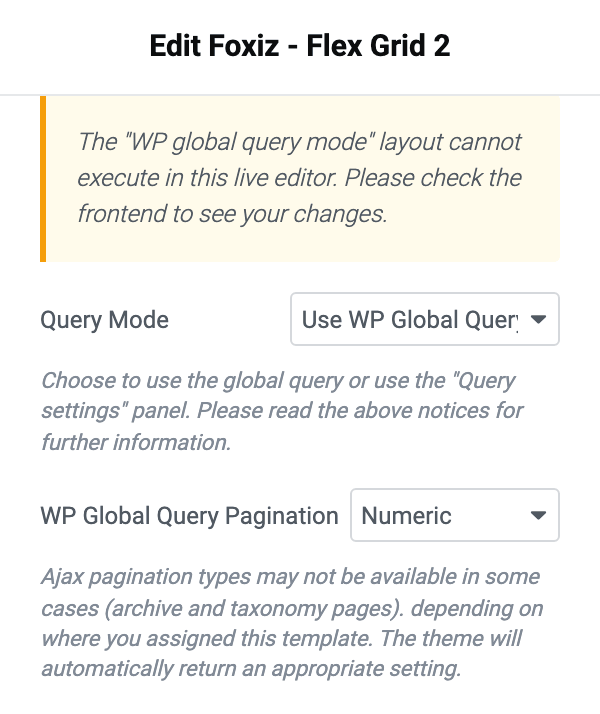
The control's default is Use Custom Query (default), and this is the step people skip. Foxiz builds the related query itself and hands it to the first block that asks for the global query; a block left on the default never asks, so it quietly shows whatever its own Query Settings asked for instead of posts related to the one being read.
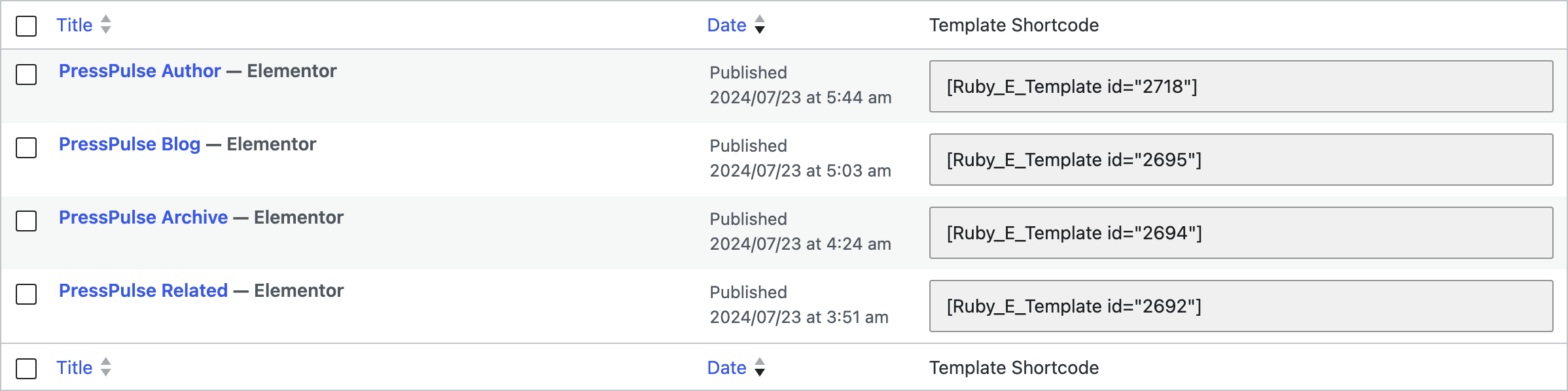
Save the template in Elementor, go back to Ruby Templates > All Templates and copy its shortcode from the Template Shortcode column.
-
Navigate to Theme Options > Single Post > Related & Popular and set Related Section to Use Ruby Template.
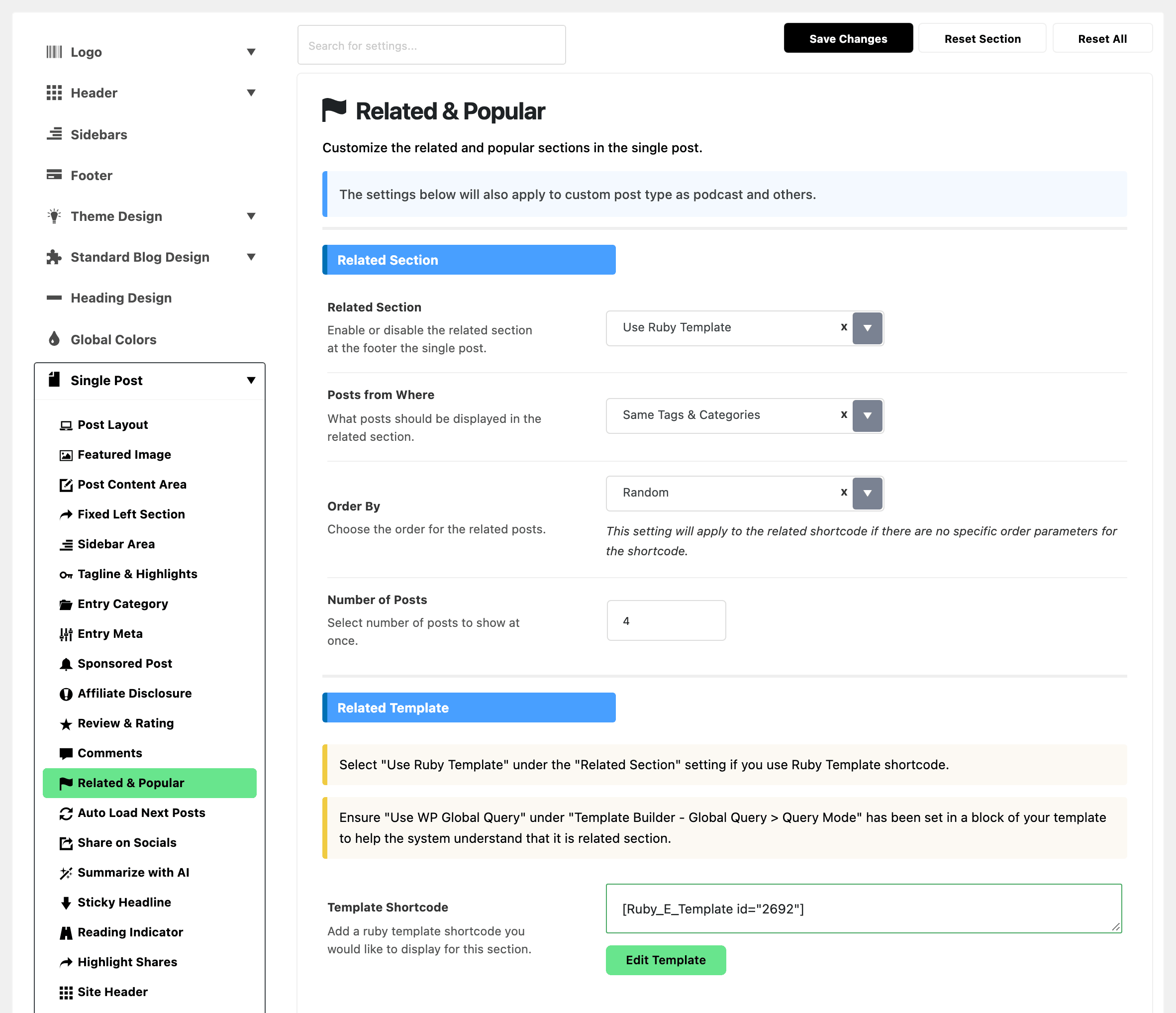
Related Section defaults to Standard Layout, and its third value is - Disable -, which removes the section from every post. The Related Template group below only appears once Related Section is on Use Ruby Template, so if you cannot see the field in step 5, this select is the reason.
-
Paste the template's shortcode into Related Template input. On screen the box inside that group is labelled Template Shortcode, and its placeholder shows the shape Foxiz expects:
[Ruby_E_Template id="1"]. -
Click Save Changes.
The three settings above the template field keep working after you switch to a template, because Foxiz runs the related query before it renders anything: Posts from Where, Order By and Number of Posts all still shape what your blocks receive. The settings that stop applying are the ones in the Standard Related Layout group underneath, including Related Heading, Blog Layout and Pagination Style, which the panel only shows while Related Section is on Standard Layout. Pagination now comes from WP Global Query Pagination in the block instead.
If the related query comes back empty, nothing is printed at all, not an empty heading and not your template. A post with no categories or tags in common with anything else is the usual cause.
Notes when using WP Global Query:
Use Use WP Global Query on one block per template. Foxiz hands the related posts to the first block that asks for them, so a second global query block shows an unrelated set of posts from its own Query Settings.
In global mode the block ignores its Query Settings and Unique Post sections. Both stay visible in the editor and have no effect on the front end.
For pagination, use WP Global Query Pagination, in the same Template Builder - Global Query section, directly under Query Mode. The block's Ajax Pagination settings do not apply in global mode. WP Global Query Pagination defaults to - Disable -, so the related section shows one page until you change it.
To change how many related posts show, navigate to Theme Options > Single Post > Related & Popular > Number of Posts. Its default is 4, and it is the number your blocks receive on the front end. The block's own Number of Posts in Query Settings does not override it.
Tip: set Number of Posts in the block's Query Settings to the same number as the Theme Options Number of Posts above (on a category or archive template, the Blog pages show at most value in Settings > Reading). The editor preview then shows as many posts as the front end.
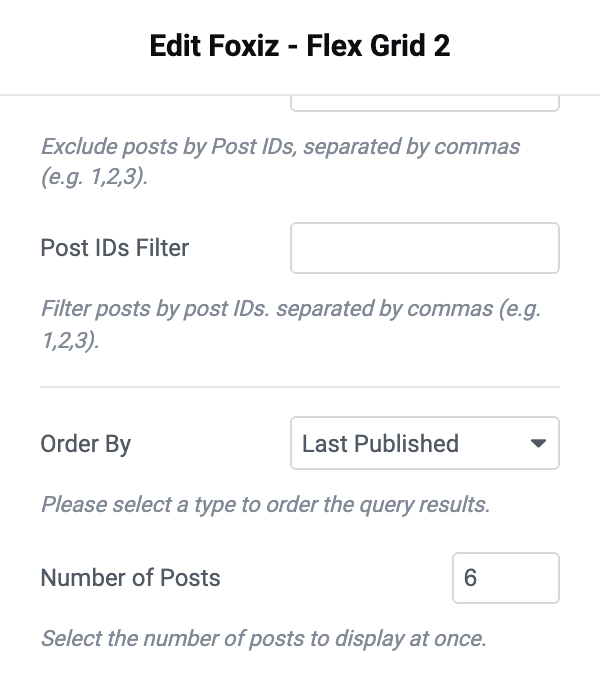
The Elementor editor never runs global mode, so the related posts do not show while you edit the template. To check the result, open any single post on the front end.
Did this answer your question?