How to Add Like and Dislike Buttons
Thumbs up and thumbs down are an entry meta tag, like: add it to the entry meta line, next to the date and the author, wherever you want the buttons. It works on listings as well as single posts, and it is not a switch in the Like & Reaction panel. The row of faces at the end of a post is the other way Foxiz counts a reader's opinion, set up in How to Set Up Post Reactions.
Where you add the tag decides where the buttons show. Add it in Standard Blog Design first, since every listing follows it; an Elementor block or an archive panel with a list of its own wins on that listing. A single post has a separate list, covered at the end.
To put it on the post listings your blocks draw:
-
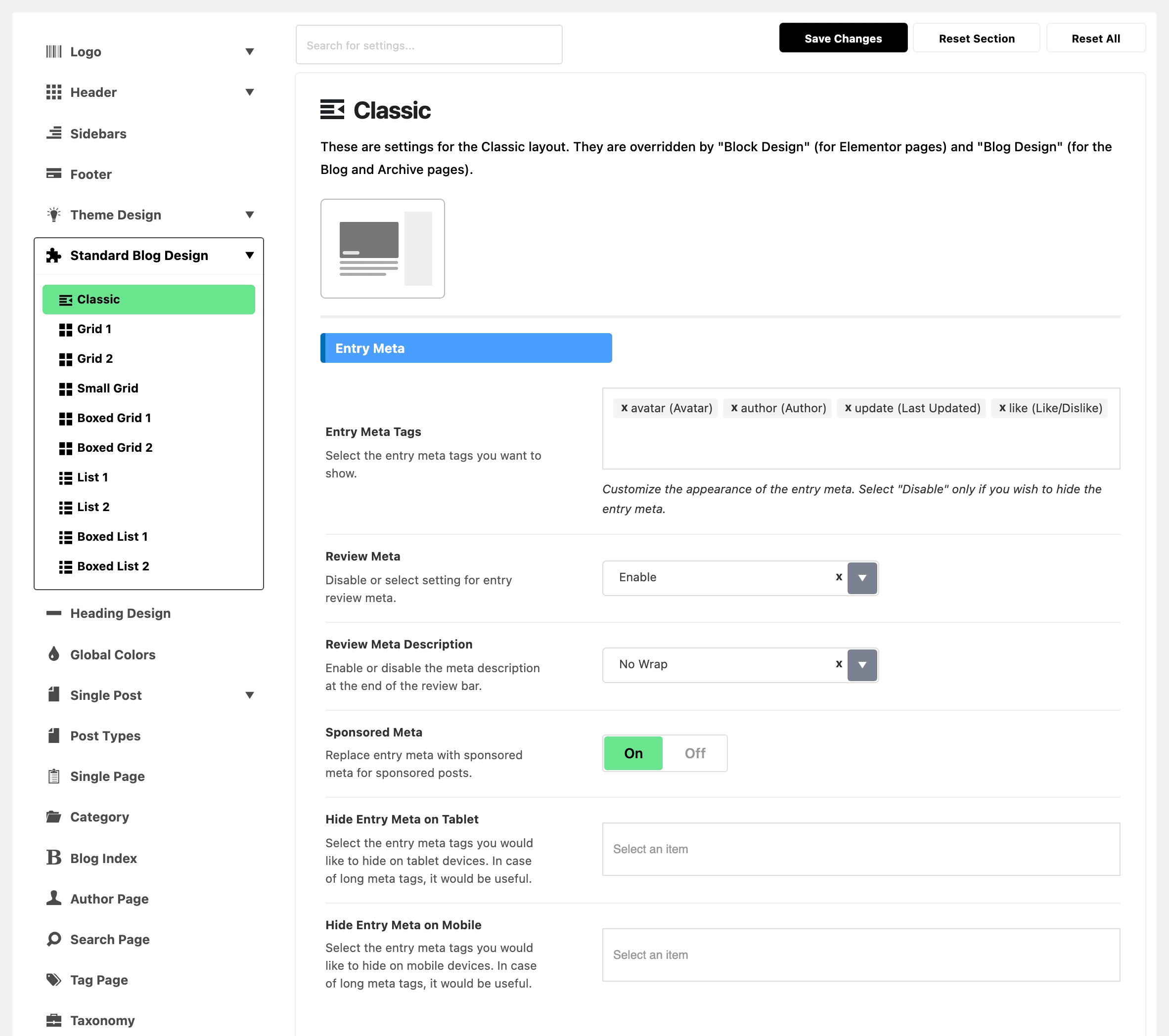
Navigate to Theme Options > Standard Blog Design.
-
Open the sub panel for the block layout your listings use. There are ten:
- Classic
- The grids: Grid 1, Grid 2, Small Grid, Boxed Grid 1 and Boxed Grid 2
- The lists: List 1, List 2, Boxed List 1 and Boxed List 2
-
Find the Entry Meta group and its Entry Meta Tags field. It arrives holding avatar (Avatar), author (Author) and update (Last Updated).
-
Add like (Like/Dislike) to the selection. Where you place it in the list is where the buttons sit in the bar, because the bar is drawn in the order you picked.
-
Save your changes, then repeat for each layout you use. A block drawn as Grid 1 takes no notice of what you set under List 1.
Each sub panel's own note names the two places that use a list of their own instead:
- An Elementor block's own Entry Meta setting, for that block.
- The Category, Blog Index, Author Page, Archives and Search Page panels, for those pages. The next section shows how.
On the blog, category and archive pages
Each of those pages hides the tag list behind a dropdown, so there are two steps rather than one:
-
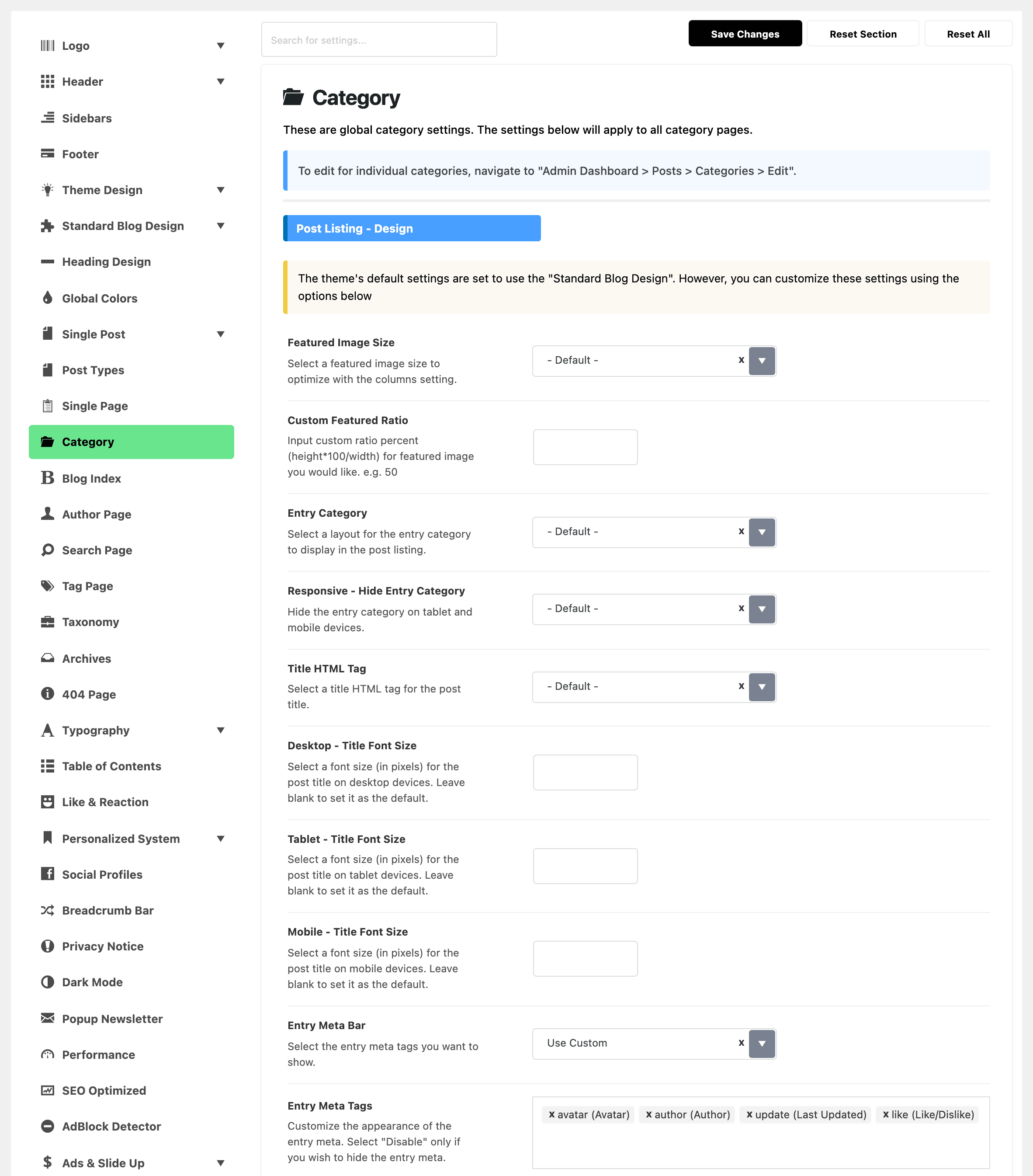
Open Theme Options > Category, Blog Index, Author Page, Archives or Search Page, whichever page you are changing.
-
Set Entry Meta Bar to Use Custom. The Entry Meta Tags field below it only appears once you do.
-
Add like (Like/Dislike) to that list, along with every other tag you want, because this list replaces the block's rather than adding to it.
-
Click Save Changes.
On a single post
-
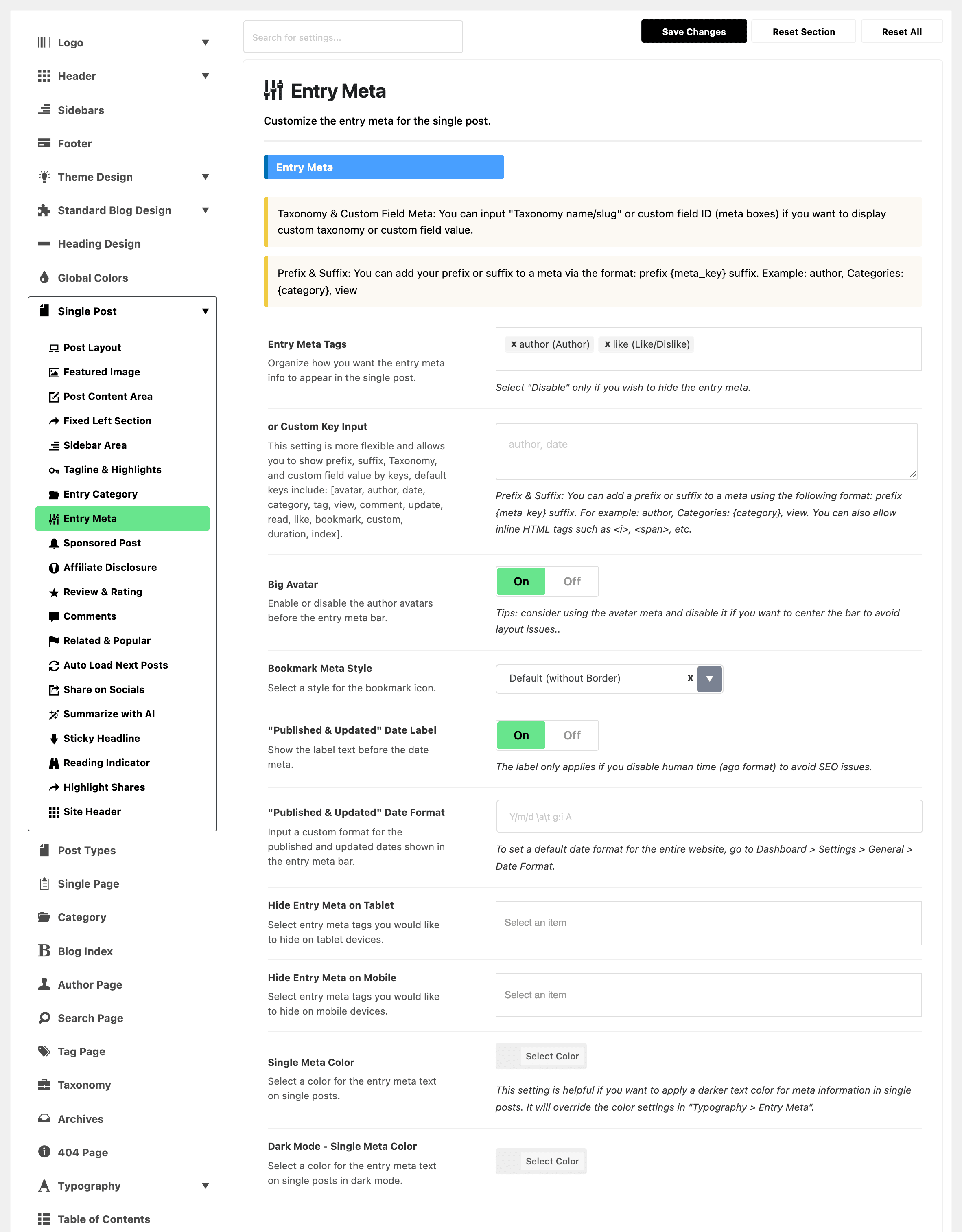
Navigate to Theme Options > Single Post > Entry Meta.
-
Add like (Like/Dislike) to Entry Meta Tags. This one arrives holding author (Author) alone.
-
Save your changes.
There is a second field in the same group, or Custom Key Input, which takes the same keys as a comma separated line and lets you add a prefix or a suffix around each one. If you are already using that field, add like to it there instead, because it takes precedence over the dropdown.
On an Elementor block
Every Foxiz post block carries its own copy of this setting, which overrides Theme Options for that block alone.
-
Open the page with Edit with Elementor and click the block.
-
Go to the Style tab and open the Entry Meta section.
-
If the section starts with an Entry Meta dropdown, set it to Custom Below. Blocks without that dropdown go straight to the next step.
-
In Entry Meta Tags, add
liketo the comma separated list. This one is a text box rather than a dropdown, and the hint under it lists every key it accepts.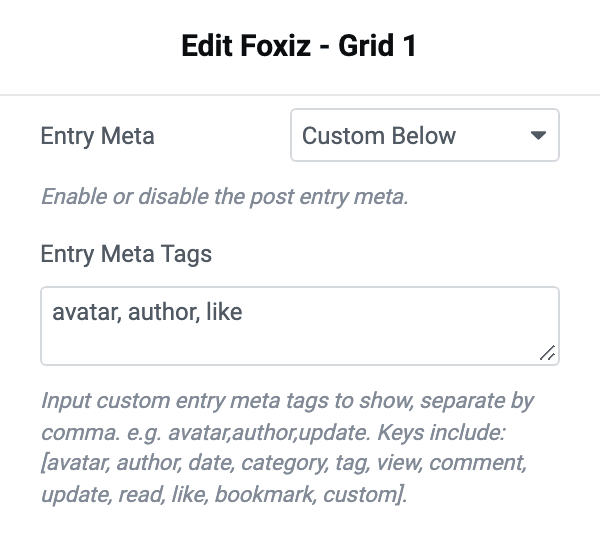
Leaving the dropdown on Default from Theme Option is the other way to work: the block then follows whichever Standard Blog Design sub panel matches its layout, so one edit in Theme Options covers every block on every page.
What a reader sees and does
A thumbs up with a number beside it and a thumbs down with a number beside it, both in the entry meta line. Each is a small rounded button that highlights under the pointer. The pair fades in once the page has finished loading rather than being drawn with the rest of the meta.

A count of zero shows as no number at all, so a fresh post shows two bare thumbs. The number appears with the first vote. Counts above a thousand are shortened, so 1,200 reads as 1.2K.
One vote per post per reader, and the rules are the same as for the faces:
- Clicking either thumb fills its icon in and puts the count up by one.
- Clicking the same thumb again takes the vote back and puts the count down.
- Clicking the other thumb moves the vote across: the new one goes up, the old one goes down, and only the new one stays filled.
A shortened count such as 1.2K does not move on the click; the new total shows on the next page load. And if the vote cannot be saved, for example because the reader has hit the site's request cap, the thumb and the count go back to how they were before the click.
Nobody has to sign in, and the reader's vote is remembered in their own browser so it is still filled in when they come back or meet the same post in another listing.
The pair is not drawn on AMP pages.
The settings that govern it
Once the buttons are on, the Like & Reaction panel is where their behaviour is set, and its first note says so: Theme Options > Like & Reaction > General applies to these buttons as well as to the reaction faces.
That group holds how long a reader is held to one vote per post, whether they are counted per browser or per address, and the switch to make the counts look right on a cached site. Every Setting in the Like & Reaction Panel goes through all four.
The counts live on the post, so they travel with it: export a post and import it elsewhere and its tallies come along, and deleting a post takes its votes with it.
Did this answer your question?