How to Enable or Disable Auto Load Next Posts Feature on Single Post Page
With Auto Load Next Posts on, the next post loads under the current one when a reader reaches the end of it, so they keep reading without clicking. It is off by default.
Two places switch it on or off:
- Theme Options > Single Post > Auto Load Next Posts sets it for every post.
- The Auto Load Next Posts tab of a post's Single Post Settings box sets it for that post only.
Decide for the whole site in Theme Options, then use a post's tab only for the exceptions. Enable or Disable there overrides the site for that post; - Default - follows it.
To get started, follow the steps below:
-
Navigate to Theme Options > Single Post > Auto Load Next Posts
-
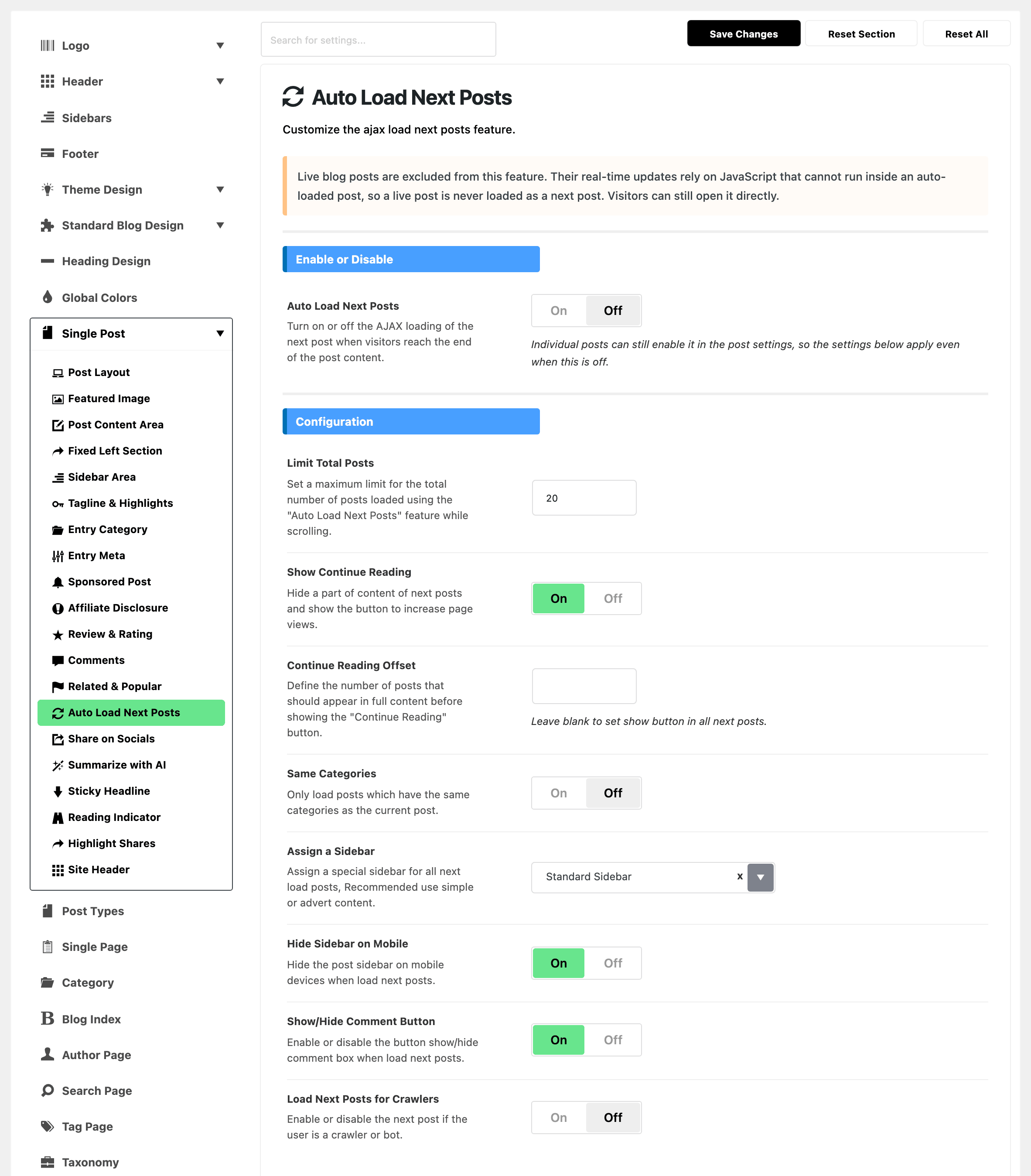
Auto Load Next Posts: Enable or disable the dynamic loading of subsequent posts using AJAX when visitors reach the end of the current post content. It is off by default. The settings below it, grouped under Configuration, stay on screen either way, because a single post can switch the feature on for itself while this is off, and they then apply to that post.
-
Limit Total Posts: Define the maximum number of posts to be loaded when utilizing the "Auto Load Next Posts" function during scrolling. Its default is 20.
-
Show Continue Reading: Hide a section of the content from subsequent posts and show a button "Continue Reading" prompting users to view more, thereby increasing page engagement. This one is on by default, so a fresh install truncates every loaded post.
-
Continue Reading Offset: Define the number of posts that should appear in full content before showing the "Continue Reading" button. Leave it blank and the button appears on all of them.
-
Same Categories: Load only those posts that belong to the same categories as the current post. Off by default, so out of the box the post loaded next is simply the one published before it, from any category.
-
Assign a Sidebar: the sidebar shown beside every post that loads in. Keep it light, for example a few adverts. The list holds Standard Sidebar, which is the default, plus any custom sidebars you have created under Theme Options > Sidebars.
-
Hide Sidebar on Mobile: hides the post sidebar on phones while posts load in one under another. On by default.
-
Show/Hide Comment Button: in each post that loads in, puts the comment box behind a button that readers click to open it. On by default.
-
Load Next Posts for Crawlers: Decide whether search engine crawlers and bots get the next posts loaded in as well, or only human visitors do.
The switch is off by default, and off is the protective position: with it off, Foxiz checks the visitor's user agent against a list of nearly sixty crawler names and skips the auto loading for anything that matches. Turning it on is what lets crawlers keep pulling in the next post.
These are the site wide settings. One post can opt out or opt in on its own:
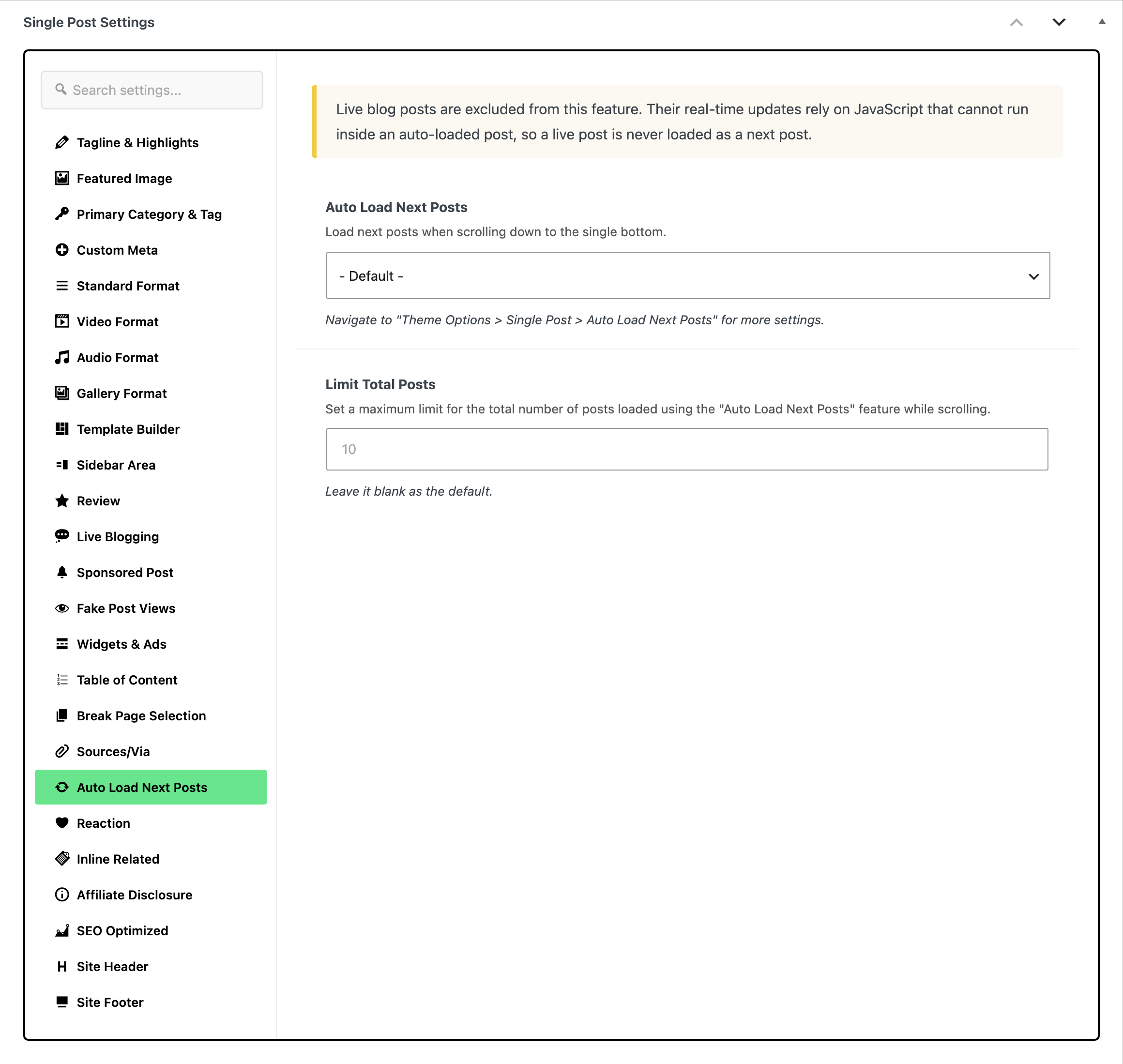
- Open the post in the editor. At the bottom of the editor, open the Meta Boxes bar and find the Single Post Settings box.
- Open the Auto Load Next Posts tab.
- Set the Auto Load Next Posts select to - Default -, Enable or Disable.
- To change how many posts load under this one, type a number in Limit Total Posts underneath. Leave it blank to keep the site wide number. The grey 10 in that box is only a placeholder: blank means the site wide Limit Total Posts, which defaults to 20.
- Click Save, or Publish on a new post.
The feature never runs on AMP pages, whatever these settings say.
Live blog posts are left out of it too, as the notice at the top of the panel says. A live post never loads further posts under it, and it is never loaded in as the next post under another one, though readers can still open it directly.
If the site counts visits with Google Analytics 4, each loaded post sends its own page view the first time it scrolls into view, and not while its Continue Reading button is still hiding the rest. In the GA4 property, turn off the enhanced measurement option Page changes based on browser history events; left on, every loaded post is counted twice.
Did this answer your question?