How to Create a Video Post?
Set a post's format to Video and add a video link, and the video plays at the top of the post where the featured image would be.
The theme supports these video hosts:
- Vimeo
- Youtube
- DailyMotion
- iframe embed
- Self-hosted video
- Other hosts are supported by WordPress core.
For the last line: paste a link from YouTube, Vimeo or any other site WordPress can embed into Video URL, and it plays.
To create a video post, follow the steps below:
-
Navigate to Posts > Add Post. Older versions of WordPress label it Add New.
-
In the Post sidebar on the right, set Format to Video.
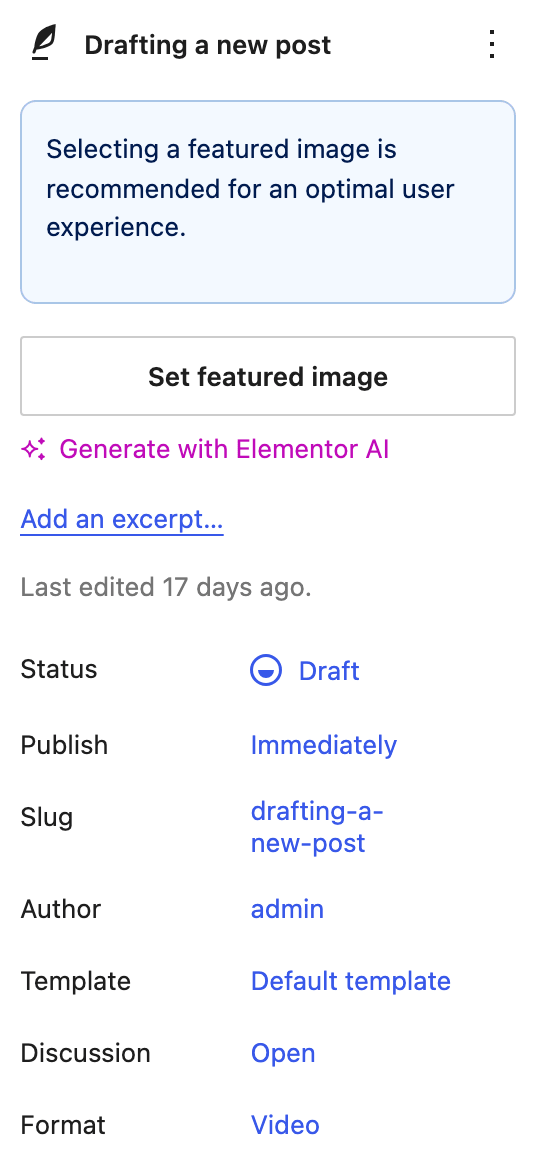
Nothing else in this article works without it. Foxiz refuses to build a video embed for a post whose format is not Video, before it reads any of the fields below.
-
At the bottom of the editor, open the Meta Boxes bar, find the Single Post Settings box and select its Video Format tab.
-
Input the video URL or you can upload your video. For most posts, paste the video's page link (for example a YouTube watch link) into Video URL; use Self-Hosted Video only for a file in your Media Library.
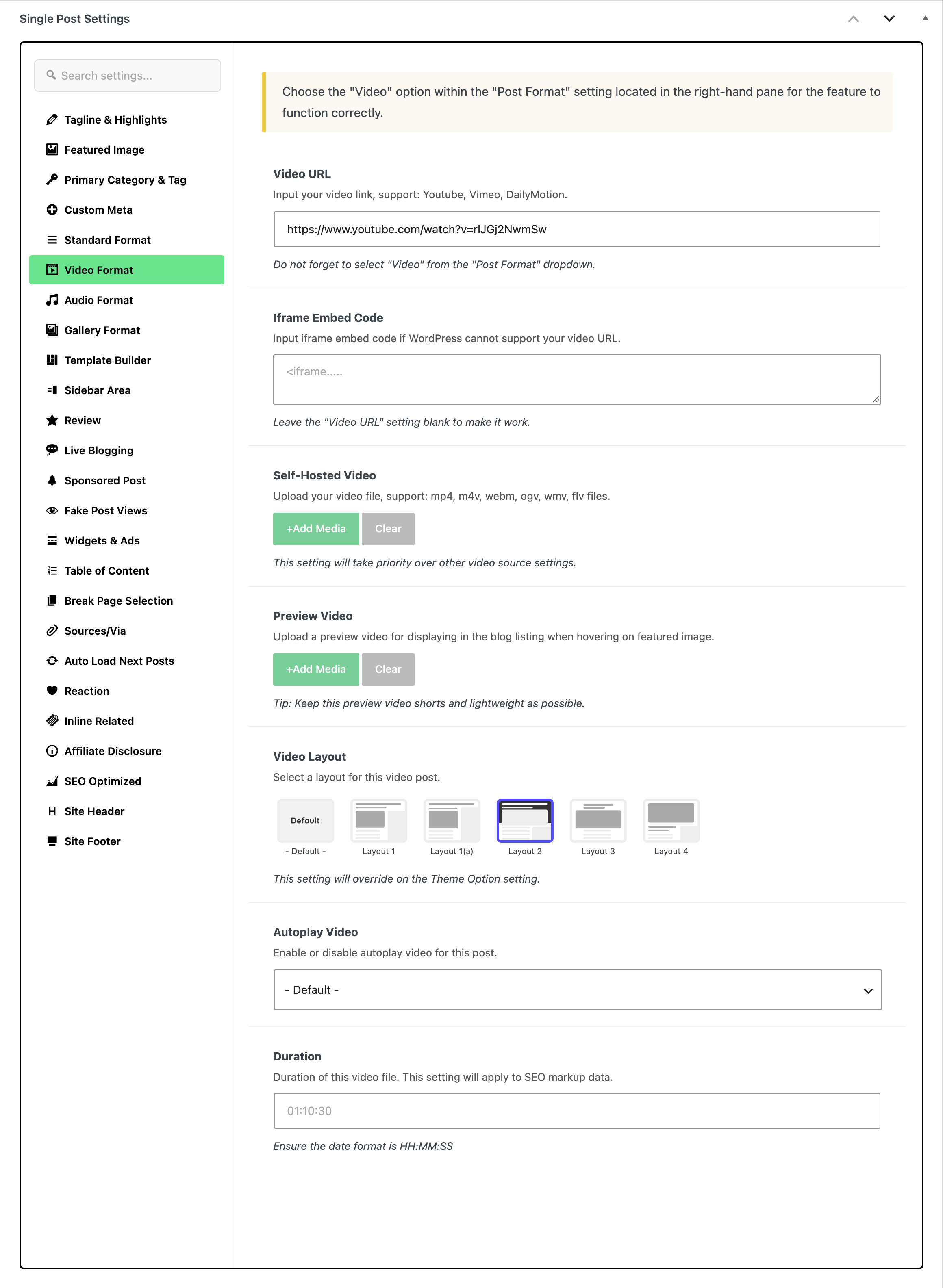
There are three fields you could put a video in, and Foxiz tries them in this order:
- Self-Hosted Video
- Video URL
- Iframe Embed Code
Fill more than one and the earlier one wins silently, so an embed code that seems to be ignored usually means Video URL is still filled in above it.
Self-Hosted Video takes mp4, m4v, webm, ogv, wmv and flv files. Iframe Embed Code keeps only
<iframe>,<video>and<audio>tags, so a provider's snippet wrapped in a script tag will not survive.The same tab holds four more fields. Video Layout and Autoplay Video start on - Default -, which keeps the site setting described after these steps; pick a value only when this post should differ.
- Preview Video: a short clip played when a visitor hovers the featured image in a listing.
- Video Layout: this post's layout, from Layout 1, Layout 1(a), Layout 2, Layout 3 and Layout 4. Default: - Default -. Layout 1, the site default, puts the title first and the video at the top of the content column. Layout 1(a) is the same with the author and date row moved under the title, beside the sidebar. Layout 2 sets the title and the video in a header with the featured image blurred behind them. Layout 3 shows the video wider than the text, below the title. Layout 4 puts the video above the title.
- Autoplay Video: - Default -, Enable or Disable.
- Duration: only used for the post's structured data. It wants
HH:MM:SS.
-
Click Save, or Publish on a new post, to save the changes.
The site wide defaults are at Theme Options > Single Post > Post Layout, in the section headed for Video Post Format. Video Layout there defaults to Layout 1 and is what - Default - on the post falls back to.
Beside it is Video Template Shortcode, which replaces the layout with a Ruby Template for every video post. Leaving it empty does not fall back to or Use Ruby Template for the Single Post in the standard section above; video posts never read that field, so a Ruby Template set for standard posts does not reach them.
The same section has two switches. Autoplay, off by default, plays the featured video when a visitor scrolls to it, and it is what a post's Autoplay Video follows when that is left on - Default -. Floating, on by default, keeps the video floating on screen as the visitor scrolls on past it. It never floats on AMP pages.
You do not have to set a featured image on a video post yourself. With a YouTube, Vimeo or Dailymotion link in Video URL and no featured image, Foxiz downloads the video's thumbnail and sets it as the featured image when you publish or update. That is Auto Featured Image from Video Platforms at Theme Options > Single Post > Featured Image, on by default.
Did this answer your question?