How to Use OpenAI Assistant
Open a post, click Write with AI in the Foxiz AI box, and a writing assistant opens beside your post. It suggests post ideas, titles and outlines, writes the article, rewrites a paragraph, fills in the excerpt, the tagline (the short subtitle Foxiz shows under the post title), the meta description, tags and categories, and checks the post for SEO before you publish.
Nothing it writes reaches your post on its own. Every answer arrives as a card that shows the change, and you decide with Add to editor.
Two ways it runs
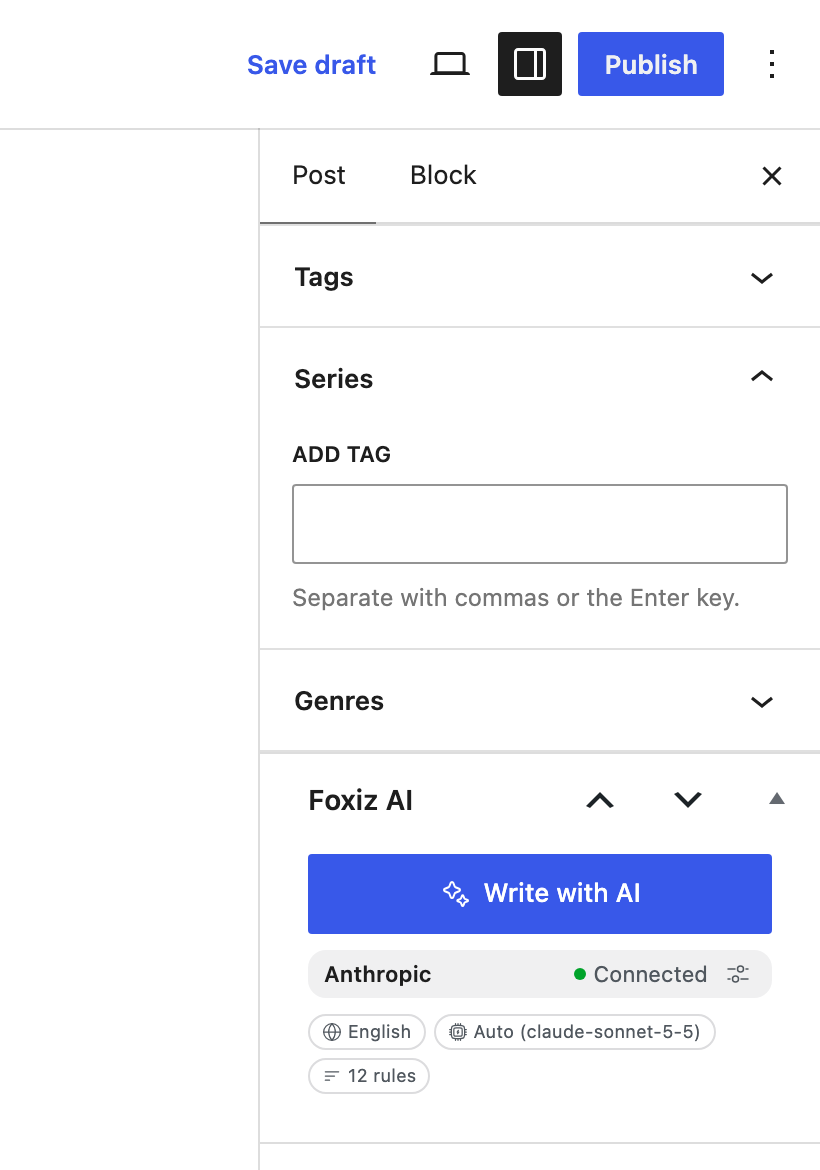
The assistant runs one of two ways, and the Foxiz AI box says which:
- Connected to a provider. You add an API key for Anthropic (Claude), OpenAI or Google in Settings > Connectors. The answer is written right in the panel, ready to add to the post. Requests are billed to your own provider account.
- Prompt mode. With no provider, every request builds a prompt instead. You paste it into ChatGPT, Claude, Gemini or any web AI chat, and bring the answer back yourself. It costs the site nothing.
So which should you use? Connect a provider if you write often: the guided writing steps and Rewrite with AI on the block toolbar only work with one, and every answer can be added with one click. Prompt mode suits a site that writes with AI now and then, or a team that already pays for a web chat.
What you need
- An activated Foxiz license. Until the site is activated, the Foxiz AI box does not appear and Foxiz > AI Assistant is not in the menu. See How to Activate the Theme.
- WordPress 6.2 or newer. Below 7.0, it runs in Prompt mode only: connecting a provider uses the AI Client and Connectors that WordPress added in 7.0.
- A role of Author or higher, unless an administrator changed Minimum Role, and permission to edit the post.
The assistant is on by default in Foxiz > AI Assistant (Enable Foxiz AI Assistant), and the box shows on posts only until you tick more types under Post Types.
The old OpenAI Assistant settings were replaced by the Foxiz AI Assistant. The OpenAI Assistant screen in the Foxiz menu and the OpenAI Assistant tab in Single Post Settings are gone, and the old API key and settings are deleted rather than carried over. To keep generating with OpenAI, or to switch to Claude or Gemini, add a key in Settings > Connectors: see How to Connect an AI Provider.
Open it
In the post editor, find the Foxiz AI box in the sidebar and click Write with AI. In the block editor two other ways open it too: Foxiz AI Assistant in the Options menu (the three dots at the top right), and Open Foxiz AI Assistant in the command palette (Ctrl+K, or Cmd+K on a Mac).
The box also shows the provider or Prompt mode, and badges for the writing language, the AI model and how many Writing Style rules are in use. Administrators get a settings icon that opens Foxiz > AI Assistant in a new tab.
The Foxiz AI Assistant window floats over the editor. Drag its header to move it, drag an edge to resize it, or collapse it with the arrow at its top left. It has two tabs:
- Write: ideas, a new post, and every change you ask for.
- Checklist: what the post still needs before publishing, whole-post improvements and the SEO check.
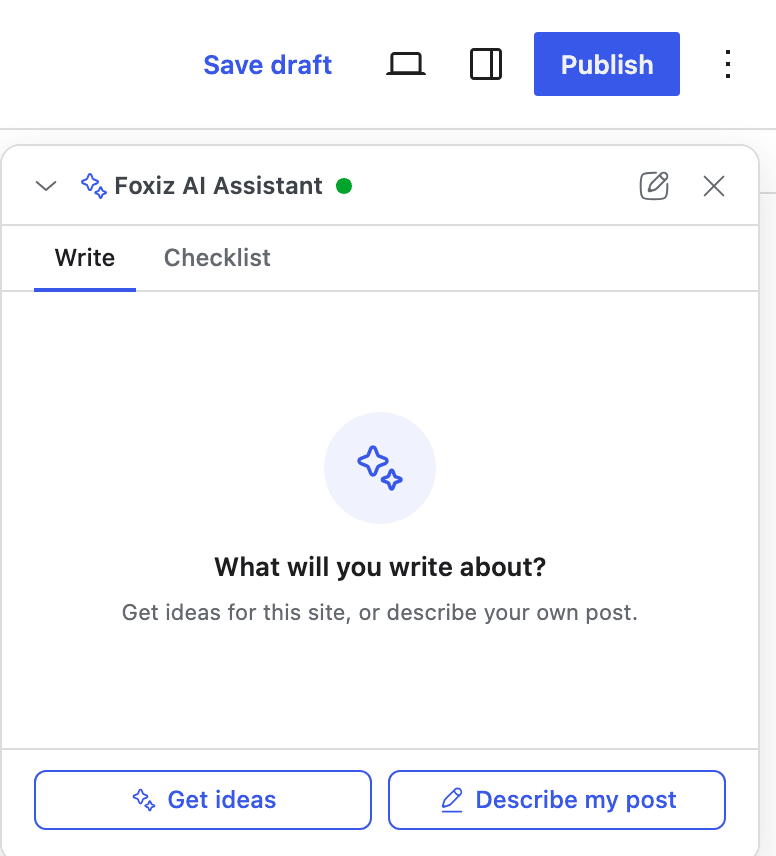
The panel works in the Classic editor too. Only Rewrite with AI needs the block editor.
The articles in this folder, in the order you need them
- How to Connect an AI Provider: add a Claude, OpenAI or Gemini key and check the connection.
- How to Teach the AI Your Writing Style: your audience, tone, language and house rules, set once before the first post so every answer sounds like your site.
- How to Write a New Post with AI: from an empty post to a full draft, through ideas, a title and an outline.
- How to Edit a Post with AI: ask for changes in the chat, and rewrite one paragraph from the block toolbar.
- How to Finish a Post with the Checklist: whole-post polish, the SEO check, then the excerpt, tags and meta.
- How to Use Prompt Mode with ChatGPT, Claude or Gemini: the same work without a connected provider.
- Tips for Better Results with AI: habits that give better drafts and lower bills, and what to do when something goes wrong.
Every setting on the Foxiz > AI Assistant screen has its own reference under Foxiz Dashboard > AI Assistant.
Did this answer your question?