Related & Popular Box
Two sections can close a single post: Related, on by default, and Popular, off until you give it a template.

They have separate settings. Foxiz picks the related posts for you; the popular section is a template you build, and its block picks the posts.
To enable the Related Section, Follow the steps below:
-
Navigate to Theme Options > Single Post > Related & Popular.
-
Ensure the "Related Section" option is enabled. It is a select rather than a switch, with - Disable -, Standard Layout and Use Ruby Template, and its default is Standard Layout, so on an untouched install the section is already on.
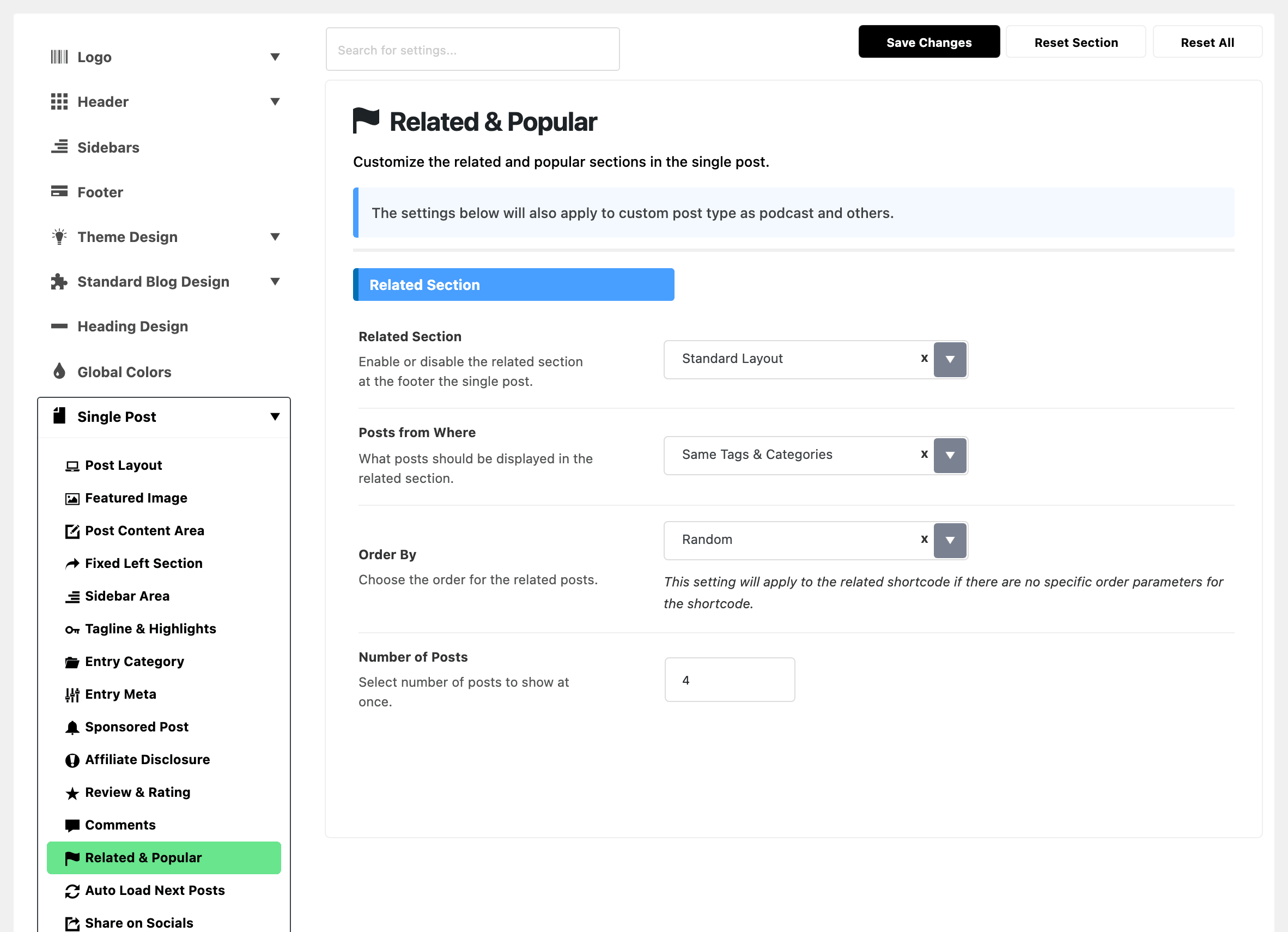
The three settings under it shape what appears: Posts from Where, which defaults to Same Tags & Categories, Order By, which defaults to Random, and Number of Posts, which defaults to 4. They keep working whichever layout you choose.
If the query comes back with nothing, the section is skipped silently, heading included. Choosing Use Ruby Template here is a longer job with its own article: How to Add Related Template Builder to Single Post.
-
Save your changes.
To enable the Popular Section, Follow the steps below:
-
Build the template:
-
Navigate to Ruby Templates > Add New Template, give it a title and click Edit with Elementor.
-
Drag one listing block onto the canvas, for example Foxiz - List 1 from the Foxiz - Standard group.
-
In the block's Content tab, open Query Settings and set Order By to a Popular value, such as Popular Published Last 30 Days.

-
Save the template, then copy its shortcode from the Template Shortcode column of Ruby Templates > All Templates.
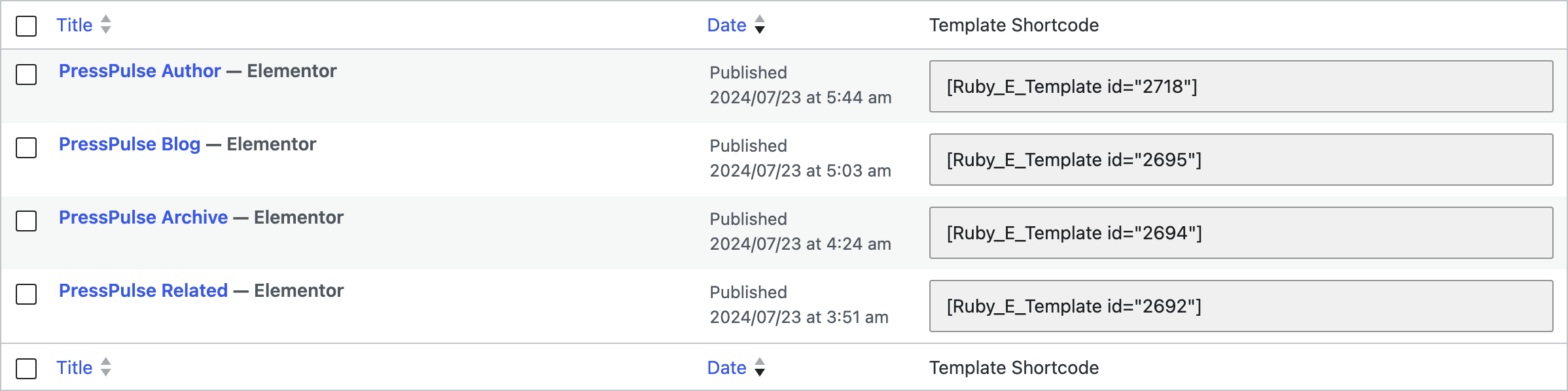
This template runs its own query. Unlike the related template, Foxiz does not hand it a prepared set of posts, so leave the block's Query Mode on its default. The Popular values rank posts by views, which needs the Light Views Counter plugin active; without it they fall back to the most commented posts.
-
-
Navigate to Theme Options > Single Post > Related & Popular > Popular Section > Template Shortcode
-
Input a ruby template shortcode into the Template Shortcode input
![Theme Options with Single Post expanded in the section list and Related & Popular highlighted, beside the Popular Section group: its Template Shortcode field holding [Ruby_E_Template id="2692"]](/docs/assets/images/overview-single-post-popular-section@2x-bf6046f608c95af77dae757ab706eae0.png)
There is no on or off switch for this one. The field being empty is what disables it, and a shortcode in it is what turns it on.
-
Save your changes.
Two limits are worth knowing before you build the template. The popular section is printed only on single posts of the post type, so podcasts and custom post types never show it, while the related section above does apply to them. And it always renders below the related section, at the very end of the post footer.
Automatically Display Related Posts via Theme Options:
Foxiz allows you to display related posts automatically. For more details, refer to the guide below:
Did this answer your question?