How to Create a Category?
Categories group your posts by subject, and a category can sit under a parent to make a hierarchy. Foxiz adds its own settings to each category once it exists: colours, a header, a layout.
Add the category
To create a category, follow the steps below:
-
Navigate to Posts > Categories page.
-
On the left side of the page, you will see a tab that allows you to create categories. Its heading is Add Category.
-
Fill in the category name, its slug (will be used in the category URL).
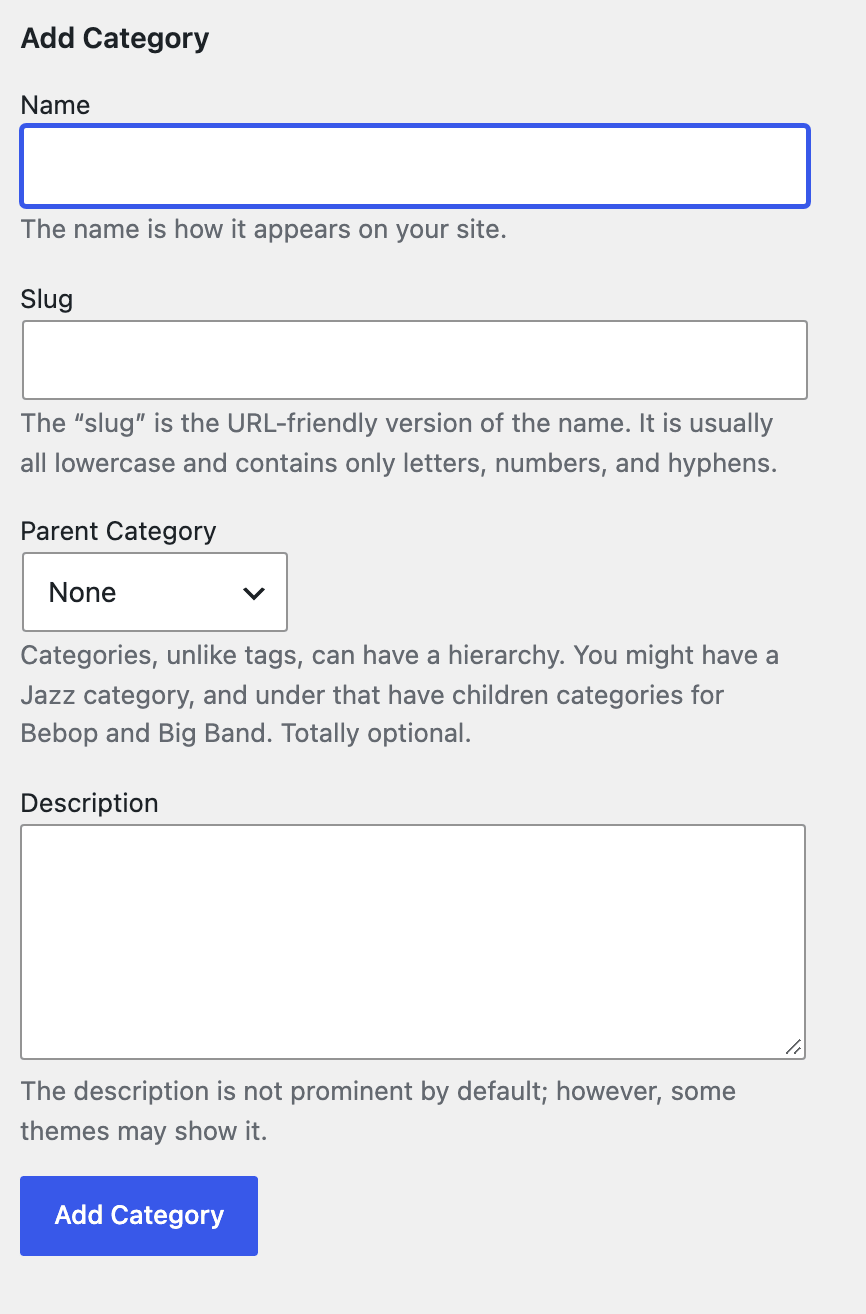
On screen the form is four fields, Name, Slug, Parent Category and Description.
Only the name is required; leave the slug empty and WordPress builds one from the name. Use Parent Category to make this a child of an existing one, which is the hierarchy described above.
-
Click the Add Category button to create the category. Older versions of WordPress label it Add New Category.
Find the Foxiz settings for the category
The new category appears in the list on the right. Open it with its Edit link and Foxiz adds a panel of its own to that screen, Foxiz Category Settings, holding the colours, the header, the listing layout and the single post layout for everything in this category. See How to Config Your Category?.
If the category colour does not show
A category with no published posts is skipped when Foxiz writes its per category styles, so any colour you set there does nothing until the first post is published in it. Publishing that post does not rewrite the styles by itself: open the category again and click Update once, and the colour appears.
Did this answer your question?