How to Enable/Disable the Newsletter Section Below the Content of Single Posts
Enable Newsletter Below Content Through Theme Options
![Theme Options with Single Post expanded in the section list and Post Content Area highlighted, beside the Bottom Newsletter group of that panel: Bottom Newsletter on, Newsletter Heading Sign Up For Daily Newsletter, the default Newsletter Description, Newsletter Shortcode [mc4wp_form] and the Policy Text with its Terms of Use and Privacy Policy links](/docs/assets/images/overview-single-post-bottom-newsletter@2x-9c94aca558bb2ce0c445ebcd788cc1c4.png)
To get started, follow the steps below:
-
Navigate to Theme Options > Single Post > Post Content Area and scroll down to the Bottom Newsletter section.
-
Bottom Newsletter: turn it on to show the newsletter form at the bottom of the post content. It is off by default, and the four fields below it do not appear on the screen until it is on.
-
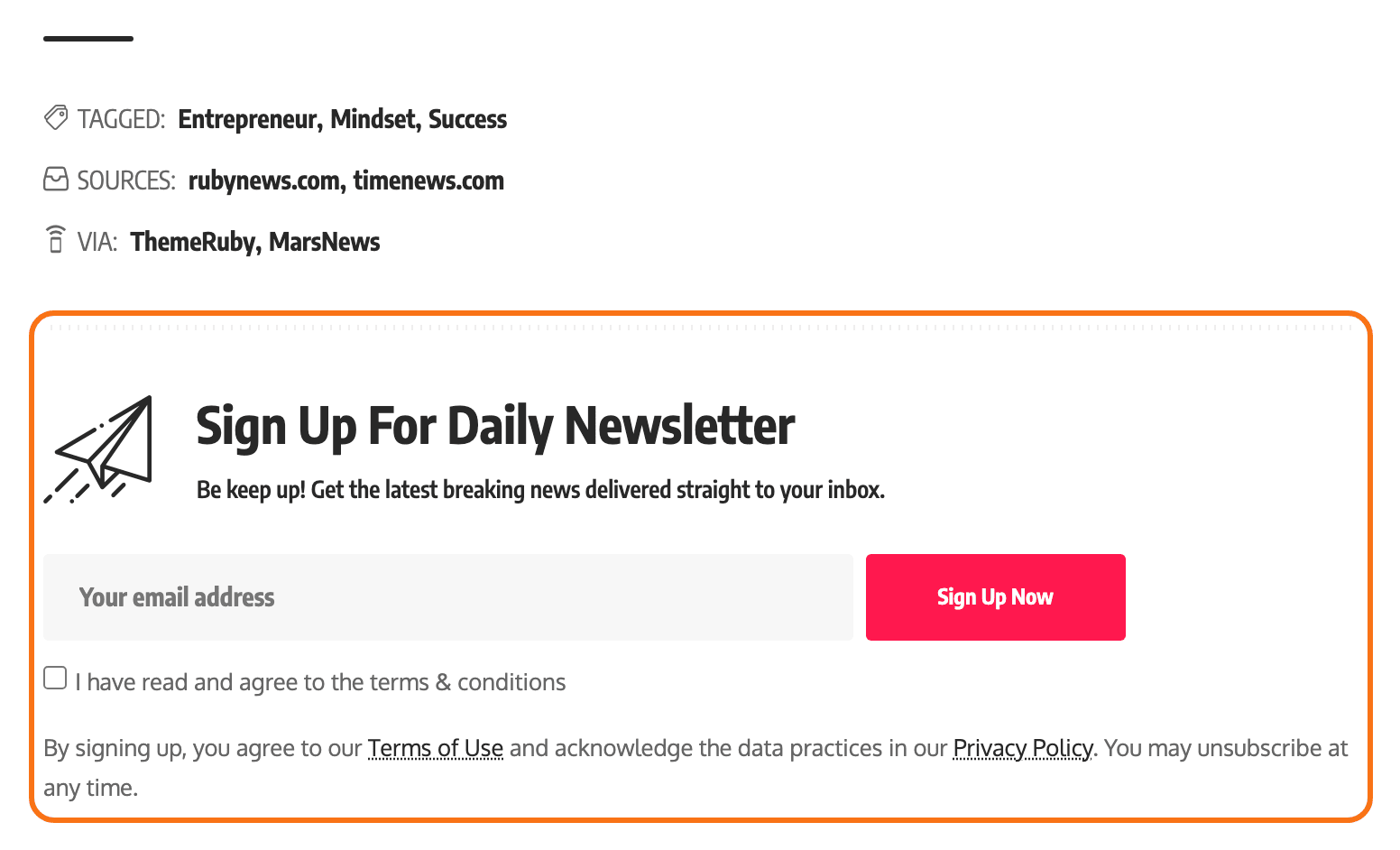
Newsletter Heading: type a heading for the newsletter section. Leave it alone and it reads
Sign Up For Daily Newsletter. -
Newsletter Description: type a short description for the newsletter. Its default is
Be keep up! Get the latest breaking news delivered straight to your inbox. -
Newsletter Shortcode: paste the shortcode or script of your subscribe form. For the management of the Mailchimp form structure, please refer to this documentation: MC4WP Form Structure
By default it holds
[mc4wp_form], so with Mailchimp for WordPress active there is a working form here the moment you turn the switch on, and without that plugin the box prints the shortcode as text. Any other subscribe plugin's shortcode goes here instead. -
Policy Text: type the policy text shown with the form. Raw HTML is allowed. By default this one holds real text and two dead links: the Terms of Use and Privacy Policy links both point at
#until you replace them.
This box is drawn at the very end of the post content, after the tags and source rows, and it is the same box the [ruby_static_newsletter] shortcode produces, so you can put one anywhere else with that shortcode. It is a global setting with no per post override.
Enable Newsletter Below Content with Foxiz - FW Newsletter Widget
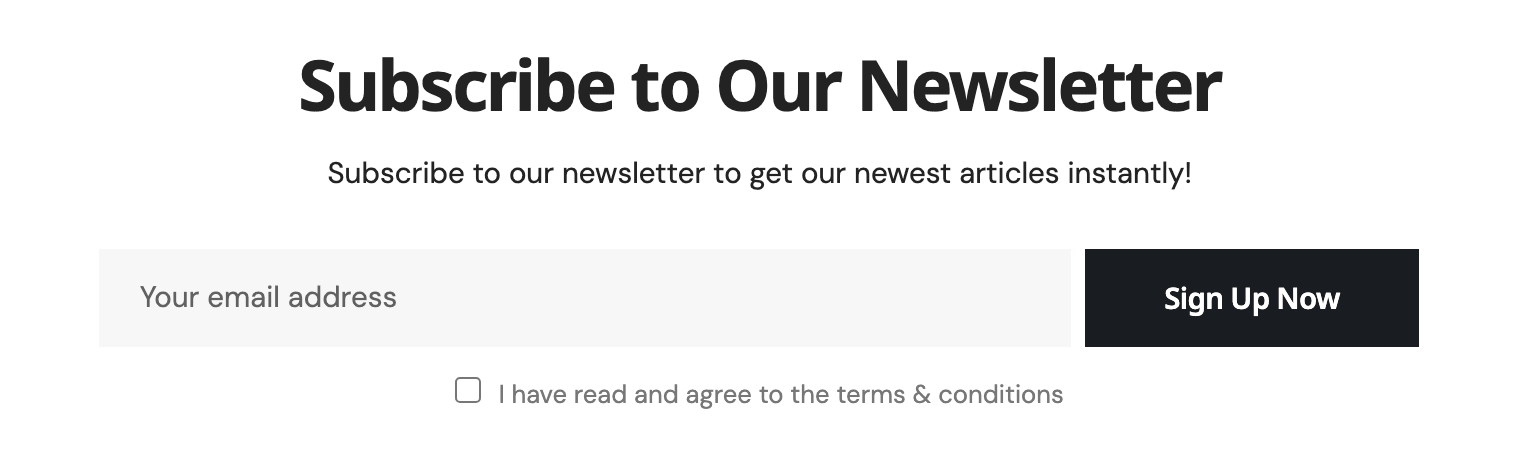
To get started, follow the steps below:
-
Navigate to Your Dashboard > Appearance > Widgets.
-
Find the widget "Foxiz - FW Newsletter" on the left screen. Its description reads "[Full Width Widget] Display a Mailchimp sign-up form in the full width sections", which is the clue to where it belongs: it is built for full width areas, not for a sidebar.

-
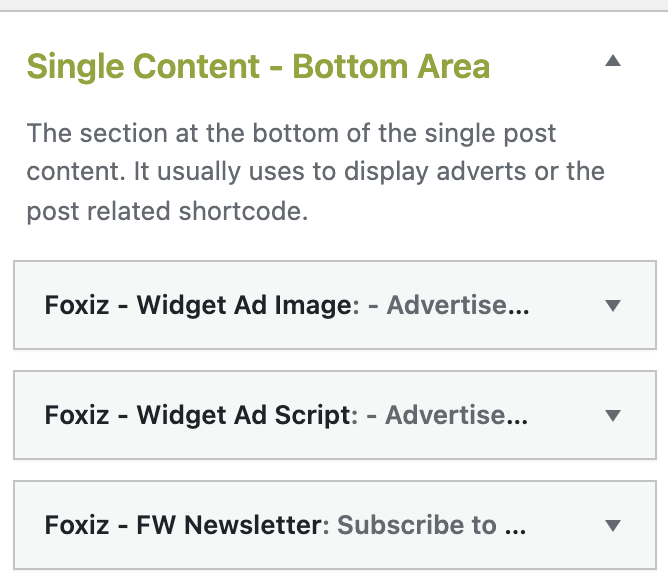
Drag and drop it into the Single Content - Bottom Area section.
-
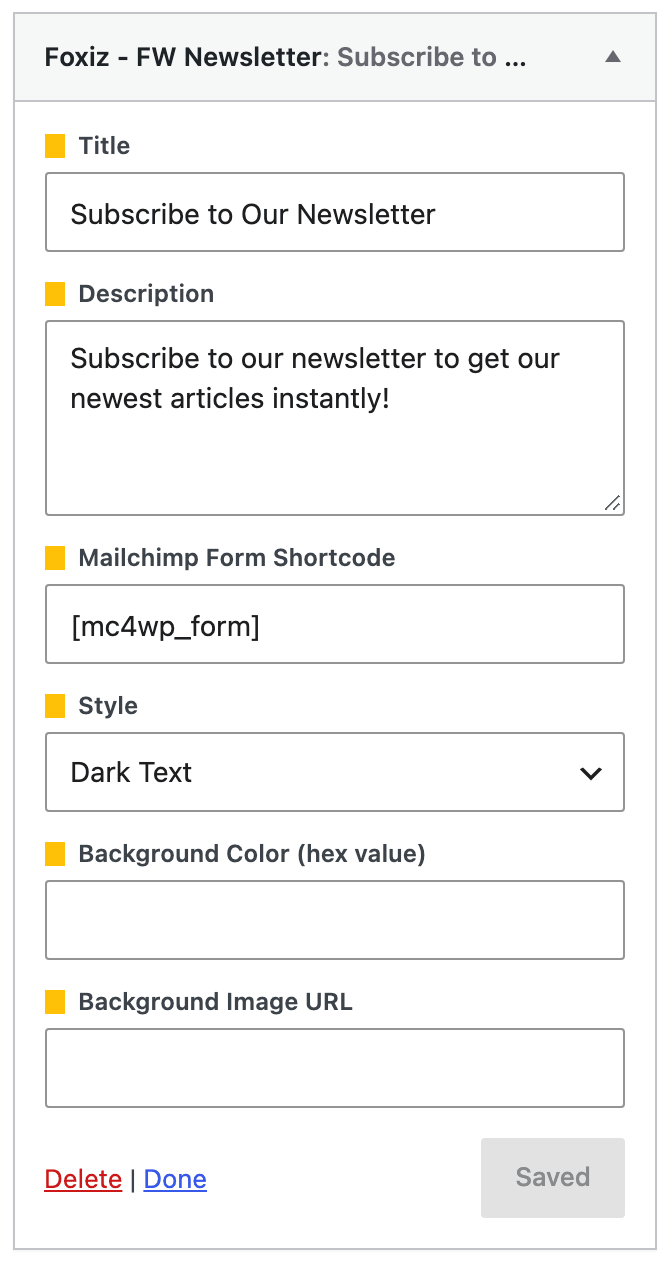
In the Foxiz - FW Newsletter widget section: refer to the options and customize it according to your needs. There are six:
- Title
- Description
- Mailchimp Form Shortcode: starts at
[mc4wp_form]. - Style: Light Text or Dark Text. Default: Dark Text. Pick Light Text only over a dark background; the widget switches to the theme's light scheme when you do.
- Background Color (hex value)
- Background Image URL: the address of an image from your media library.
-
Click Save at the foot of the widget. The button then reads Saved.
The widget area lands higher up the page than the Theme Options box: Single Content - Bottom Area prints immediately after the post content and before the tags, and the Bottom Newsletter box prints after them. Turning both on gives you two newsletter boxes with the tag row between them.
So pick one. The Theme Options box suits most sites: one switch, and it is ready the moment Mailchimp for WordPress is active. Use the widget when you want a background colour or image behind the form, or want to hide it on some posts.
Unlike the Theme Options box, this one can be switched off for a single post:
- Open the post in the editor. At the bottom of the editor, open the Meta Boxes bar and find the Single Post Settings box.
- Open the Widgets & Ads tab.
- Set Bottom Content - Widgets Area to Disable.
- Click Save, or Publish on a new post.
That hides the whole area for that post, widget and all.
Did this answer your question?