How to Use Gutenberg Blocks
This theme provides support for its own Gutenberg blocks, offering enhanced design flexibility and seamless content creation.
They come from the Foxiz Core plugin, not from the theme, so they disappear from the inserter if that plugin is deactivated.
To getting started, Follow the steps below:
-
Go to your website's Dashboard, and then select "Posts" followed by "All Posts"
-
Click Add Post to start a new post, or Edit under an existing one. Either opens the Gutenberg editor.
-
Click where the block should go, then click the + block inserter at the top left of the editor. Type Foxiz in the search box and click the block you want to add it.
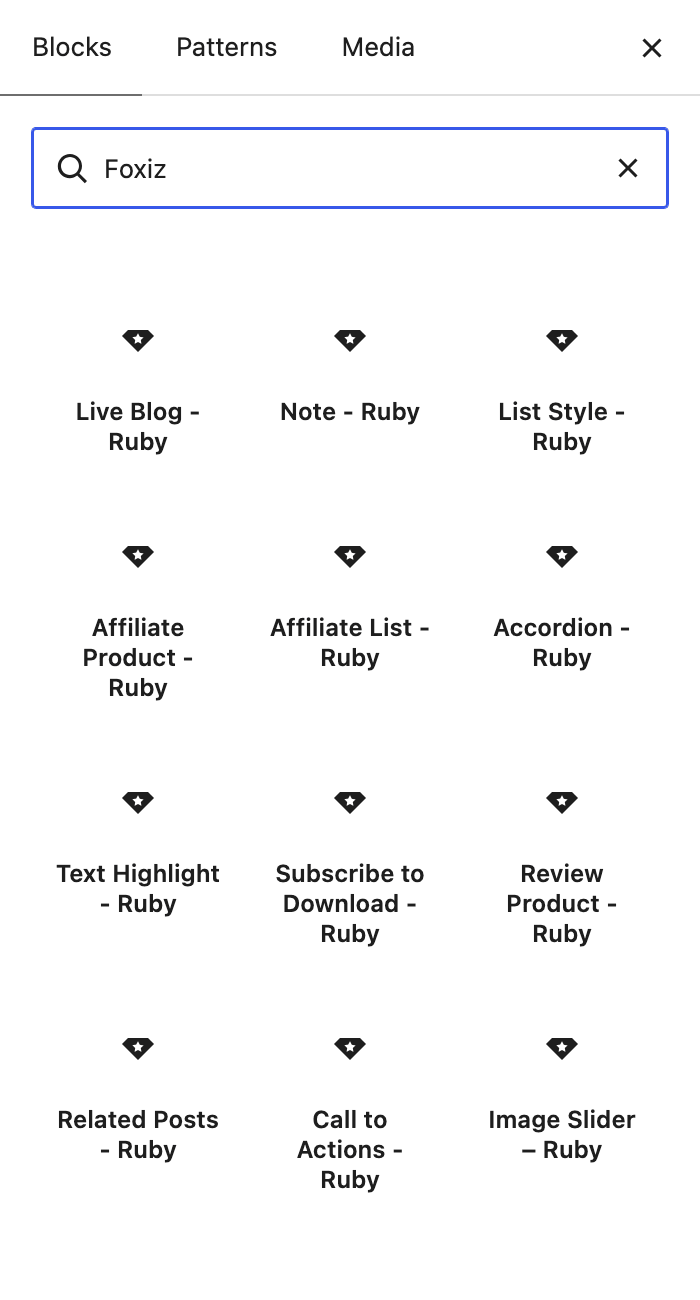
Searching Ruby and searching Foxiz return the same twelve blocks. Every one of them has "Ruby" in its title, and Image Slider – Ruby is the only one whose keywords leave out
foxiz; it comes back from a Foxiz search anyway, because the inserter matches a block's registered name as well as its title and keywords, and its name isfoxiz/image-slider. They all sit in the inserter'swidgetscategory.Fourteen blocks come with Foxiz Core. Twelve are in the inserter, and each has its own article:
- Related Posts - Ruby: a box of related articles inside the post.
- List Style - Ruby: an icon or emoji in front of every list item.
- Accordion - Ruby: collapsible rows, each an Accordion Item, with optional FAQ structured data.
- Note - Ruby: a boxed note, tip or warning, optionally collapsible.
- Text Highlight - Ruby: a bold line with chosen words marked in colour.
- Call to Actions - Ruby: a heading, description, image and buttons in one box.
- Image Slider – Ruby: several images as a swipeable slider.
- Affiliate Product - Ruby: one affiliate product in the content.
- Affiliate List - Ruby: one product across several stores, a row per store, each an Affiliate List Item.
- Review Product - Ruby: a product review with ratings, pros and cons, and a summary.
- Subscribe to Download - Ruby: a file readers get in exchange for their email address.
- Live Blog - Ruby: one update in a live blog post.
For a green tick on an ordinary list, without the List Style block, see Green ticks on an ordinary list. A how-to goes with the download block: How to Collect Email Lists When Using the Gutenberg Subscribe to Download Block.
Two of the fourteen never appear in the search at all. Accordion Item and Affiliate List Item are declared as children of Accordion - Ruby and Affiliate List - Ruby, so you add them from inside the parent block rather than from the inserter.
Did this answer your question?