How to Enable or Disable Comments?
Comments are switched off in two places:
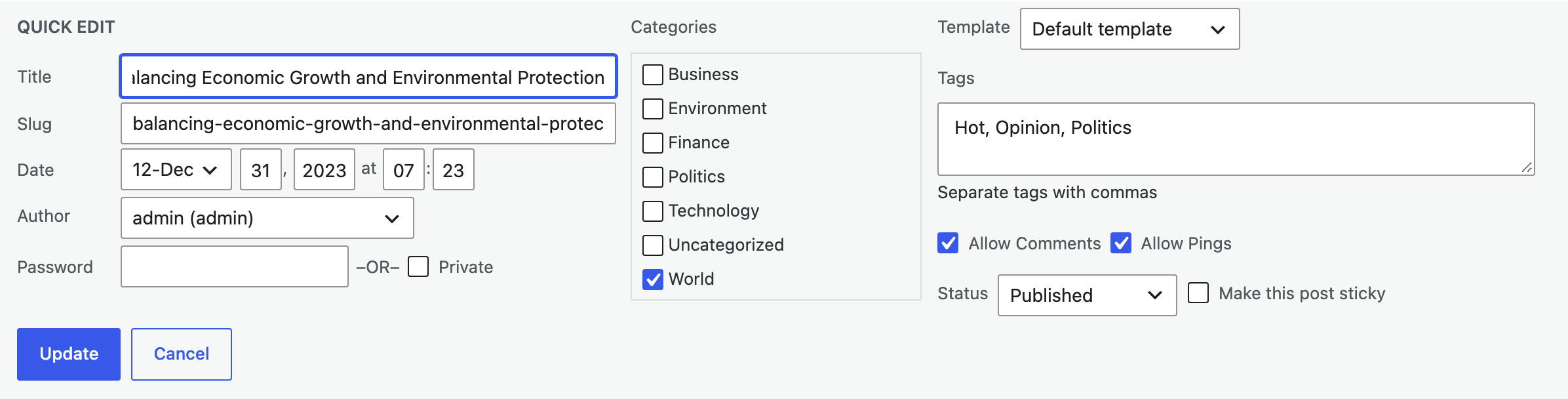
- Allow Comments, in the post's Quick Edit row, turns them off for that post.
- Disable All Comments, at Theme Options > Single Post > Comments, turns them off on every post.
Disable All Comments is the stronger of the two: while it is on, ticking Allow Comments on a post brings nothing back. If you decide post by post, leave it off.
Turn comments off for one post
To get started, follow the steps below:
-
Navigate to Posts > All Posts
-
Hover over the post you want to change, then click the Quick Edit link under its title.
-
To disable comments, uncheck the Allow Comments option, then click Update.
Turn comments off for the whole site
That covers one post at a time. Two Foxiz settings sit above it, and both are in Theme Options > Single Post > Comments.
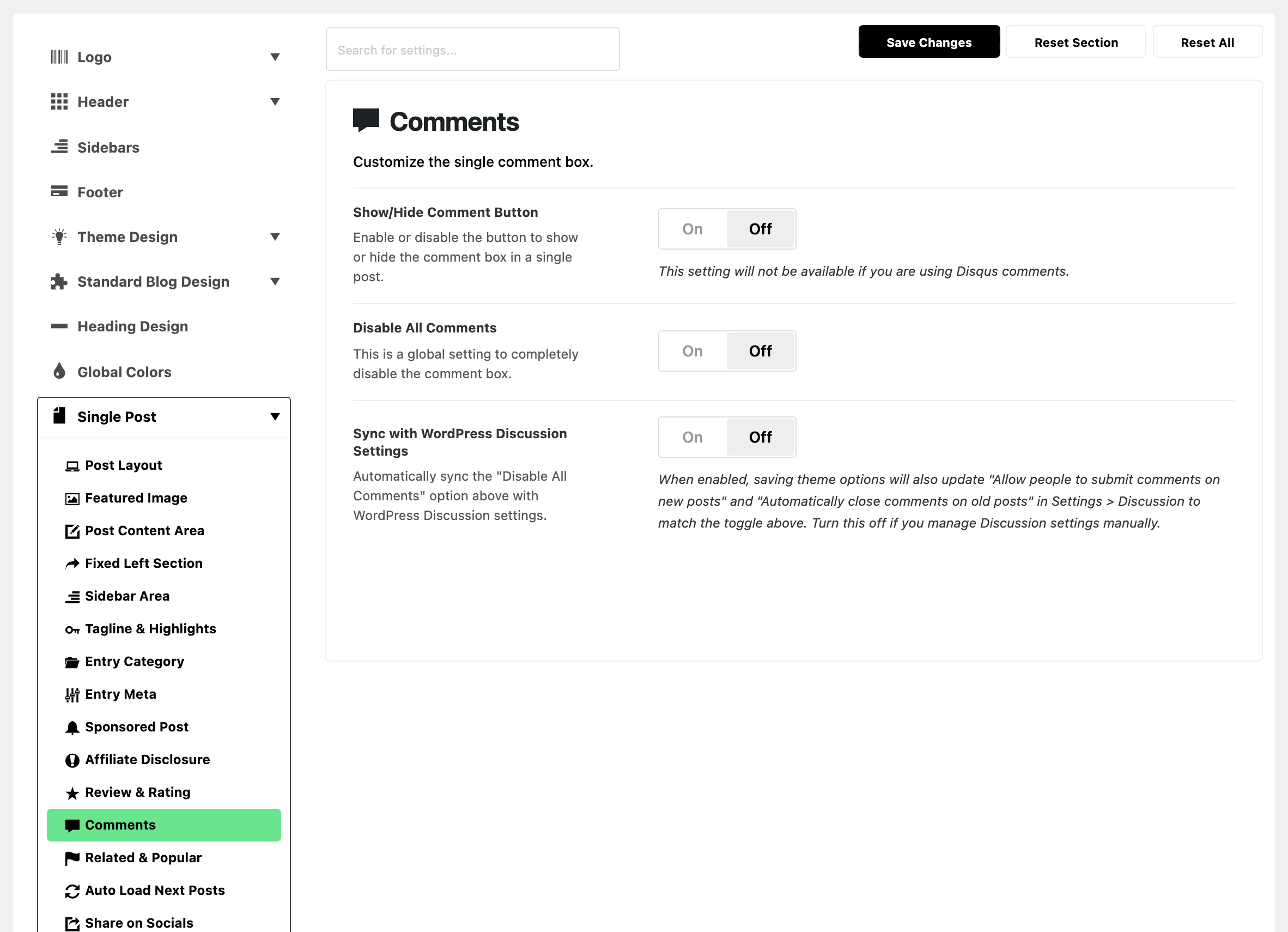
Disable All Comments is off by default and removes the comment box from every post when you turn it on. If comments have vanished from a site and Quick Edit looks right, this is the switch to check.
Sync with WordPress Discussion Settings is also off by default. Turn it on and saving Theme Options writes Disable All Comments through to Settings > Discussion, changing Allow people to submit comments on new posts and Automatically close comments on old posts to match. Leave it off if you manage that screen by hand.
Other settings that change the comment box
The third setting on that screen, Show/Hide Comment Button, does not disable anything. It puts a button in front of the comment box so readers open it themselves, and it is off by default.

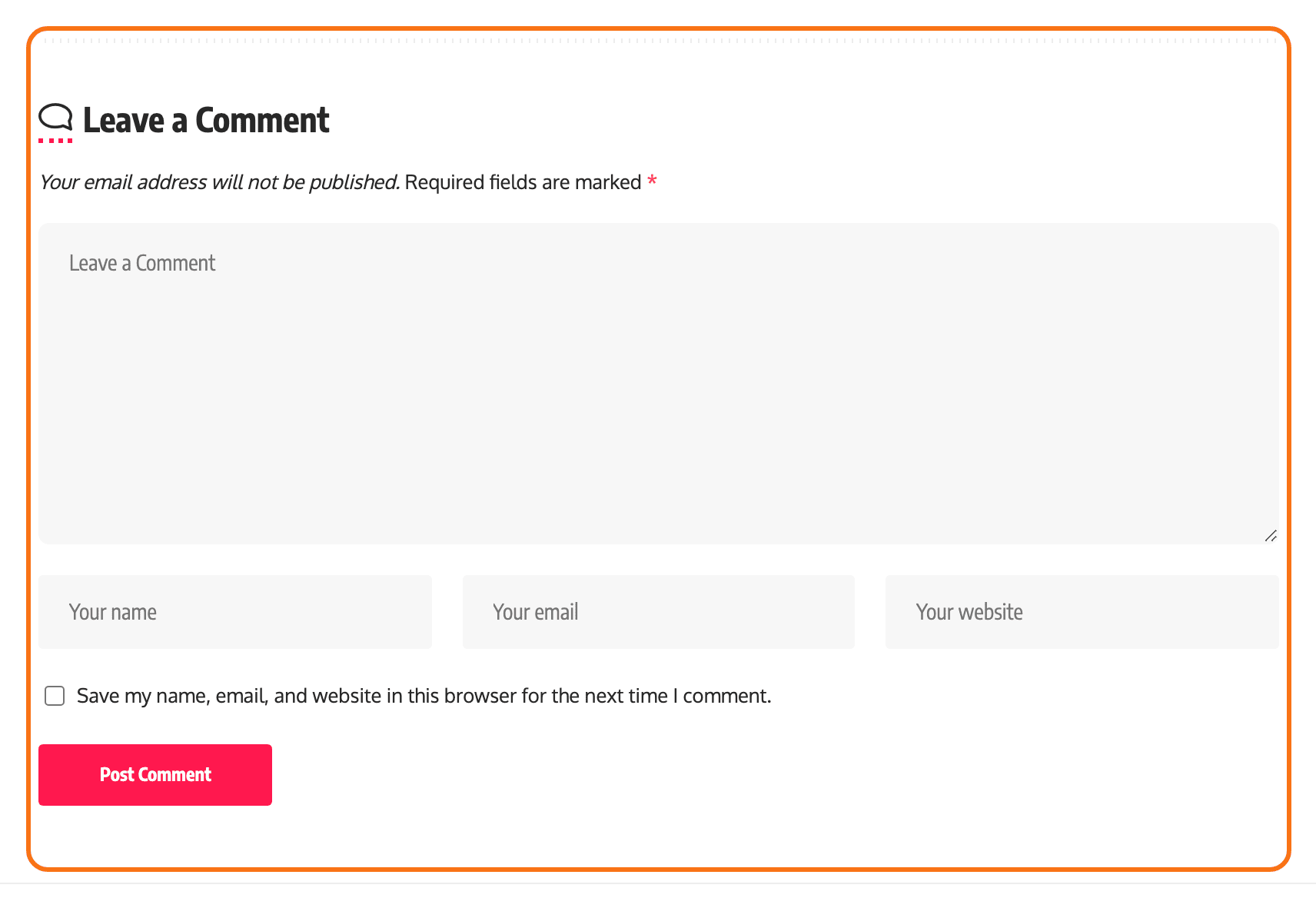
One more thing can replace the comment box rather than hide it. If the post has User Rating in Comments set to a value that enables it, readers get a rating and review form in place of the ordinary comment form. See How to Create a Review Post?.
Did this answer your question?