How to Create a New Post?
Creating a Post
- Navigate to Posts > Add Post. Older versions of WordPress label it Add New.
- Type the title in Add title, then write the content below it.
- In the Post sidebar on the right, pick the post's Format and click Set featured image. Both are explained below.
- Click Publish, or Save draft to finish it later.
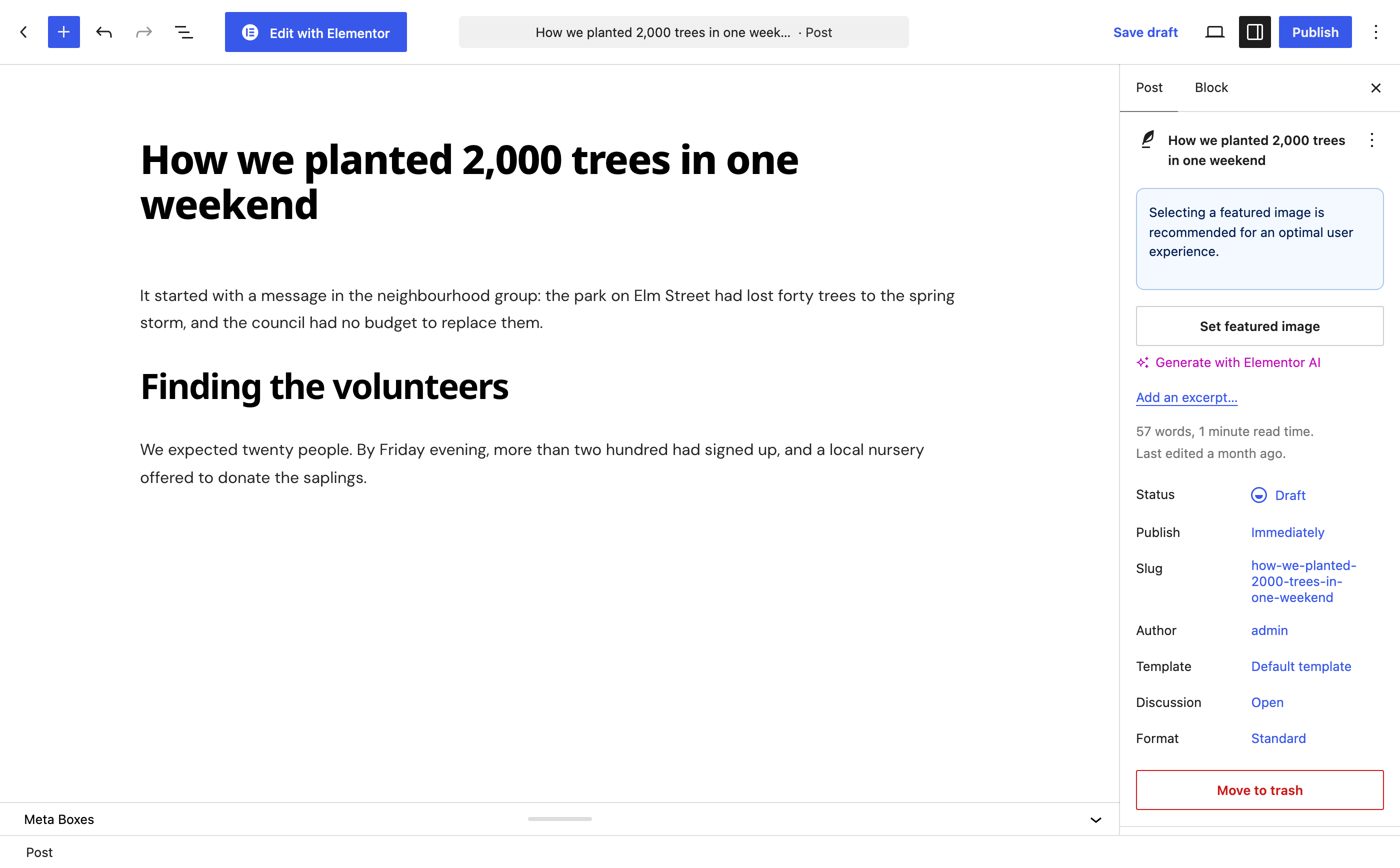
Format offers four choices. Pick the one that matches what leads the post:
- Standard: a normal post, led by its featured image.
- Video: a post led by a video player. Add the video on the Video Format tab, for example a YouTube link in Video URL.
- Audio: a post led by an audio player. Add the audio on the Audio Format tab, in Audio URL.
- Gallery: a post led by an image slider. Add the images on the Gallery Format tab, with Upload Gallery.
Those tabs are in the Single Post Settings box, described under Individual post settings. Standard Format has a tab too, but it holds only a layout picker.
WordPress has nine formats, and Foxiz uses only these four. Aside, Image, Quote, Link, Status and Chat never appear in the list.
Further information from WordPress codex: Posts Screen
Post featured images
Give every post a featured image. Foxiz uses it in every block and listing layout across the site.
To add one, follow the steps below:
-
Open the post in the editor, or start a new one at Posts > Add Post.
-
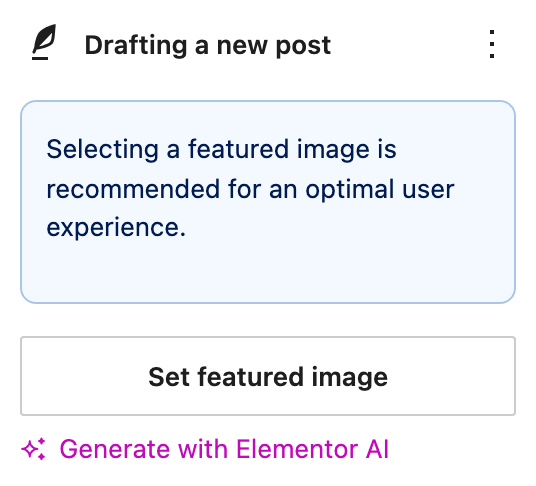
In the Post sidebar on the right, click Set featured image.
-
Pick an image from the Media Library, or upload one, and click Set featured image at the bottom of the window.
Gallery, video and audio posts replace that image at the top of the post with their own slider or player, so on those three the featured image is what listings and social shares use rather than what a reader of the post sees first.
How the image behaves at the top of a post is set at Theme Options > Single Post > Featured Image, in four settings:
- Featured Image Size is the crop size used at the top of the post. Its default is - Default -, which leaves each layout its own size. One post can choose differently with Featured Crop Size on the Featured Image tab of its Single Post Settings.
- Featured Lightbox is on by default: clicking the image opens it full size in a popup, with its caption and attribution underneath. Turn it off and the image is not clickable.
- Auto Featured Image from Video Platforms is on by default, and saves you this whole section on video posts. When you publish or update a post that has no featured image and has a YouTube, Vimeo or Dailymotion link in its Video URL field, Foxiz downloads that video's thumbnail into your Media Library and sets it as the featured image. Saving the post again reuses the same image rather than downloading a copy. A link from any other host gets nothing, so set the image by hand there.
- Featured Caption Fallback decides what shows under the image when the post's own Caption Text, on the same Featured Image tab, is empty. - Fallback -, the default, uses the caption the image has in the Media Library. No Fallback shows no caption at all unless you typed one on the post.
Customizing posts
You can change how your posts look in two places, and the narrower one wins:
- Theme Options > Single Post sets the look of every post on the site.
- Single Post Settings, the box under the editor, changes one post only. A field left on - Default - there keeps the Theme Options value.
Start in Theme Options, so most posts need nothing of their own.
Global settings
These settings apply to every post. Navigate to Theme Options > Single Post.
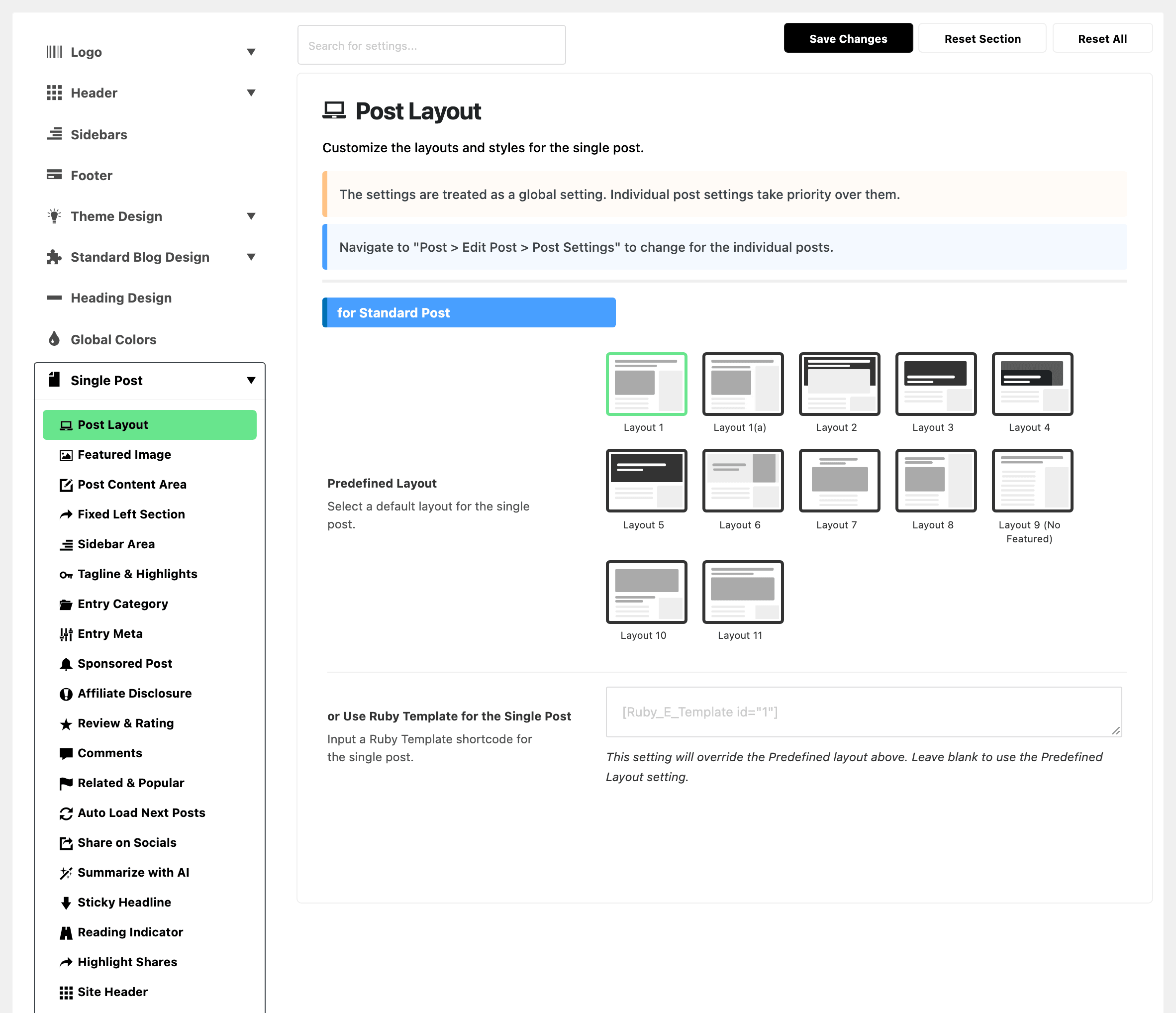
Single Post opens twenty subsections. The first four are Post Layout, Featured Image, Post Content Area and Fixed Left Section. The last two are Highlight Shares and Site Header.
Individual post settings
These settings apply only to the post you are editing.
- Open the post in the editor.
- At the bottom of the editor, click the Meta Boxes bar to open it.
- Find the Single Post Settings box. Its tabs run down the left, from Tagline & Highlights to Site Footer.
- Open a tab and change only the fields this post needs. Leave the rest on - Default -, so they keep following Theme Options.
- Click Publish, or Save on a post that is already published.
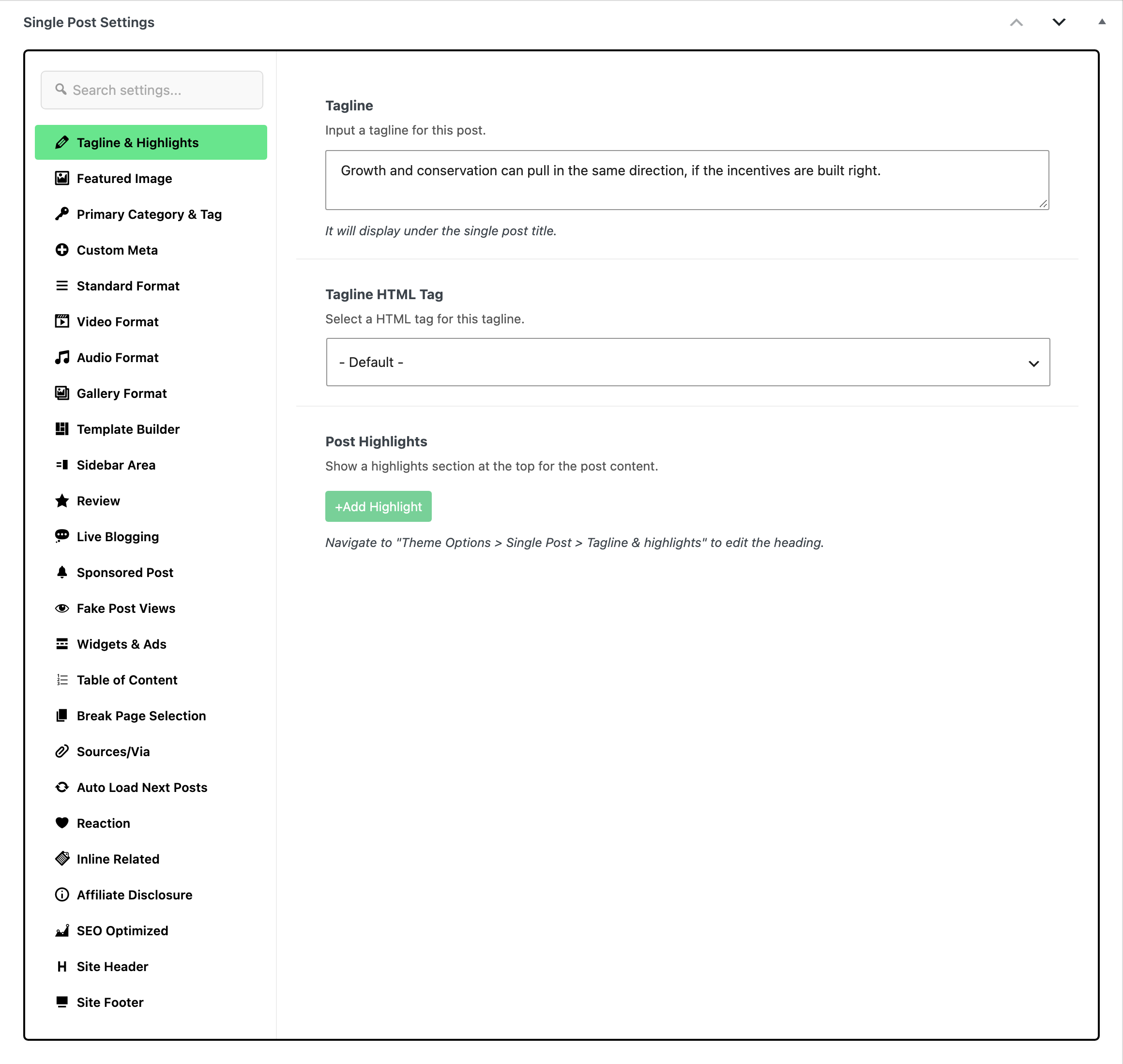
The post layout can also come from a Ruby Template (a layout you build in Elementor) or the post's category. Foxiz uses the first of these that is set, the same order Post Settings & Layouts gives:
- The Template Builder tab of the post's box: a Ruby Template there takes priority over everything.
- The post's own layout: Standard Layout, or the layout field on the Video Format, Audio Format or Gallery Format tab.
- The post's primary category, or its first category when no primary is set, while the post is left on - Default -: a Use Ruby Template for Single Post Layout set on the category applies to every format, and its Single Post Layout applies to standard posts.
- Theme Options > Single Post > Post Layout, when none of the above sets one.
The AI writing tools are not a tab in this box. On an activated site the editor sidebar holds a Foxiz AI box, and its Write with AI button opens the AI Assistant, which drafts titles, outlines, content, excerpts, taglines, meta descriptions, tags and categories for the post. The AI Assistant guide walks through it.
Did this answer your question?