How to Config Entry Meta Info in Single Post?
The entry meta bar is the line under a single post's title: author, date, comments, views and so on. You choose which of these show, and in what order, in Theme Options.

To get started, follow the steps below:
-
Go to Foxiz > Theme Options > Single Post > Entry Meta.
-
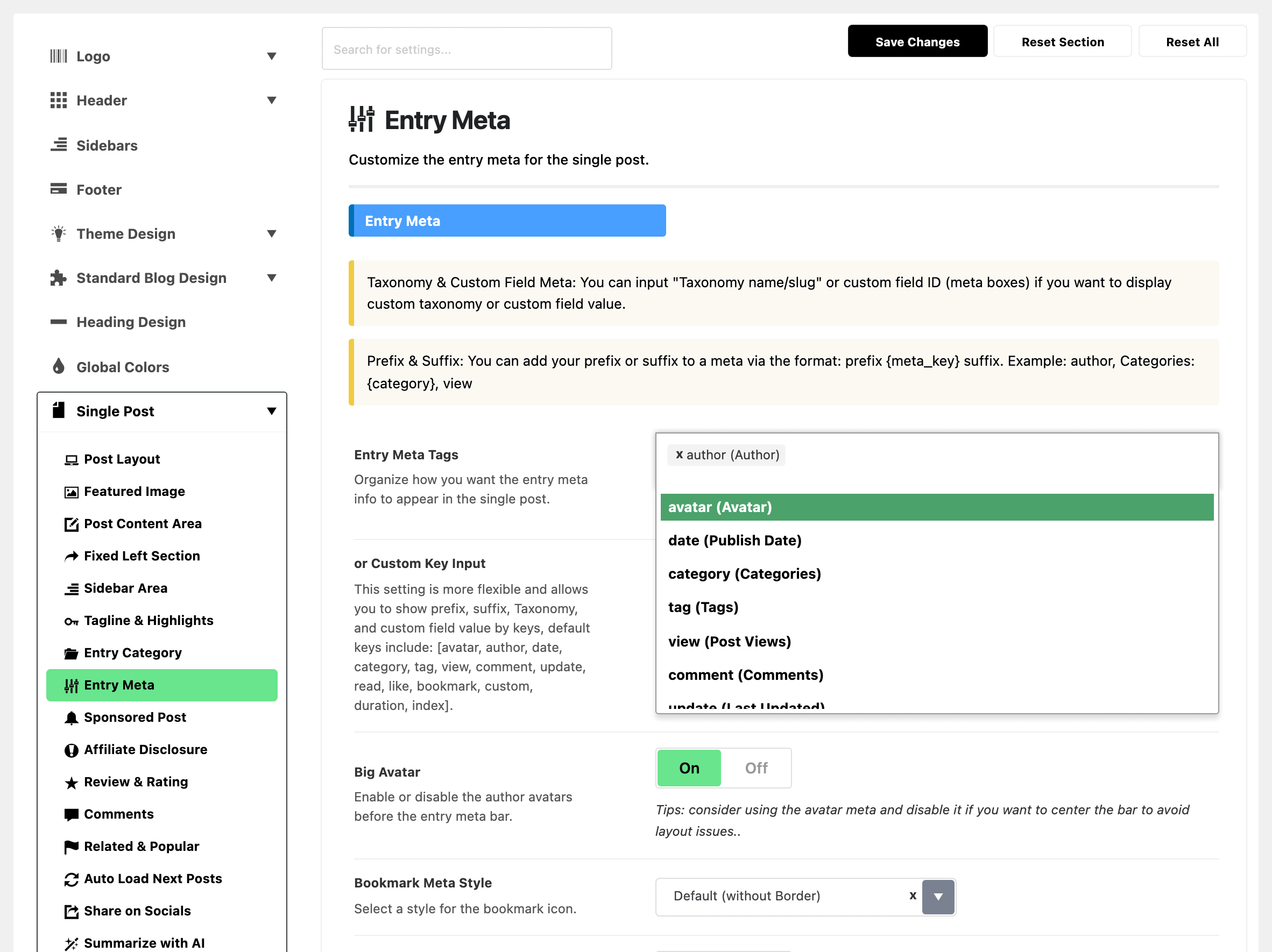
In the Entry Meta group, click the Entry Meta Tags box. A list of tags opens.
-
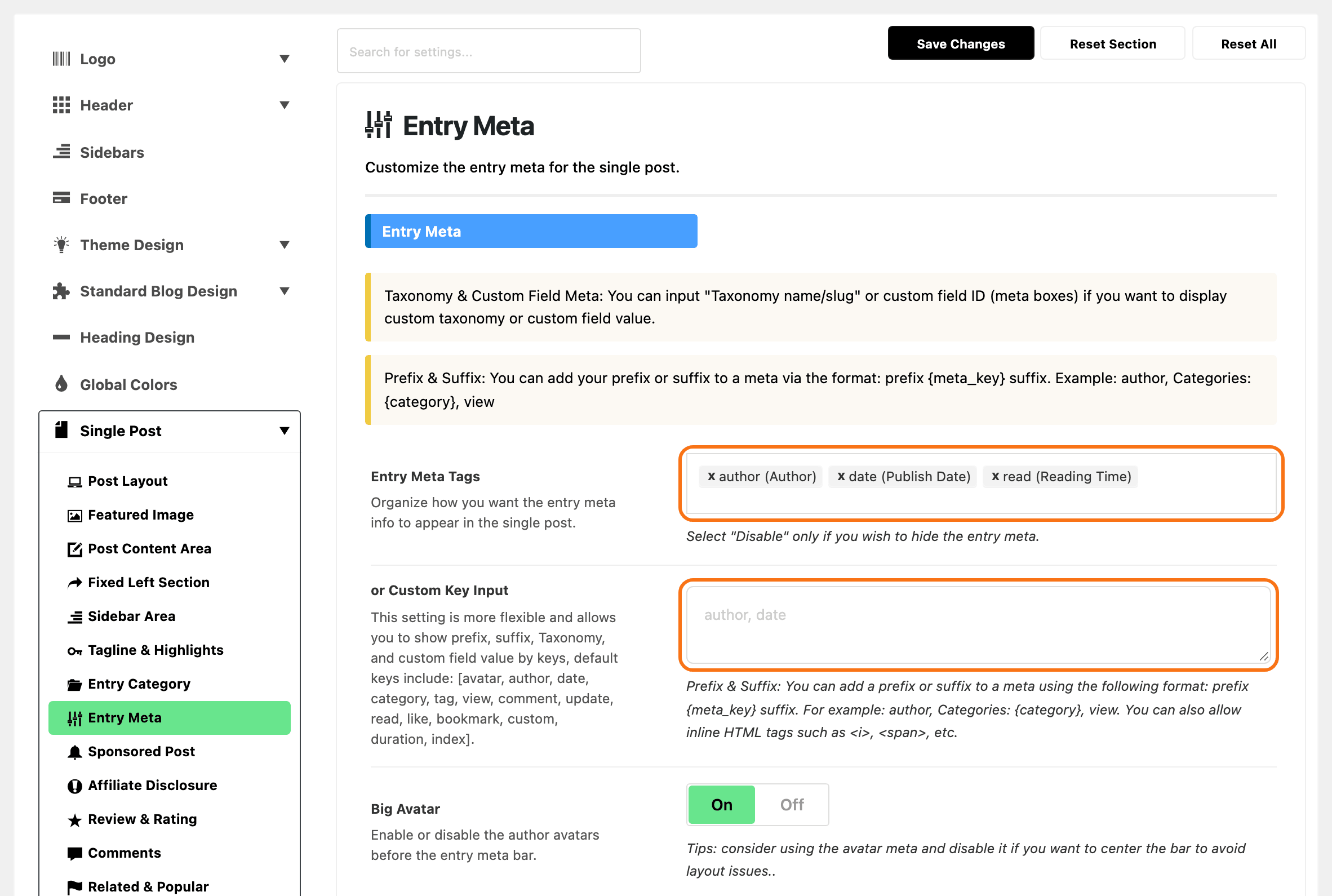
Click the tags you want, one at a time. They show in the bar in the order you pick them. To remove one, click the × on it. The list offers:
avatar(Avatar): a small author photo.author(Author): the author's name.date(Publish Date): when the post was published.category(Categories) andtag(Tags).view(Post Views): needs the Light Views Counter plugin, which the Foxiz dashboard offers to install.comment(Comments).update(Last Updated): when the post was last edited.read(Reading Time).bookmark(Bookmark): the save for later button.like(Like/Dislike).custom(Custom): the custom meta you set up at Theme Options > Theme Design > Custom Meta. Until you do, it shows its fallback or nothing.- Disabled: hides the whole bar. Pick it on its own, with nothing else in the box: it only works as the first item.
A new install has only
authorselected. -
Make sure or Custom Key Input, the box right under Entry Meta Tags, is empty. If it holds anything at all, the bar shows those keys and ignores your list.
-
Click Save Changes.
Custom Key Input
or Custom Key Input is the box you left empty in step 4. Fill it only when you need it, because it replaces the list.
Type the same keys, separated by commas, such as author, date, read. Use it for what the list cannot do:
- show a taxonomy or a custom field by its name: type a custom field's name, such as
price, to show its value, or a custom taxonomy's slug, such asgenre, to list the post's terms in it. Foxiz looks for a custom field of that name first; - add words before or after a tag, with the tag's key in curly brackets:
author, Categories: {category}, view.
Phones and tablets
To show fewer tags on smaller screens, use Hide Entry Meta on Tablet and Hide Entry Meta on Mobile further down the same section. Pick the tags to hide on that screen size. Both are empty by default, and they only take tags away from the bar you set above.
Post listings
This panel sets single posts only. The meta bar in a post listing is set per module at Theme Options > Standard Blog Design, and a listing block in Elementor sets its own.
The rest of the Entry Meta screen
Entry Meta Tags decides what is in the bar. The other settings on the same screen decide how it looks, and most of them are things a reader notices before they notice which tags you picked.
Layout group
Right Section Layout styles the group on the right of the bar, the one holding the reading time and the share icons. It offers Standard, Wrap - Highlight and Wrap - Minimalist. Its default is Standard.
To centre the bar, use Center Entry Meta at Theme Options > Single Post > Post Layout, not this screen.
Entry Meta group
- Big Avatar puts a large author photo in front of the bar. It is on by default. If you centre the bar, turn it off and add the small
avatartag to Entry Meta Tags instead, which is what the field's own tip suggests. - Bookmark Meta Style applies when
bookmarkis one of your tags. Default (without Border) shows the bare icon; Gray Bolder draws a gray border round it. - "Published & Updated" Date Label prints
Published:in front of thedatetag andLast updated:in front of theupdatetag. It is on by default, and it only shows while Display Human Time (Ago) at Theme Options > Theme Design > Entry Meta is off, because a label in front of "3 hours ago" would read wrongly. - "Published & Updated" Date Format: how the
dateandupdatetags write their dates. Empty by default, which uses Settings > General > Date Format. For formats to copy, see Date format examples. - Single Meta Color and Dark Mode - Single Meta Color set the colour of the meta text on single posts, and only there. Use them when the meta line looks too faint against your post body. They win over the colour set at Typography > Entry Meta, and both are empty by default.
for Author Meta group
- "By" Author Label puts the word "By" in front of the author's name. It is off by default.
- Author Job label shows the author's job title after their name. It is on by default, and it shows nothing until the author has filled in Job Name on their profile at Users > Profile.
- Author Bio Lightbox opens a small card when a reader hovers the author's name: their photo, job, biography and social links. It is off by default. Each author can override it on their own profile with Bio Lightbox, set to - Default from Theme Options -, Enable or Disable. An author with no biography, no job and no social links gets no card either way.
Secondary Meta Line group
The secondary line is a separate "Last updated" date on its own line under the bar. Turn it on with Last Updated Date.
Its Date Format field shows once that switch is on. Empty by default, which uses your site's date format followed by its time format, both from Settings > General. The examples below work here too.
Date format examples
Both date format fields on this screen take the same letters as WordPress's own date format. Copy one of these. Each result is for 5 March 2026 at 2:30 in the afternoon.
| Type this | You get |
|---|---|
F j, Y | March 5, 2026 |
M j, Y | Mar 5, 2026 |
j F Y | 5 March 2026 |
l, F j, Y | Thursday, March 5, 2026 |
d/m/Y | 05/03/2026 |
m/d/Y | 03/05/2026 |
Y-m-d | 2026-03-05 |
F j, Y g:i a | March 5, 2026 2:30 pm |
M j, Y \a\t g:i A | Mar 5, 2026 at 2:30 PM |
d/m/Y H:i | 05/03/2026 14:30 |
What the letters mean:
- Day:
jis 5,dis 05,lis Thursday,Dis Thu. - Month:
Fis March,Mis Mar,nis 3,mis 03. - Year:
Yis 2026,yis 26. - Time:
gis 2 (12 hour),His 14 (24 hour),iis the minutes,ais pm,Ais PM.
To print a word as it is, put a backslash before each letter, as in \a\t for "at". Without it, WordPress reads a and t as date letters. The full list of letters is in WordPress's guide, Customizing the Time and Date.
With Display Human Time (Ago) on, at Theme Options > Theme Design > Entry Meta, the published date shows as "3 hours ago" whatever you type. The updated date follows your format when you set one.
Did this answer your question?