How to Turn On/Off Meta Information
Meta information is the small line of details around a post: author, date, categories, views, comments, reading time. It shows in two kinds of places, and each has its own setting:
- The single post page: the bar under the post's title. Set in Theme Options > Single Post > Entry Meta.
- Post listings: the line under each post in blog pages, category pages and Elementor blocks. Set per blog module in Theme Options > Standard Blog Design. A category or an Elementor block can choose its own and win over the module.
So turning a tag off for single posts does not remove it from listings, and the other way round.
Choose the meta on single posts
-
Go to Foxiz > Theme Options > Single Post > Entry Meta, and find the Entry Meta group in the middle of that panel.
-
Click the Entry Meta Tags box. Click a tag in the list to add it, or the × on a tag to remove it. Tags show in the order you add them.
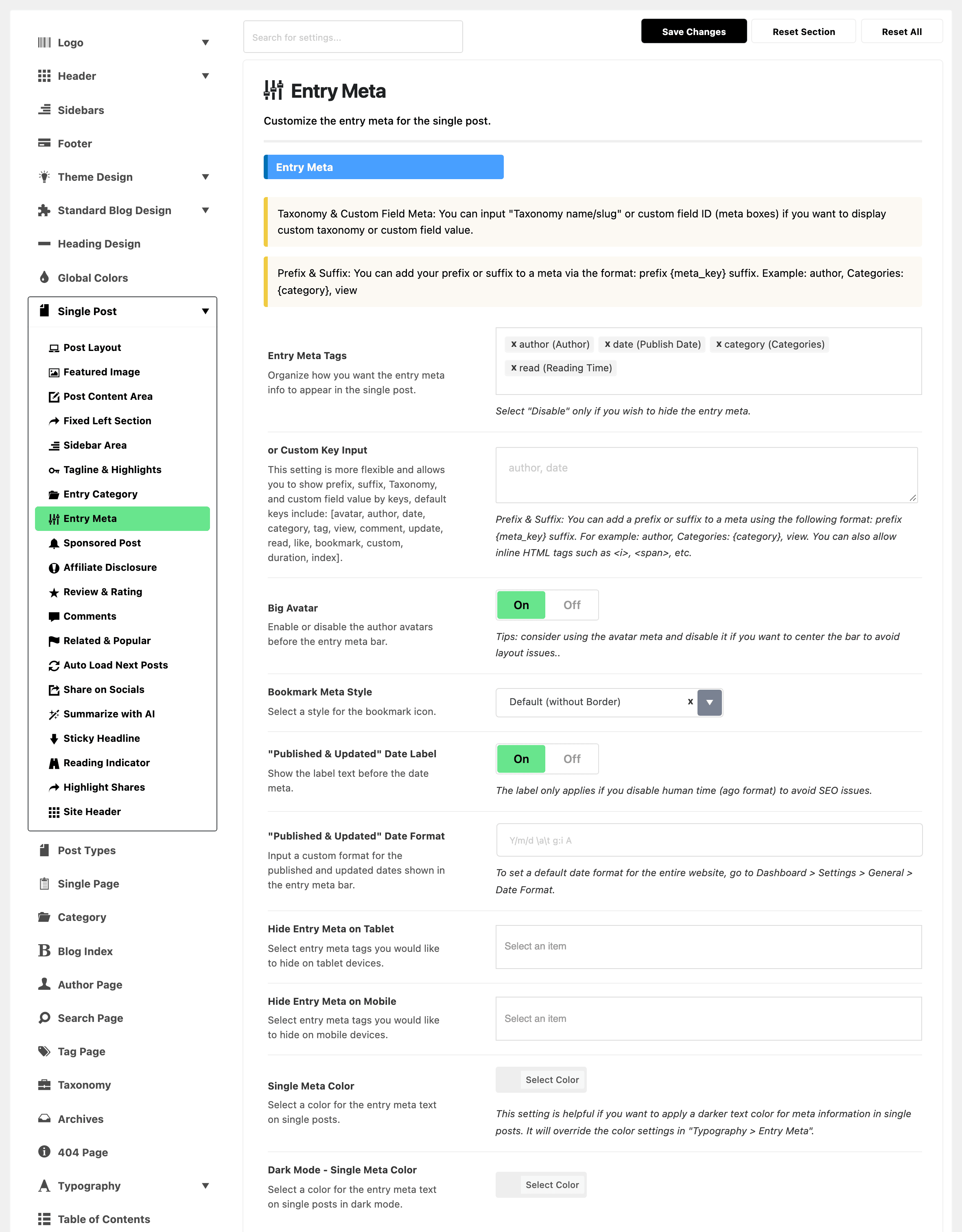
The tags, by what they show:
- The writer: avatar and author.
- Dates: date for the publish date, update for the last updated date.
- Where the post is filed: category and tag.
- Counts: view for post views, comment for comments.
- Reading time: read.
- Buttons for the reader: bookmark and like.
- Your custom meta: custom.
- No bar at all: Disabled, the last entry. Pick it on its own, with no other tag.
By default a single post has author selected and nothing else.
-
Make sure or Custom Key Input, the box right under it, is empty. Anything typed there wins over Entry Meta Tags.
-
Click Save Changes at the bottom of the panel.
The rest of that screen, such as the big avatar, date labels and date formats, is in How to Config Entry Meta Info in Single Post?.
Meta in listings, categories and blocks
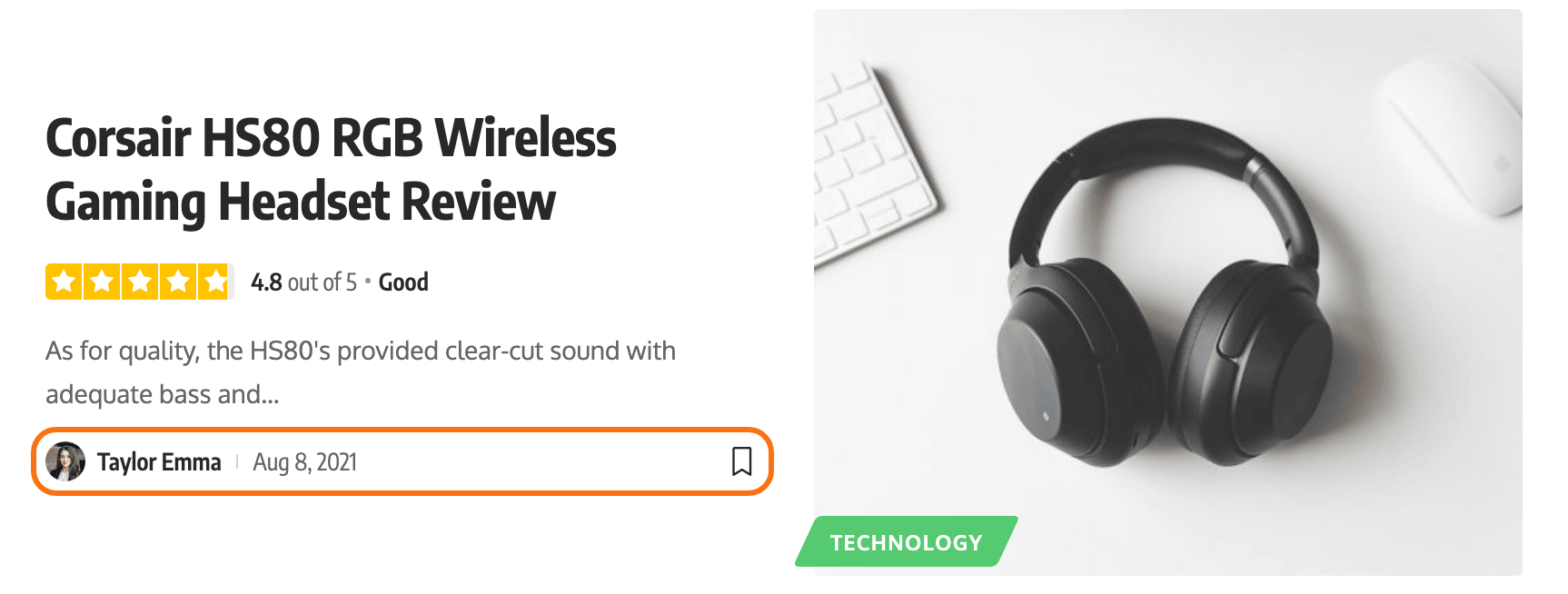
Three places set the meta in listings. The narrower one wins; left on its default, it follows the blog module.
- Every listing that uses a module: Theme Options > Standard Blog Design, then the module, such as Classic, Grid 1 or List 1. Each of the ten modules has its own Entry Meta group with Entry Meta Tags. By default these have avatar, author and update selected, which is why a listing shows more meta than the post itself.
- One category or tag page: Posts > Categories (or Tags), edit the term, then the Predefined Blog tab of the Foxiz Category Settings box. Set Entry Meta Bar:
- - Default -: follows the module. This is the default.
- Disable: no meta on this term's page.
- Use Custom Below: uses the tags you choose underneath.
- One Elementor block: edit the block, then its Style tab, section Entry Meta. Set the Entry Meta control:
- Default from Theme Option: follows the module. This is the default.
- Custom Below: type the tags in Entry Meta Tags underneath, separated by commas, such as
author, date, read. - Disable: no meta in this block.
Hide the meta on tablet and mobile
To keep a tag on desktop but drop it on smaller screens, use Hide Entry Meta on Tablet and Hide Entry Meta on Mobile. They sit in the same Entry Meta group as Entry Meta Tags, both on the single post screen and in each blog module.
Pick the tags to hide on that screen size. Both start empty, so nothing is hidden until you add a tag. For example, keep author on phones and hide view and comment.
If a meta tag does not show
First check or Custom Key Input on the single post screen: anything in it replaces your Entry Meta Tags. Then, two tags need something more than being in the list:
- view shows nothing unless the Light Views Counter plugin is active, and nothing on a post whose count is still zero.
- bookmark shows nothing unless Personalized System is on at Theme Options > Personalized System. It is on by default.
On AMP pages, bookmark and like never show, whatever you select.
Did this answer your question?