How to Config Your Category?
You can set up a category in two places:
- Global Options, in Theme Options > Category: one setting for every category.
- Individual Category Options, in the Foxiz Category Settings box on one category's edit screen: that category only.
The category's own setting wins, one field at a time. Foxiz reads the category's own settings first and uses the global value for every field left on its default. So you can change one thing for one category and keep the rest from Theme Options.
What these settings change
Both places set up the category page: the page a reader lands on after clicking the category name. They do not change the posts inside the category. A sidebar, a site header or a blog design chosen here applies to the post listing, not to the articles it links to.
There are two exceptions:
- Category Colors tab: its colours follow the category's label everywhere on the site, posts and listings included.
- Single Post Layout tab: it changes the posts themselves. See Single Post Layout tab below.

Global Options
-
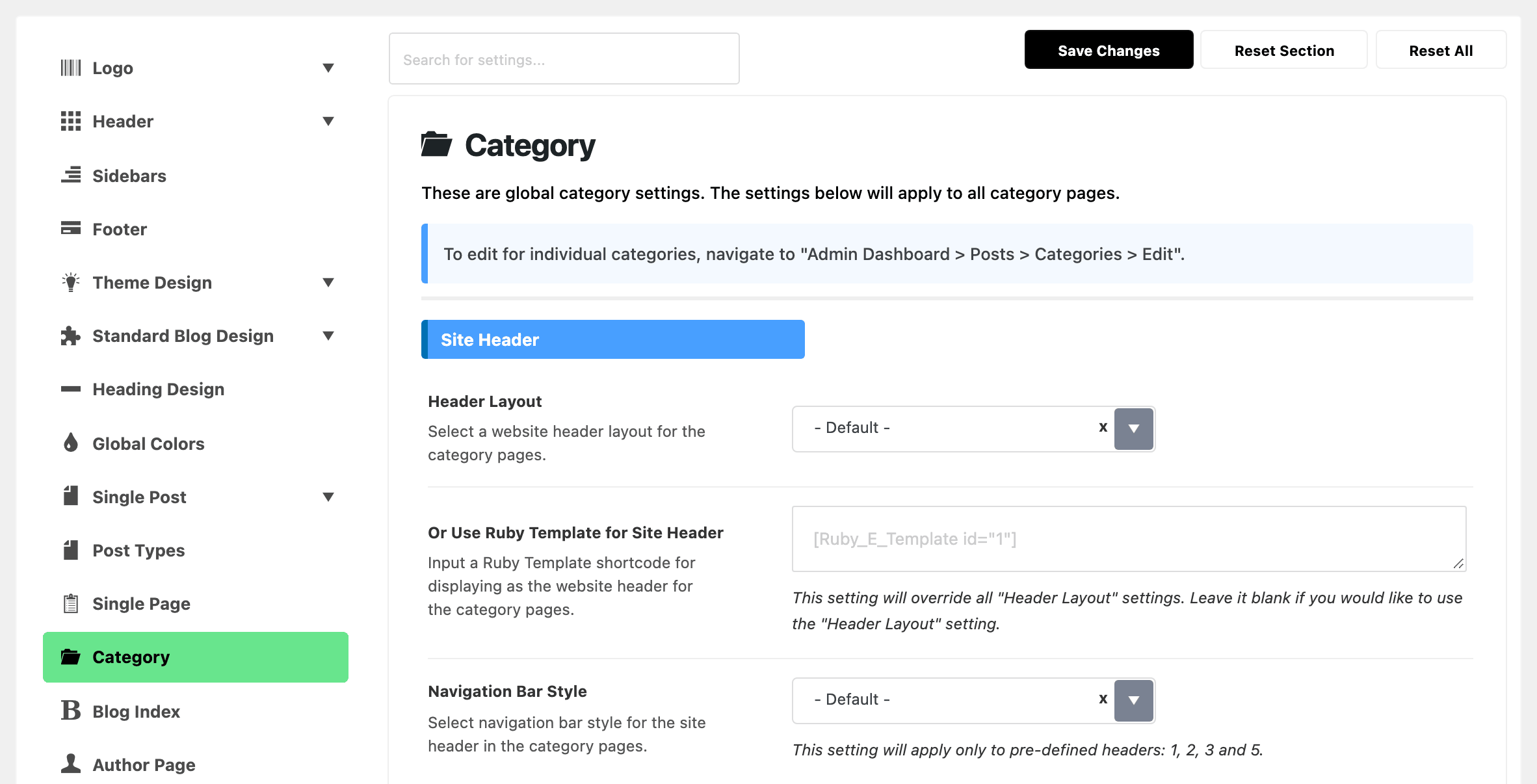
Go to Theme Options > Category.
-
Change the settings you need. These are the ones most sites change:
- Predefined Layout, in Global Listing Template: how the posts are laid out. It starts on Grid 1.
- Posts per Page: how many posts each page of the category shows. Left blank, it uses Settings > Reading > Blog pages show at most.
- Sidebar Position, in Post Listing - Sidebar: it starts on No Sidebar, so pick a side to show one.
- Category Header: the style of the block at the top that shows the category name, or none.
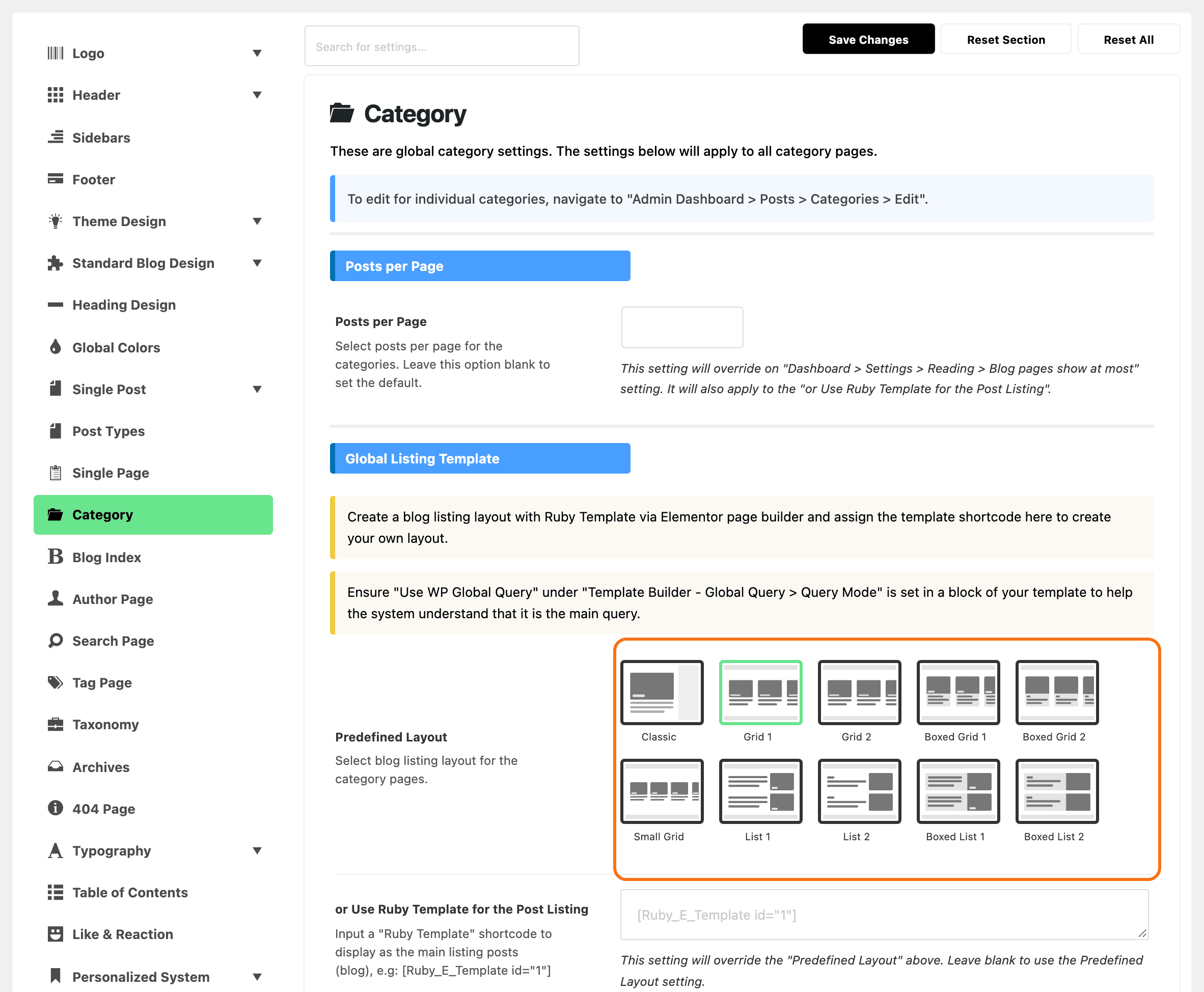
The panel has eleven sections, in this order:
- Site Header
- Entry Category Icon
- Category Header
- Top Template Builder
- Posts per Page
- Global Listing Template
- Post Listing - Heading
- Post Listing - Columns
- Post Listing - Sidebar
- Post Listing - Design
- Post Listing - Pagination
-
Click Save Changes.
The five Post Listing sections disappear once you put a shortcode in Global Listing Template > or Use Ruby Template for the Post Listing. A Ruby Template is a layout you build in Elementor, and its shortcode is the code in square brackets, such as [Ruby_E_Template id="1"], that you paste into the box. A Ruby Template replaces the whole listing, so those sections would have nothing left to set. Clear the box to bring them back.
Two settings in this panel are easy to miss.
Subcategories List
Subcategories List is the last switch in Category Header. It adds a Find More: row under the category name and description, with links to the category's child categories.
- Default: on.
- Only child categories that hold at least one post are listed. A category without such children shows no row.
- To change it for one category, open that category's Category Header tab and set Subcategories List to Enable or Disable. - Default - follows Theme Options.

Review Meta Description
Review Meta Description is in Post Listing - Design, under Review Meta. It controls the text beside the stars or score bar of a review post in the listing. That text is the score, such as "4.5 out of 5", followed by the word in the post's own Meta Description field on its Review tab, such as "Good".
It only works while Review Meta above it is on. The choices:
- - Default - (the default): uses what the listing's design module in Theme Options > Standard Blog Design says.
- No Wrap, Desktop No Wrap - Mobile Line Wrap and Line Wrap: whether the text stays on the bar's line or drops below it.
- No Wrap (Show Score Only) and Line Wrap (Show Score Only): the same, without the word.
- Disable: the bar alone, no text.
Individual Category Options
These settings change one category and override the global ones.
-
Go to Posts > Categories.
-
Hover over the category you want to change and click Edit under its name.
-
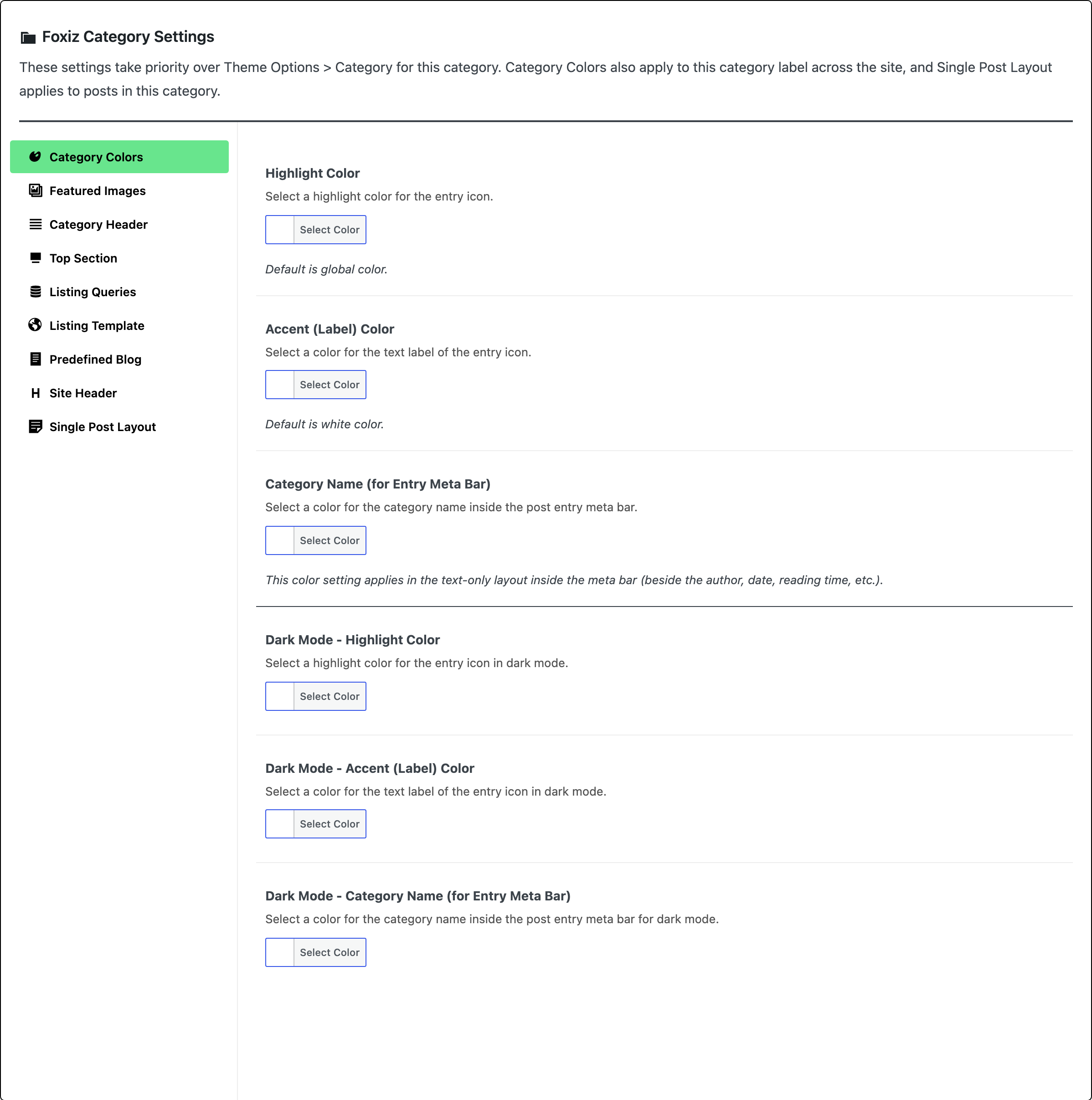
Scroll to the Foxiz Category Settings box at the bottom of the page. Most categories only need two of its tabs:
- Category Colors, to give this category's labels a colour of their own. The fields are in How to Change Category Meta Info Style & Color?.
- Featured Images, one or two images shown in the category header and in Taxonomies List blocks.
All nine tabs run down the left side:
- Category Colors
- Featured Images
- Category Header
- Top Section
- Listing Queries
- Listing Template
- Predefined Blog
- Site Header
- Single Post Layout
-
Change what you need. Anything left on - Default - or empty keeps the Theme Options value.
-
Click Update to save.
Two of those tabs work differently from the rest.
Listing Template tab
Predefined Layout does more than pick a layout: it also turns off the Ruby Template set in Theme Options > Category for this category. What the category page shows:
- A shortcode in or Use Ruby Template for Post Listing: that template. It takes priority over every other setting for this category.
- A layout in Predefined Layout, such as Classic: that layout. The global Ruby Template is not used.
- Both left alone: the global Ruby Template, if Theme Options has one, otherwise the global layout.
Single Post Layout tab
This tab is the one place a category setting reaches beyond its own page. It has two settings:
- Single Post Layout: a predefined layout for every post in the category.
- Use Ruby Template for Single Post Layout: a template that replaces the whole single post layout.
The post's own choice still wins. Which layout a post gets, from strongest to weakest:
- The post's own settings, either of:
- a Template Shortcode on its Template Builder tab
- a layout chosen in its Single Post Settings, such as Standard Layout, Video Layout, Audio Layout or Gallery Layout
- The category's Use Ruby Template for Single Post Layout, for every post format.
- The category's Single Post Layout, for standard format posts only. Video, audio and gallery posts skip it.
- Theme Options > Single Post.
A post in more than one category takes this tab from its primary category. With no primary category set, it uses the first category WordPress returns. See How to Set a Primary Category for a Post?.
Did this answer your question?