How to Set Up Post Reactions
Foxiz can end a single post with a row of faces a reader taps to say how the piece made them feel. It is off by default, so nothing appears until you turn it on.
-
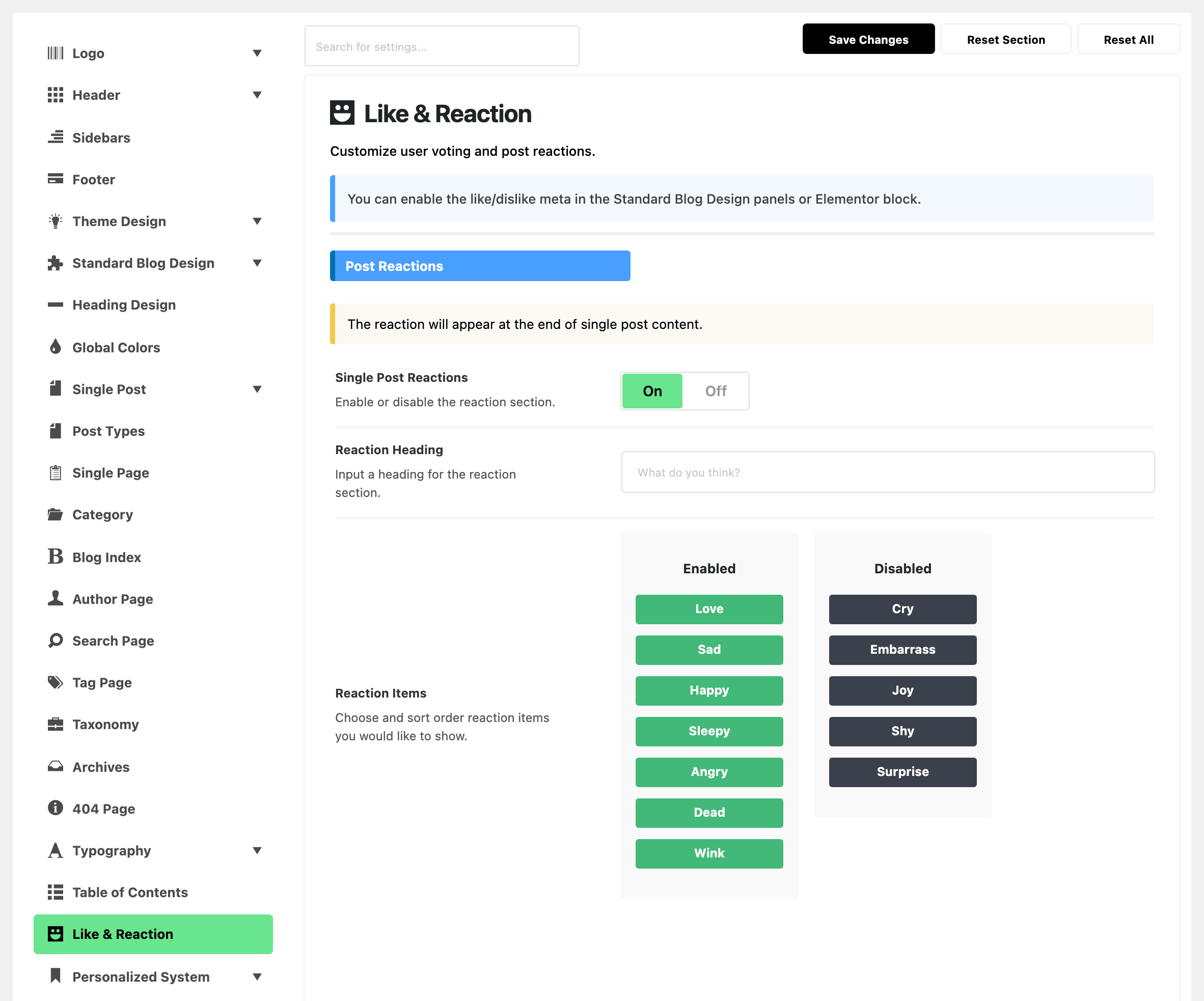
Navigate to Theme Options > Like & Reaction.
-
Open the Post Reactions group.
-
Turn Single Post Reactions on. Two more fields appear underneath as soon as you do.
-
In Reaction Heading, type the question you want above the faces. The field arrives empty and shows "What do you think?" as grey placeholder text, which is also what a reader gets if you leave it that way.
-
In Reaction Items, drag the faces you want into the left list and the ones you do not into the right one. The next section covers what is in each list to begin with.
-
Save your changes and open any post on the front end. The row sits at the very bottom of the post.
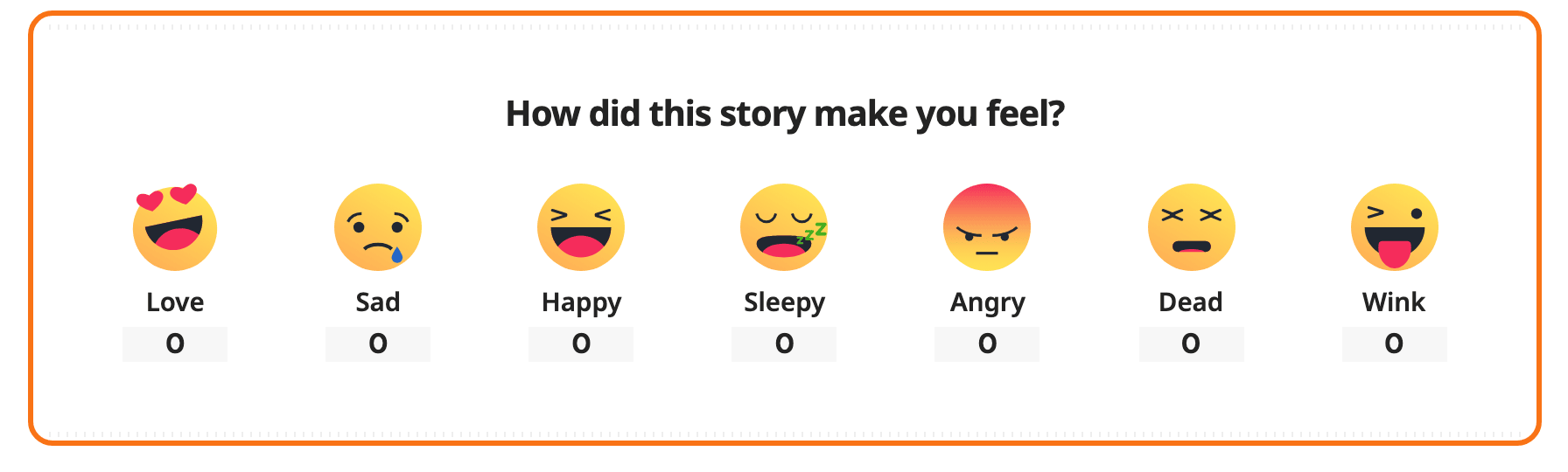
Where the reaction row appears
At the end of the post content area, after the bottom row of share buttons and before the author box, the previous and next links and the comments.
There is one position and it is not adjustable from Theme Options. If you want the row somewhere else, place it yourself with the shortcode further down this page.
Three limits are worth knowing before you promise this to an editor:
- It runs on posts only. A page, a podcast episode or any other post type gets nothing, whatever this setting says.
- It is not drawn on AMP pages.
- Listing blocks, grids and archive pages do not carry it. The thumbs up and thumbs down pair is the counter built for those; see How to Add Like and Dislike Buttons.
The heading takes your H3 settings from Theme Options > Typography > H3 Tag > H3 Font, and the small word under each face takes H6 Font from H6 Tag. Both are centred above and below the row respectively.
What a reader sees and does
Under your heading, the faces are spread evenly across the width of the content. Each one is a drawing, its name in small text, and a rounded count pill below that. A face with no reactions yet shows 0 rather than an empty pill.
Hovering a face enlarges it and tilts it, and turns its name your accent colour.
Clicking is where the rules matter, because a reader gets one reaction per post:
- On a first click the count goes up by one and the pill fills with your accent colour to show which one they chose. A small spinner sits in the corner of the face while it saves.
- Clicking the same face again takes the reaction back. The count drops by one and the pill returns to grey.
- Clicking a different face moves the reaction rather than adding a second one. The new face goes up by one, the old face goes down by one, and only the new one stays filled.
Nobody has to sign in. A signed out reader is recognised by an anonymous identifier their own browser keeps, so their choice is still remembered when they come back to the post.
Two settings in the same panel change that picture, and both are in the General group above: how long a reader is held to one reaction per post, and whether they are counted per browser or per address. Every Setting in the Like & Reaction Panel covers both.
If your site sits behind a page caching plugin, turn on Optimize Counter for Caches in the same General group as well, or a reader who clicks a face and then reloads the page will see their own click missing from the total.
Choosing and ordering the reactions
Reaction Items is two lists you drag between. The left list, headed Enabled, holds what readers see; the right one, headed Disabled, is the pool you are not using. The order of the left list is the order the faces appear, left to right.
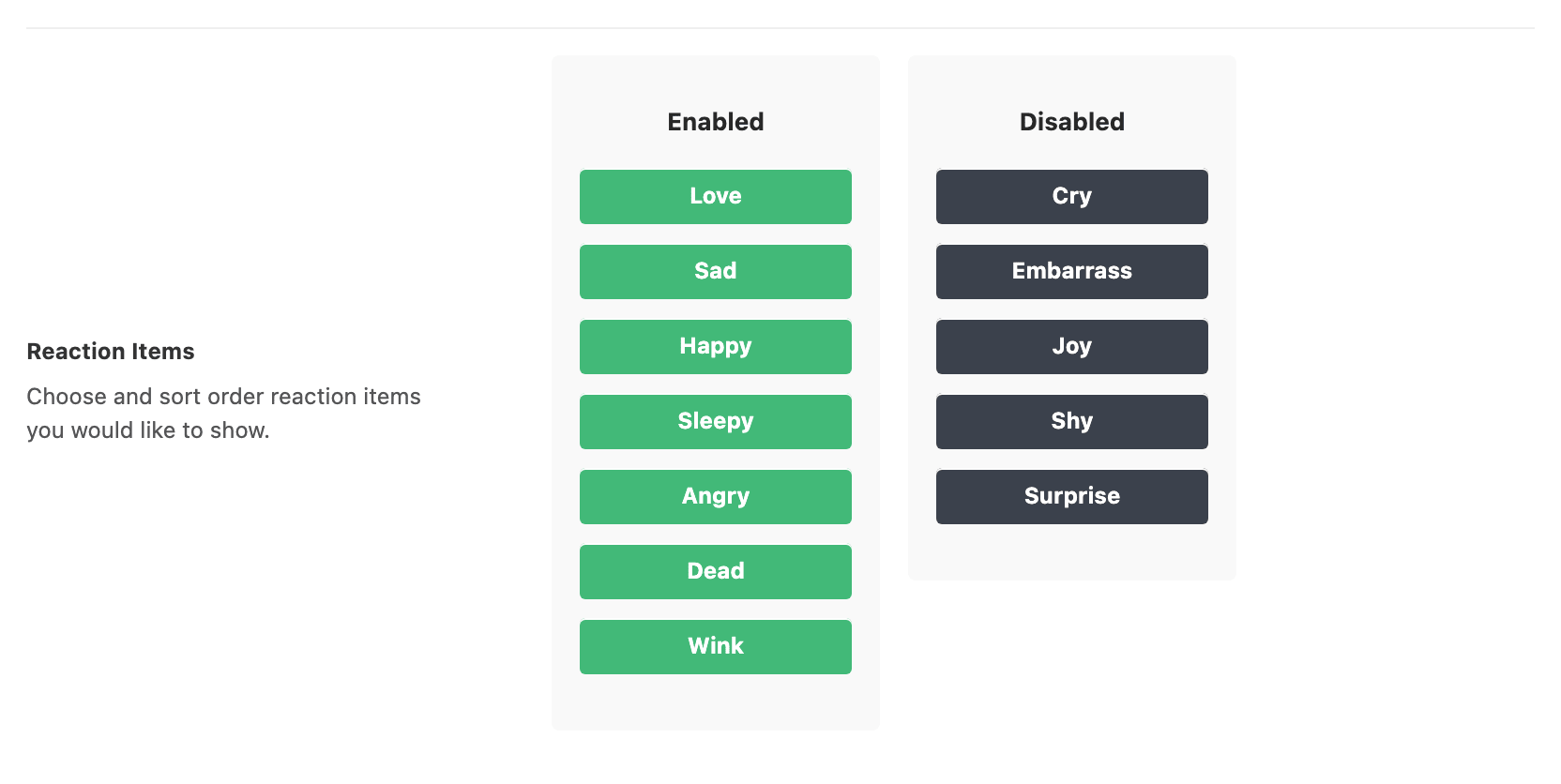
Seven faces are enabled to start with, in this order:
- Love
- Sad
- Happy
- Sleepy
- Angry
- Dead
- Wink
Five more are waiting in the disabled list:
- Cry
- Embarrass
- Joy
- Shy
- Surprise
Twelve in total, and you can run all twelve at once or cut the set down to three.
Three things follow from how the lists work:
- Drag every face into the disabled list and the row stops being drawn at all, heading included, as though the whole section were off.
- Four to six faces is the comfortable range on a phone. Each face is a fixed 80 pixels wide and the row wraps onto a second line when it runs out of room, so a long set turns into a block of faces rather than a row.
- Moving a face out of the enabled list hides it but keeps its counts. Drag it back later and the tallies it collected are still there.
The drawings themselves are built into the theme and are not replaceable from Theme Options.
Renaming a reaction
The word under each face is a translatable string, so you change it the same way you change any other phrase in the theme.
- Go to Foxiz > Quick Translation in the admin sidebar. On the Foxiz dashboard the same screen is under Extra Features.
- Search for the word, for example Love.
- Find it in the source string column and type your own word in the translation column.
- Click Save Changes. Your word is what every reader sees.
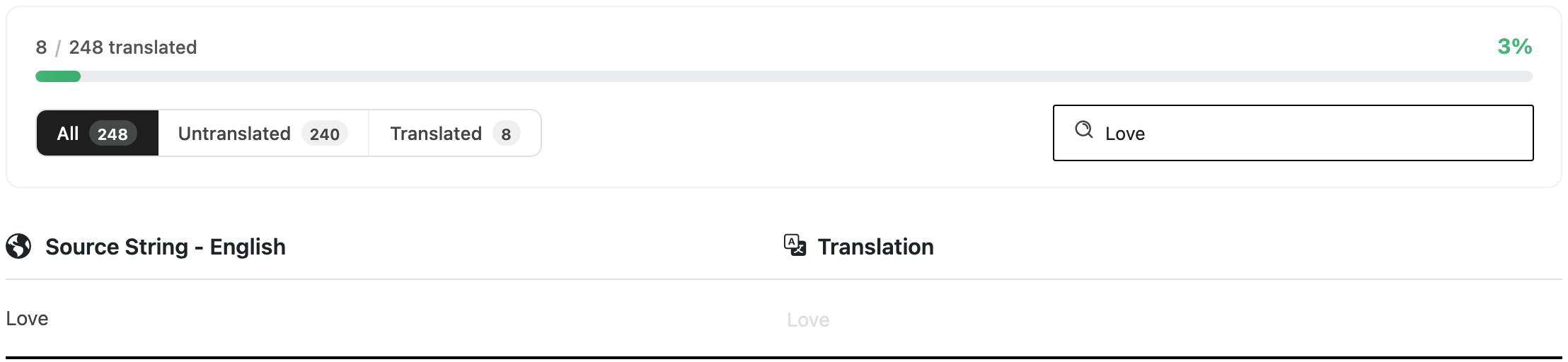
Quickly Translate Theme walks that screen.
Turning reactions off for one post
An interview or an obituary is not a piece you want faces under. Each post can overrule the panel:
- Edit the post.
- At the bottom of the editor, open the Meta Boxes bar, find the Single Post Settings box and open its Reaction tab.
- Set User Reaction to Disable.
- Click Save, or Publish on a new post.
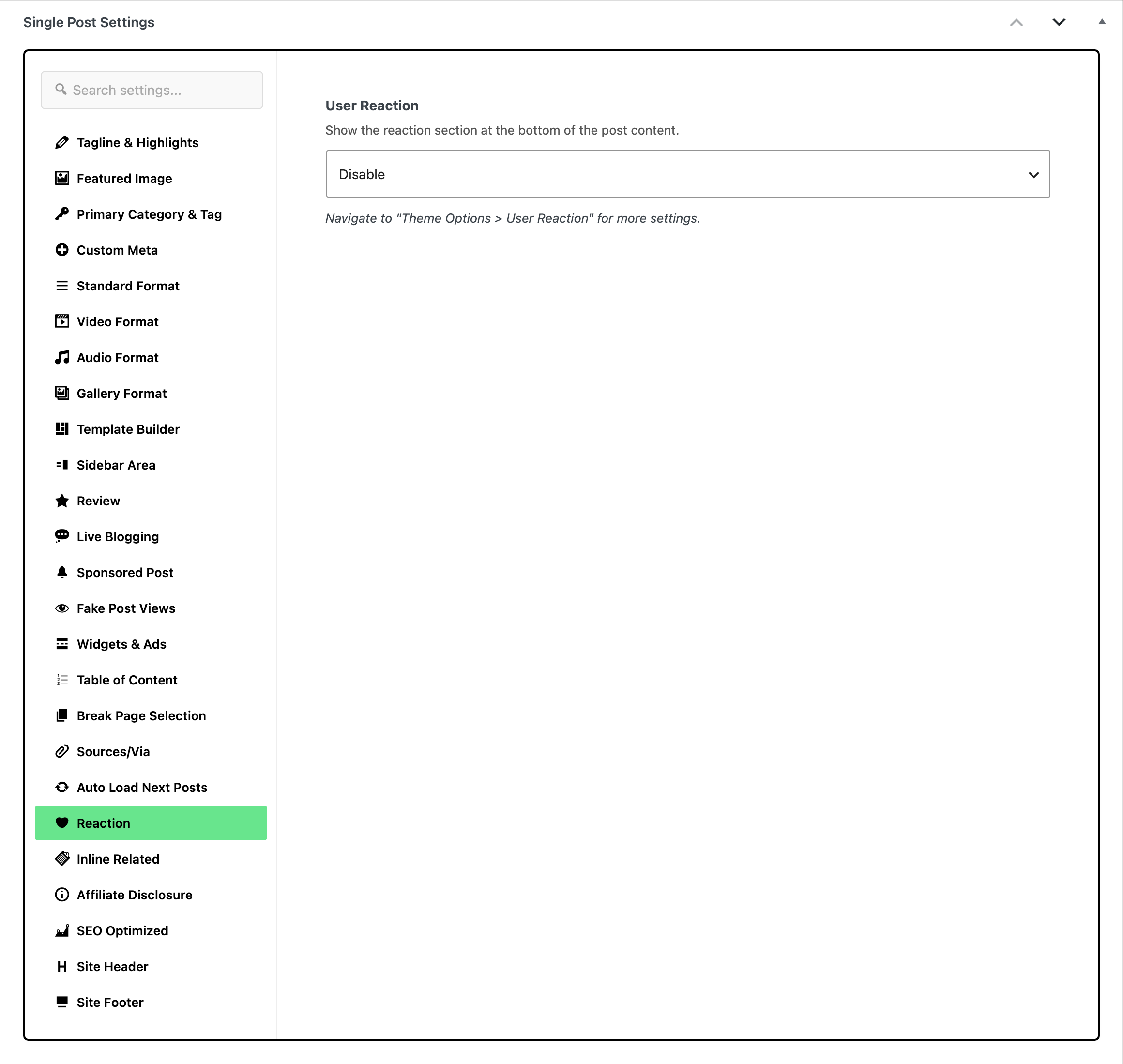
The same field runs the other way. With Single Post Reactions off site wide, setting User Reaction to Enable on one post gives that post a reaction row and leaves the rest of the site alone, which is a tidy way to try it on a single article before committing. - Default - is the field's default and means "follow Theme Options".
Placing the reaction row yourself
The row is also a shortcode, which is how you get it anywhere the automatic position does not suit: halfway through a long post, inside an Elementor layout, in a template you built yourself.
Put this in a Shortcode block in the block editor , in Elementor's own shortcode widget, or in a Ruby template:
[ruby_reaction]
Inside a post that renders it for that post.
Somewhere with no post of its own, a standalone page or a template, name the post you want:
[ruby_reaction id="1284"]
That draws another post's reaction row, counts and all, wherever you put it.
The shortcode draws no heading of its own, so add your own text above it if you want one. It also draws whether or not Single Post Reactions is on, so you can place every row by hand and leave the automatic one switched off. One caveat if you take that route: Reaction Items is only visible in the panel while Single Post Reactions is on, so turn the switch on long enough to choose your faces, then turn it back off.
Did this answer your question?