Every Setting in the 404 Page Panel
Theme Options > 404 Page decides what a visitor sees when they follow a link to a page that does not exist. It holds eight settings in three groups, and this page walks them in the order the panel does.
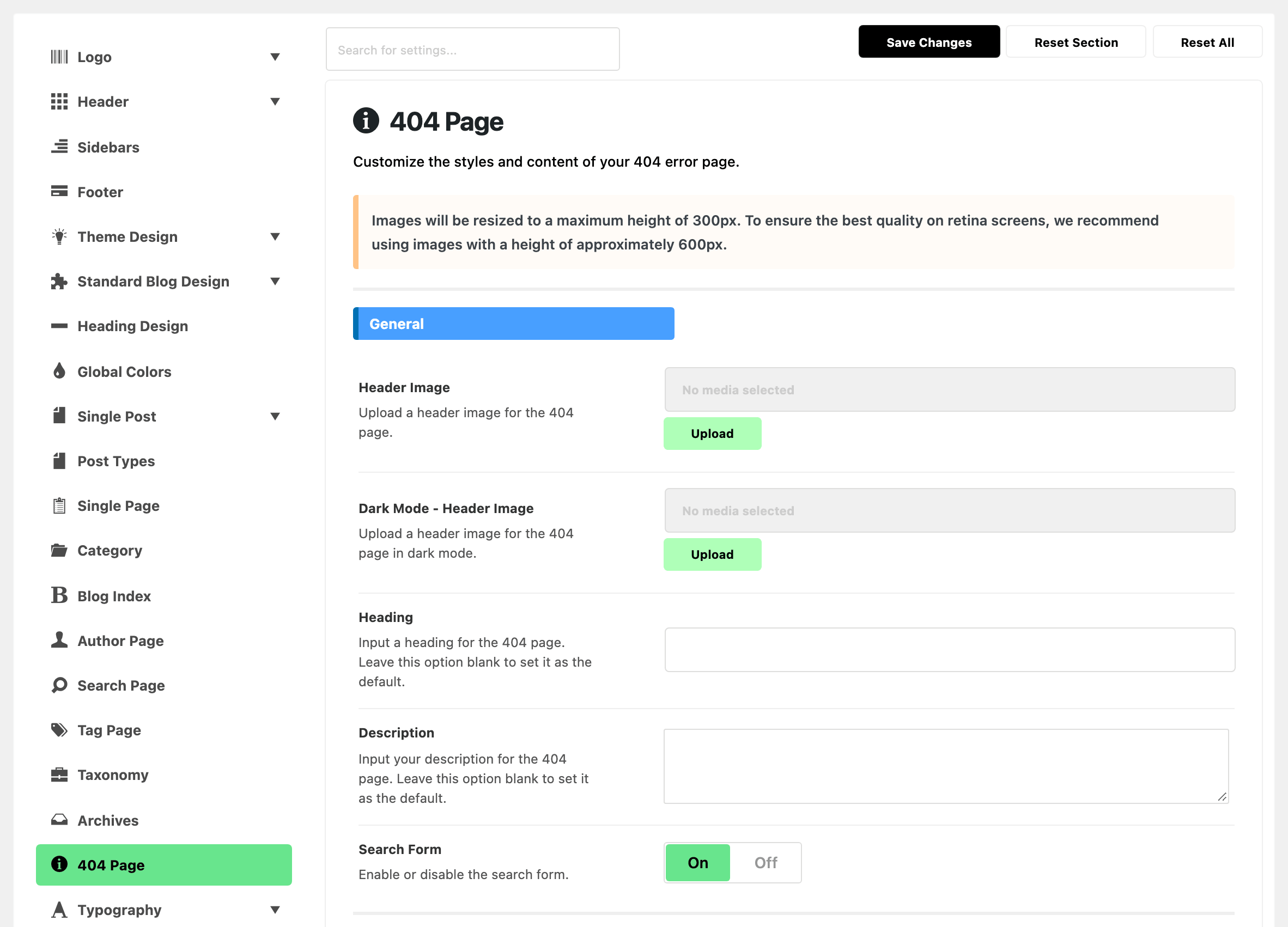
- General builds the theme's own 404 page: an image, a heading, a line of text and a search form.
- Template Builder puts a Ruby Template on the page, either under that content or instead of it.
- Ads Disabled decides whether the theme's adverts appear on 404 pages at all.
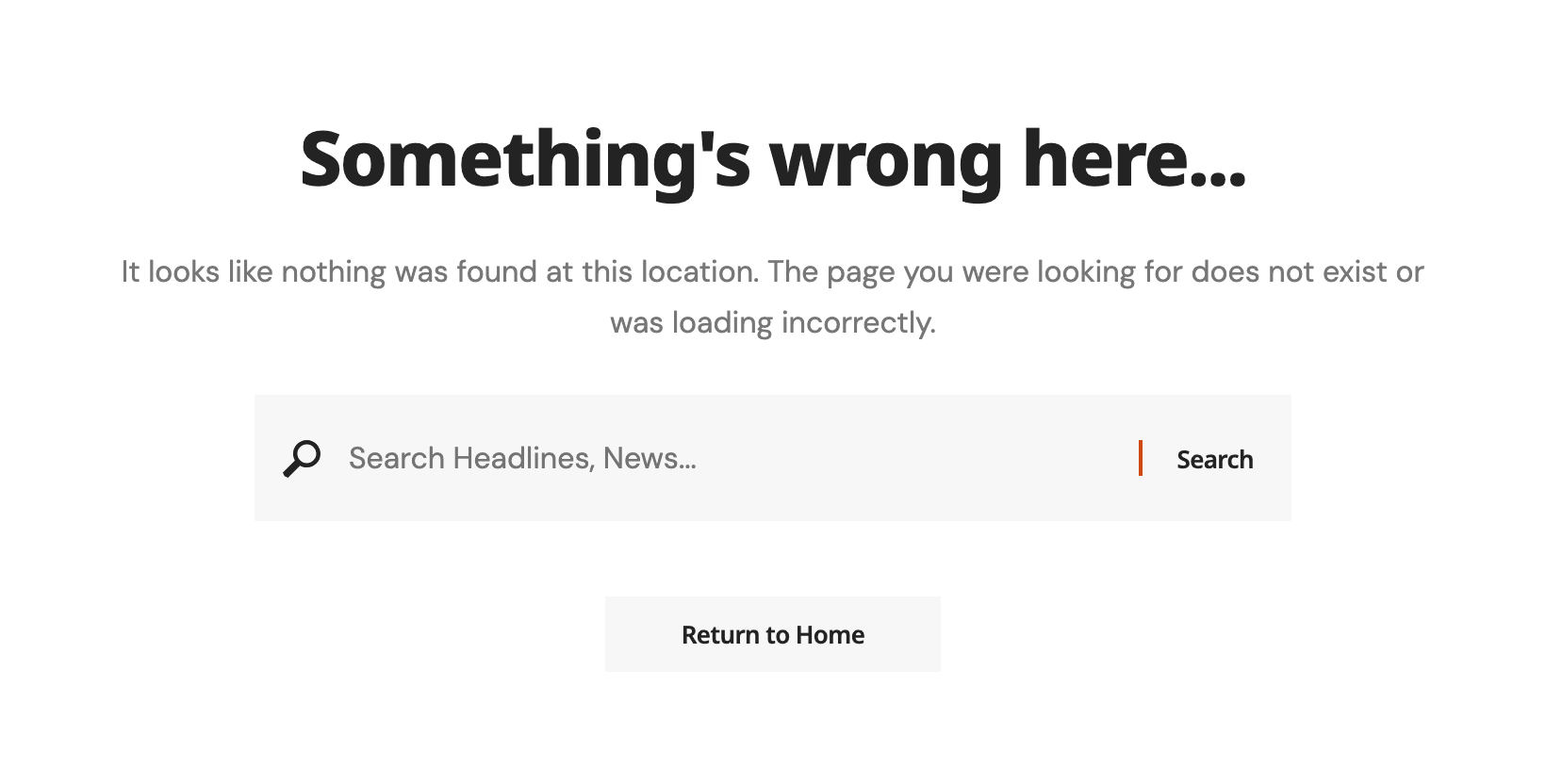
Whatever you set, the page keeps the site's header and footer, and the theme's own content always ends with a Return to Home button.
General
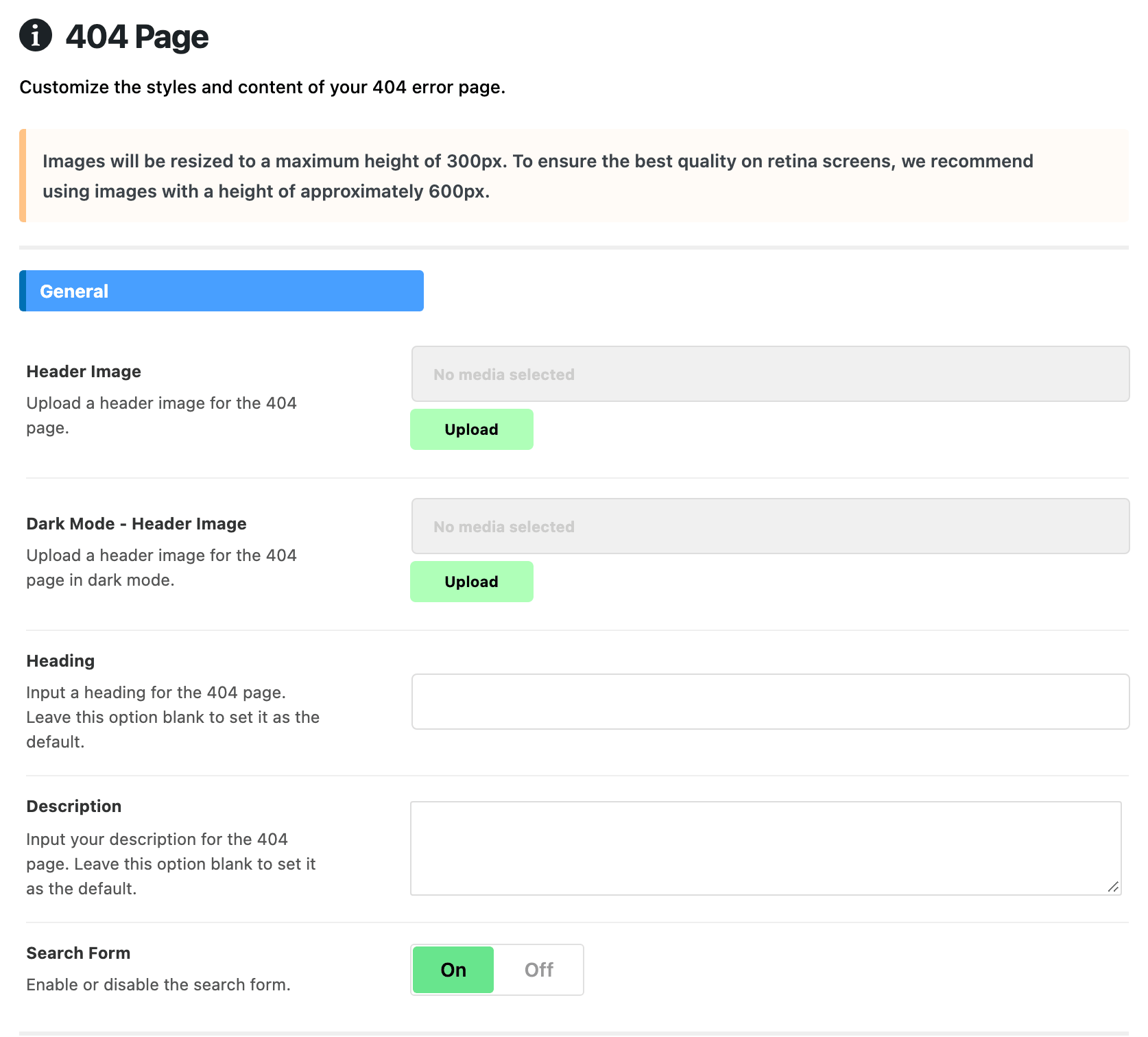
Five settings, and all of them can be left alone: the page works with the defaults.
- Header Image is a picture above the heading. It is empty by default, and with nothing here the page opens straight on the heading.
- Dark Mode - Header Image is the picture shown instead while the site is in dark mode. It is only used when Header Image is filled in too, so upload both.
- Heading is the large line. Leave it blank and the page reads Something's wrong here...
- Description is the text under the heading. Blank gives the theme's own sentence, which begins It looks like nothing was found at this location.
- Search Form is on by default and puts a search box under the description, so the visitor can look for what they came for.
A notice at the top of the panel sets the size for the images: they are shown at most 300px tall, so upload pictures about 600px tall to stay sharp on high resolution screens.
The heading and the description are plain text. Any HTML you type is shown as characters rather than applied.
Template Builder
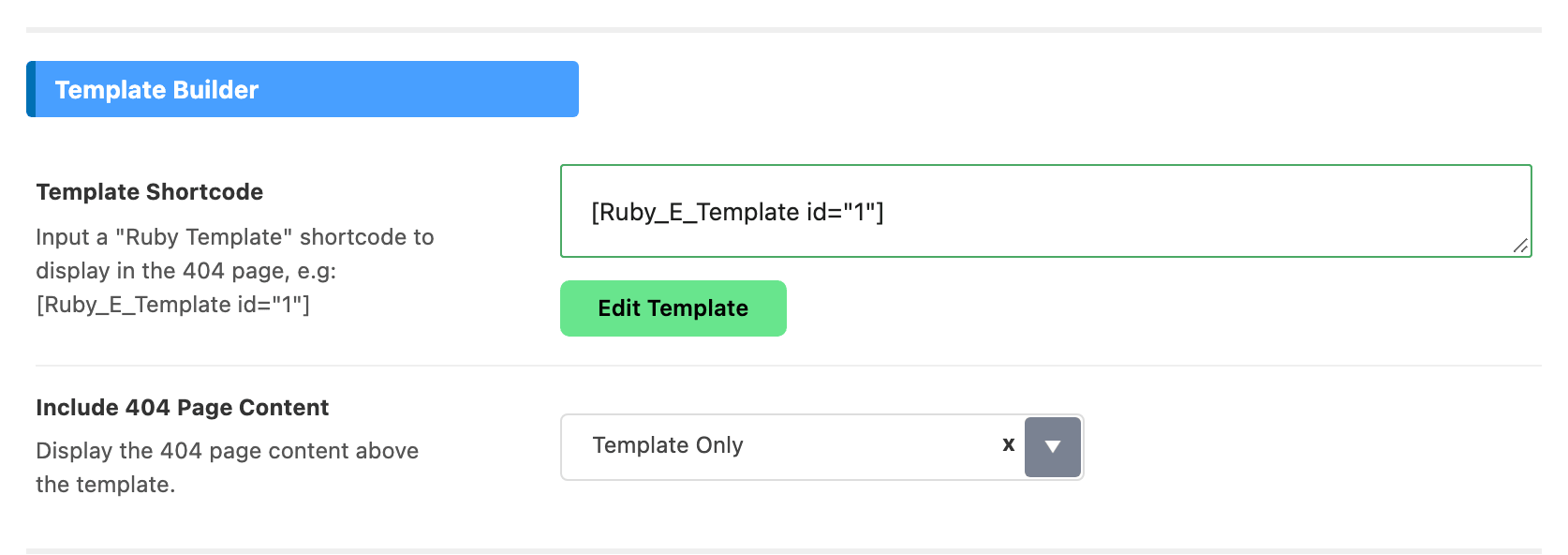
Use this group when you want a designed 404 page, for example one with your latest posts or a category grid under the message. Build the page as a Ruby Template first, then copy its shortcode. See Ruby Templates for how to make one.
- Template Shortcode takes the shortcode, in the form
[Ruby_E_Template id="1"]with your template's id in place of 1. It is empty by default. - Include 404 Page Content decides what happens to the General content once a template is set. Template Only, the default, shows the template and nothing else, so the image, heading, description, search form and the Return to Home button all go. With 404 Page Content keeps the theme's 404 content and shows the template under it.
So with Template Only the template is the whole page between the header and the footer. Put a heading and a way back into the template itself, or the visitor gets no sign that the link they followed is broken.
With Template Shortcode empty, Include 404 Page Content does nothing and the theme's own page shows.
Ads Disabled
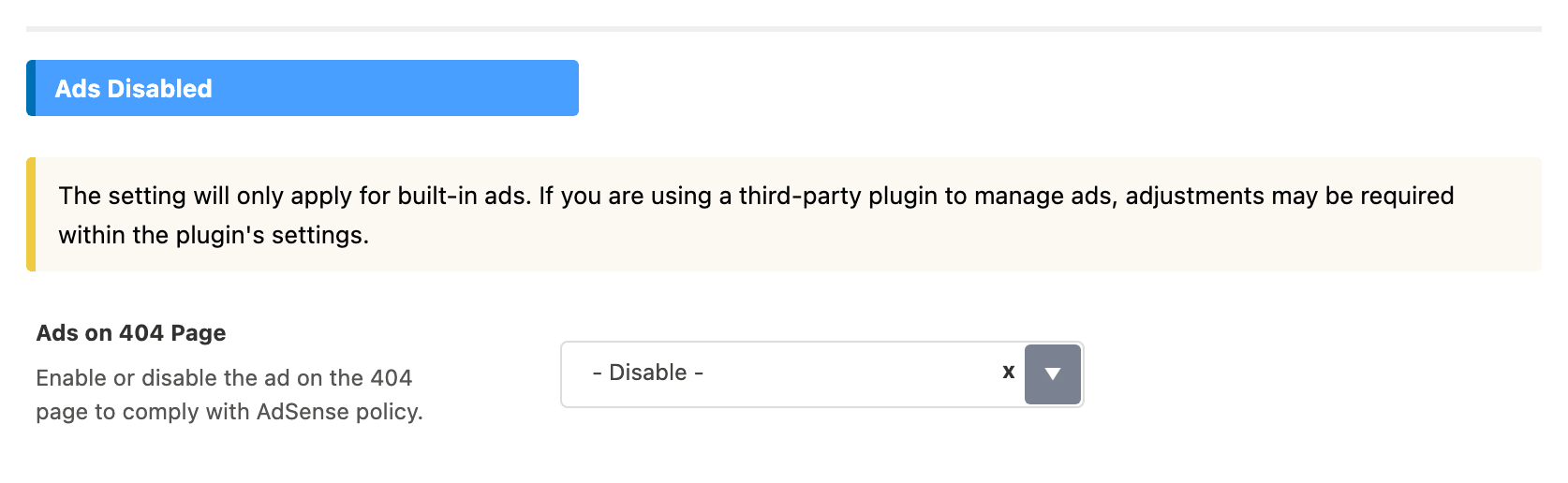
- Ads on 404 Page is set to - Disable - by default. The screen gives the reason: it is there to keep you within AdSense policy.
On - Disable -, a 404 page carries no AdSense or other script adverts from the theme, no Auto Ads, and nothing from the Header Advertising widget area. That includes script ad blocks placed inside the Ruby Template above.
Image adverts, the kind where you upload a picture and a link, are not covered by this switch and still show. If an image advert should stay off 404 pages, leave it out of the template.
The setting reaches the theme's own adverts only. An advert managed by another plugin follows that plugin's settings, as the note on the group says.
Set it to Enable only if your advert network allows adverts on error pages.
Did this answer your question?