Theme Design
Theme Design sets the small details that repeat on every page: the category label on a post, the meta line under a headline, how thumbnails are cropped, what happens when the pointer moves over a title, how round the corners are. Change one setting here and every page of the site follows.
Where to find it
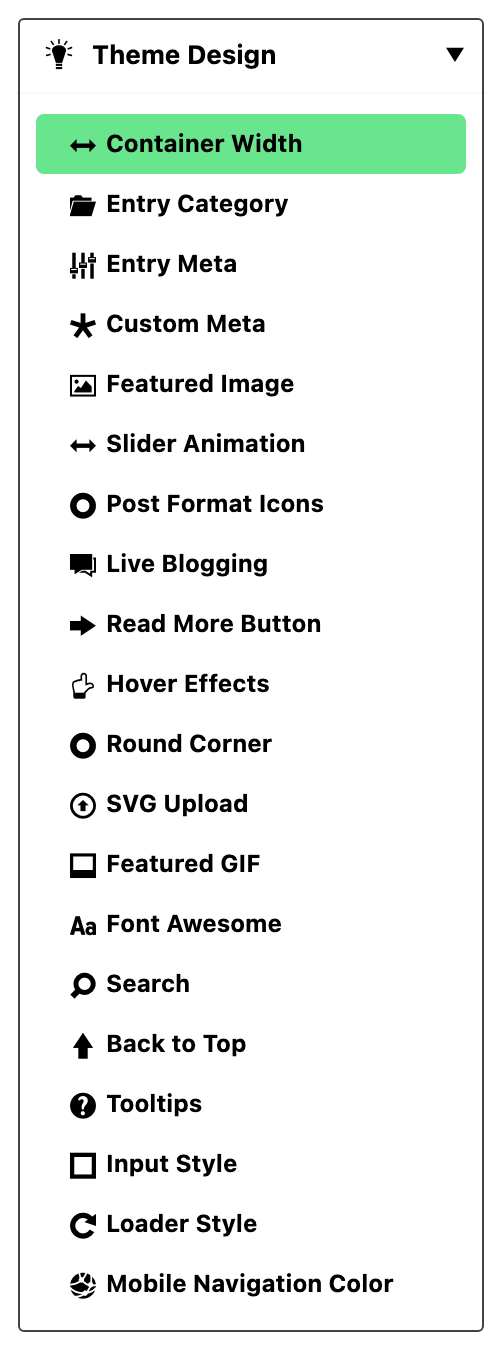
Go to Theme Options > Theme Design. The tab has no settings of its own. Click it and it opens a list of twenty subsections; each subsection has its own settings and its own article in these docs.
After changing anything, click Save Changes. The button is at the bottom of the panel, and also in the bar that stays at the top while you scroll.

Theme Design or another tab?
Several tabs sound alike. Use this to pick the right one:
- The small parts around a post (category label, meta line, read more button, corners, hover): Theme Design, this tab.
- Which parts a post card shows in each listing layout (Grid 1, List 1 and so on): Standard Blog Design.
- The style of block and widget headings: Heading Design.
- Colours used across the site: Global Colors.
- Fonts and font sizes: Typography.
- The single post page itself: Single Post.
What is inside, by job
The sidebar lists the twenty subsections in the panel's order. Here they are grouped by what you are trying to do.
How a post looks in a listing
- Entry Category: the category label on each post.
- Entry Meta: the author, date and views line under the headline.
- Custom Meta: one extra meta item of your own.
- Featured Image: how thumbnails are cropped and which image sizes are made.
- Post Format Icons: the video, gallery and audio badges.
- Read More Button: the wording and style of the read more link.
- Live Blogging: the label on live posts, and how often a live post refreshes.
The overall look of the site
- Container Width: how wide the site is.
- Round Corner: rounded or square corners.
- Hover Effects: what titles and buttons do under the pointer.
- Input Style: how form fields look.
- Mobile Navigation Color: the colour of the browser bar on phones.
Things that move or react
- Slider Animation: how sliders and carousels move.
- Back to Top: the scroll to top button.
- Tooltips: the small labels that pop up on hover.
- Loader Style: the spinner while more posts load.
- Search: the placeholder text and icon of search boxes.
Files and icons
- SVG Upload: allow SVG files in the media library.
- Featured GIF: keep animated GIFs moving in listings.
- Font Awesome: load the Font Awesome icons.
Common jobs
- Add your own meta item, such as "Total Time: 6 hours": how to add custom meta.
- Make every slider autoplay, or stop: how to set slider defaults.
- Show or hide the date, author or views in a listing: how to turn on and off meta information.
- Change the colour of category labels: how to change category meta info style and color.
Good to know
Everything here is site wide. Some settings can be overridden in a narrower place, on one category, one post or one block. When that happens, the subsection's article says so under What overrides it.
Blank does not always mean the grey number you see. An empty field often shows a grey suggestion, but leaving it blank is not always the same as typing that number. Each article says what blank does. Two examples:
- A blank Max Category Icons if choose Category shows every category, not 1.
- A blank Container Width for Single Post follows Container Width, whatever you set there.
Looking for heading styles?
Block and widget headings used to be set here. They now have their own tab, Heading Design, right after Standard Blog Design: see Every Setting in the Heading Design Panel.
If a change does not show
A change shows on the next page load. If it does not, check these in order.
- Did it save? The panel keeps your edits on screen even when the save failed. Click Save Changes again and wait for the confirmation.
- Is a cache serving the old page? Clear your caching plugin and any server or CDN cache, then reload the page on the site, not the admin. Corners, widths, colours and the input style are written into the page's stylesheet, so a cached page keeps the old look.
- Is a narrower setting winning? The usual ones:
- Slider Animation (autoplay, speed, free scroll): the same setting on the slider block wins.
- Default Featured Ratio: a ratio set on the block wins.
- Entry Category colours: a colour set on that category wins.
- Search placeholder: a placeholder set on an Elementor search widget wins.
- Rounded Corners: a number in Or Enter Custom Border Radius wins.
Did this answer your question?