How to Find Any Setting with the Command Palette
Theme Options holds more than a thousand settings in close to 150 sections, and most questions start with "where is the one that...". You do not have to know. Press Ctrl+K (Cmd+K on a Mac) on any admin screen, type a few letters of the setting's name, and press Enter: Foxiz opens Theme Options on the right section, scrolls to the setting and outlines it.
Unlike the search box on the Theme Options screen, the palette works before you have opened Theme Options at all: from the Dashboard, a post list or any other admin page.
Before you start
Three things have to be true for the Foxiz results to appear:
- You are logged in as an administrator. Editors and authors get the WordPress palette without the Foxiz entries.
- Your Foxiz license is activated. Until it is, the only Foxiz entry is Activate Foxiz, which takes you to the Foxiz dashboard to enter your key.
- Your WordPress is 6.9 or later, the release that put the command palette on every admin screen.
Find a setting and jump to it
-
On any admin screen, press Ctrl+K on Windows or Cmd+K on a Mac. You can also click the button in the admin bar at the top of the screen that shows the same shortcut, Ctrl+K or ⌘K.
-
Type at least two characters of what you are looking for into Search commands and settings. Nothing from Foxiz is listed until the second character.
-
Read the results. Every Foxiz result begins with Foxiz:, so you can tell it apart from WordPress's own entries. After the name comes a dot and where the setting lives, with › between the levels:
Foxiz: Mobile Back to Top · Theme Design › Back to Topis the Mobile Back to Top switch in the Back to Top section under Theme Design. A result with no › is a whole section, such asFoxiz: Back to Top · Theme Design. Up to 20 settings are listed.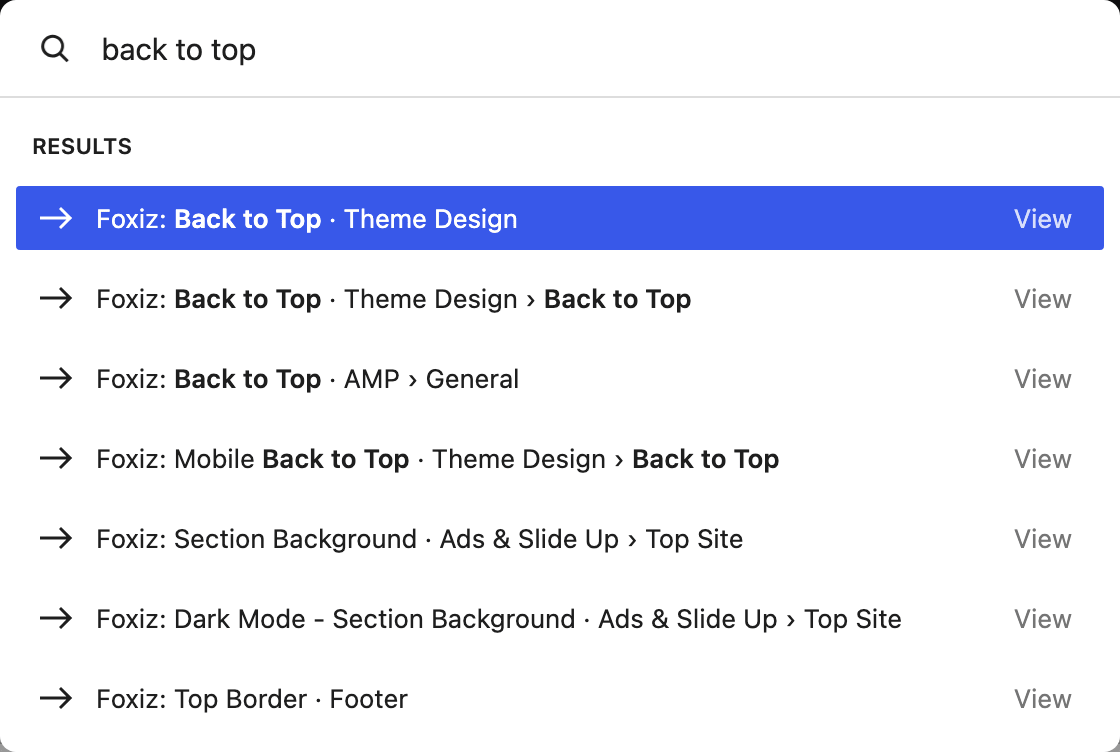
-
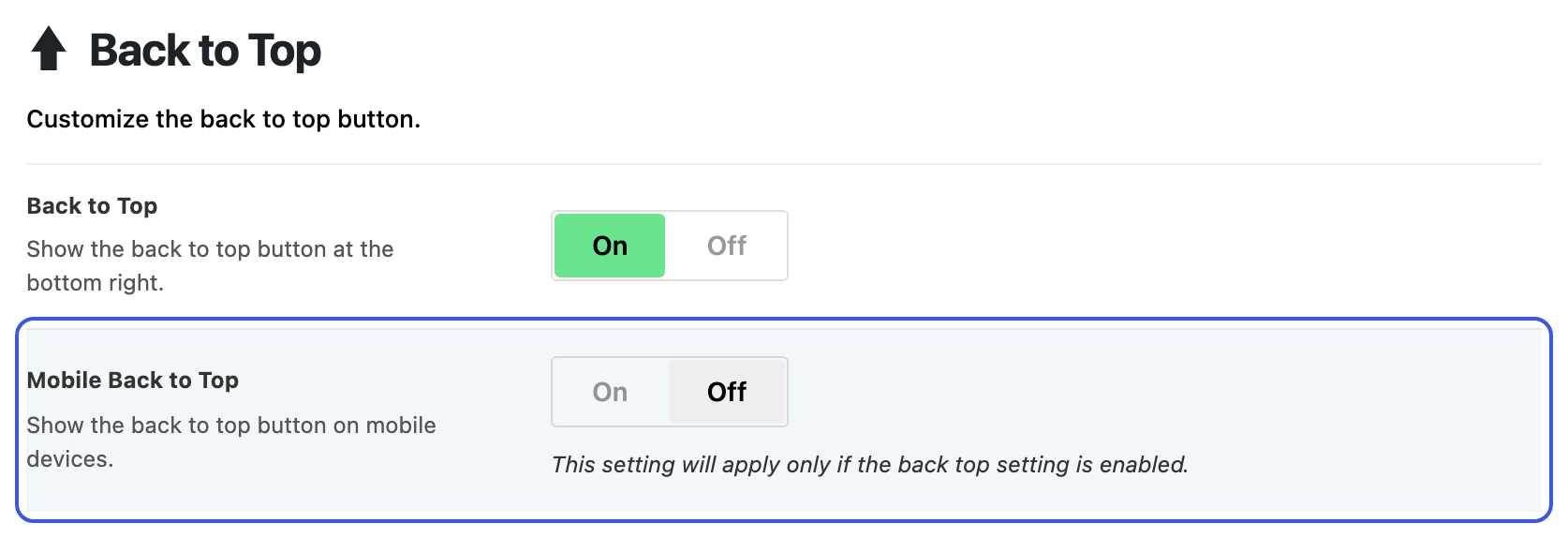
Move to the one you want with the arrow keys and press Enter, or click it. Theme Options opens on that section, scrolls the setting to the middle of the screen, outlines it for about two seconds and puts the cursor in its control, so a switch or a text box is ready to use.
-
Change the setting and click Save Changes, as you would after finding it by hand. The palette only takes you there; it saves nothing.
The palette works inside Theme Options too. Pressing Ctrl+K there and picking another setting switches sections without reloading the page, so the changes you have not saved yet are still on screen when you arrive. Save before you leave Theme Options for another admin page, as you always would.
If you had typed into the Theme Options search box before, the palette clears it on arrival. That search hides every setting that does not match, and leaving it in place would hide the one you came for.
What you can type
You do not need the exact label. The search reads more than the setting's name:
| You type | It finds |
|---|---|
| part of the name | back top finds every Back to Top setting, the one in AMP as well as the one in Theme Design |
| words from the help text under the setting | the subtitle and description each setting shows on its row |
| a choice from a dropdown or a row of buttons | boxed finds the boxed blog designs and their settings, because the choice labels of each setting are searched too, up to 12 per setting |
| a different word for the same thing | night mode finds Dark Mode, toc finds Table of Contents, colour finds Color |
| a small typo | stciky still finds the sticky settings: one wrong or swapped letter in a word of four letters or more, two in a word of eight or more |
Short words such as "the", "of", "for" and "my" are left out of what you type. Plurals and the British spellings colour, centre, grey and optimise match their singular and American forms.
The other words it treats as the same, one group per line:
- logo, brand and branding
- font, typography and typeface
- menu, navigation and nav
- ads, advertising, sponsor and banner
- social, share and sharing
- footer and bottom
- header, top bar and navbar
- sidebar and widget area
- favicon, site icon and bookmarklet
- speed, performance and optimize
- GDPR, privacy, cookie and consent
- breadcrumb and breadcrumbs
- single, post and article
- archive, category and taxonomy
When the setting is hidden until you change another
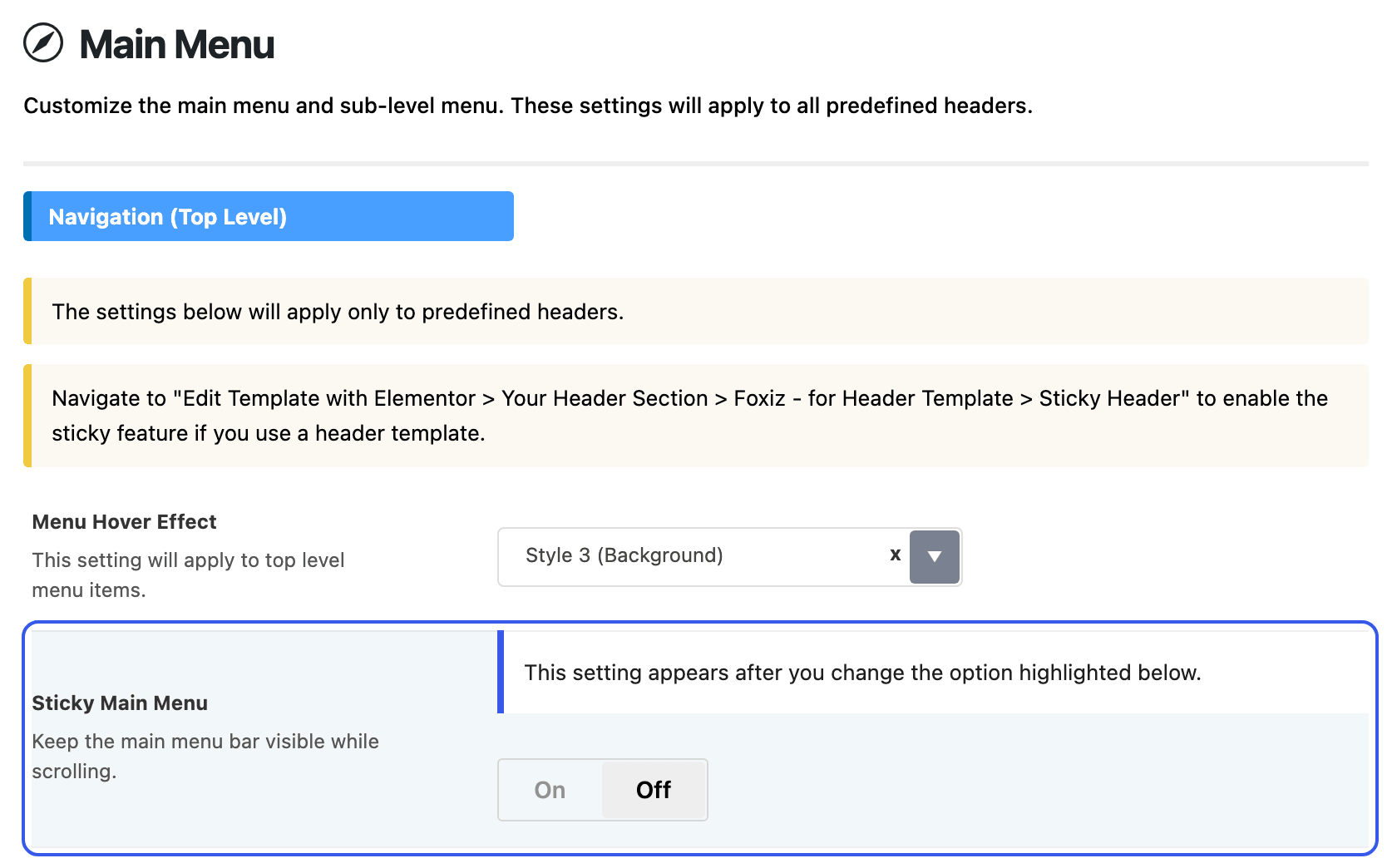
Many settings in Theme Options only appear once another option above them is set. Smart Sticky and Glass Effect, for example, stay hidden in Header › Main Menu until Sticky Main Menu is on. The palette finds a hidden setting all the same, and on arrival it points you at the option that reveals it:
-
A blue notice reads "This setting appears after you change the option highlighted below."
-
The option under it is outlined. Change it, and the setting you searched for appears below it.
When the controlling option is itself hidden, the notice at the top of the section reads "This setting is hidden until a related option in this section is changed." Work down the section from the top, changing the switches and dropdowns that reveal more settings, until the one you searched for appears.
Shortcuts to the other Foxiz pages
The palette also opens the other screens in the Foxiz admin menu. Each page you can open appears as Foxiz: and its menu name, for example Foxiz: GTM & GA4 or Foxiz: Fonts (GDPR), and these are listed above the Theme Options settings.
These shortcuts go one step further and land on the control you want on that page, or press its button for you:
| Type | What it does |
|---|---|
| Local Google Fonts (GDPR) | opens Fonts (GDPR) at the Local Google Fonts section |
| Scan Google Fonts | opens Fonts (GDPR) and presses Rescan for you |
| Adobe Fonts (Typekit) project ID | opens Fonts (GDPR) with the cursor in the Adobe Fonts Project ID box |
| Google Tag Manager container ID | opens GTM & GA4 with the cursor in Google Tag Manager Container ID; once an ID is saved it points at the saved ID |
| Google Analytics 4 measurement ID | opens GTM & GA4 with the cursor in or Gtag Measurement ID |
| Turnstile site and secret keys | opens Turnstile, presses Change Keys and puts the cursor in Site Key |
| Test Turnstile keys | opens Turnstile and presses Test Connection |
| Export translation | opens Quick Translation and presses Export Data |
| Import translation file | opens Quick Translation with the Import Translation file picker open and ready |
| Search demos to import | opens Demo Importer with the cursor in its search box |
| Export / import Theme Options | opens Theme Options on its last tab, Backup/Restore (the palette's own list of sections calls that tab Import / Export) |
None of them changes anything without you: the ones that press a button press one that only scans, tests or downloads. Importing a translation and importing Theme Options still wait for you to choose the file and confirm.
When the Foxiz results do not appear
- If the only Foxiz entry is Activate Foxiz, your license is not activated on this site. Choose it, activate on the Foxiz dashboard, and the settings search starts working on the next admin page you open.
- If the only Foxiz entries are the two Turnstile shortcuts, the Foxiz theme is not the active theme, or not the parent of the active child theme. Theme Options belongs to the theme, and without it Foxiz Core keeps only its Turnstile page, moved under Settings.
- If Ctrl+K does nothing on the Dashboard, your WordPress is older than 6.9, which is when the palette came to every admin screen. Update WordPress.
- If there are no Foxiz entries at all, your account is not an administrator.
Did this answer your question?