Single Post
Everything about a post open on screen: its layout, content area, sidebars, meta, sharing, reviews, comments, the sections below the content and the header above it.
In short, Single Post sets the defaults for every post page. Change a setting here and every post follows, except a post where you changed that setting yourself.
Where to find it
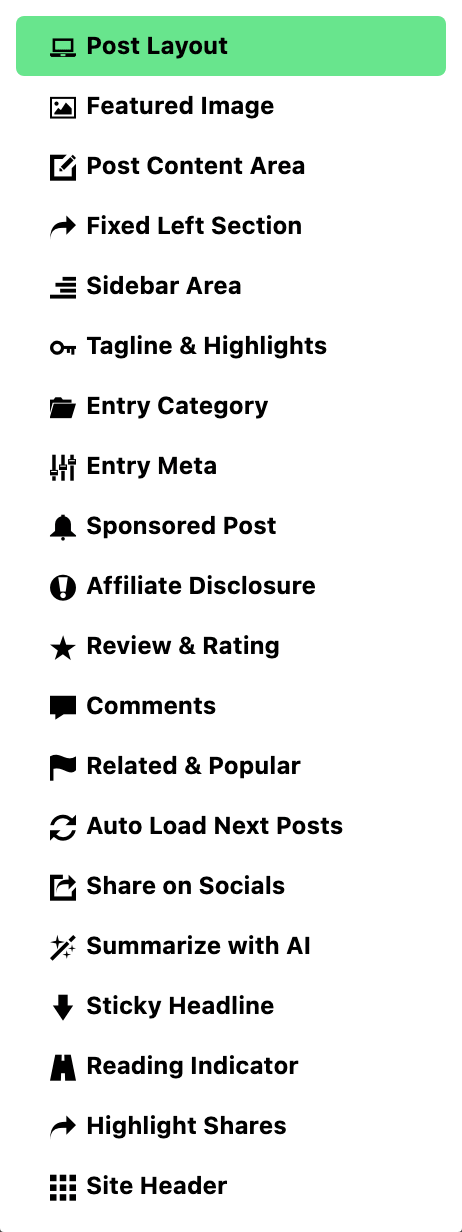
Go to Theme Options > Single Post. The tab has no settings of its own. Click it and it opens a list of twenty subsections; each subsection has its own settings.
After changing anything, click Save Changes. The button is at the bottom of the panel, and also in the bar that stays at the top while you scroll.
Single Post or another tab?
Several places change how a post looks. Use this to pick the right one:
- Every post page, as a default: Single Post, this tab.
- One post only: open the post and use its Single Post Settings box, under the editor.
- A post as it appears in a listing (its category label, meta line, thumbnail): Theme Design.
- Static pages: Single Page.
- Posts of a custom post type made with another plugin: Post Types.
- Fonts on the post page: Typography > Single Post.
- Adverts inside the post content: Ads & Slide Up > Inline Single Content.
What is inside, by job
The Theme Options menu on the left lists the subsections in panel order. Here they are grouped by what you are trying to do. Each name links to the article that walks its settings.
The layout of the page
- Post Layout: the layout of single posts.
- Featured Image: the size of the featured image on single posts.
- Post Content Area: the layout and styles of the post content.
- Sidebar Area: the sidebars on single posts.
- Site Header: the site header on single posts.
The top of the post
-
Entry Category: the category label on single posts.
-
Entry Meta: the meta bar on single posts.
-
Tagline & Highlights: two things.
- The tagline under the post title, and its HTML tag.
- The box of highlight points a post can carry, styled with three fields:
- Highlight Heading
- Highlight Layout
- Highlight Size
- The points themselves are written per post, in the post's Single Post Settings > Tagline & Highlights.
-
Summarize with AI: a block above the content that summarizes the article with an AI assistant.
Sharing
- Share on Socials: which networks get a share button.
- Fixed Left Section: the share bar fixed to the left of the content.
- Highlight Shares: the share popup that appears when a reader highlights text.
Labels and notices on a post
- Sponsored Post: how sponsored posts are marked.
- Affiliate Disclosure: the affiliate disclosure on single posts.
- Review & Rating: review posts and their scores.
While the reader scrolls
- Sticky Headline: keeping the headline and share icons in view while the reader scrolls down.
- Reading Indicator: the reading progress bar at the top of the site.
Both are covered in every setting in the sticky headline and reading indicator panels.
After the post
- Comments: the comment box.
- Related & Popular: the related and popular sections below the post.
- Auto Load Next Posts: loading the next post as the reader reaches the end of one.
Common jobs
Two walkthroughs sit in this folder:
- Set up social share buttons on posts: how to set up social share on single posts.
- Add related posts at the end of a post, or inside it: how to add related posts automatically.
Elsewhere in these docs:
- Change the layout of posts, for all posts or one: post settings and layouts.
- Choose what the meta bar shows: how to config entry meta info in single post.
- Set up the related and popular sections: related and popular box.
- Turn comments on or off: how to enable or disable comments.
- Turn auto load next posts on or off: how to enable or disable auto load next posts.
- Publish a review with a score: how to create a review post.
- Mark a post as sponsored: how to enable sponsored content for the post.
- Give posts a different sidebar: assigning a sidebar to posts and pages.
- Design the post page in Elementor: how to structure a single post layout using a single template.
Good to know
One post can differ. The settings here are defaults. A setting changed in a post's own Single Post Settings box wins for that post. A field left on - Default - there follows this tab.
Video, audio and gallery posts have their own layout. Post Layout holds one group for each:
- for Standard Post
- for Video Post Format
- for Audio Post Format
- for Gallery Post Format
A Ruby Template replaces the predefined layout. Put a shortcode in or Use Ruby Template for the Single Post and it wins over Predefined Layout. Leave it blank to use the predefined layout.
Some settings reach other post types too. These subsections also apply, in part or in full, to podcasts and other custom post types:
- Post Content Area
- Related & Popular
- Sticky Headline
- Reading Indicator
A few features skip some posts.
- Highlight Shares works on blog posts only, not podcasts or other custom post types.
- Auto Load Next Posts never loads a live blog post as the next post. Visitors can still open it directly.
Lazy loading for the featured image is not here. It is under Performance > Images, as the note in Featured Image says.
If a change does not show
- Did it save? Click Save Changes again and wait for the confirmation.
- Is a cache serving the old page? Clear your caching plugin and any server or CDN cache, then reload the post on the site.
- Was that setting changed on the post itself? Open the post and check its Single Post Settings box. A value there wins over this tab; set it back to - Default - to follow this tab again.
- Does the post use a Ruby Template? Then the template decides the layout. Edit it in Elementor, or clear or Use Ruby Template for the Single Post.
Did this answer your question?