Find Out Which Setting Is Deciding
You picked a layout in Theme Options, the page came out looking like something else, and now you want to know which screen won. Foxiz reads several screens for the same decision. This page first shows how those screens are layered, then how to check which one is deciding on your own site.
How the settings are layered
Foxiz settings sit in levels, from the whole site down to one post or one block.
-
Site wide. Theme Options panels that apply everywhere, such as Sidebars, Theme Design and Typography.
-
Page type. The Theme Options panel for one kind of page. A value set here replaces the site wide value on that kind of page.
- Single Post
- Category
- Tag Page and Archives
- Search Page
- Author Page
- Blog Index
-
One item. The settings box of a single post, page, category or tag:
- a post's Single Post Settings box, under the editor;
- a page's Single Page Settings box, under the editor;
- a category's or tag's Foxiz Category Settings box, on its edit screen.
A value here replaces the page type value, for that one item only.
-
One block. An Elementor block has its own settings, and they win over Theme Design for that block only. Entry Meta lists an example.
The rule: the narrowest level with a value wins
- A field reading - Default -, or left blank, has no value. It hands the decision to the level above.
- The first level that has a value decides. Everything above it is read past.
So to make one post different, change that post. To change every post, change Theme Options > Single Post and leave the posts on - Default -.
Three examples
- Sidebar position on a single post:
- the post's own Sidebar Position;
- then Theme Options > Single Post;
- then Theme Options > Sidebars > Sidebar Position.
- Sticky sidebar on a category page:
- the category's own Sticky Sidebar;
- then Theme Options > Category;
- then Theme Options > Sidebars > Sticky Sidebar.
- Listing template on a tag page:
- the tag's own settings;
- then Theme Options > Tag Page;
- then Theme Options > Archives, which the tag page starts from.
Search and author pages do not start from Archives. Each reads only its own panel.
Where the rule bends
A few cases do not follow the plain order. For example, a Ruby Template (a layout you build in Elementor and assign to a place on the site) beats the layout select on the same screen, and a category's header does not reach the posts inside it. They are listed in Where the order is not what you would guess below.
Check it on your own site
The order above tells you where to look. To be sure on one page, check it. You need no plugin, and the answer is for your site, not a site in general.
First, read what the page already tells you
Foxiz writes the winning values as classes on the page's body tag. So before you change anything, you can see which value the page is using.
-
Open the page on the front end.
-
Right click it and choose Inspect (Chrome, Edge) or Inspect Element (Firefox). Or open View Page Source, which is easier to search.
-
Find the
<bodyline and read itsclasslist.
The classes worth looking for
These classes cover the usual questions. The other classes on body only say whether a feature is on.
| What you see on the page | What it means |
|---|---|
is-hd-1 to is-hd-5 | that numbered header layout won |
yes-hd-transparent is-hd-1 | the transparent version of header layout 1 won |
is-hd-rb_template | a Ruby Template won the header |
is-standard-1, is-grid-1, is-video-2 | that predefined single post layout won, written with hyphens where the layout name has an underscore |
is-stemplate | a Ruby Template won the single post layout |
centered-header | the centred single post header is on |
Theme Design settings show up the same way:
| What you see on the page | Which setting put it there |
|---|---|
hover-ani-1 to hover-ani-8 | Title Hover Effect |
btn-ani-1 to btn-ani-3 | Button Hover Effect |
btn-transform-1 to btn-transform-3 | Button Hover Animation |
is-rm-simple, is-rm-bg | Button Style in Read More Button |
lmeta-dot, lmeta-label, lmeta-all | Meta Style in Live Blogging |
loader-1 to loader-4 | Loader Style |
mtax-1 to mtax-3 | Taxonomy Meta Style in Entry Meta |
is-backtop | Back to Top is on |
none-m-backtop | Mobile Back to Top is off, so phones get no button |
A class tells you which value won. It does not tell you which screen set it. The next step does.
Then change one screen at a time
Start with the narrowest screen. Change one thing, save, and reload the front end page. If the class changes, that screen is deciding. If nothing changes, that screen is being read past.
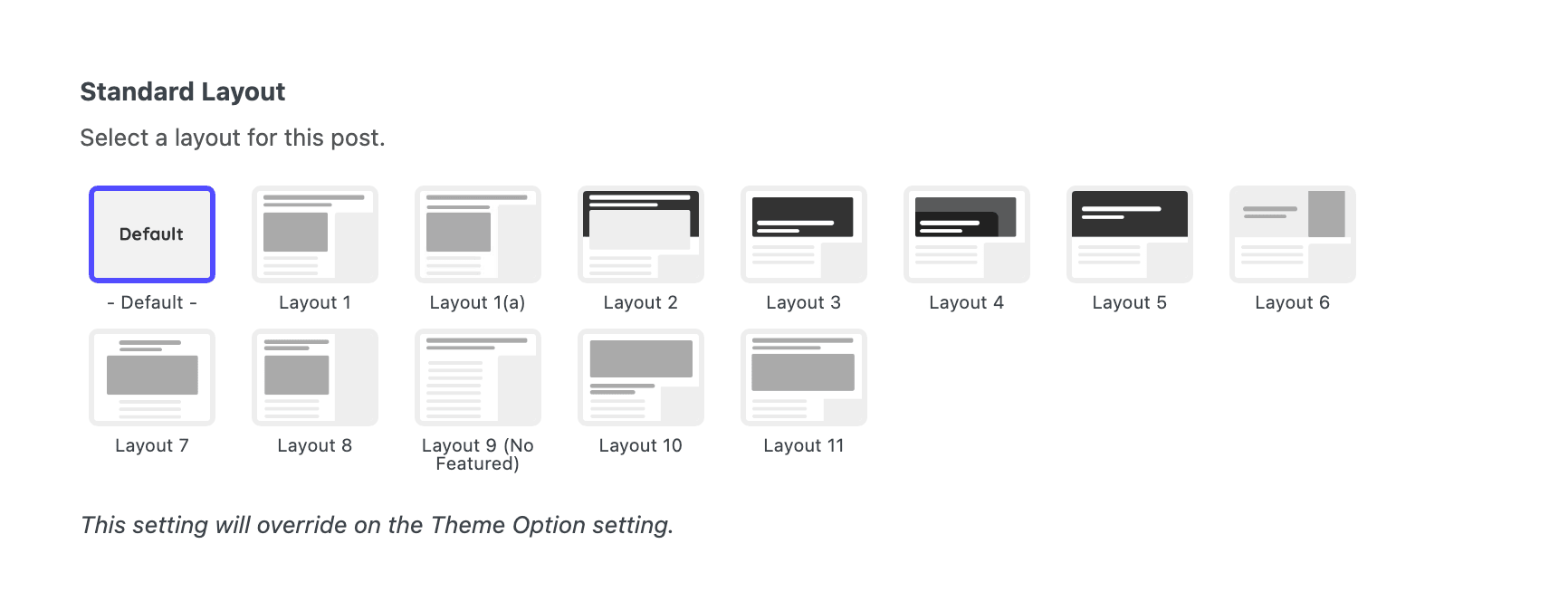
- The post or page itself. Scroll below the editor to its settings box and open the tab for your setting. - Default - means the post is not deciding. Pick a different value, save, reload and check the class.
- The category. Set the post's field back to - Default -. Then edit the post's category and change the same setting there.
- Theme Options. Set the category's field back, then change the setting in Theme Options.
This takes longer than reading a list of rules. But it is the only check that also catches old settings someone else saved on your site.
Where the order is not what you would guess
These are the cases people most often get wrong.
A post's own layout beats its category's
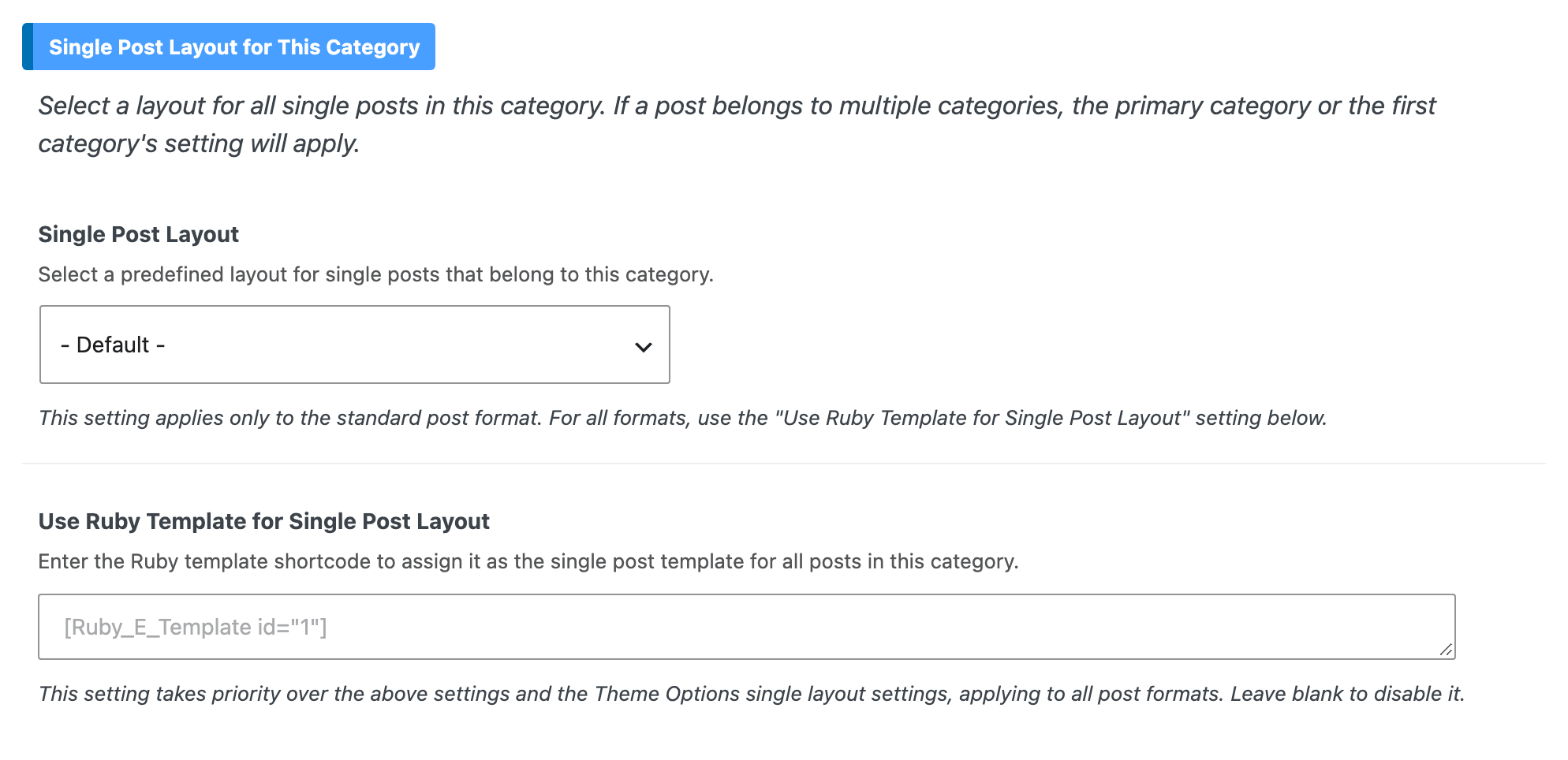
On a category's edit screen, the Single Post Layout tab has two fields: Single Post Layout and Use Ruby Template for Single Post Layout.
- Both apply to the category's posts only while the post's own layout reads - Default -. The post's own layout is Standard Layout on a standard post, or the video, audio or gallery layout on a post of that format.
- Set the post's layout and the post wins, even over a Ruby Template on the category. Older versions worked the other way.
- With the post on - Default -, the category's Single Post Layout applies to standard posts only. Video, audio and gallery posts skip it and use Theme Options. The category's Ruby Template applies to every format.
A post in several categories uses its Primary Category
The category settings come from the post's Primary Category, set on the post's Primary Category & Tag tab. Leave it blank and the post's first category is used, which is often not the one you meant.
A Ruby Template beats the layout select on the same screen
- On the post: its Template Shortcode beats its own layout select.
- On the category: Use Ruby Template for Single Post Layout beats Single Post Layout.
- In Theme Options: the template beats the layout.
While a screen has a shortcode in its template field, changing that screen's layout select does nothing. Clear the shortcode to use the select again. The post's own Template Shortcode beats everything.
A category's Predefined Layout turns off the global listing template
Normally a template beats a layout. Here it is the other way round: a Ruby Template you assigned to every archive skips each category that has its own Predefined Layout set.
A category's header does not reach its posts
A category's Site Header applies to that category's archive page only. A post's header comes from:
- the post itself;
- then its post format;
- then Theme Options > Single Post.
This is the most common reason a header looks different on an archive page and on its posts.
Two things this method cannot find
Which sidebar is showing. The page does not say which sidebar it used. The theme wraps the widgets in a plain sidebar box with no sidebar name on it.
- Look at which widgets appear on the page.
- Open Appearance > Widgets and find the sidebar that holds those widgets.
Which screen won, when two screens hold the same value. If the post and Theme Options both say layout 2, the class reads is-standard-2 either way, so the class cannot tell them apart.
- For the test, set one of the two screens to a clearly different value.
- Reload the page. If the class changes, that screen was deciding.
- Put the value back when you are done.
One setting you cannot change on the post
Whether the sidebar is sticky on a single post is not a post setting. The post's own settings box has no say in it, so there is nothing on the post to test.
The order is:
- Theme Options > Single Post > Sidebar Area > Sticky Sidebar;
- then Theme Options > Sidebars > Sticky Sidebar, for the whole site.
A category page is different: its edit screen has its own Sticky Sidebar, which wins for that category.
When nothing you change moves the class
Three causes, in the order to check them.
- A cache is serving the old page. Clear your caching plugin, your host's cache and your CDN, then reload the front end rather than the admin. Corner radius, container width, colours and the input style all travel inside the page's own stylesheet, so a cached page carries the old values even after a correct save.
- A Ruby Template on the same screen is winning. See A Ruby Template beats the layout select on the same screen, and empty the shortcode fields one at a time.
- An old value is still saved in a field you can no longer see. The settings box keeps every value it ever saved. When a field stops showing, for example after the post changes format, its old value is still read. To clear it:
- switch the post format back, so the field shows again;
- set the field to - Default - and save;
- switch the format again.
If there is no Single Post Settings box on the post at all, the site's license has not been activated on this domain. Activate it and the box appears.
Related
- Theme Design: the panel whose settings publish themselves in the second table above.
- Post Settings Layouts: the box in step 1, tab by tab.
- How to set a primary category for a post: the field that picks which category a post follows.
- How to config your category: the category screen used in step 2.
Did this answer your question?