What is Theme Options?
Theme Options is the main panel where you can configure the global settings for your website. Go to Foxiz > Theme Options in the admin sidebar.
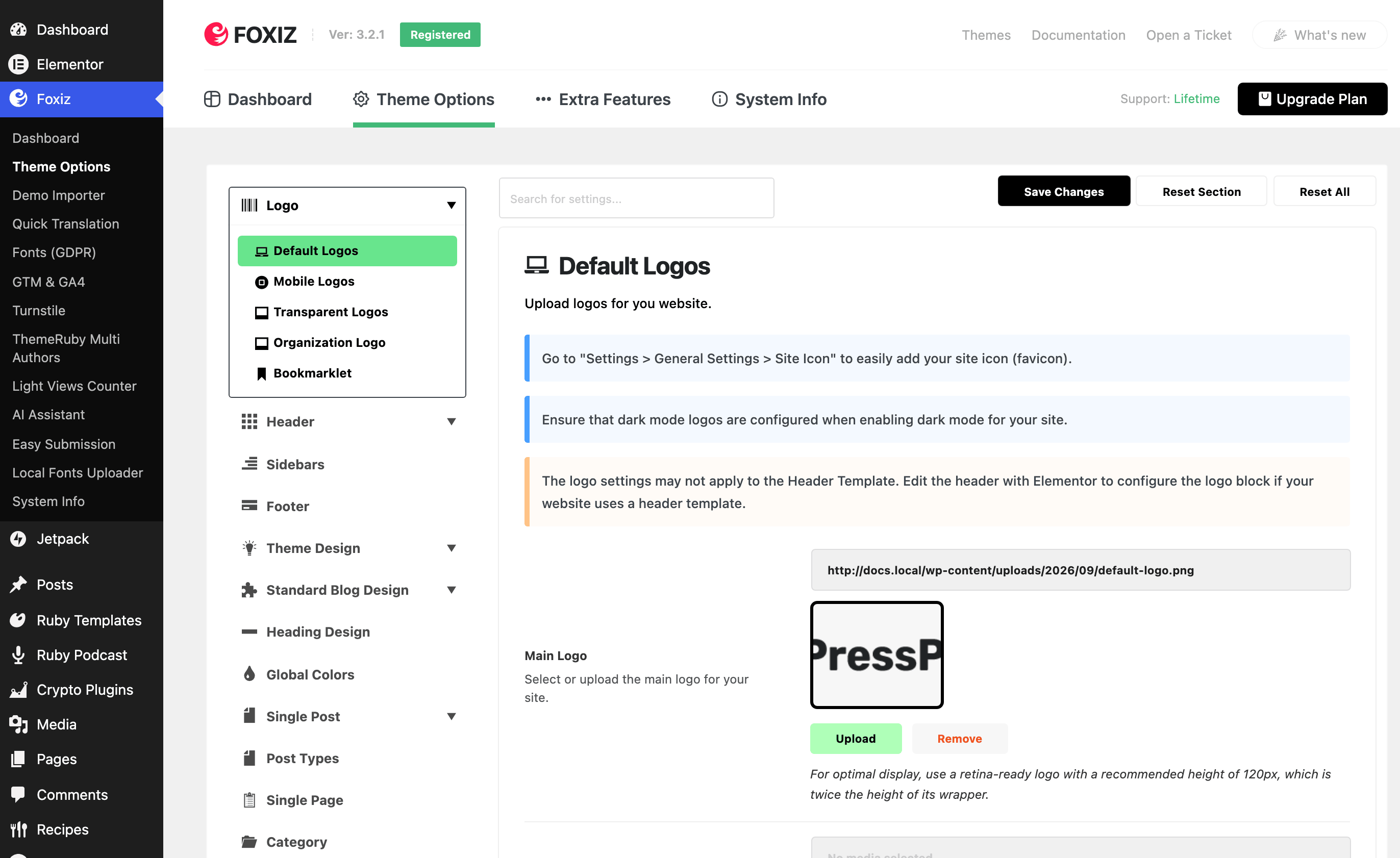
Foxiz is its own top level item in the admin sidebar, third from the top, and Theme Options is the second entry under it.
The page address is wp-admin/admin.php?page=ruby-options, so you can bookmark it. Foxiz also puts a shortcut in the black admin bar at the top of every screen.
Came to change one setting? You do not need the map below. Press Ctrl+K (Cmd+K on a Mac) on any admin screen, or type in the Search for settings... box at the top of the panel, and jump straight to it: see How to Find Any Setting with the Command Palette.
The panel has 39 tabs down the left side, most of them holding several subsections. Grouped by the job they do:
-
The frame around every page. These four build the frame that every page draws around its content.
- Logo: the main logo, its dark mode version, the mobile and transparent logos, the logo search engines see for your organization, and the icons phones and Windows use when someone saves the site to the home screen.
- Header: which header layout the site uses, the main menu and its sticky behaviour, sub-menu colors, the header search and the notification icon.
- Sidebars: the default sidebar position, extra sidebars you can create, sticky sidebars, and whether widgets use the block editor. To add one: How to Create a Custom Sidebar?
- Footer: footer background and colors, the widget columns, the logo and social icons row, and the copyright text and menu. Walk-through: How to Config the Footer?
-
How content looks everywhere. These five decide how the same content looks wherever it appears.
- Theme Design: the small parts around every post title, such as category labels and their colors, entry meta icons, tag links, reading speed and "ago" dates.
- Standard Blog Design: one subsection per post listing style (Classic, Grid, List, Boxed List and so on), each setting which parts of a post card show: image, category, meta, excerpt, read more.
- Heading Design: the layout and colors of section headings and widget headings.
- Global Colors: the site-wide highlight color, body background, buttons, the light/dark switcher and the smaller colored bits such as review stars and the sponsor label.
- Typography: the font, size and color of body text, excerpts, H1 to H6, category labels and meta.
-
One post or page open on screen.
- Single Post: the post layout for each post format (standard, video, audio, gallery), content width, paragraph spacing, link style, and the sections around the content.
- Post Types: templates for single posts of custom post types made by plugins such as Custom Post Type UI or ACF; everything else comes from Single Post. See Custom Post Type Layouts.
- Single Page: the page header layout, breadcrumb position, content width and sidebar for WordPress pages. See How to Create a Single Page?
-
Listing pages. Each has its own posts per page and its own layout, so there is no single setting for "all archives".
- Category: the category header, subcategory list, posts per page and post listing for category pages. See How to Config Your Category?
- Blog Index: the layout of the blog page that lists your latest posts. See How to Config the Blog Page?
- Author Page: the author bio box, post count, verified tick and post listing on author pages. See Author Page.
- Search Page: which post types search includes or leaves out, and the layout of the results. See Search Page.
- Tag Page: the tag header and a custom template for tag pages; without one, tags use the Archives layout. To build that template: How to Add Blog Template Builder to Tag Page.
- Taxonomy: the header, posts per page and listing template for custom taxonomies. See Every Setting in the Taxonomy Panel.
- Archives: the fallback settings for tags, taxonomies and date archives, which the more specific tabs can override. See Archive Page.
- 404 Page: the image, heading, description and search form on the "page not found" screen. Every Setting in the 404 Page Panel walks it field by field.
-
Features you switch on and configure.
- Table of Contents: which post types and heading levels get a table of contents, where it sits and how it behaves.
- Like & Reaction: like and reaction buttons on posts, and how votes are counted.
- Personalized System: bookmarks, following categories, tags and authors, and the reading list page that collects them.
- Social Profiles: the URLs of your social accounts, which the theme's social icons link to.
- Breadcrumb Bar: whether the breadcrumb trail shows, and on which kinds of page. See How to Enable and Disable Breadcrumb.
- Privacy Notice: the privacy bar, its text, position and colors. See Options GDPR, for the Privacy Notice Popup Bar.
- Dark Mode: whether visitors can switch to dark mode, the mode a first-time visitor sees, and the switcher's look. See How to Enable Dark Mode Feature.
- Popup Newsletter: a newsletter popup, its content and form shortcode, and when it appears. See Newsletter Popup Options.
-
What the theme loads and outputs.
- Performance: lazy loading, Google Fonts and font preloading, query and rate limits. See Optimize Your Site Speed with Performance Options.
- SEO Optimized: the schema markup the theme adds (organization, article, review, breadcrumbs and others), meta descriptions and featured images in RSS. See How to Optimize SEO for the Theme to Avoid Duplication with Plugins.
-
Advertising and accounts.
- AdBlock Detector: a title and description shown to visitors who run an ad blocker. See How to Set Up the AdBlock Detector.
- Ads & Slide Up: AdSense auto ads and the theme's own ad spots, at the top of the site and inside post content.
- Login: the login screen, front-end login and registration pages, the sign in button and popup, and the admin bar for logged-in users.
-
Other plugins. These style other plugins. WooCommerce, Membership, WP Recipe Maker and AMP stay in the list when their plugin is not active, with a notice that it is missing. In the first three that notice is all the tab holds until the plugin is active; AMP still shows its settings under the notice.
- WooCommerce: the shop and product category pages, products per page, sidebars and product card colors. Setting up a shop for the first time? Start with How to Set Up a Shop with Foxiz.
- Membership: the messages and labels readers see on members-only content. See Adding a Membership.
- WP Recipe Maker: how recipe styles and the Pinterest script load, and whether recipes join the table of contents.
- Ruby Podcast: podcast permalinks, where episodes appear, the player and the episode layout.
- AMP: the footer, single post sections and ads on AMP pages.
-
Backup/Restore, the last tab, exports the whole option set as text and imports it back.
Every tab saves with the same Save Changes button. It saves all of them at once, which has two consequences worth knowing before you start.
The first is that the whole form posts in one request. Foxiz has around 1,500 settings, so a server with a low max_input_vars drops the fields at the end of the form and the panel appears to save while the last settings quietly revert. See Checking Server Requirements.
The second matters more, because it costs work rather than time:
Importing a demo replaces your Theme Options rather than merging into them: every setting you have changed is overwritten with the demo's value.
Import the demo you want first, then configure. If you have to import again later, untick Theme Options in the importer, or take a copy from Backup/Restore first.
Cannot See The Theme Options?
Ensure that you installed and activated the Foxiz Core plugin. You can refer to this tutorial for further information.
Foxiz Core is what creates the Foxiz menu the panel hangs under.
It also brings the framework the panel is built on, so you never have to install anything else to get it.
If Foxiz Core is active and Theme Options still is not there, the licence has not been activated on this site. Activate it and the tab appears.
You can tell the two apart at a glance. With no Foxiz Core there is no Foxiz menu at all. With Foxiz Core but no licence the menu is there, its first item reads Registration (or License) instead of Dashboard, and Theme Options is not in it.
Before the licence is active, visiting the page address directly does not help either: WordPress answers with "Sorry, you are not allowed to access this page".
Did this answer your question?