Header & Logo
The top of every page comes from two tabs in Theme Options, documented together here:
- Logo holds the logo images: the main one, its dark mode version, the mobile and transparent ones, the one search engines read, and the home screen icons.
- Header decides what the top of every page looks like: which predefined layout it uses, the main menu, the mobile header, and the search, notification, alert bar, social icons and cart that can sit in it.
Upload the logos once, pick and style a header, and every page with a predefined header follows. A narrower setting can pick another header, and a header built as a Ruby Template sets its own parts.
If your header is a Ruby Template built in Elementor, its logo comes from the Foxiz - Site Logo block, not from the Logo tab.
- The block has its own Logo Image and Dark Mode - Logo Image fields.
- When Logo Image is filled, the block shows that image and ignores Theme Options.
- When Logo Image is empty, the block uses Main Logo from the Logo tab.
- The dark logo from the Logo tab is used only when both block fields are empty.
To let Theme Options decide, clear both fields on the block: updating the logo in Theme Options doesn't work.
Where to find them
Go to Theme Options > Logo. The tab has no settings of its own. Click it and it opens a list of five subsections; each one holds its own upload fields.

Go to Theme Options > Header. The tab has no settings of its own. Click it and it opens a list of twelve subsections; each subsection has its own settings.
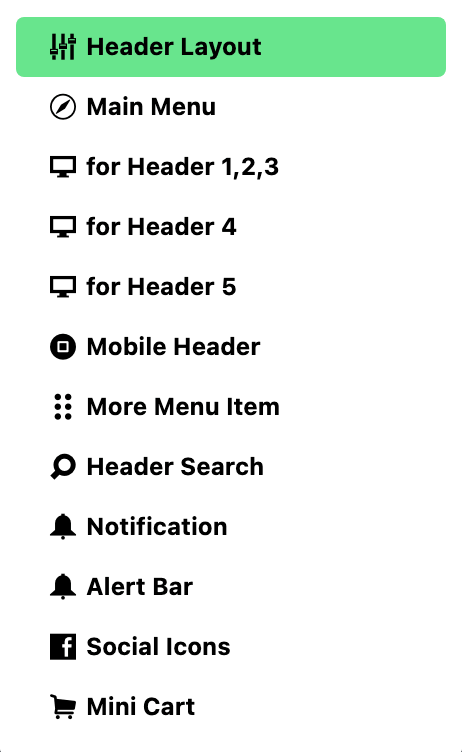
After changing anything, click Save Changes. The button is at the bottom of the panel, and also in the bar that stays at the top while you scroll.
Which tab sets what?
A logo and the parts around the header are set in several places:
- The logo image in the header, on desktop, phone and transparent headers: Logo.
- How tall the logo sits in the desktop header: Logo Max Height, in Header > for Header 1,2,3, for Header 4 or for Header 5, whichever layout you use.
- How tall the logo sits in the mobile header: Mobile Logo Height, in Header > Mobile Header.
- The logo at the bottom of the footer: Footer Logo, in the Logo & Socials group of Theme Options > Footer.
- The logo on the WordPress login screen: Login Logo, in Login > Login System.
- The logo on the popup sign in form: Form Logo, in Login > Popup Sign In.
- The logo in the AMP footer: AMP Footer Logo, in AMP > General.
- The favicon in the browser tab: not in Theme Options. Go to Settings > General Settings > Site Icon, as the note at the top of Default Logos says.
- The header across the whole site: Header.
- The header on single posts only: Single Post > Site Header.
- The fonts of the menus: Typography > Header Menus.
- The links behind the social icons: Social Profiles.
- The placeholder text and icon of the search form: Theme Design > Search.
- The colour of the browser bar on phones: Mobile Navigation Color. It is under Theme Design, not Header: see Mobile Navigation Color.
Logo
The Logo tab has five subsections, listed here in the order the panel shows them.
- Default Logos: the main logo and its dark mode version.
- Mobile Logos: the logos the mobile header shows. Leave them blank and phones show the site logo.
- Transparent Logos: the logos for a header that sits transparent over the page.
- Organization Logo: the logo search engines read from the schema markup. If your main logo is light, a dark one suits this field better.
- Bookmarklet: three fields.
- iOS Touch Icon: the icon an iPhone or iPad shows when someone saves your site to the home screen.
- Add to Home Screen: on by default. Turn it off and the iOS icon is not used.
- Windows Metro Tile Icon: the tile icon for a site pinned to the Windows Start screen.
When a logo field is blank
A blank field falls back to another logo. You do not have to fill every slot:
- Dark Mode - Main Logo blank: dark mode shows the Main Logo.
- Mobile Logo blank: the mobile header shows the main logo.
- Dark Mode - Mobile Logo blank: dark mode on phones shows Dark Mode - Main Logo, or the Mobile Logo when that is blank too.
- Organization Logo blank: search engines get the Main Logo.
Turning on dark mode? Set the dark mode logos too, as the note in Default Logos reminds you. A logo made for a light background can disappear on a dark one.
Header
The Header tab has twelve subsections. Here they are grouped by what you are trying to do.
Choose the header and style it
- Header Layout: which predefined header the site uses, and its general layout.
- for Header 1,2,3: the layout and style of header layouts 1, 2 and 3.
- for Header 4: the layout and style of header layout 4.
- for Header 5: the layout and style of header layout 5.
The menu
- Main Menu: the main menu and its sub-menus, for every predefined header.
- More Menu Item: the dropdown behind the more button at the end of the menu.
Phones and tablets
- Mobile Header: the header on phones and tablets.
What sits in the header
- Header Search: the search form in the header.
- Notification: the bell that lists posts published recently, within 72 hours by default.
- Alert Bar: a bar for an alert or event below the navigation.
- Social Icons: the social icons in the header.
- Mini Cart: a cart icon in the header. Until WooCommerce is installed and active, it holds only a notice that the plugin is missing.
Good to know
Header Layout is the site wide choice. Its default is Layout 1 (Left Menu). The choices are:
- Layout 1 (Left Menu)
- Layout 2 (Right Menu)
- Layout 3 (Center Menu)
- Layout 4 (Border)
- Layout 5 (Center Logo)
- Use Ruby Template: a header you build in Elementor. Paste its shortcode in Template Shortcode.
A header chosen in a narrower place, such as Single Post > Site Header, wins over this one.
Style the subsection that matches your layout. for Header 1,2,3 applies only to layouts 1, 2 and 3; for Header 4 and for Header 5 only to their own layout. Changes in the other two do nothing on your site.
A Ruby Template header ignores some of these settings. Its parts are set on the template, in Elementor:
- Notification: use the Foxiz - Notification Icon block instead.
- Alert Bar: not available with a header template.
- Sticky Main Menu: edit the template, select its header section and turn on Sticky Header under Foxiz - for Header Template.
Mobile colours left blank use the desktop navigation colours. If you turn on dark mode, set the Dark Mode Colors in Mobile Header too.
Using Elementor Pro's Theme Builder? To use the Foxiz header and footer, delete both the HEADER and FOOTER templates in its Theme Builder panel.
Common jobs
- Upload your logos and favicon, at the right size for a sharp result: how to upload logo and favicon.
- Set the icon in the browser tab: adding site favicon.
- The logo you set here does not appear: updating the logo in Theme Options doesn't work.
- Walk through the header from top to bottom: how to config the header.
- Use a different header for posts, a category, the blog or search: header layouts.
- Set up the main menu: how to create and set up header menus.
- Add a mega menu: how to create mega menus.
- Put an icon beside a menu item: how to add icon to menu items.
- Add the more button at the end of the menu: how to add more button menu to the main navigation.
- Keep the menu in view while scrolling: how to enable the menu sticky.
- Show an alert below the navigation: adding alert bar into the header.
- Change the menu on phones: how to edit or add menus on mobile devices.
- Build the header in Elementor instead: how to add header template builder to Elementor page.
If a change does not show
- Did it save? Click Save Changes again and wait for the confirmation.
- Is a cache serving the old page? Clear your caching plugin and any server or CDN cache, then reload the page on the site.
- Did you style the right layout? Check Header Layout, then edit the for Header subsection that matches it.
- Is a narrower setting winning? A header set for single posts, or on one post, wins over Header Layout.
- Is the header a Ruby Template? Then edit the template in Elementor. Many settings here style the predefined headers only, and the logo comes from the template's Foxiz - Site Logo block: clear its Logo Image and Dark Mode - Logo Image to use the Logo tab, or set the logo there. See the warning at the top of this page.
Did this answer your question?