Typography Options
Typography sets the font, size and colour of each kind of text on your website, one subsection per kind.
Want to change your site's font? For most sites, start with two places:
- Body Font, in Website Body: the text of posts and pages. Left blank, it is Oxygen.
- H1 Font to H6 Font, in H1 Tag to H6 Tag: the headings and post titles. Give all six the same family. Left blank, they are Encode Sans Condensed.
Menus, meta, category labels and buttons keep the theme's own fonts until you set them too: Header Menus, Entry Meta, Entry Category and Inputs & Button. Set the family there as well if they should match.
The theme supports Google fonts, which means your site pages load font files from the Google servers unless you tell them not to. Foxiz can download those same fonts to your own server instead, at Foxiz > Fonts (GDPR) (Fonts (GDPR) explains the page), and the same page connects an Adobe Fonts project. How to Use Adobe Fonts (Typekit) walks through connecting a project and picking its fonts here.
Fonts can be set in two places:
- Theme Options > Typography sets each kind of text across the whole site.
- An Elementor block's Style tab changes the fonts of that one block, for example Title Font under Post Title.
A font set on the block wins for that block. A block font left empty keeps the Typography setting. So set the site's fonts here first, and use a block's own font only for the exceptions.
To get started, navigate to Theme Options > Typography
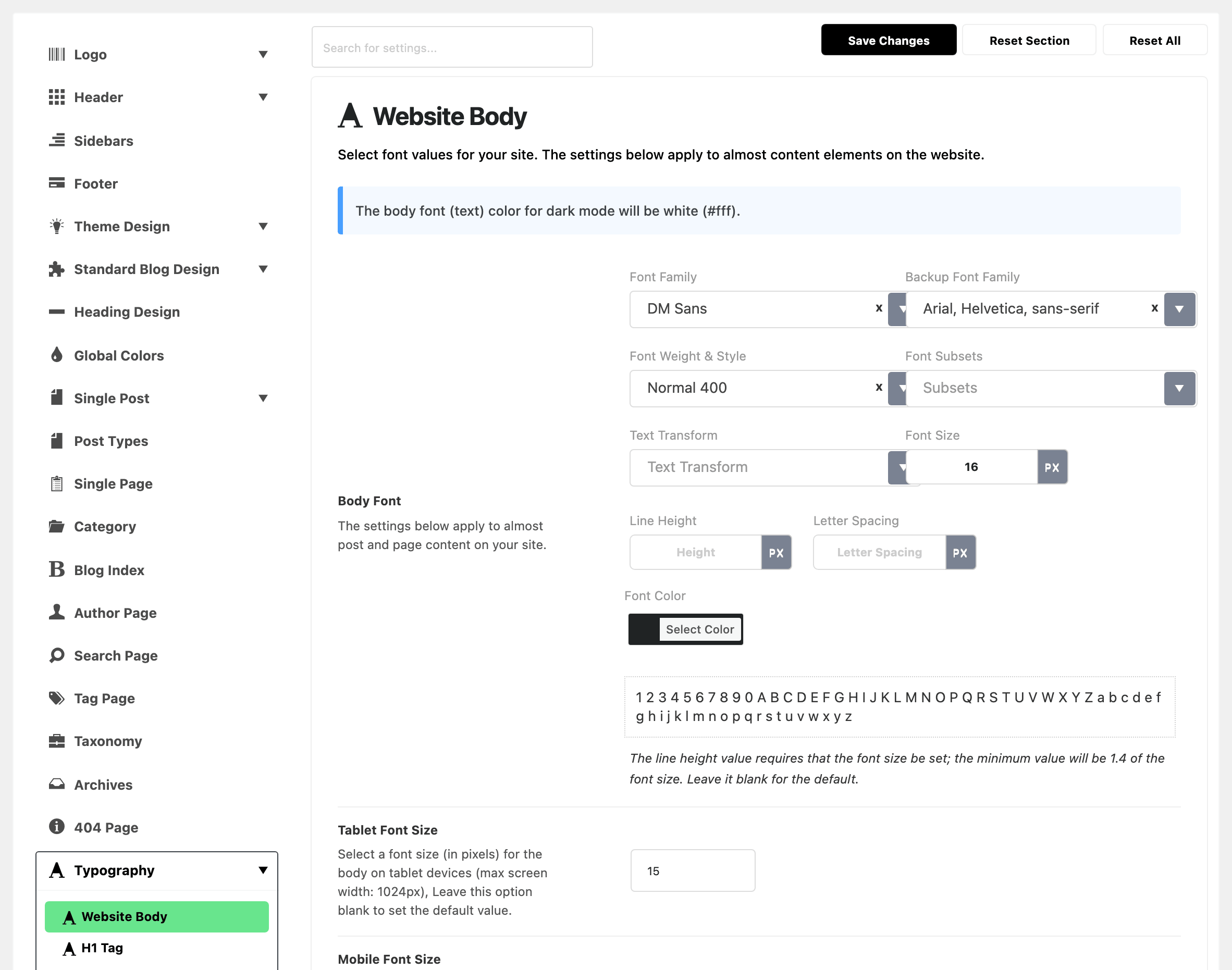
Each font choice in the typography tab provides the following options
-
Font Family
-
Backup Font Family, a system font the browser falls back to while the web font loads or if it fails
-
Font Weight & Style
-
Font Subsets
-
Text Transform
-
Font Size
-
Line Height
-
Letter Spacing
-
Font Color, on twelve controls only. Every other typography control has no colour inside it. The ones that do:
- Body Font
- H1 Font to H6 Font
- Entry Meta Font and Important Meta Font
- Full Width Headline and Full Width Tagline
- Product Title Font, under WooCommerce
Entry Excerpt and Breadcrumb get their colour from a separate field below the control instead: Excerpt Color and Breadcrumb Color. The rest, including the five Header Menus fonts, the two Block Heading fonts, Default Widgets, Table of Contents Font and WooCommerce's Price Font, have no colour field in the Typography panel at all.
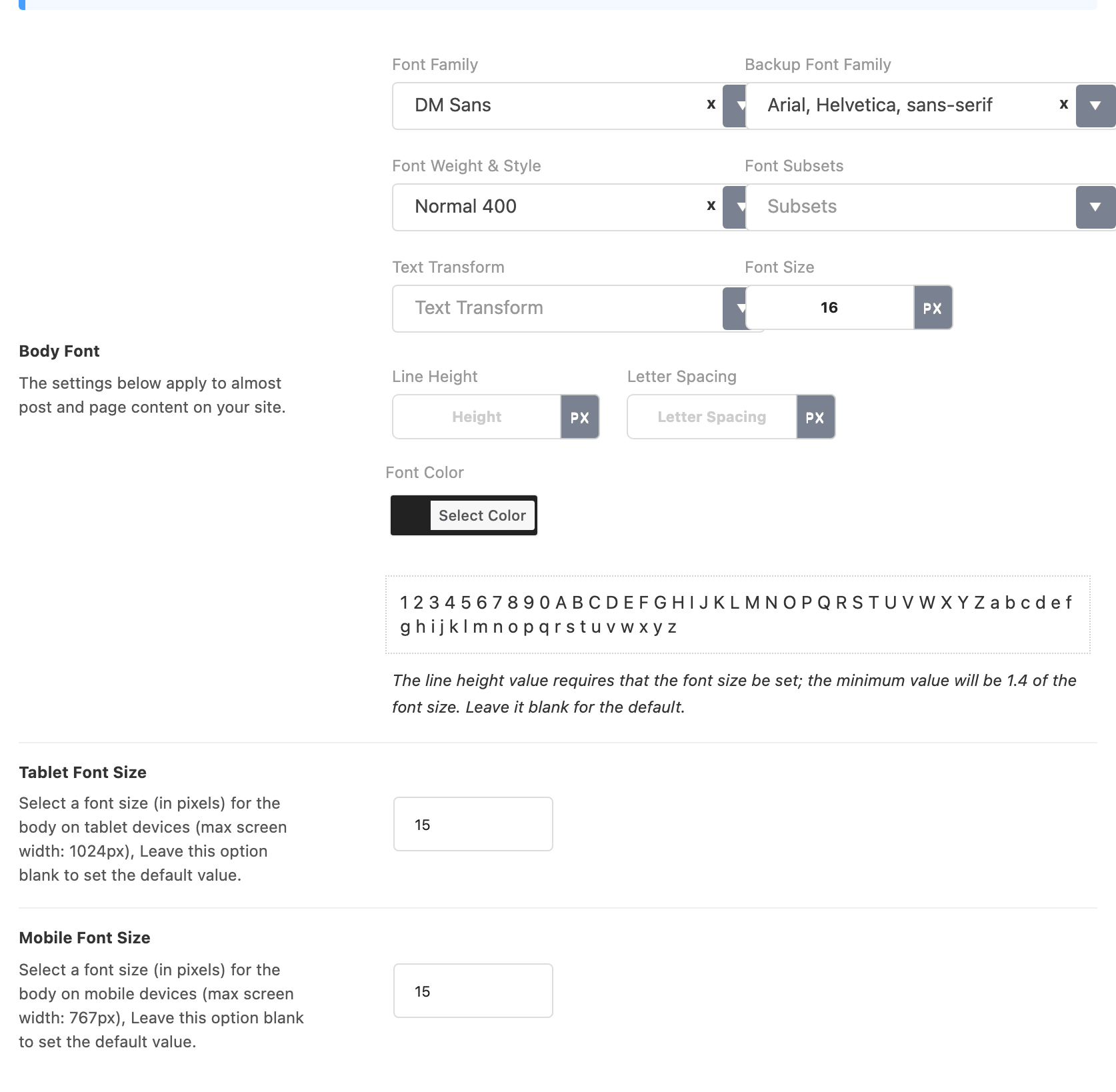
Tablet Font Size and Mobile Font Size are not part of the control. They are separate fields underneath it, in pixels, applying below 1024px and below 767px. They set the size and nothing else: family, weight, colour and spacing stay as the main control left them, so you cannot give a phone a different font here, only a different size.
Line Height and Letter Spacing are converted against Font Size, so leaving the size blank silently discards both. For the body font the panel advises a line height of at least 1.4 times the font size; that is a recommendation, not a limit.
Both are pixel values, the same as the size beside them. So a Font Size of 18 wants a Line Height of about 28, not 1.5: a line height at or below the font size is dropped rather than applied, which is the usual reason a line height you typed changed nothing.
Google Fonts Subset
Font Subsets matters when your site is written in a language with non-Latin characters, such as Hindi, Tamil or Bengali. If some letters show in a fallback font or as boxes, pick the subset for your script here.
The selector is inside every typography control, next to the family and weight dropdowns, and it only appears once you have chosen a Google font.
You do not have to set it on every field that shares a family. The theme collects the subsets chosen across all fields using the same font and requests the union of them once.
Options Panel
-
Website Body: the font of almost all the text on your website.
-
H1 Tag to H6 Tag: the fonts of the heading tags h1 to h6, and of text the theme styles as a heading (CSS classes .h1 to .h6). Six subsections, each with one control, H1 Font to H6 Font, with Tablet Font Size and Mobile Font Size under it.
-
Entry Category: the font of the category label on posts in a listing. The control is Entry Category Font, and it has no colour field: label colours are at Theme Design > Entry Category.
-
Entry Meta: the font of the meta line (author, date, views). It also holds Important Meta Font, the bold variant used by any meta you have marked as important.
The first control is Entry Meta Font, and its colour is the meta colour in light mode. Dark Mode - Entry Meta Color below it is the colour in dark mode and on overlay layouts, where the meta sits on top of an image. Important Meta Font has the same pair, with Dark Mode - Important Meta Color, and that one colours author names, categories, review descriptions and sponsor names in the meta line.
-
Entry Excerpt: the font of the excerpt in a listing. Its colour is Excerpt Color, and Dark Mode - Excerpt Color is the one for dark mode and overlay layouts.
-
Read More Button: the font of the read more button, through one control, Read More Font, which has no colour field. The button's look is set at Theme Design > Read More Button.
-
Inputs & Button: the font of form fields and buttons. Two controls: Input & Textarea Font for form fields and Button Font for buttons. Neither carries a colour; button colours are at Global Colors > Button.
-
Breadcrumb: the font of the breadcrumb bar. Breadcrumb Font sets the type, and the colour is the two fields under it: Breadcrumb Color for the default mode and Dark Mode - Breadcrumb Color for dark mode.
-
Single Post: the fonts of the post title (Single Headline) and the line under it (Single Tagline). It also covers Block Quote and Next/Prev Post Pagination, and each of the first two has a full width and a small variant because the post title is sized differently with and without a sidebar.
Set the tagline fonts here. The panel note above them says the tagline uses the H2 Tag settings; it does not. Full Width Tagline and its small twin draw on their own values only; left blank, the tagline uses the theme's own Encode Sans Condensed at 28px, 22px in the narrower content column and 17px on phones, rather than the H2 Tag settings.
The fields by name. Full Width Headline is the post title in the layouts where it spans the full width above the content, and Content Font Size (Small Headline) is the title's size in the layouts where it sits in the narrower content column. Left blank, the full width title is 45px and the small one follows the size of H1 Font. The tagline has the same pair, Full Width Tagline and Content Font Size (Small Tagline). Its light mode colour is inside Full Width Tagline, and Dark Mode - Tagline Color is the colour in dark mode.
Next/Previous Post Pagination Font, in the last group, is the post titles in the next and previous links at the foot of an article.
-
Header Menus: the fonts of the header menus. Five fonts: main menu, its submenu, mobile menu, its submenu, and mobile quick access.
-
Block Heading: the font of the headings above blocks, whose style is set in Heading Design.
-
Archive & Menu Widgets: the font of the default WordPress widgets: archives, categories and menus.
-
Table of Contents: the font for the table of contents box. Its one control follows the H5 Tag size, capped at 14px, and nothing else: family, weight and style come from the text around the box until you set them here.
-
WooCommerce: product titles and shop text, and it is the last subsection in the list. The tab is there whether or not WooCommerce is installed; without it the tab holds a notice in place of the font fields.
If you set a custom font, give every control you use a family and a weight. A control left without a family uses the theme's default font, so the page loads that font as well, which slows it down.
Those defaults are two Google fonts, Oxygen in 400 and 700, and Encode Sans Condensed in 400, 500, 600, 700 and 800. The theme adds them to every page request unless Disable Default Fonts is on.
Your site is in Hindi, Tamil, Bengali or another script, and that text shows in a plainer font? Pick a font that covers the script. See Text in Your Language Shows in a Different Font.
Elementor Block Typography
You can edit the typography for an individual block via Elementor block settings panel. Please navigate to the live editor, select the element you want to edit, and choose the font you want. Refer to the image below.
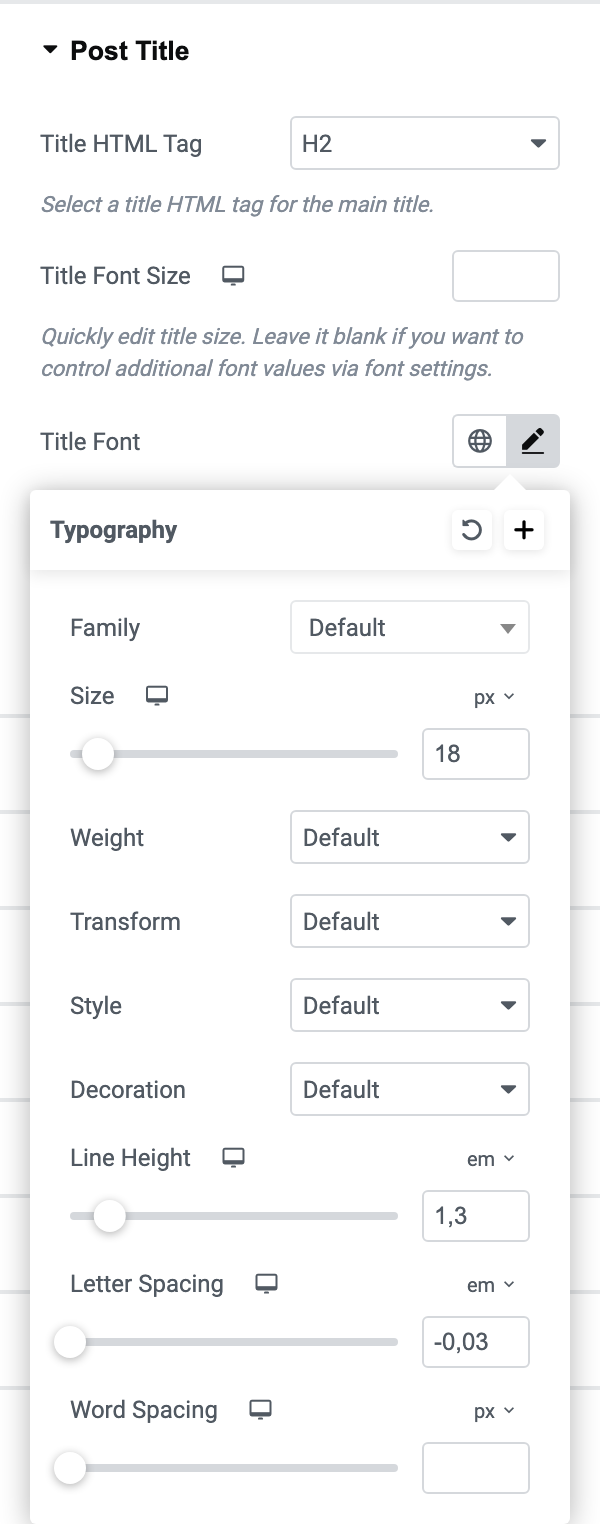
A font set this way is Elementor's, not Foxiz's. It is not listed on the Fonts (GDPR) page and will not be self hosted with the rest, so a site chasing GDPR compliance should set fonts in Theme Options and leave the block fields blank.
Optimize Font Settings
There are several tips for you to optimize the font:
- Use the same fonts for the same elements. Two fields sharing a family are one download; two families are two.
- Use a backup font family to have a fallback to the system font.
- After completing the setup, you can disable theme default fonts by navigating to Theme Options > Performance, section Fonts, and turning on Disable Default Fonts. It is off by default, and turning it on before every element has a font of its own leaves those elements on the system UI font.
- Serve what is left from your own server. Foxiz > Fonts (GDPR) scans the fonts your Theme Options actually use, downloads them and serves them locally. Change a font afterwards and a notice appears on the Theme Options page telling you the local copies are stale, because until you download again that one font comes from Google.
Did this answer your question?