Optimize Your Site Speed with Performance Options
Enhance your website's performance effortlessly with the Performance section, where you can selectively choose options to optimize site speed.
The panel is Theme Options > Performance, and it is divided into six sections:
- Images: lazy loading and srcset for featured and content images, and Dashicons.
- Fonts: preloading, and the theme's default fonts.
- Featured Image for Single Post: lazy loading for the featured image at the top of a post.
- More: the Gutenberg styles on page builder pages.
- Query Limits: the most posts one block may show.
- Rate Limits: how many front end requests one IP may make per minute.
Most of it is set by default the way a news site wants, so read it as a list of things to check rather than a list of things to change.
Optimize images, global settings
-
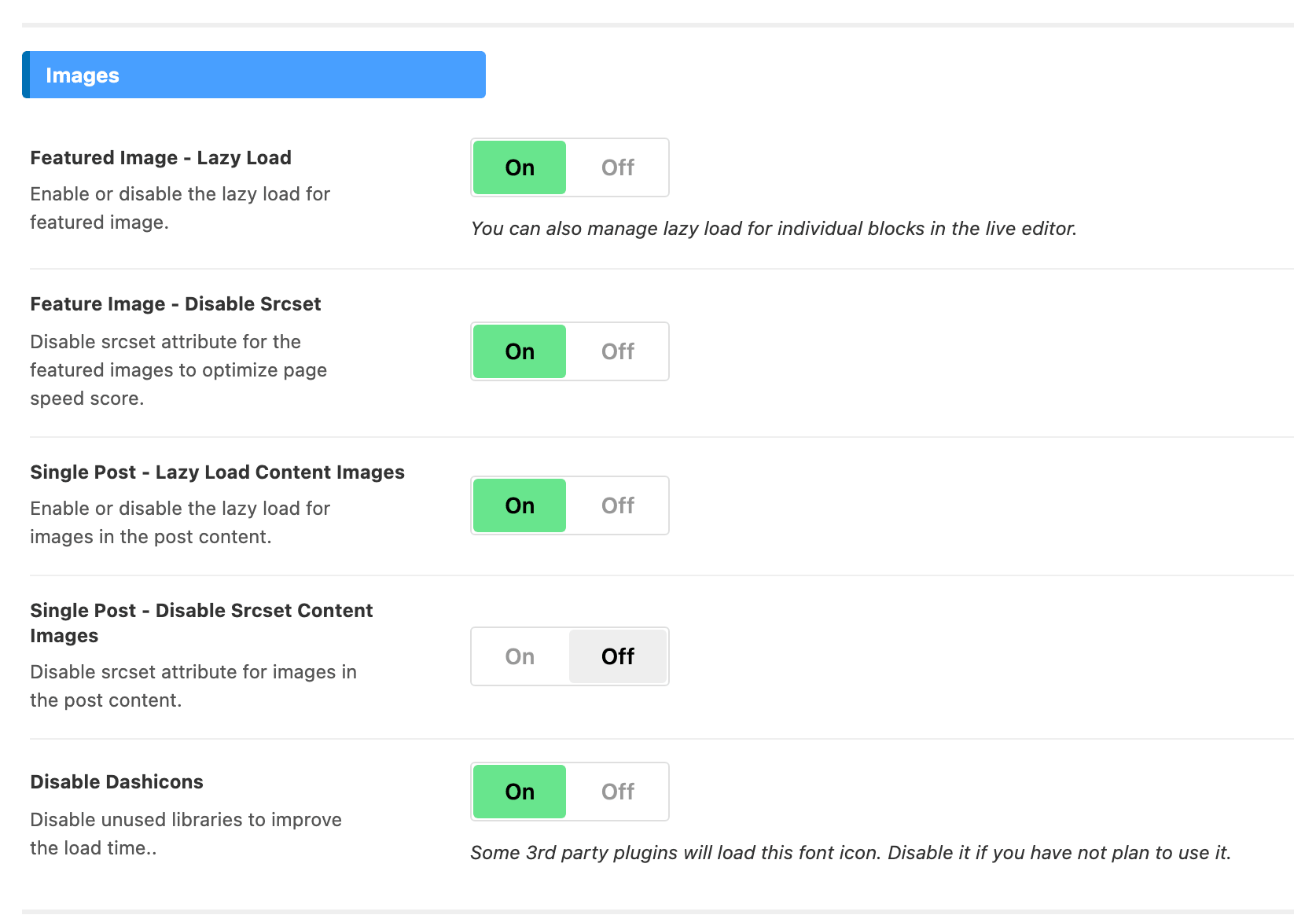
Featured Image - Lazy Load: Choose whether to enable or disable lazy loading for featured images. It is on by default. A block can differ: its own Lazy Load, under Style > Featured Image in the Elementor editor, wins over this switch for that block. Left on - Default -, it follows this switch.
-
Feature Image - Disable Srcset: Improve your page speed score by opting to disable the Srcset attribute for featured images. This setting helps streamline the loading process for enhanced optimization. It is on by default, so featured images are already served without a srcset. The panel spells the label "Feature", not "Featured".
-
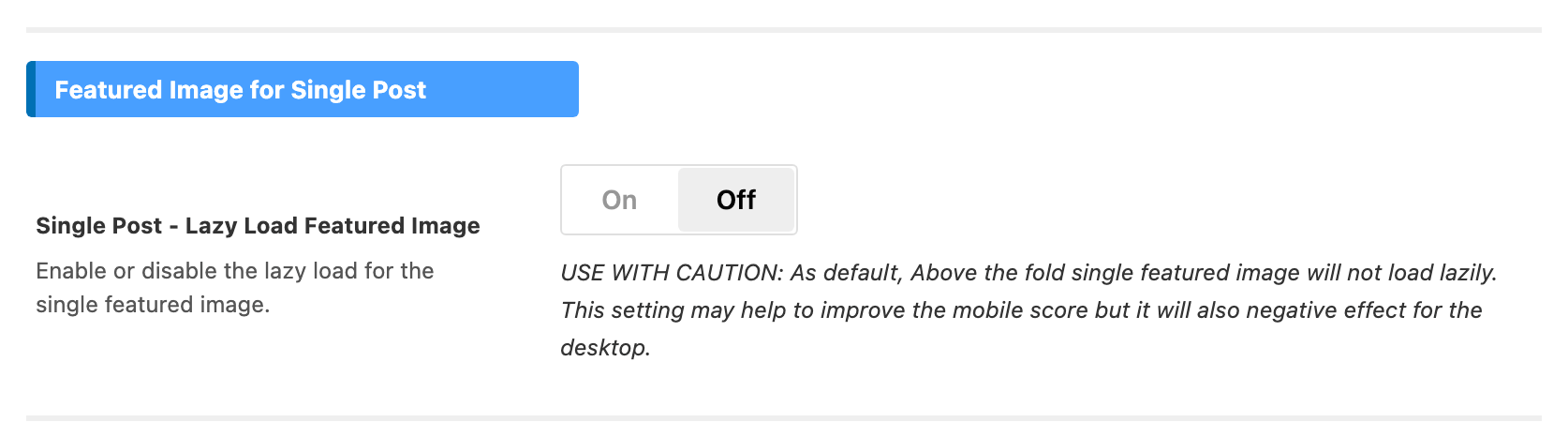
Single Post - Lazy Load Featured Image: Choose to enable or disable lazy loading for the featured image in single posts. By default, the above-the-fold single featured image will not load lazily. Enabling this setting may enhance mobile scores but could have a negative impact on desktop performance. This one is not in Images; it has a section of its own further down the panel, Featured Image for Single Post, and it is off by default. The panel's own note starts "USE WITH CAUTION". Leave it off unless your mobile score matters more to you than the desktop one.
- Single Post - Lazy Load Content Images: Enable or disable the lazy load for images in the post content. It is on by default.
- Single Post - Disable Srcset Content Images: Choose to turn off the srcset attribute for images within the post content. This option allows for a more straightforward optimization approach by eliminating the use of srcset, enhancing control over image loading in your single post. It is off by default. Leave it off on most sites: without a srcset, a phone downloads the same large file as a desktop.
- Disable Dashicons: Improve load times by deactivating unnecessary libraries. Certain third-party plugins may load this font icon. Disable it if you do not intend to use Dashicons, enhancing overall performance and optimizing your website's loading speed. It is on by default.
To optimize the image settings for each individual block, you can refer to the documentation here: How to Create a Custom Featured Image without Cropping in Elementor Blocks
Fonts settings
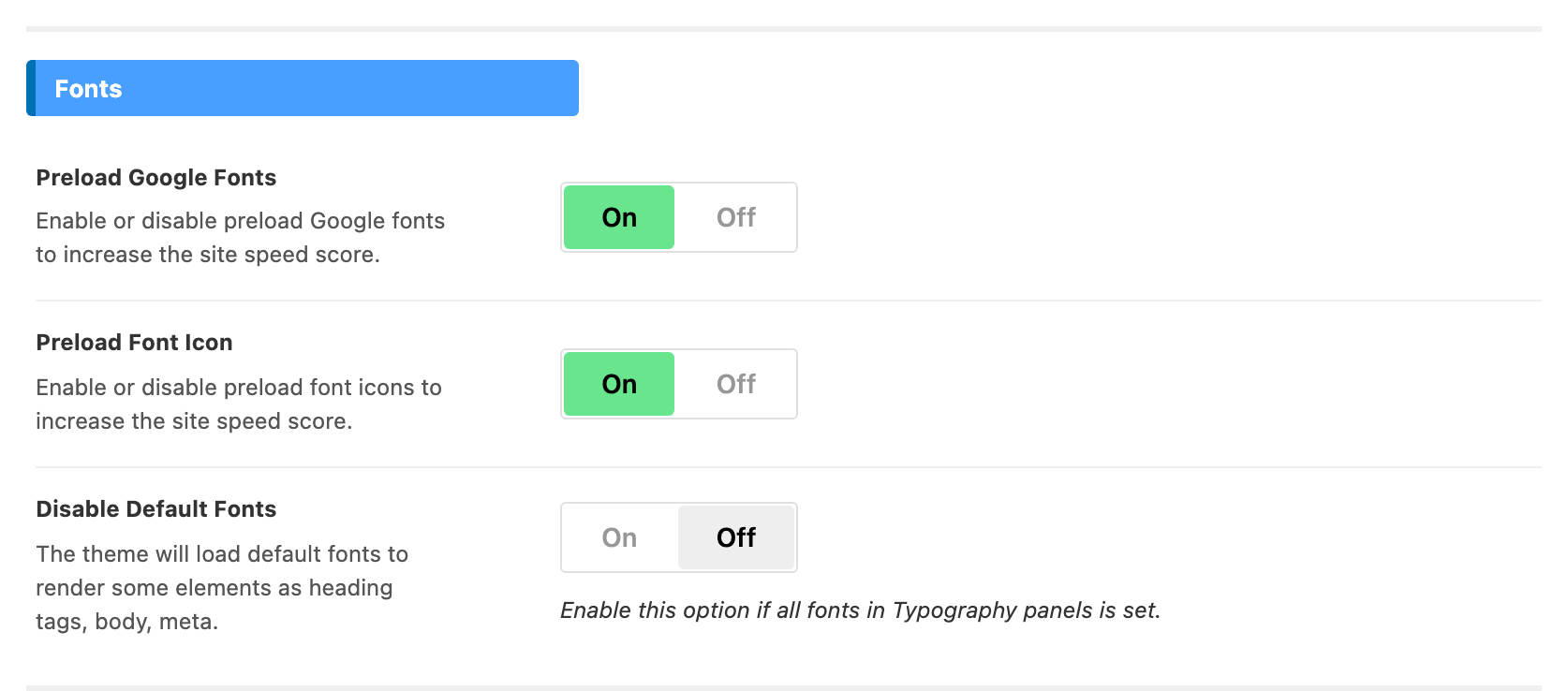
- Preload Google Fonts: Enhance your site speed score by choosing to enable or disable the preloading of Google Fonts. It is on by default.
- Preload Font Icon: Boost your site speed score by deciding whether to enable or disable the preloading of font icons. This option allows you to optimize the loading speed of your website by controlling the preloading of font icons. It is on by default, and the label is singular in the panel.
- Disable Default Fonts: The theme automatically loads default fonts for rendering various elements like heading tags, body, and meta. Enable this option if you have configured all fonts in the Typography panels to ensure a seamless font styling experience. It is off by default, and turning it on before every Typography element has a font leaves those elements unstyled.
- There is no Disable All Google Fonts switch in this panel. To put the site on system fonts, pick System UI from the standard fonts at the top of each font dropdown in Theme Options > Typography; to keep your chosen fonts but stop the request to Google, use Foxiz > Fonts (GDPR). The typography options settings can be referred to in this link: Typography Options
More settings

-
Disable Gutenberg Style on Page Builder: Turn off the block-style CSS for pages created using a Page Builder. It is off by default. With it on, every page built with Elementor loses the block editor's stylesheet, so turn it on only if those pages show no block editor content, block widgets in a sidebar or footer included.
-
There is no Force Write Dynamic CSS to File switch. The theme writes its dynamic CSS by itself, into the
foxiz_style_cacheoption, every time you save Theme Options, save a term or edit a menu, so there is nothing to turn on. If a style change does not appear, clear your caching plugin rather than looking for a setting here. -
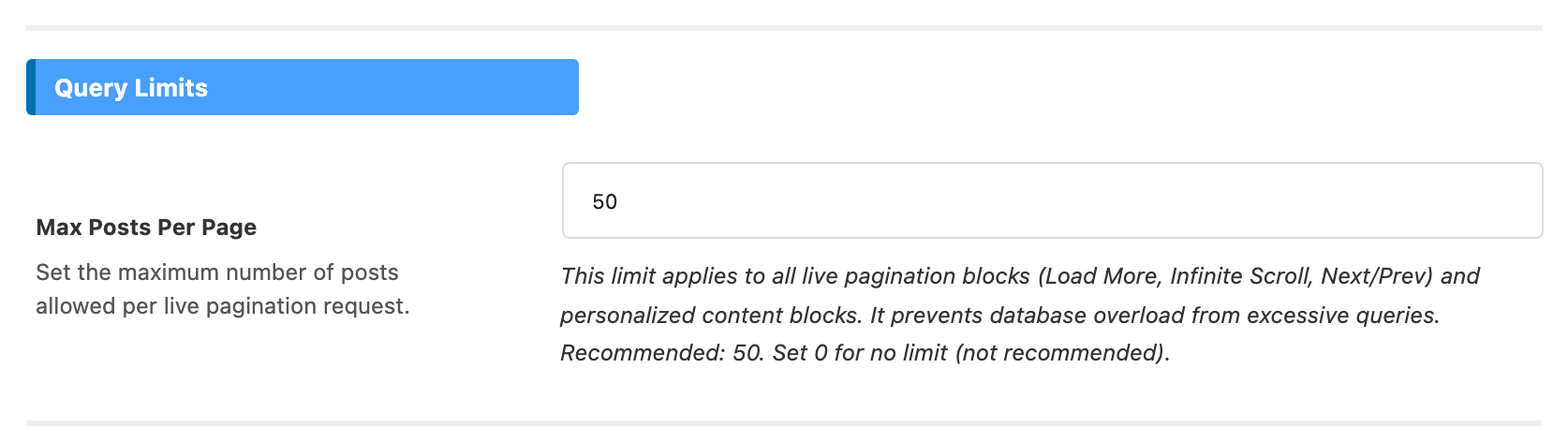
Query Limits > Max Posts Per Page: Query Limits is its own section, below More. Its one field is the ceiling on how many posts any one post block may show, whether it paginates or not. Its default is 50, so a block set to 80 posts shows 50, and the same cap applies to every Load More, Infinite Scroll and Next/Prev request and to the personalized blocks. Raise it here if you need a longer block. Setting it to 0 removes the limit, which the panel does not recommend.
-
Rate Limits, its own section below Query Limits, caps how many front end requests one IP may make per minute.
- Enable Rate Limiting is on by default.
- Read Operations Limit is set to 60 by default. Reads are pagination, search and notifications.
- Write Operations Limit is set to 30 by default. Writes are bookmarks, follows and voting.
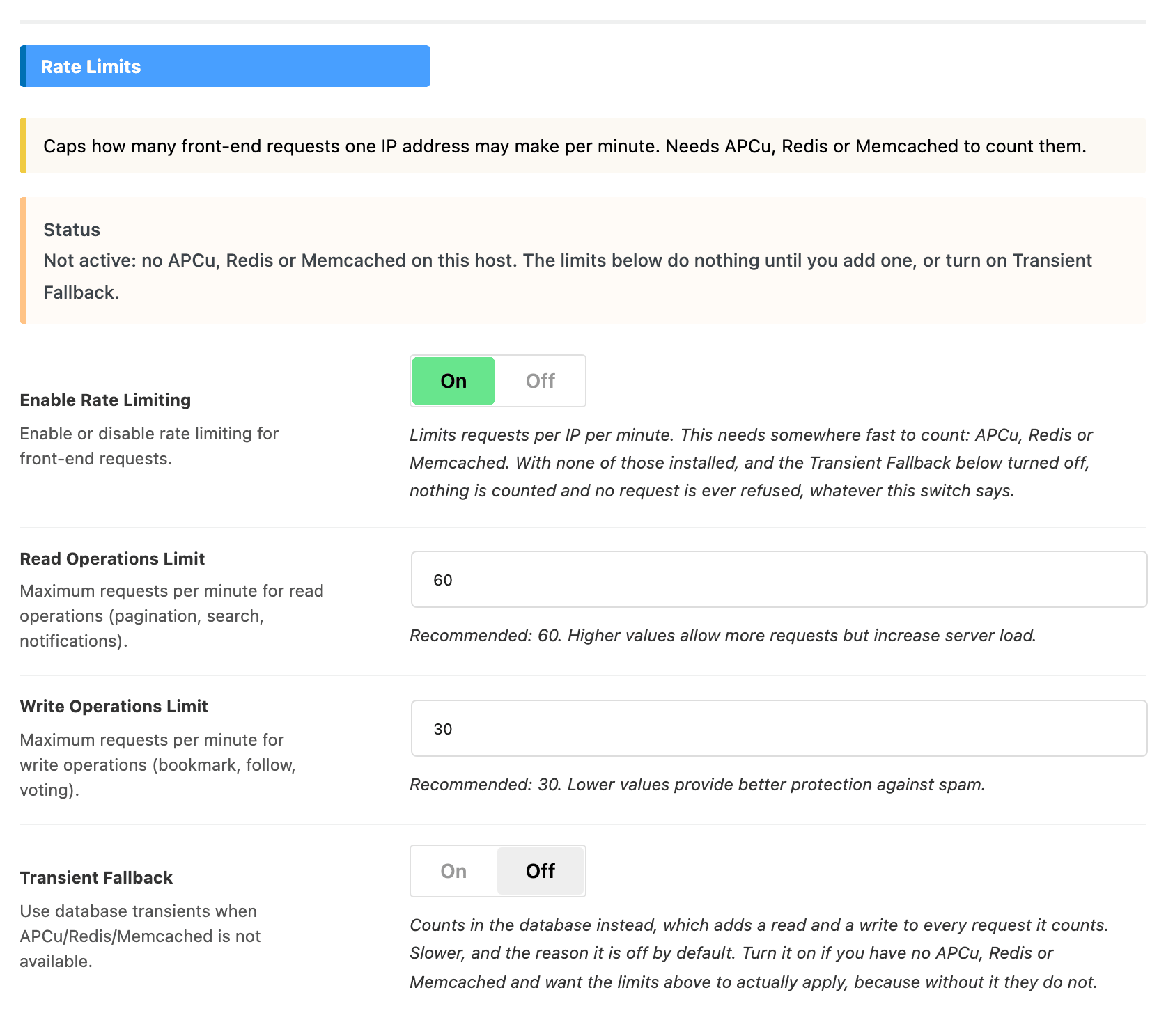
Rate limiting needs somewhere fast to count: APCu, Redis or Memcached. With none of those on the host and Transient Fallback off, which is the default, nothing is counted and no request is ever refused, whatever Enable Rate Limiting says. The Status notice at the top of the section tells you which case you are in. Turning Transient Fallback on counts in the database instead, which adds a read and a write to every counted request. Most sites leave it off; turn it on only if you need the limits to apply and the host has none of the three.
Did this answer your question?