How to Add User Avatar Image?
Foxiz Core has its own avatar uploader, so you do not need a plugin for this.
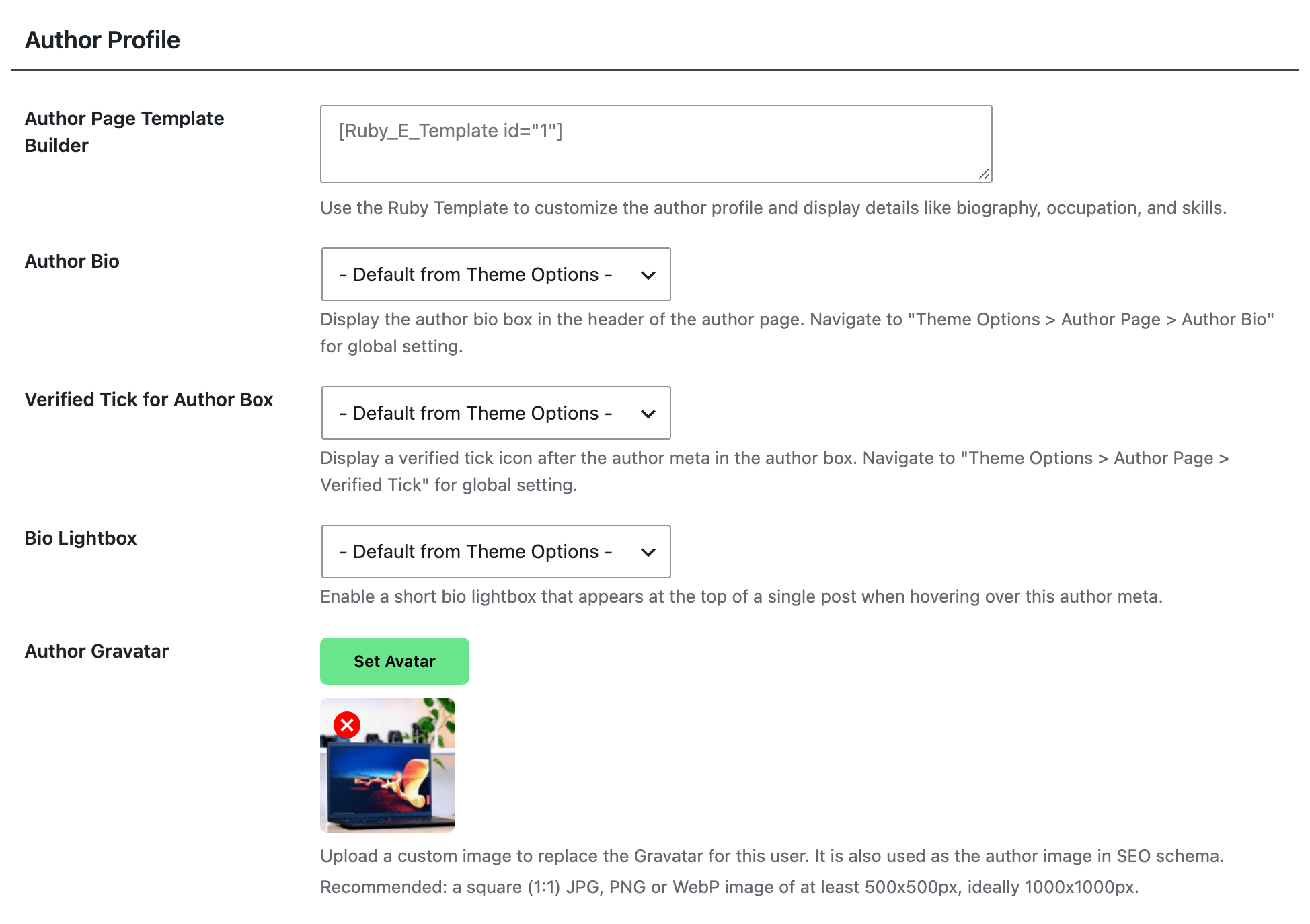
On the user's profile screen, the table headed Author Profile has an Author Gravatar row with a Set Avatar button that opens the media library. The image you pick replaces that user's Gravatar everywhere on the site, and it is also used as the author image in your SEO data. Full steps: How to Add a Custom Author Gravatar in Your Website.
That table only renders for users who can manage options, so an author cannot set their own image this way. An administrator can set it for them: open Users > All Users, edit that author, and use the same Set Avatar button.
Add an avatar
You can add an avatar to your profile in two ways:
-
Register a gravatar account on the Official website, and then upload your avatar. Using this way, your avatar will display on all websites you commented on.
-
Use the Author Gravatar row in the Author Profile table on Users > Profile: click Set Avatar and pick an image from the media library.
Which avatar shows
Whichever you use, Foxiz decides in this order. If that user has an Author Gravatar image, the theme uses it. If not, it calls WordPress's get_avatar(), which is the Gravatar unless a plugin has replaced it.

The image size to upload
The avatar is asked for at the WordPress thumbnail size in the author card and in comments, and at medium in the author page header, and SEO data uses the full image. The field recommends a square (1:1) JPG, PNG or WebP of at least 500x500px, ideally 1000x1000px.
Did this answer your question?