How to Optimize SEO for the Theme to Avoid Duplication with Plugins
The theme prints its own meta description, Open Graph tags and schema markup, and the settings below keep them from doubling up with an SEO plugin's.
Using Yoast SEO, Rank Math or All in One SEO? You do not need to change anything here: the theme already stops printing everything those three plugins output. Using another SEO plugin? Check the list below.
Before you start turning things off, know that most of this now happens by itself. The theme keeps a register of twelve SEO plugins and, for each one, the list of things that plugin emits. When one of them is active the theme simply does not print its own version of those things, whatever the switches below say.
The register is by feature, not by plugin, so how much the theme stands down depends on which plugin you run:
- Yoast SEO, Rank Math and All in One SEO take everything: Open Graph, meta description, Organization, Sitelinks, breadcrumb and Article markup, plus the author profile.
- Slim SEO takes all of those except the author profile.
- The SEO Framework takes Open Graph, meta description, Organization, Sitelinks and breadcrumb, and leaves Article markup to the theme.
- SEOPress and SEO Key take Open Graph, meta description, Organization and Sitelinks only.
- WPSSO takes Open Graph, Organization and Sitelinks. Squirrly SEO and SEO Ultimate take Open Graph and the meta description. OpenGraph and Socialize take Open Graph alone.
So a plugin on that list and a switch left on is not a duplicate: the theme has already withdrawn. Turn the switch off anyway if you prefer the setting to say what is happening, and turn it off if your SEO plugin is not on the list at all.
The panel says the same thing in its own notice, and recommends checking the result with Google's rich results test.
How to run that test and read the result: How to Check Structured Data with the Rich Results Test.
SEO Snippets settings, follow the steps below
-
Navigate to Foxiz > Theme Options > SEO Optimized
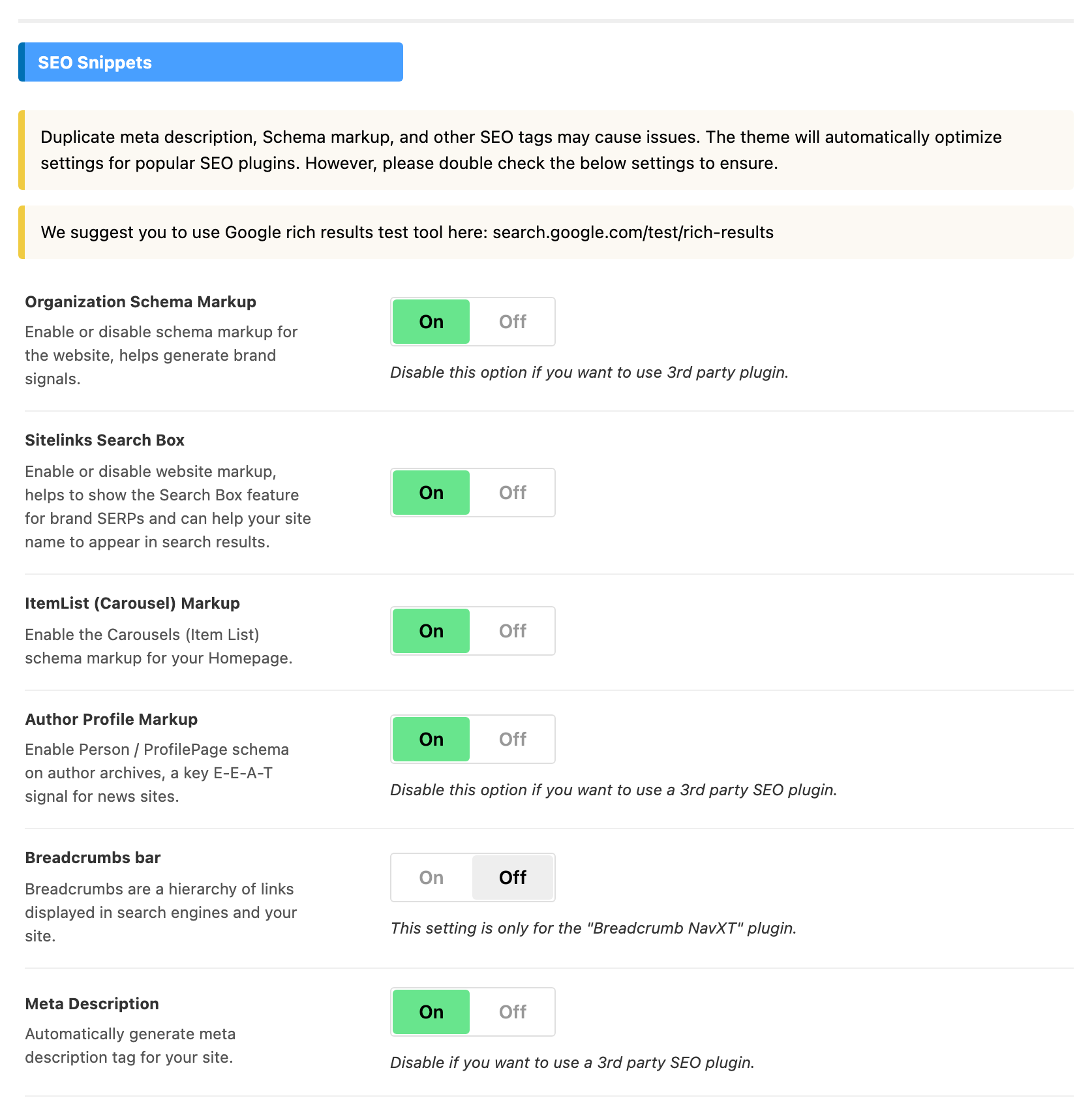
Everything in this section is in the first group on that screen, SEO Snippets.
-
Organization Schema Markup: Enable or disable schema markup for the website, helps generate brand signals. Disable this option if you want to use 3rd party plugin. On by default, and skipped on its own for any plugin in the list above that owns Organization markup.
-
Sitelinks Search Box: Enable or disable website markup, helps to show the Search Box feature for brand SERPs and can help your site name to appear in search results. On by default.
-
ItemList (Carousel) Markup: Enable the Carousels (Item List) schema markup for your Homepage. On by default. No SEO plugin in the register claims this one, so it is yours to turn off by hand if something else on the site emits it.
-
Author Profile Markup: Enable Person / ProfilePage schema on author archives, a key E-E-A-T signal for news sites. On by default, and only ever printed on an author archive. Yoast, Rank Math and All in One SEO turn it off by themselves; no other plugin in the register does.
-
Breadcrumbs bar: Breadcrumbs are a hierarchy of links displayed in search engines and your site. This setting is only for the "Breadcrumb NavXT" plugin. It is the one switch in this group that is off by default, and with NavXT missing it prints nothing even when you turn it on.
-
Meta Description: Automatically generate meta description tag for your site. Disable if you want to use a 3rd party SEO plugin. On by default, and every plugin in the register except WPSSO, OpenGraph and Socialize already suppresses it.
-
Limit Archive Page Description: trims a category, tag or taxonomy description down to 160 words before it goes into the meta description. On by default, and it only touches archives whose description is longer than that.
-
Article Markup: Select structured data (schema markup) or disable the default for the single post. Disable this option if you want to use a 3rd party SEO plugin.
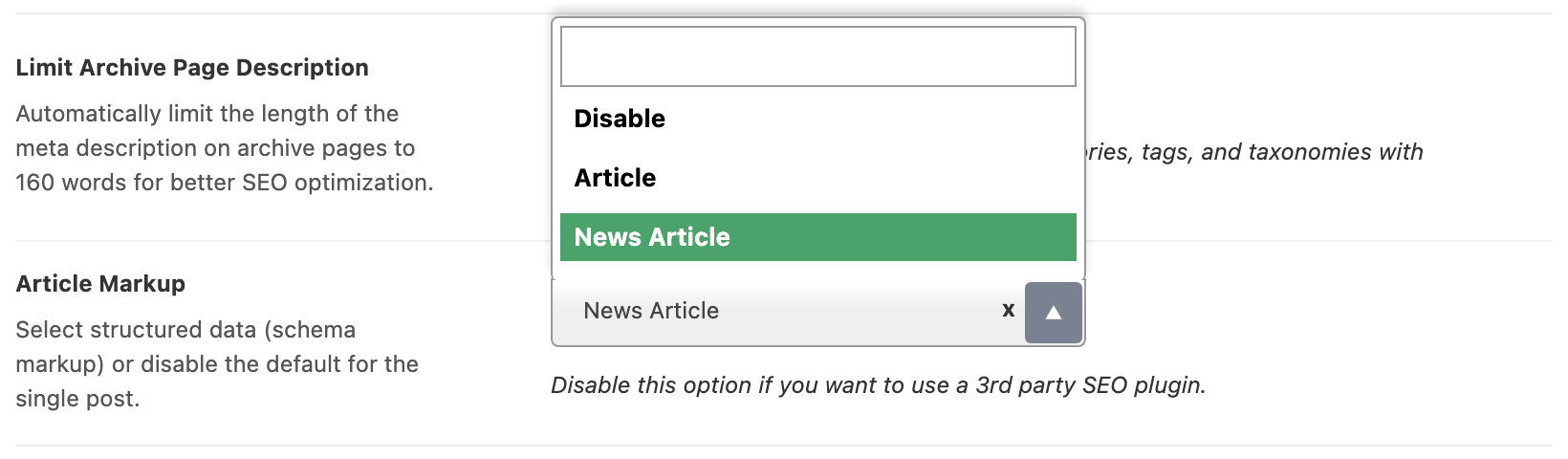
Unlike the rest of this group it is a dropdown, not a switch: Disable, Article and News Article, and it arrives on News Article. It applies to single posts only.
A single post can override it: Article Schema Markup, on the SEO Optimized tab of the post's Single Post Settings, wins for that post. Left on - Default -, it follows this dropdown.
-
Post Review Markup: Enable or disable review product markup for the single post. Disable this option if you want to use a 3rd party SEO plugin. On by default.
-
Live Blogging Markup: Enable or disable LiveBlogPosting markup for the live blogging post. Disable this option if you want to use a 3rd party SEO plugin. On by default.
-
Video Format Markup: Enable or disable video markup for the video post format. This one is off by default. The panel's own note is honest about why: video schema does not move rankings, it only adds detail about your videos.
Just below this group, RSS Featured Image Support holds one switch, Enable RSS Featured Image. It is on by default and adds each post's featured image, at full size, to the default WordPress feed at yourwebsite.com/feed.
Google Search Date
According to some recent buyer requests wanting to display the update date on Google search, we’ve added an option called "Show Updated Date on Google Search". This approach is not official and essentially involves manipulating all datePublished ("date Publish") values to match the dateModified ("date Update") when you activate this option.
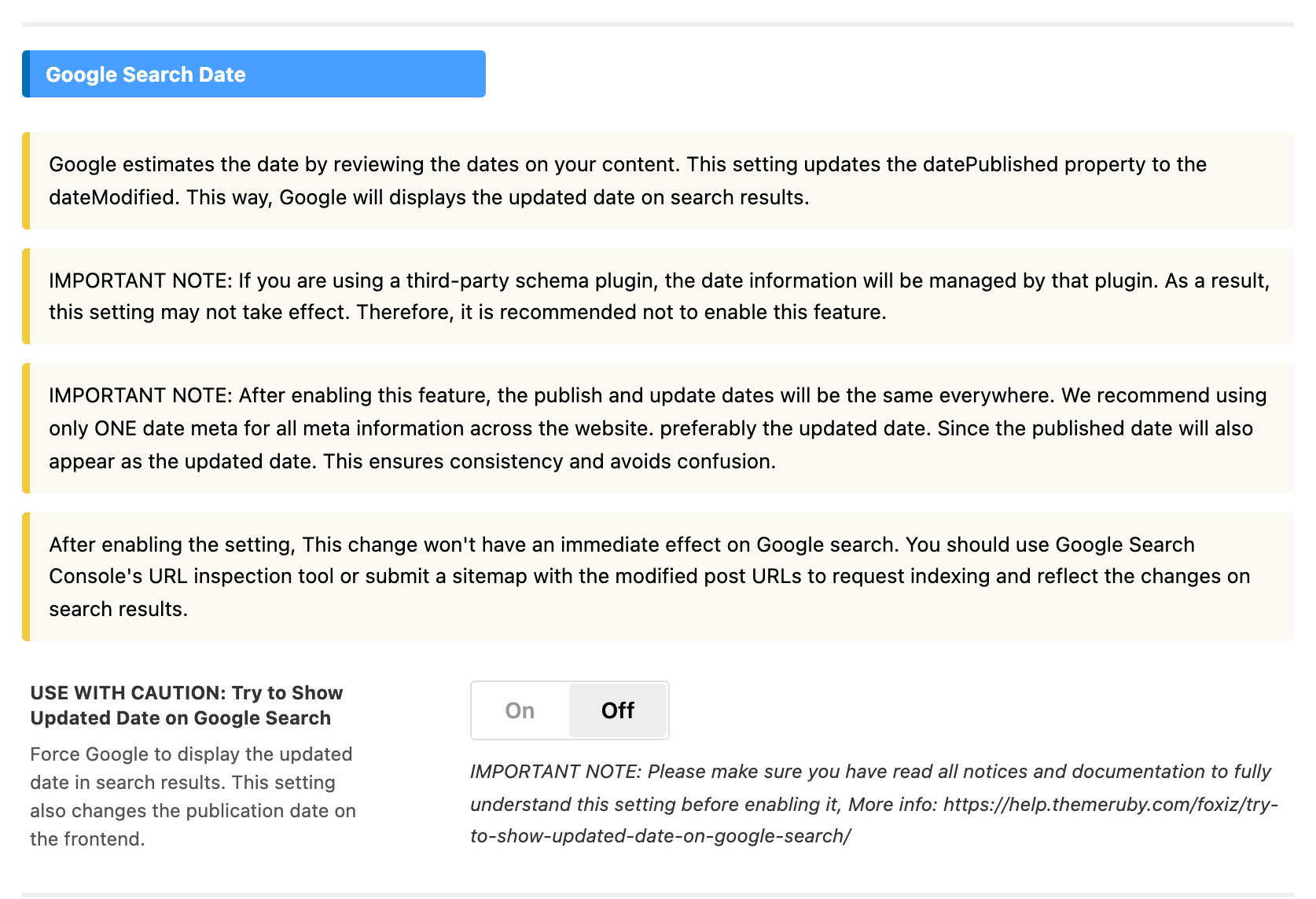
On the screen the switch is spelled USE WITH CAUTION: Try to Show Updated Date on Google Search, and it is off by default. It is in its own Google Search Date group further down the same panel.
Two things the panel warns about that are easy to miss. It changes the published date on the front end as well as in the markup, so published and updated read the same everywhere and you should show only one of them. And if a third party schema plugin is managing your dates, this setting may do nothing at all, which is why the panel recommends not enabling it in that case.
For the Google Search Date: you can click on this link to find more detailed information: Try to Show Updated Date on Google Search
Organization Info
The options will display the description when searching your main site URL. Leave these options blank if you want to use a third-party SEO plugin.
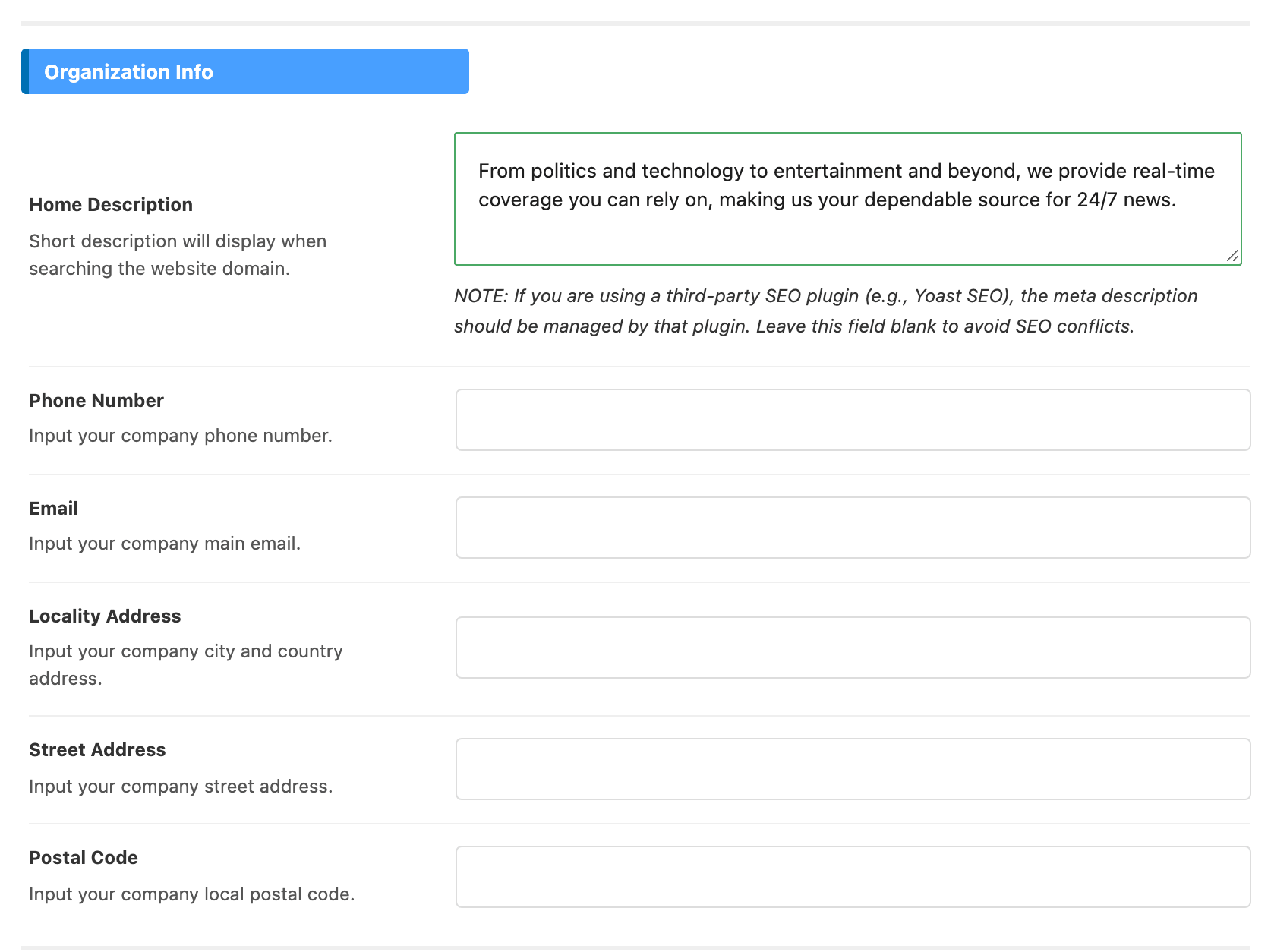
There are six of them, all empty to begin with: Home Description, Phone Number, Email, Locality Address, Street Address and Postal Code.
Home Description is the one that shows in search results for the domain, and it falls back to the WordPress tagline when you leave it blank. The other five feed the Organization schema from step 2, so they disappear from the page along with it when that switch is off or an SEO plugin has taken it over.
Open Graph
You can activate or deactivate the Open Graph feature, which allows content to be shared on social media platforms. If you wish to utilize a third-party SEO plugin for enhanced functionality, you can choose to disable this option.
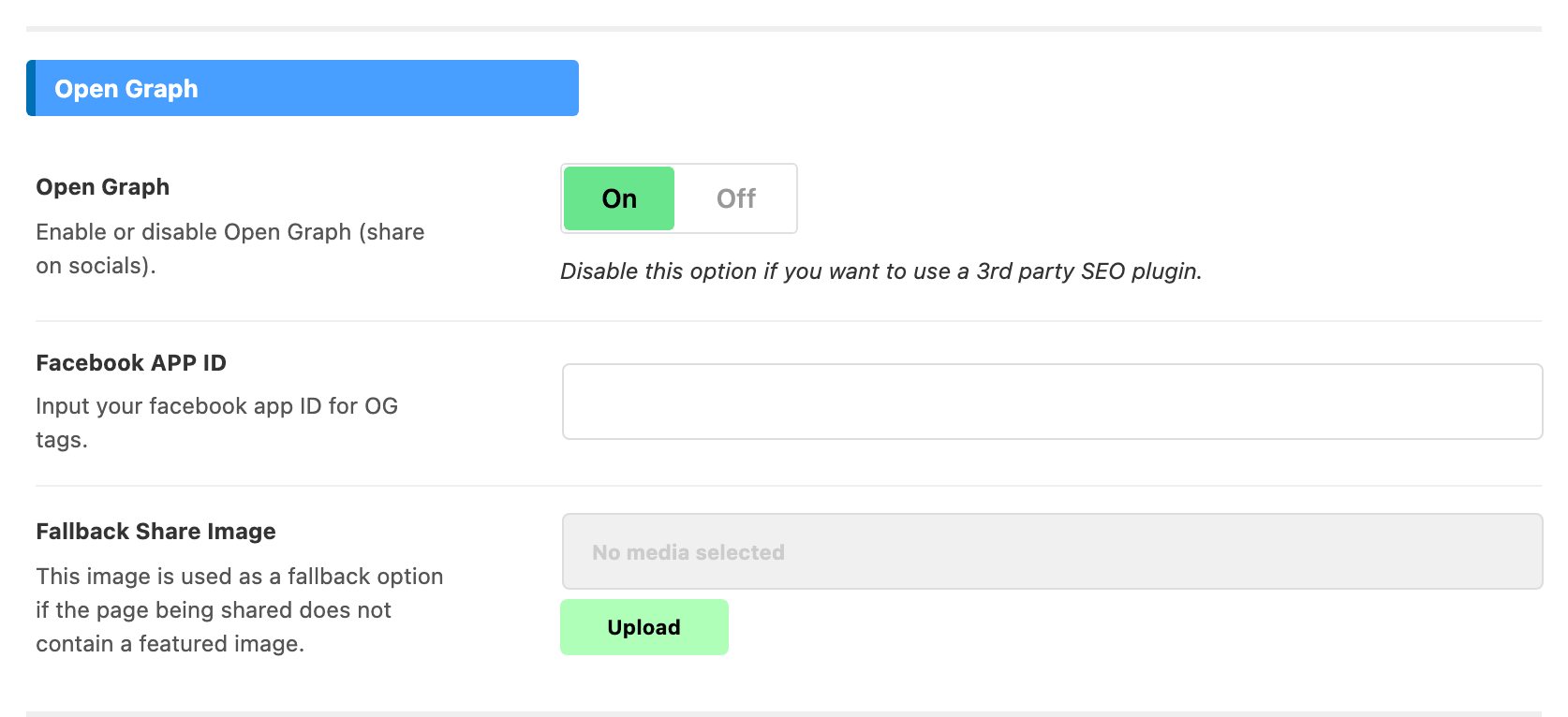
The switch is on by default, and this is the one every plugin in the register suppresses, so on a site with any of them the theme is already silent here. It is also skipped on AMP pages.
Two more fields sit under it. Facebook APP ID goes into the OG tags, and Fallback Share Image is used when the page being shared has no featured image. Both are blank to begin with.
Did this answer your question?