How to Submit Your Sitemap to Google Search Console
A sitemap is a list of every post, page and category on your site, at one address Google can read. Submitting it in Google Search Console tells Google where to find your new posts, and Search Console then shows you which pages are indexed and which have problems. Do it once, when the site goes live, and again after a change of domain.
1. Find your sitemap address
Which address you have depends on the SEO plugin you use:
| You use | Your sitemap address |
|---|---|
| No SEO plugin | https://yourdomain.com/wp-sitemap.xml, made by WordPress itself |
| Yoast SEO | https://yourdomain.com/sitemap_index.xml |
| Rank Math | https://yourdomain.com/sitemap_index.xml |
Open the address in your browser. You should see a list of links to smaller sitemaps for posts, pages and categories. Foxiz does not make a sitemap of its own, so with an SEO plugin installed, submit that plugin's address.
Which SEO plugin, and what Foxiz already does for search engines, is in How to Optimize SEO for the Theme to Avoid Duplication with Plugins.
2. Check that search engines are allowed
-
Go to Settings > Reading.
-
Under Search engine visibility, make sure Discourage search engines from indexing this site is not ticked.

-
Click Save Changes if you changed it.
That box is often left ticked from when the site was being built. While it is ticked, WordPress turns its own sitemap off and asks search engines to stay away.
3. Add your site to Search Console
-
Open https://search.google.com/search-console and sign in with your Google account.
-
Add your site as a property. Google offers two kinds:
- Domain covers every version of the address at once (
http,https, with and withoutwww), and is verified with a DNS record at your domain registrar. - URL prefix covers one exact address, such as
https://yourdomain.com, and can be verified with a code on the site.
For most sites with an SEO plugin, URL prefix is the quicker choice: your SEO plugin has a field for the verification code. Use the address exactly as your site opens,
httpsandwwwincluded. A sitemap belongs to one property, so thehttpandhttpsversions count as different sites. - Domain covers every version of the address at once (
-
Choose HTML tag as the verification method and copy the code Google shows.
-
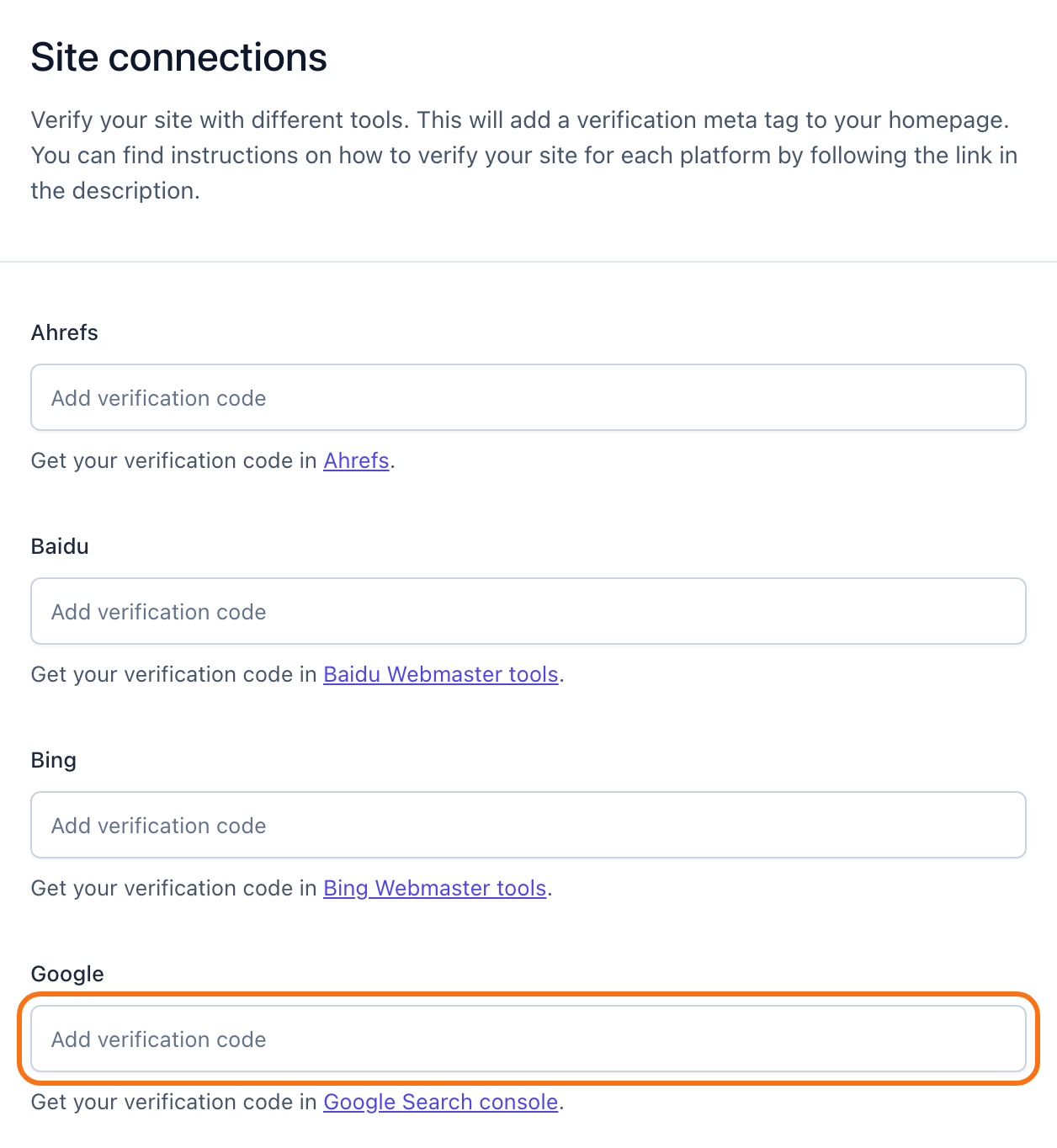
Paste it into your SEO plugin:
-
Yoast SEO: Yoast SEO > Settings, then Site connections, in the Google field.
-
Rank Math: Rank Math SEO > General Settings > Webmaster Tools, in the Google Search Console field.
-
-
Save, go back to Search Console and click Verify.
No SEO plugin? Use the Domain property and the DNS record instead. Your registrar's help pages show how to add a TXT record.
4. Submit the sitemap
- In Search Console, open Sitemaps in the left menu.
- Paste your sitemap address into Add a new sitemap, and click Submit.
- Check the status in the list below:
- Success: Google read the sitemap. Indexing the pages in it takes days, sometimes weeks, on a new site.
- Couldn't fetch: Google could not open the address. Open it yourself in a private window, and check step 2.
- Has errors: Google read it but found problems. Click the row to see which.
You submit it only once. Google comes back to the same address by itself and picks up every post you publish after.
Next
- Check that your posts carry the right structured data: How to Check Structured Data with the Rich Results Test.
- Show the updated date in Google: Try to Show Updated Date on Google Search.
Did this answer your question?