Try to Show Updated Date on Google Search
According to some recent buyer requests wanting to display the update date on Google search, we've added an option called "Show Updated Date on Google Search". This approach is not official and essentially involves manipulating all datePublished ("date Publish") values to match the dateModified ("date Update") when you activate this option.
It reaches further than the schema. While it is on, Foxiz filters get_the_date() and get_the_time() across the whole front end, so every published date the site prints becomes the modified date: in entry meta, in a block, in a widget, and in any plugin that asks WordPress for the date. It also drops the published microformat class from the post's <time> element, so the markup stops claiming that date is the publication date.
The setting is off by default.

To enable this feature, please follow the steps below
-
Navigate to Foxiz > Theme Options > SEO Optimized > Google Search Date
-
In this section, you'll find the option "Try to Show Updated Date on Google Search" Please locate it and enable it. On screen the control is titled USE WITH CAUTION: Try to Show Updated Date on Google Search, so look for that longer label.
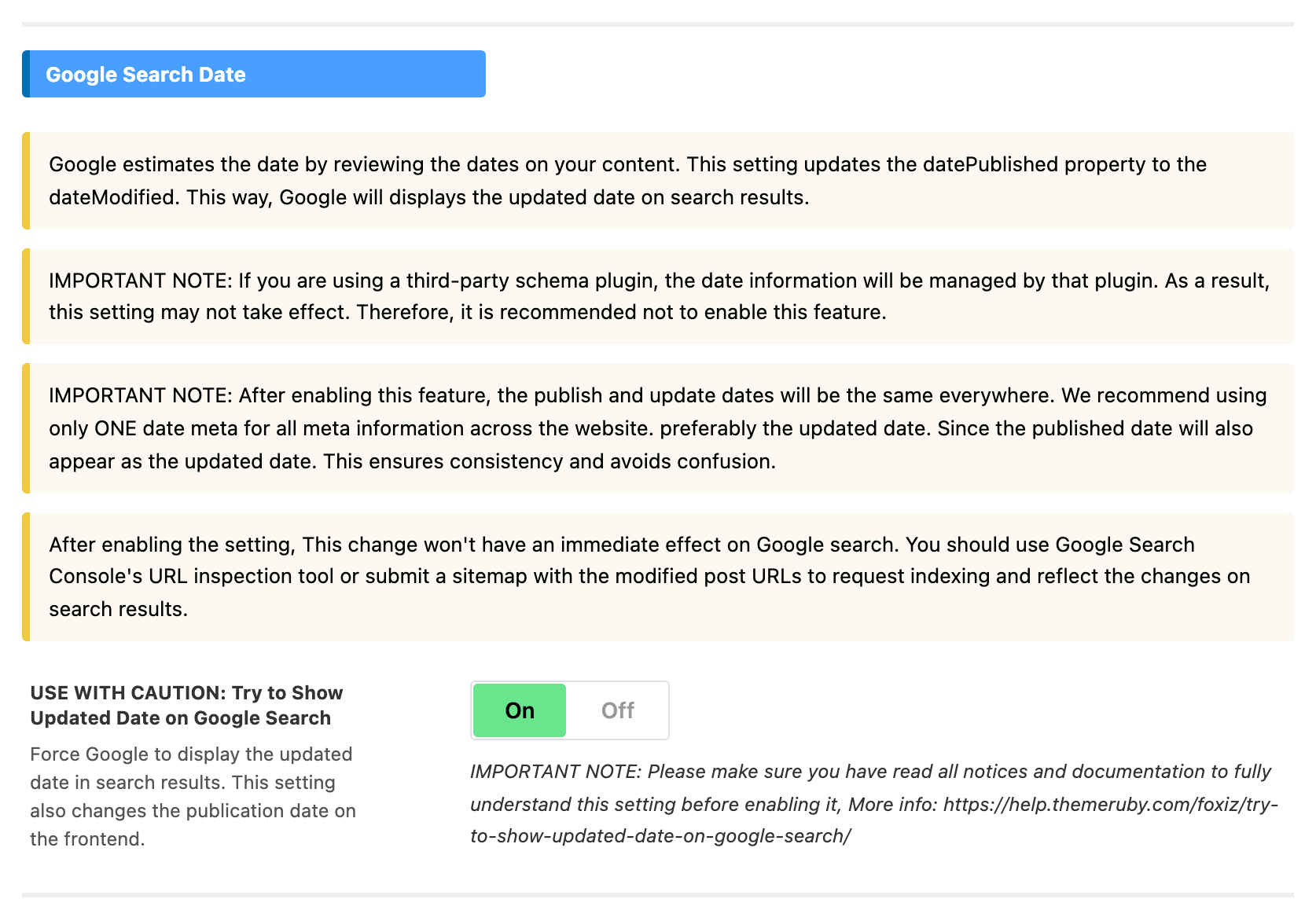 note
noteAfter enabling this feature, we recommend setting only one type of date for all meta information across the whole website. It should be the date of the update, because the published date will also show as the updated date. This way, it's consistent and avoids confusion.
-
Click "Save Changes"
Note: If you are using a third-party schema plugin, please be aware that the date information will be managed by that plugin. In such cases, adjusting this setting may not have an effect. So with Yoast SEO, Rank Math or another plugin managing your schema, leave this setting off, as the panel itself recommends.
After enabling the setting, you should use Google Search Console's URL inspection tool or submit a sitemap with the modified post URLs to request indexing and reflect the changes on search results.
How to Configure Date Meta Information for Blocks in Elementor?
-
Navigate to Pages > All Pages.
-
Select a page you would like to edit or add a new page, and click on the “Edit with Elementor” link.
-
The Elementor editor opens, with its panel on the left. Then click the block you would like to edit.
-
Select the “Style” tab, then find “Entry Meta”
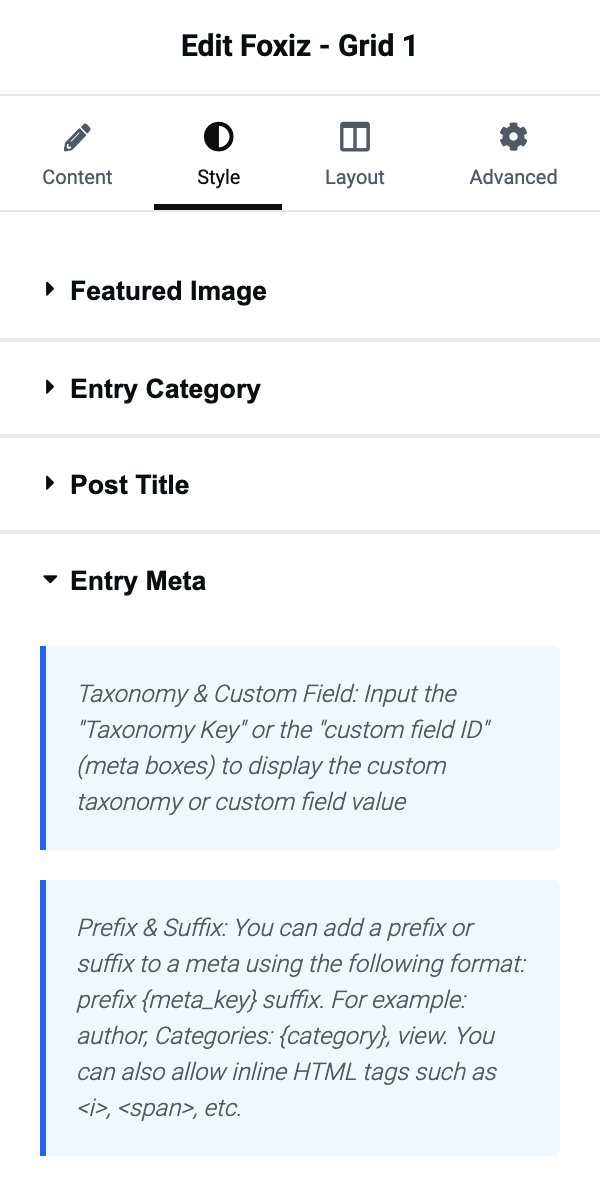
-
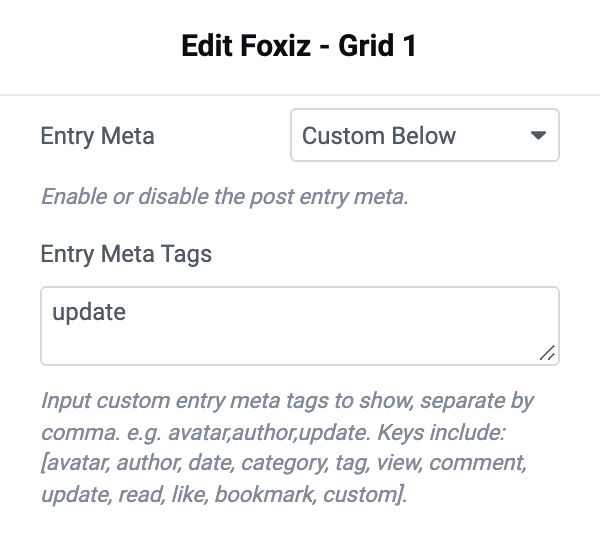
In the “Entry Meta” section, set Entry Meta to Custom Below, then find the option for “Entry Meta Tags“. Left on Default from Theme Option, the block ignores this box and uses the tags set in Theme Options.
-
Input a meta tag named "update" to display the update date.
How to Configure Date Meta Information in Single Post?
-
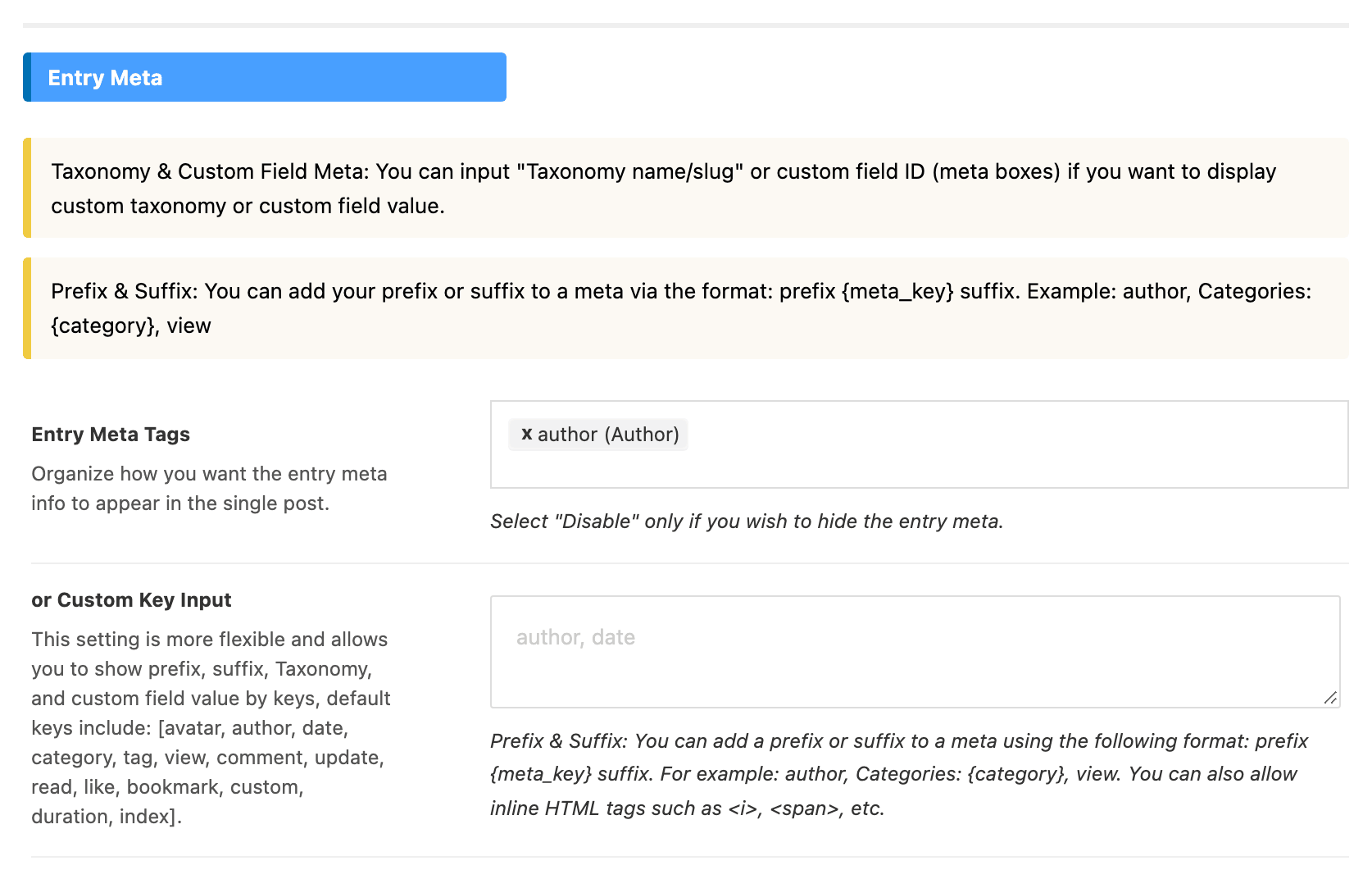
Navigate to Your Dashboard > Theme Options > Single Post > Entry Meta.
-
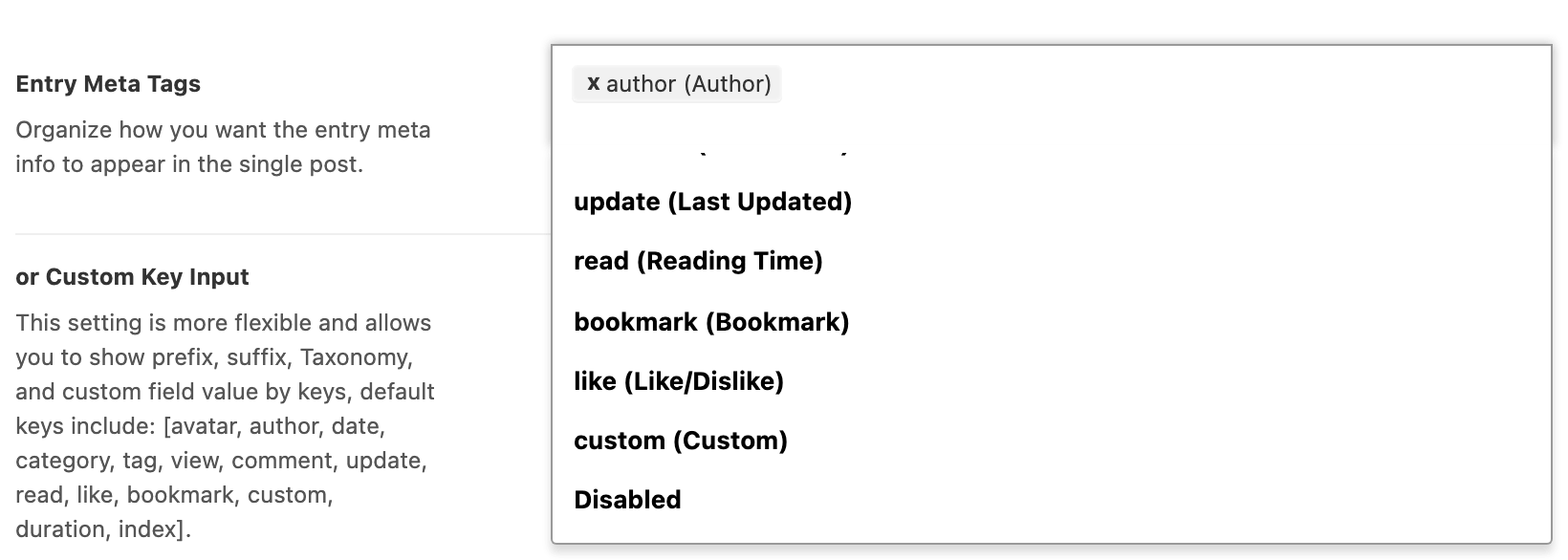
Find the “Entry Meta Tags” option and “or Custom Key Input” option.
-
In the “Entry Meta Tags” option, click on update (Last Updated) field. If date is also in the list, remove it: with this setting on, both print the same updated date. The default list holds author only.
-
or Custom Key Input: This setting is more flexible and allows you to show prefix, suffix, taxonomy, and custom field value. Leave it blank if you use the “Entry Meta Tags” setting.
Did this answer your question?