Optimizing Your Site Speed and Google PageSpeed Insights
Page speed depends on your server, the number and size of your images, your traffic and the external assets your pages load. The sections below raise it with a few lightweight plugins and the theme's own settings.
Regenerate thumbnails
When you change themes, your images may not exist yet in the sizes the new theme uses, so the full size image is loaded instead. That makes your pages heavier and slower to load.
To create the missing sizes:
-
Go to Plugins > Add Plugin, search for Regenerate Thumbnails, then install and activate it.
-
Go to Tools > Regenerate Thumbnails.
-
Click Regenerate Thumbnails For All … Attachments (the number is your image count) and leave the tab open until it finishes.
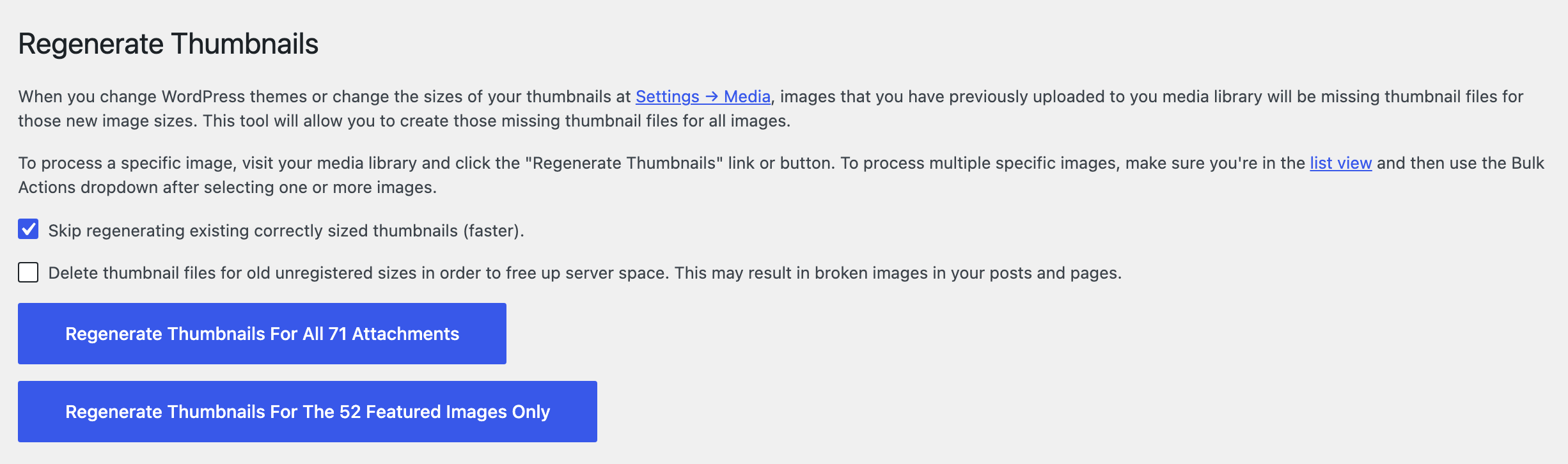
For further information, Refer to: What to do when images are not displaying consistent in size?
Minify all scripts and styles
Follow these steps:
-
Install and activate the plugin: https://wordpress.org/plugins/autoptimize/
-
Navigate to Settings > Autoptimize, and stay on the JS, CSS & HTML tab.
-
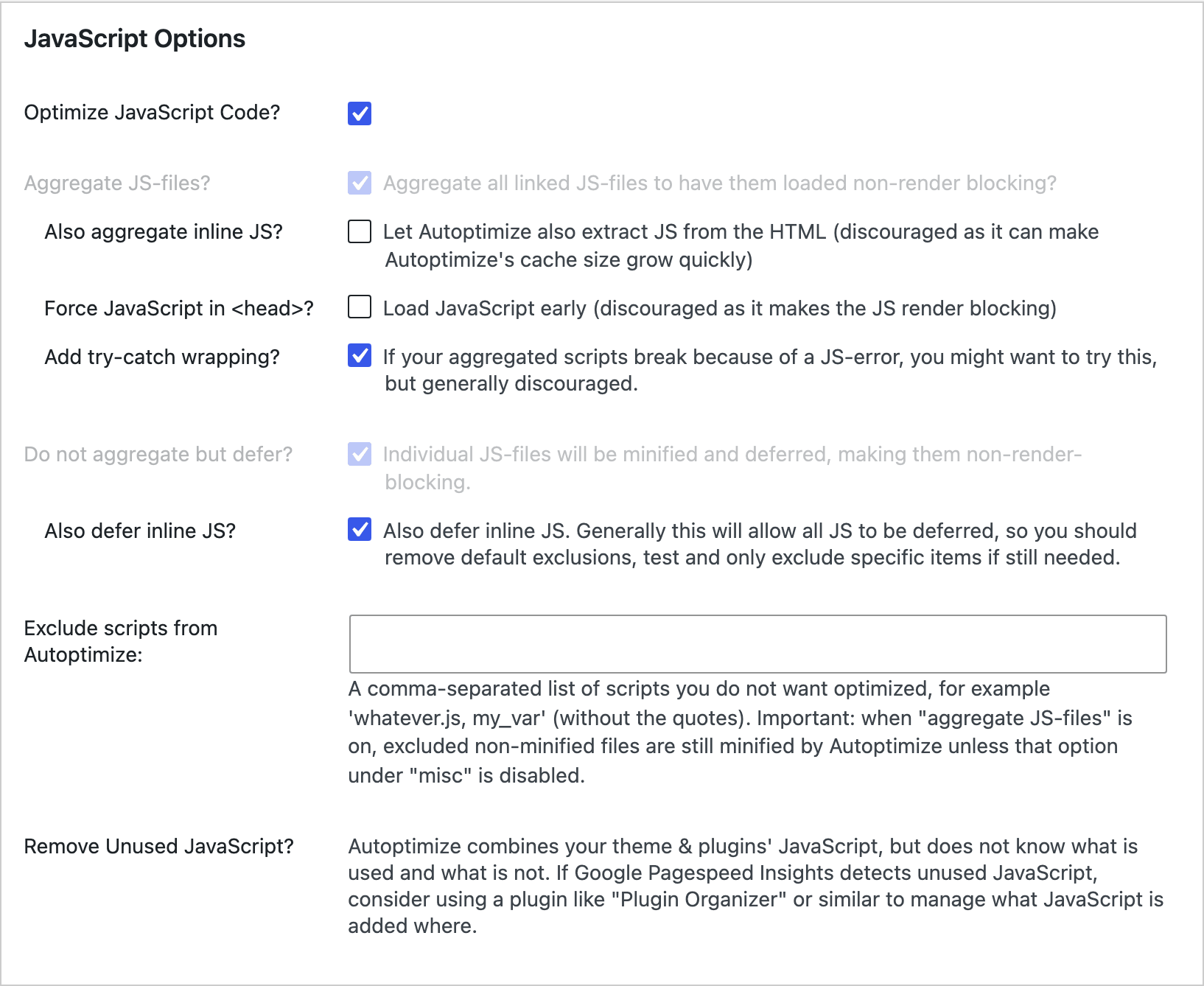
Under JavaScript Options, check Optimize JavaScript Code?
-
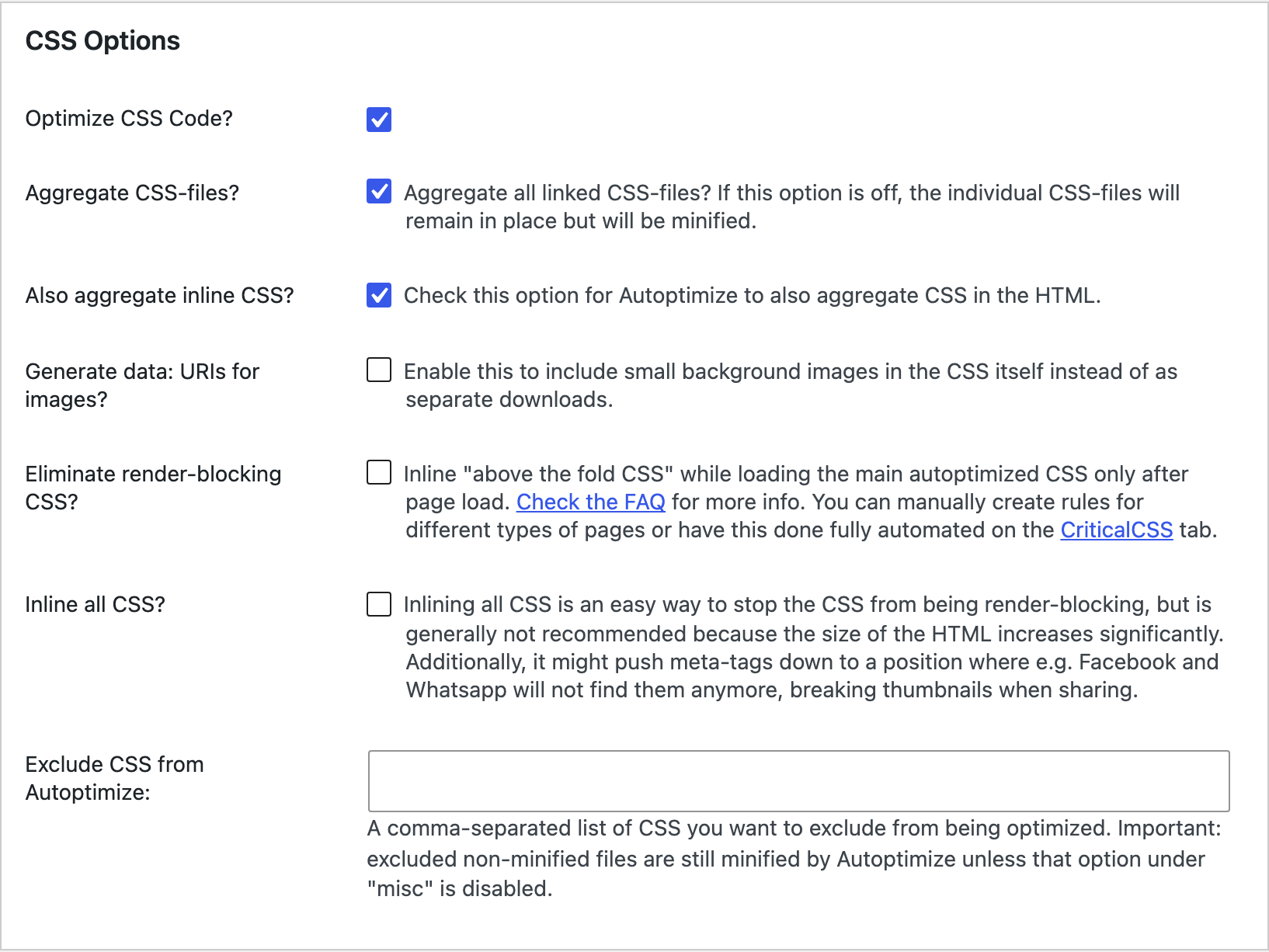
Under CSS Options, check Optimize CSS Code?
-
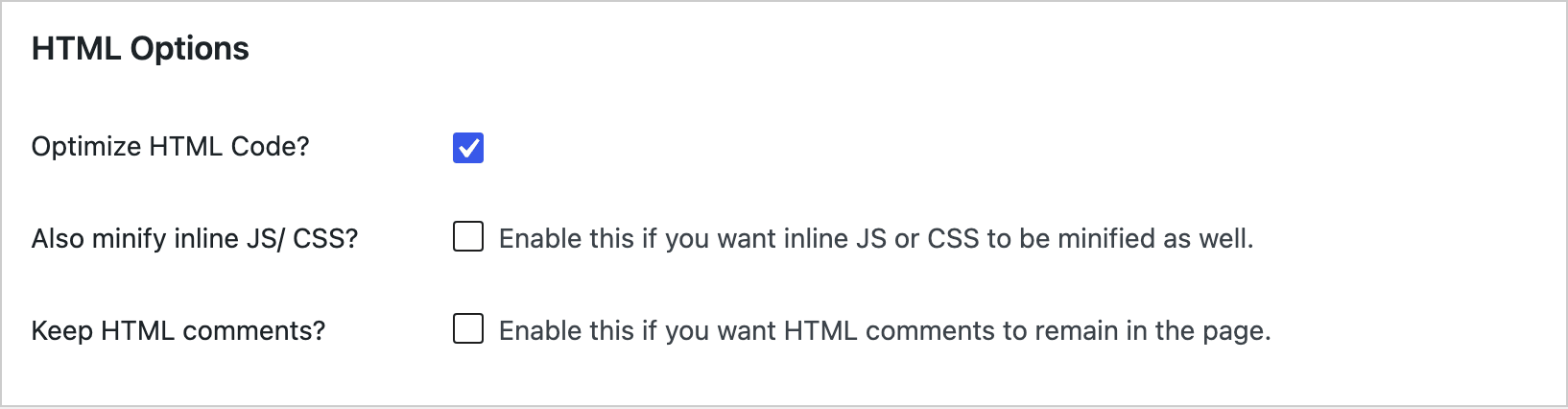
Under HTML Options, check Optimize HTML Code?
-
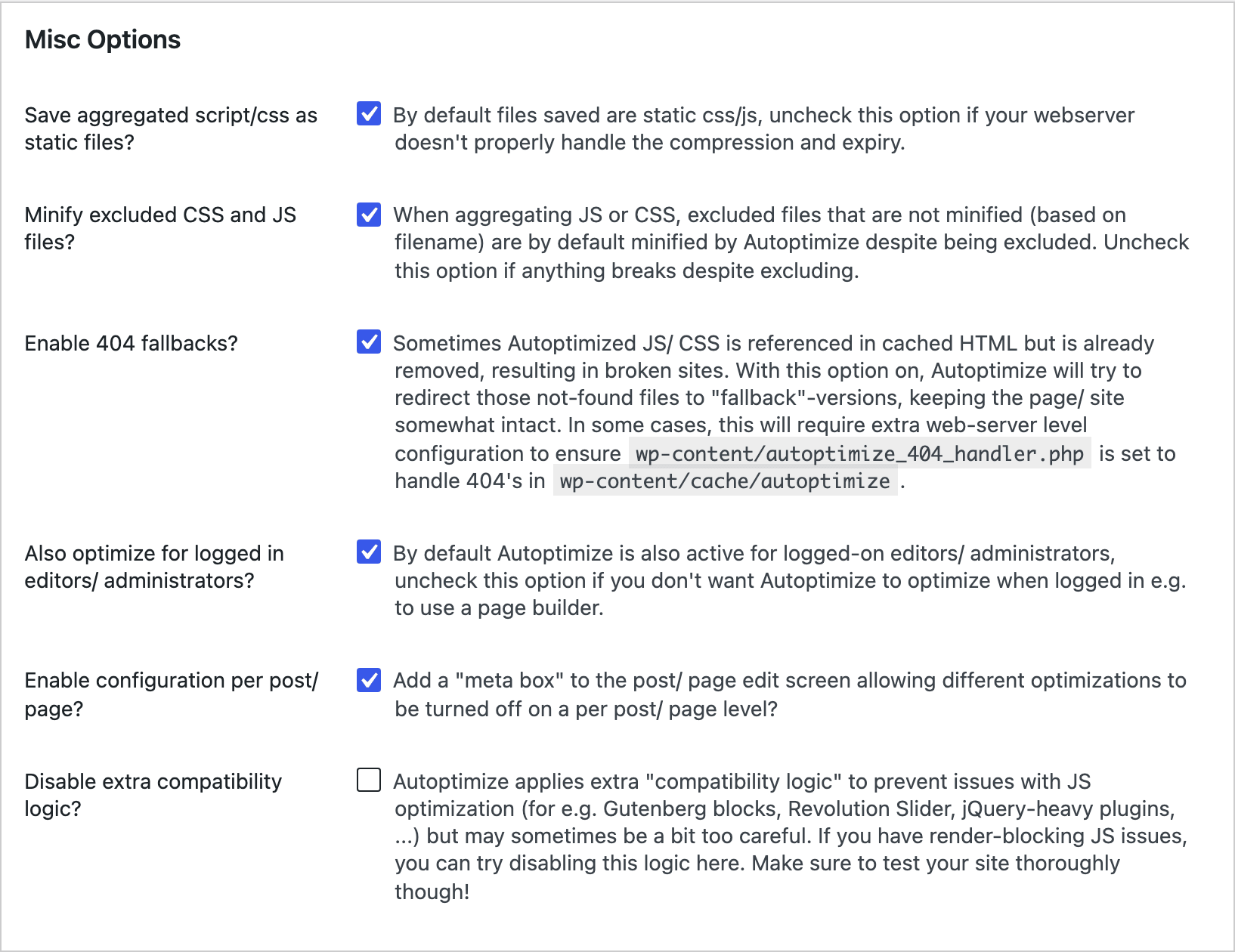
Misc Options is the last section on the tab. It is a group of checkboxes rather than one switch, and the ones that matter here, Save aggregated script/css as static files? and Also optimize for logged in editors/ administrators?, are already ticked.
-
Leave other options as the default to avoid bugs if you are not sure what they do. Then click Save Changes and Empty Cache so the optimized files are rebuilt from your new settings.
The theme's own generated CSS is not a file, so a minifier has nothing to combine there: Foxiz builds it once, stores it in the foxiz_style_cache option and prints it inline. It is already minified when it is written.
Adding Cache Plugin
Cache plugin will improve your website performance and help your site reduce the response time.
Follow these steps:
-
Install and activate the plugin:https://wordpress.org/plugins/wp-super-cache/
-
Navigate to Settings > WP Super Cache and stay on the Easy tab.
-
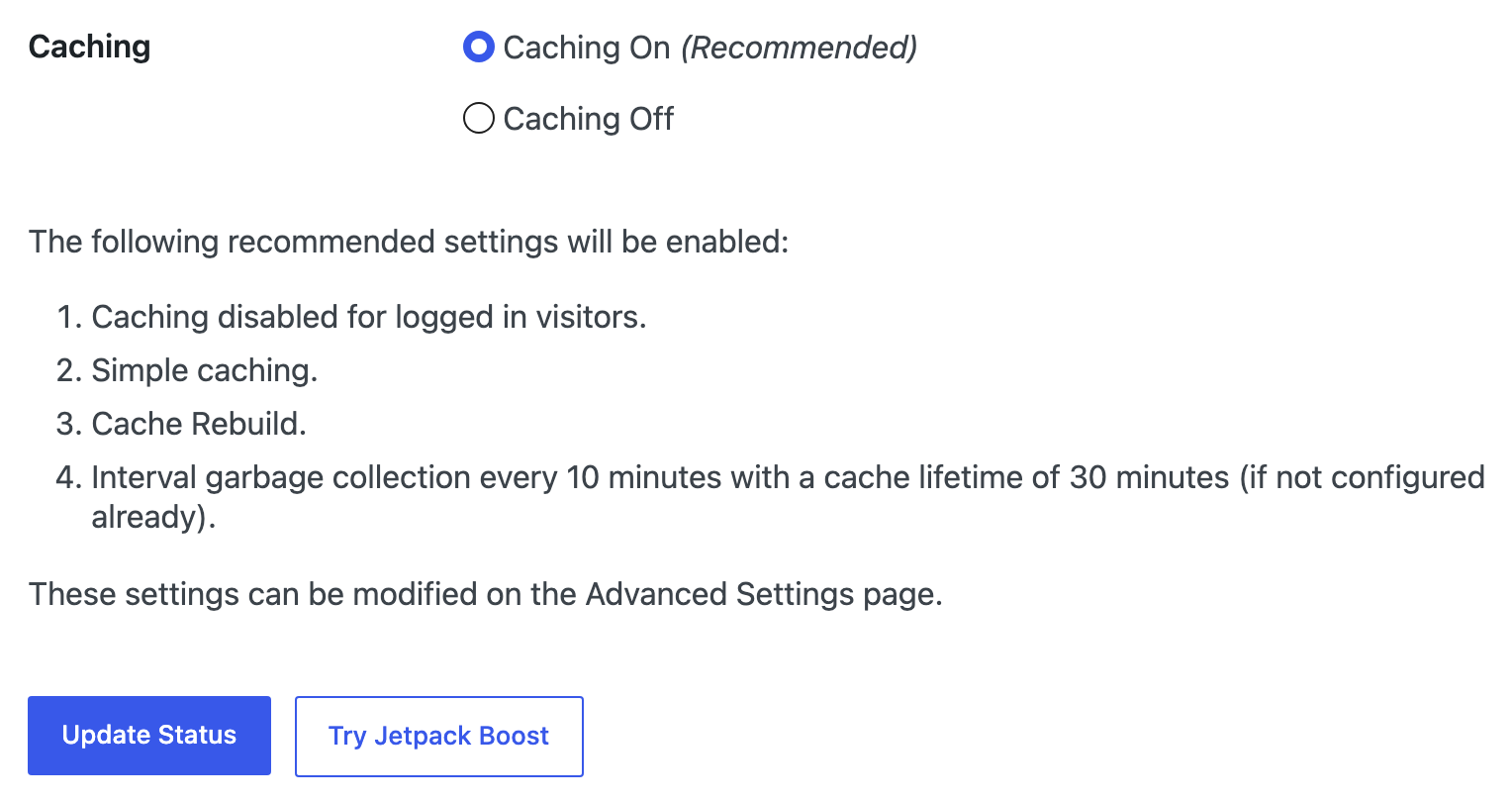
Under Caching, select Caching On (Recommended), then click Update Status.
Bookmarks, followed categories and read history are per reader. The theme loads them in a separate request after the page, so a cached page still shows each reader their own. The one page to exclude from the cache is your Reading List page, and only when Theme Options > Personalized System > Global > Display Mode is set to Direct. Its default, - AJAX -, needs no exclusion.
Activating Lazyload & Preload fonts.
Navigate to Theme Options > Performance and check the panel. Most of its switches are already on by default. Five are off, and turning them on blind costs you something, so leave them off unless the line below says your site is the exception:
-
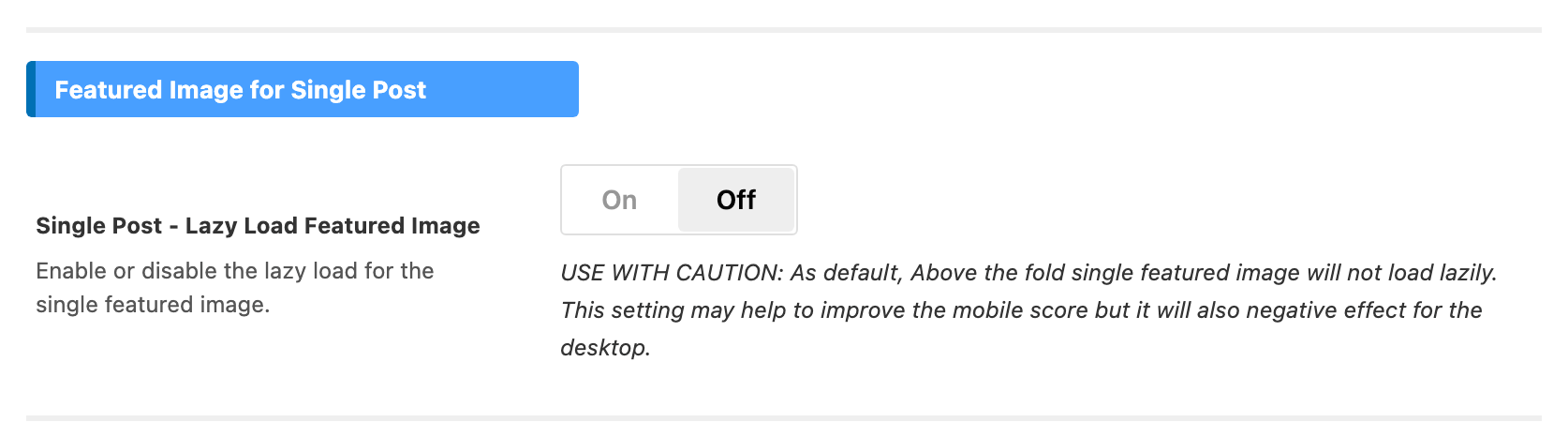
Single Post - Lazy Load Featured Image, in the Featured Image for Single Post section, is off by default on purpose. The panel's own note begins "USE WITH CAUTION" and explains why: the single featured image is above the fold, so lazy loading it may lift a mobile score and will hurt the desktop one.
-
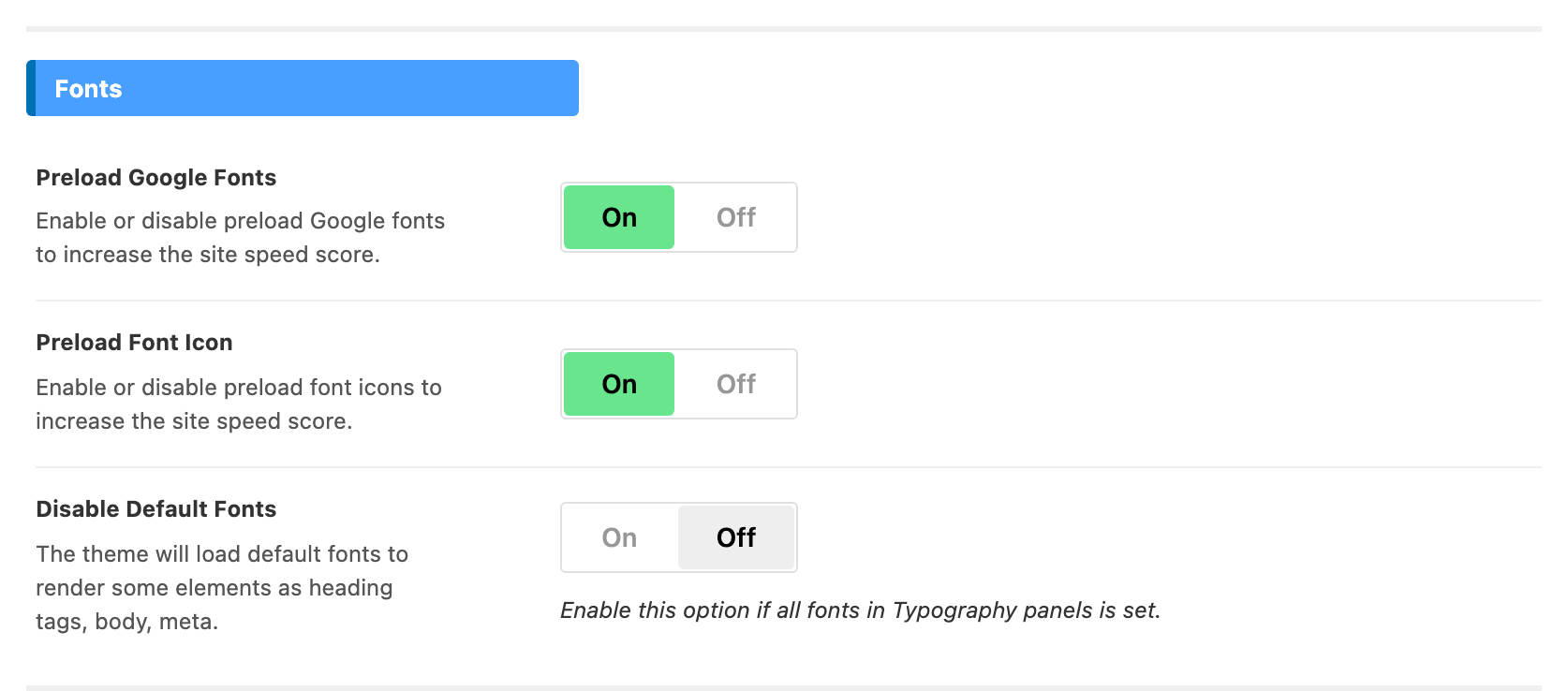
Disable Default Fonts stops the theme loading the fonts it uses for any element you have not assigned one to. Turn it on before every element in Theme Options > Typography has a font and those elements fall back to the browser's default.
-
Single Post - Disable Srcset Content Images, in the Images section, stops WordPress adding a srcset to the images inside your posts. Without it a phone downloads the same large file as a desktop, so leave it off.
-
Disable Gutenberg Style on Page Builder, in the More section, removes the block editor's stylesheet from every page built with Elementor. Turn it on only if those pages show no block editor content at all, block widgets in a sidebar or footer included.
-
Transient Fallback, in the Rate Limits section, counts requests in the database, which adds a read and a write to every request it counts. Turn it on only if you want rate limiting and your host has no APCu, Redis or Memcached.
Everything else in the panel is already on when the theme is installed, so for most sites this step is a check rather than a change. Optimize Your Site Speed with Performance Options goes through every field with its default.
Add Expires headers
To enable browser caching, you’ll need to edit — or perhaps even create — a file called the .htaccess file. This is a file in the root folder on your hosting.
Follow these steps:
- Access your hosting file manager and find the .htaccess file
- Open the file, then copy the code below and paste it at the end of your .htaccess file content. Don’t make any other changes to the file.
#Expires cache

ExpiresActive On
ExpiresByType text/html "access 600 seconds"
ExpiresByType application/xhtml+xml "access 600 seconds"
ExpiresByType text/css "access 1 month"
ExpiresByType text/javascript "access 1 month"
ExpiresByType text/x-javascript "access 1 month"
ExpiresByType application/javascript "access 1 month"
ExpiresByType application/x-javascript "access 1 month"
ExpiresByType application/x-shockwave-flash "access 1 month"
ExpiresByType application/pdf "access 1 month"
ExpiresByType image/x-icon "access 1 year"
ExpiresByType image/jpg "access 1 year"
ExpiresByType image/jpeg "access 1 year"
ExpiresByType image/png "access 1 year"
ExpiresByType image/gif "access 1 year"
ExpiresDefault "access 1 month"

#Expires cache end
This block names no font type, so the theme's fonts fall to the ExpiresDefault line and get a month. That is fine as it stands. If you replace it with a rule set of your own that lists font types, the one you must include is font/woff2: every font file Foxiz includes, the icon set and all four Font Awesome families, is .woff2 and nothing else. A font rule listing woff, ttf and eot would match none of them.
You can also contact the hosting support, they will help you in this matter.
Should Disable Elementor Default Colors & Fonts
Disabling default fonts and colors allows Elementor to inherit the theme styles from Foxiz.
Please check to ensure these two options are enabled in the settings of Elementor. To disable default colors and fonts in just 2 steps:
-
Navigate to Elementor > Settings and you will see the option to disable default fonts and colors. Both are on the General tab.
-
Check the boxes to disable colors and fonts and save them. The labels are Disable Default Colors and Disable Default Fonts.
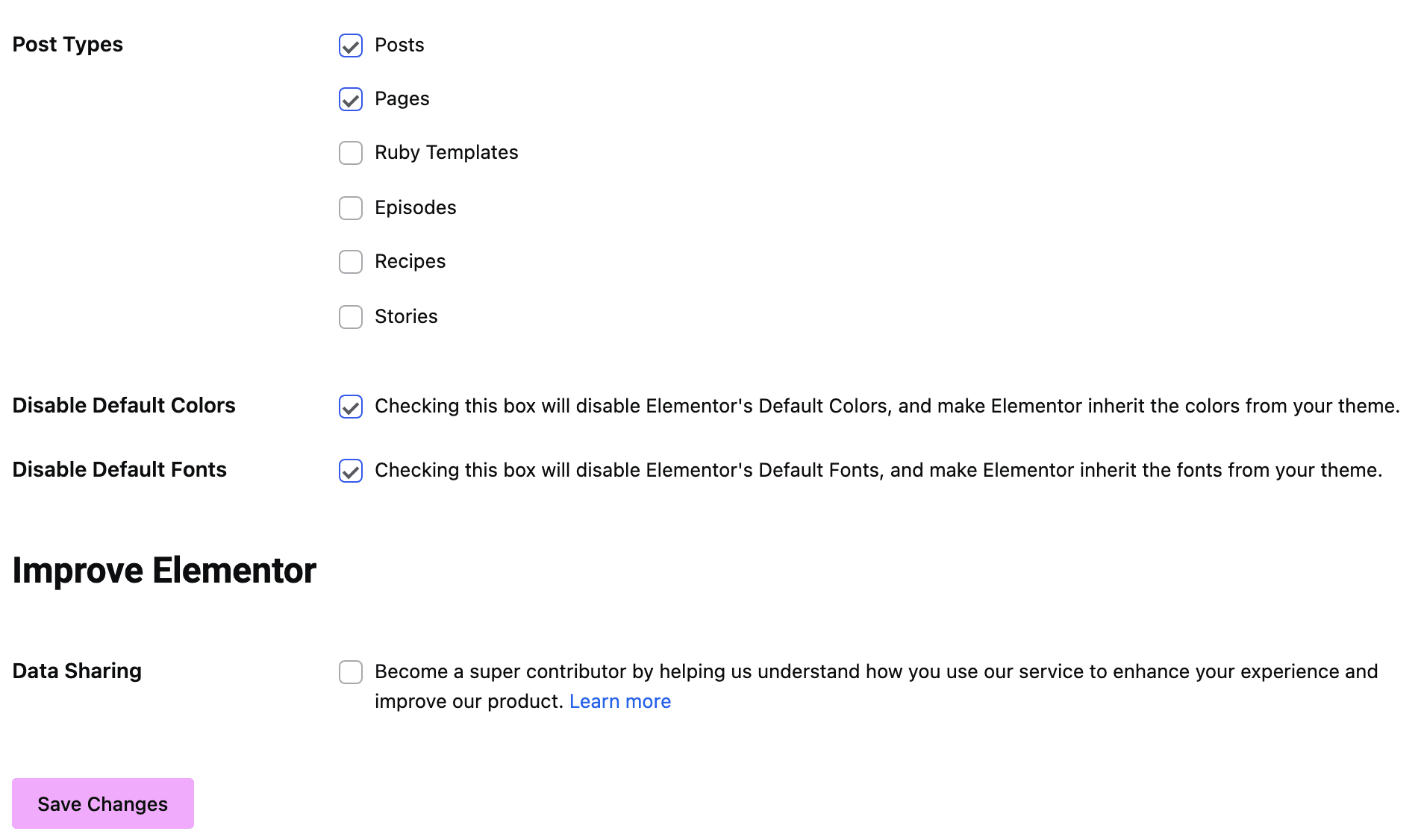
These two stop Elementor's own default styles. They do not clear the four global fonts in the site kit, which are set to Roboto and Roboto Slab by default and keep a Google Fonts request on every page; that is Disable Google Fonts in Elementor.
Using a CDN for Your Website
If your pages are filled with images and want your images to load faster, you can (and should) use content delivery networks (which are commonly referred to as CDNs).
We recommend you use Cloudflare. Please read the documentation below for further information.
https://kinsta.com/knowledgebase/install-cloudflare/
CLS Problem
If preload causes issues with CLS, we recommend checking whether your website is using a carousel slider block at the top. If yes, we suggest moving this block down to avoid CLS problems.
The preloads meant here are Preload Google Fonts and Preload Font Icon, both in Theme Options > Performance > Fonts and both on by default. Turning one off is the other way to test whether preloading is what is moving your layout.
Checking Your Work
You can test your site with some services below:
Did this answer your question?