How to Create a Review Post?
Turn on the review box for a post, rate what you review on stars or a score, and Foxiz prints the box with the average at the end of the post.
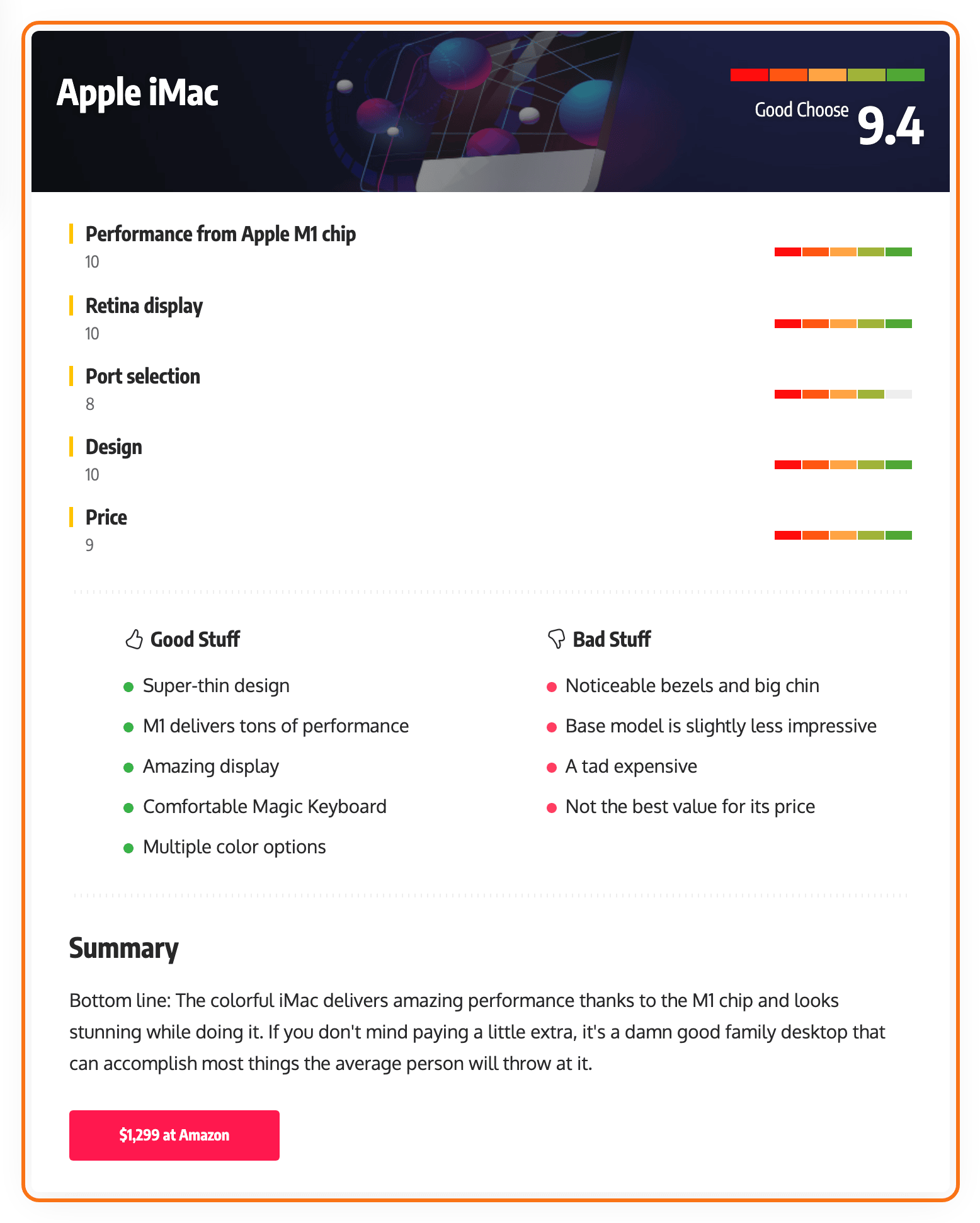
To create a review post, follow the steps below:
-
Navigate to Posts > Add Post. Older versions of WordPress label it Add New.
-
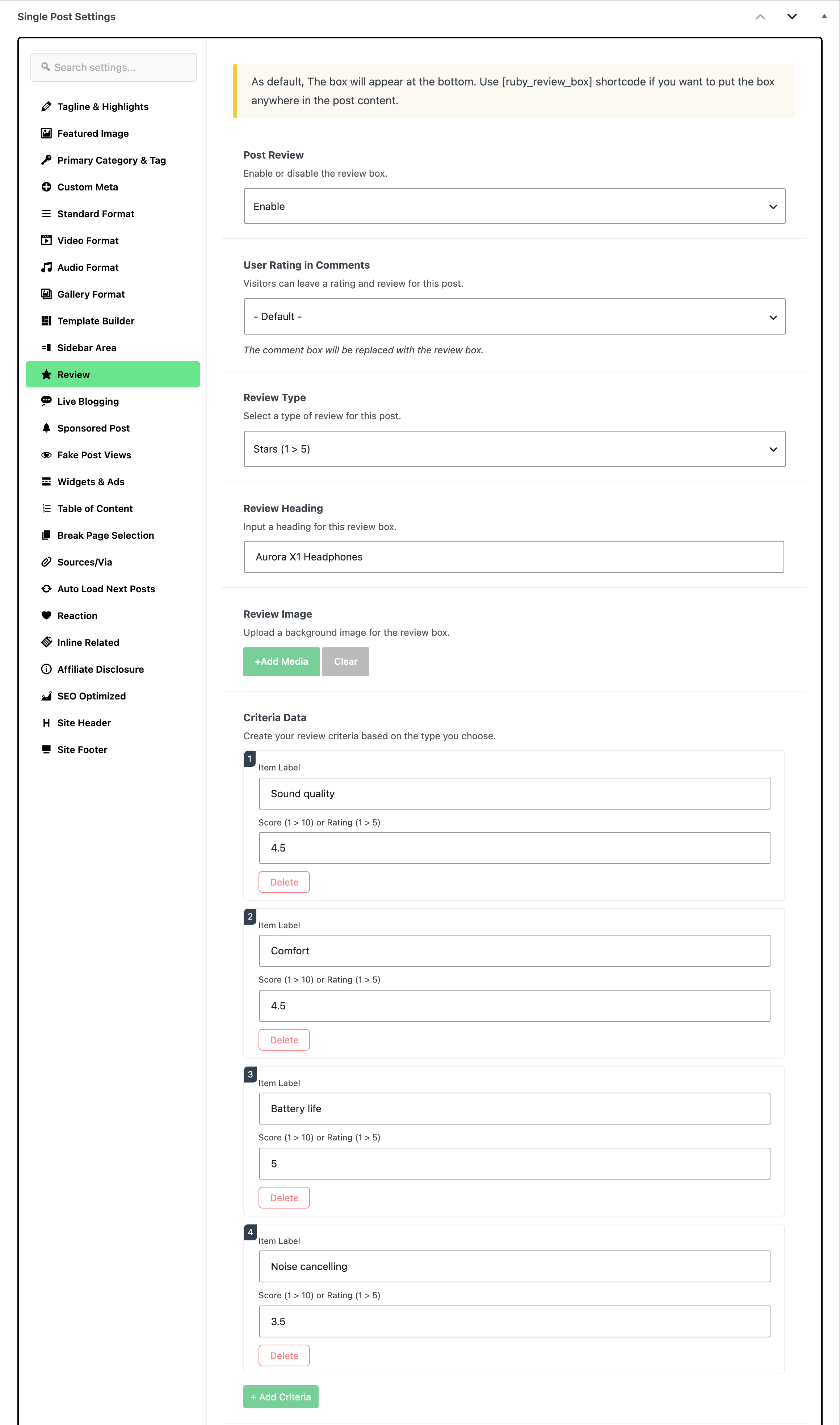
At the bottom of the editor, open the Meta Boxes bar, find the Single Post Settings box and select its Review tab.
-
Select the "Enable" option in the "Post Review". It has two values, - Disable - and Enable, and every post starts on - Disable -.
-
Under Criteria Data, click + Add Criteria for each thing you rate, and fill in its Item Label and its score.
Each row takes an Item Label and a number in Score (1 > 10) or Rating (1 > 5). The big number on the finished box is the average of the rows you filled in, so leaving a row's number empty drops it out of the average rather than counting as zero.
Review Type decides which scale those numbers are read on: Stars (1 > 5) or Score (1 > 10). Its default is - Default -, which takes the site setting instead, and that is The Star (1 > 5) until you change it. Leave it there for most reviews; pick Score (1 > 10) when you want to rate out of ten rather than five. A number above the scale's maximum is pulled down to it, so 8 on a star review is stored as 8 and counted as 5.
The rest of the tab is optional:
- Review Heading: default
Review Overview. - Review Image.
- Advantages and Disadvantages: repeaters again.
- Meta Description: the short word beside the score.
- Final Summary.
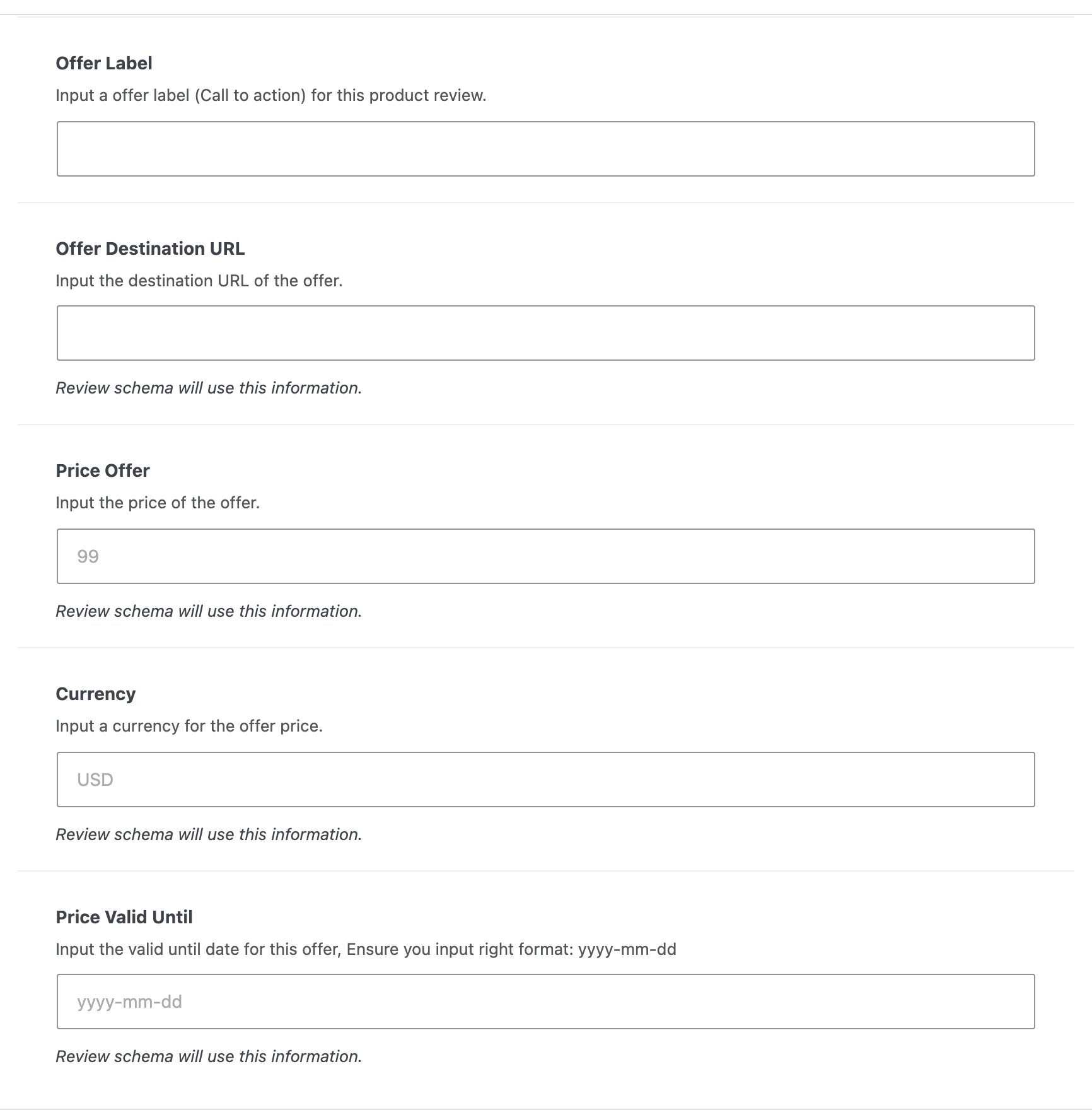
The last five fields are what the review's structured data uses:
- Offer Label
- Offer Destination URL
- Price Offer
- Currency
- Price Valid Until: wants
yyyy-mm-dd.
- Review Heading: default
The box is printed at the end of the post content, after the article and before the tags. To put it somewhere else, type [ruby_review_box] in the content where you want it; Foxiz finds the shortcode and stops printing the box at the end, so you get one box and not two.
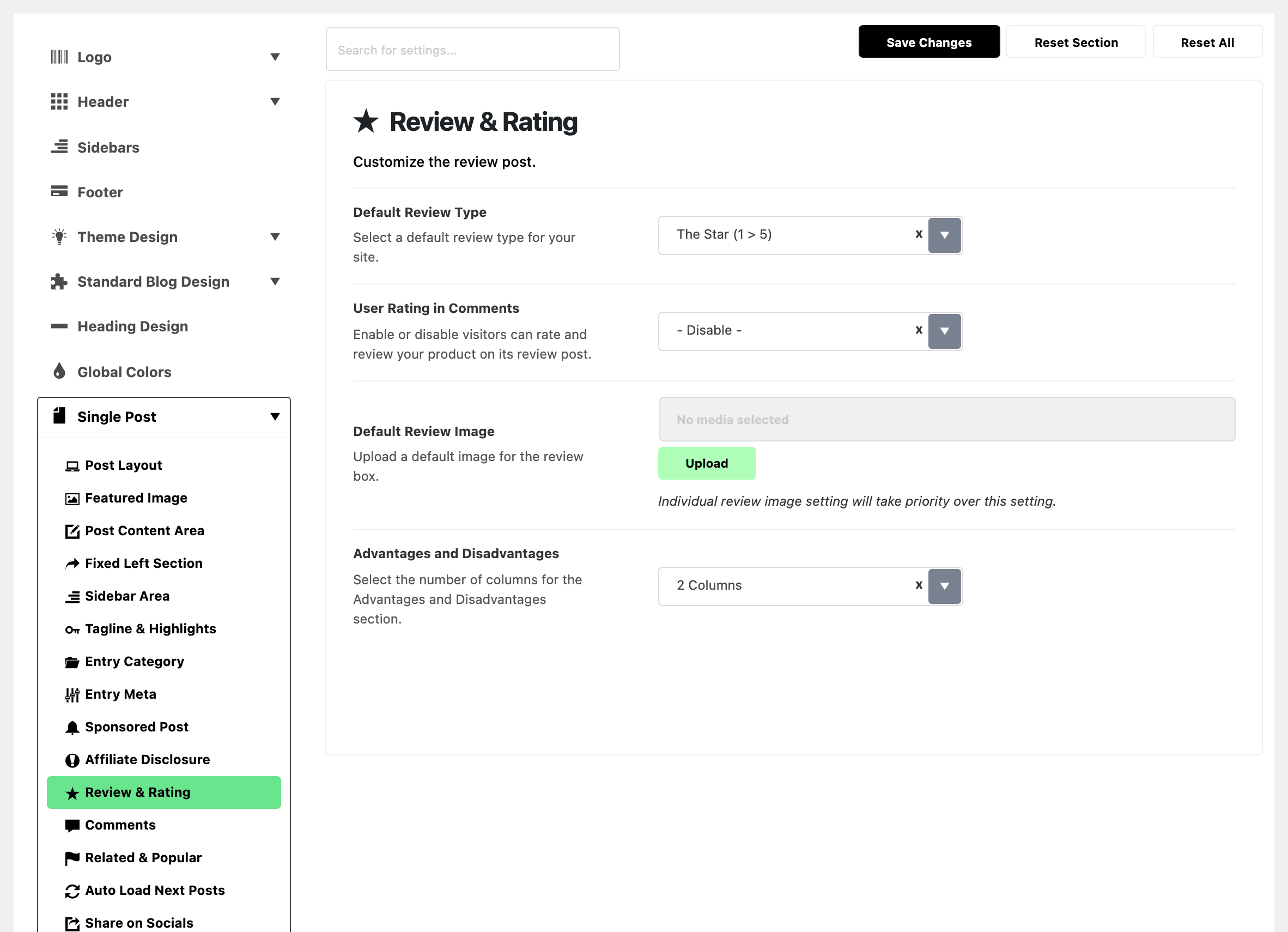
Site wide defaults for all of this are at Theme Options > Single Post > Review & Rating:
- Default Review Type: default The Star (1 > 5), and is what - Default - above falls back to.
- Default Review Image: used when a post has no Review Image of its own.
- Advantages and Disadvantages: whether those two lists sit in one column or two, 1 Column or 2 Columns. Default: 2 Columns.
Users Review
Readers can give a review post their own rating and write their review in the comment section.
Turn it on for every review post at Theme Options > Single Post > Review & Rating > User Rating in Comments. It has three values: - Disable -, which is the default, Enable for Post Review Only, and Enable for All Posts. Enable for Post Review Only suits most sites: review posts get the rating form, and every other post keeps its ordinary comment form.
The post's Review tab has its own User Rating in Comments, and a value picked there wins for that post. Left on - Default -, the post follows the Theme Options setting.
To enable it on one review post only, set the post's User Rating in Comments to Enable with Review. It has four values: - Default -, Disable, Enable with Review and Force Enable for This Post.
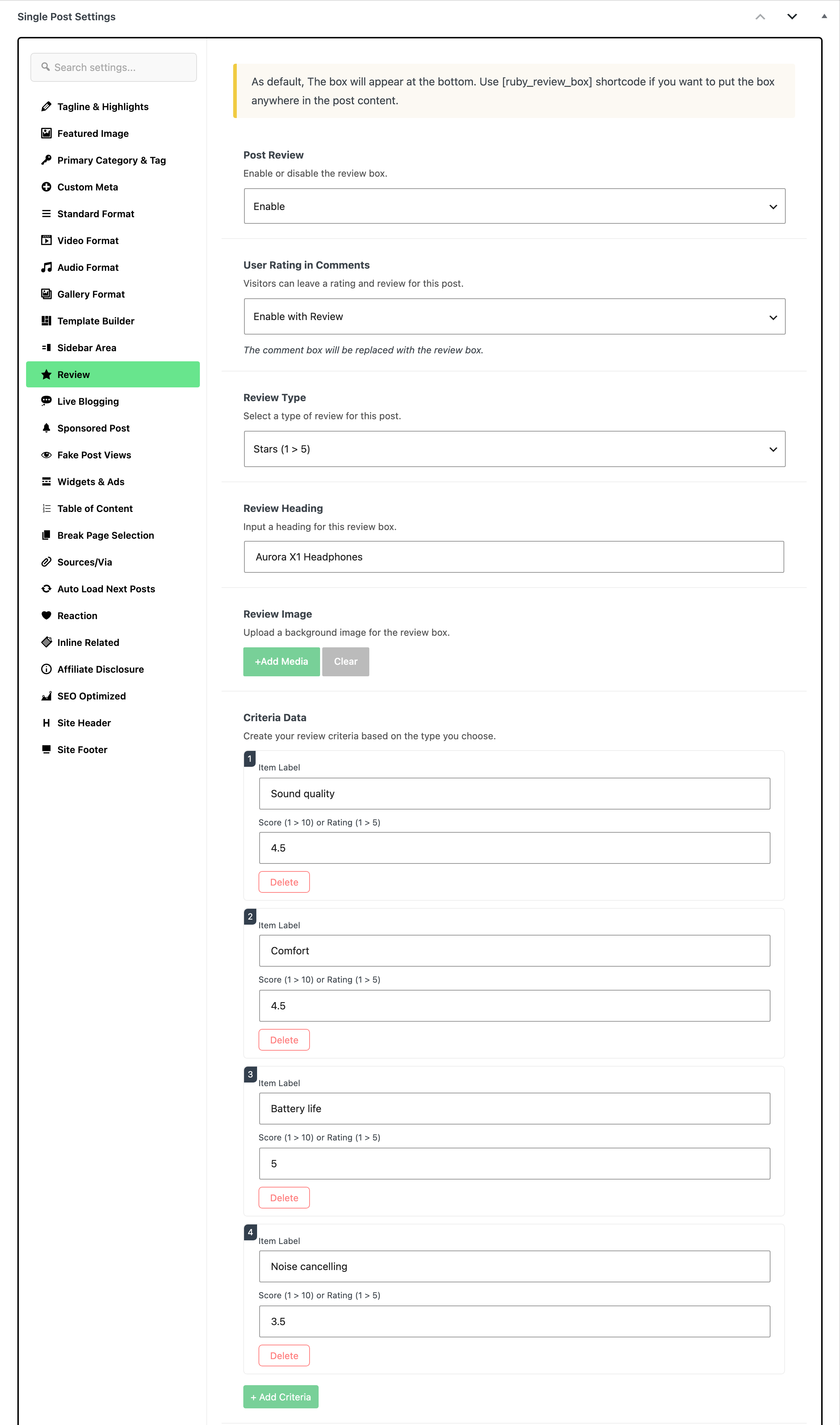
Enable with Review only does anything on a post whose Post Review is Enable; on an ordinary post it changes nothing. Force Enable for This Post turns the rating form on whether the post is a review or not.
What this setting does is replace the comment form, not add to it. Readers rate and comment in the same box, and the ordinary comment form is not shown alongside it.
Two things switch it off whatever this field says: comments being closed on the post, and Theme Options > Single Post > Comments having comments disabled site wide.
Did this answer your question?