Automatically Adding Related Posts via Theme Options
The section at the end of the post is on by default: Standard Layout, 4 posts. If that is all you want, there is nothing to set up; The Section at the End of the Post explains how to change it.
The inline box inside the content needs a shortcode in Related Shortcode before it appears. The steps below set it up.
Enable Automatically Related Posts
-
Log in to your WordPress dashboard.
-
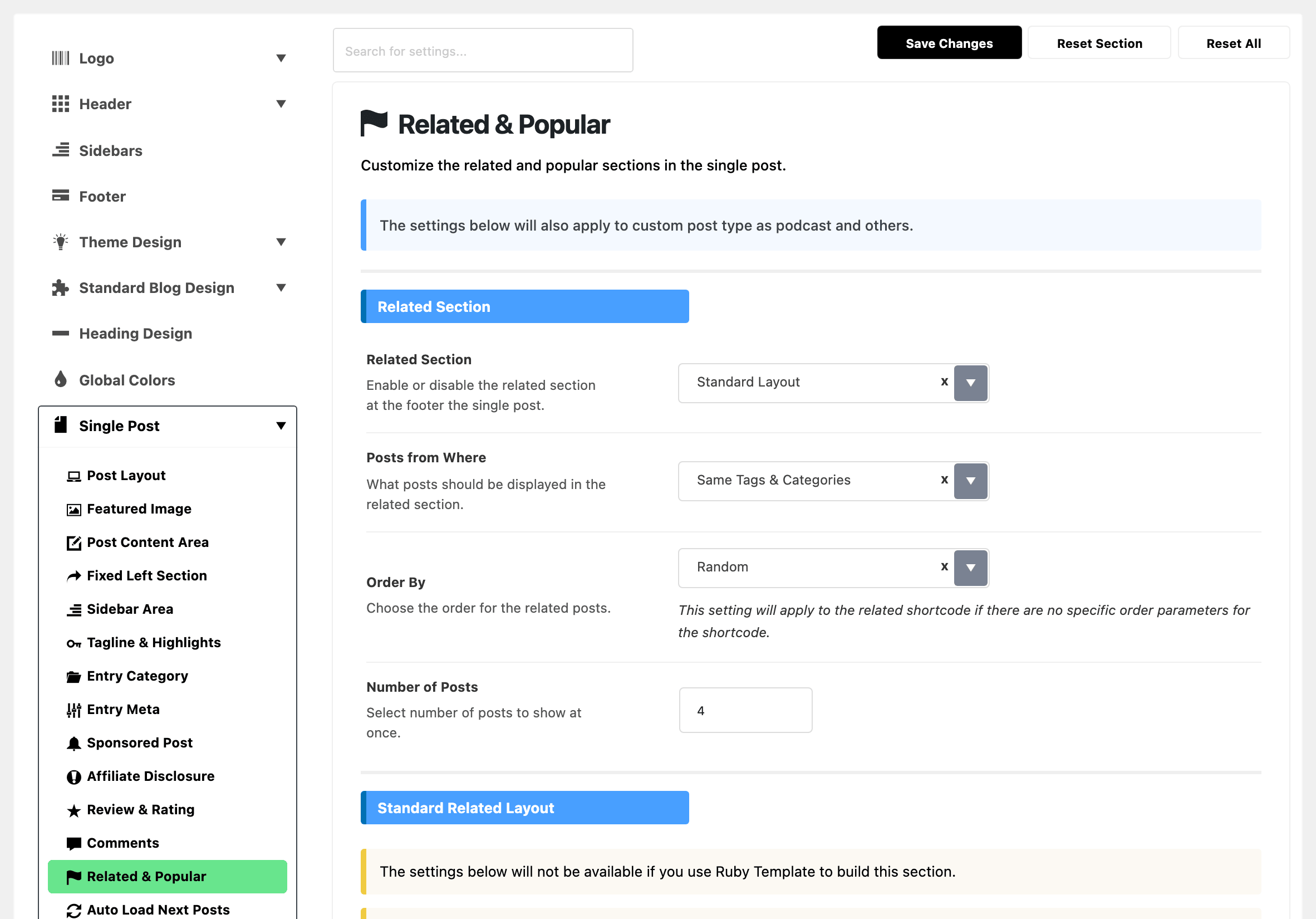
Navigate to Theme Options → Single Post → Related & Popular.
-
This one panel holds two different related features. Related Section puts a block of related posts at the end of the post. Inner Content Related drops a smaller box into the middle of the content. The steps below are about the second one.
-
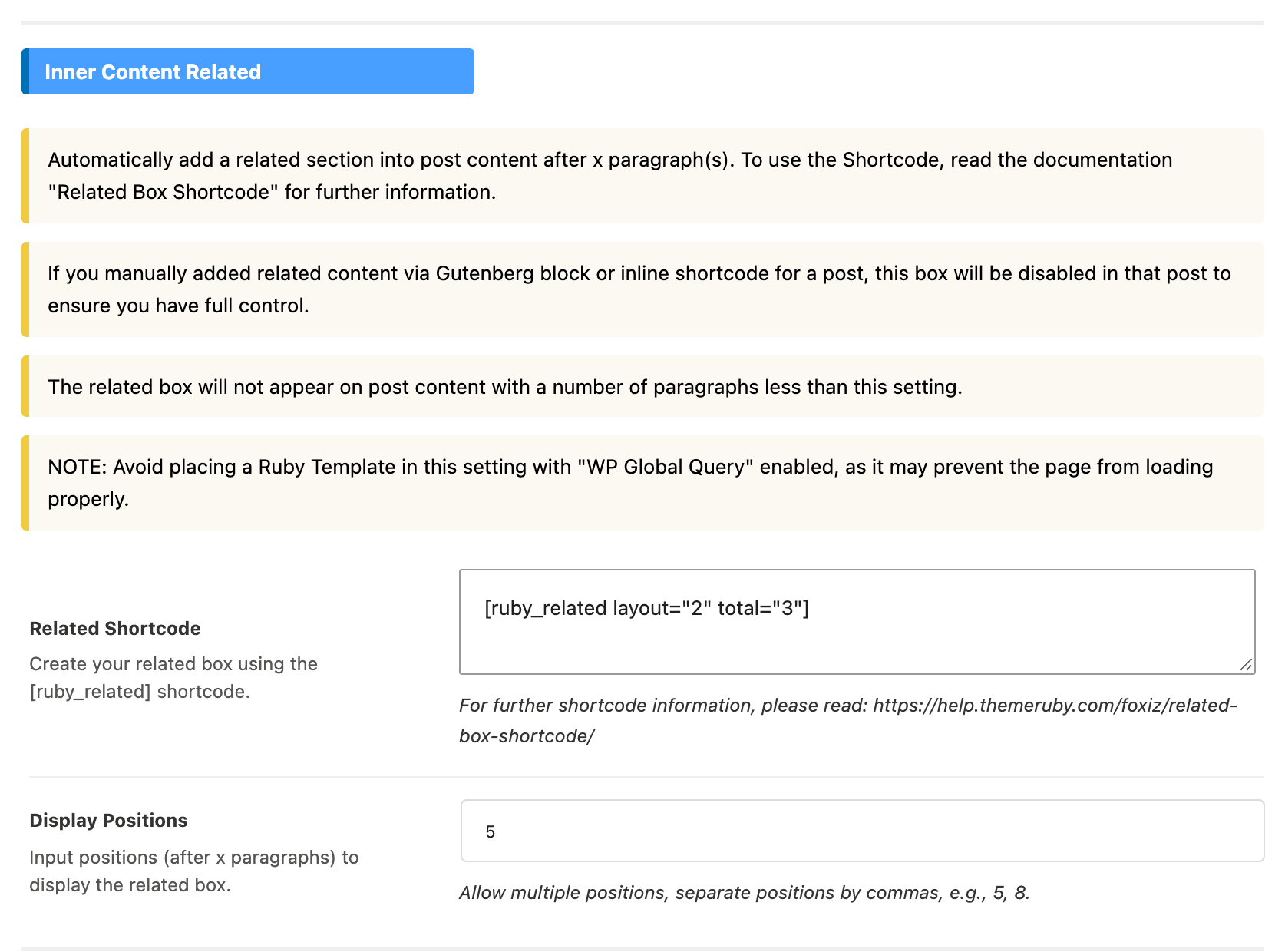
Choose a related layout and set the total number of posts using the Ruby Related shortcode. The field is Related Shortcode and the shortcode is
[ruby_related]. Itslayoutattribute takes 1 to 6 and defaults to 1. Itstotalattribute defaults to 2, not to the Number of Posts value further up the panel. -
To learn more about using this shortcode, refer to the documentation: Related Box Shortcode Guide.
-
To start, paste this into Related Shortcode. It shows four related posts in a full width box under the heading More Read:
[ruby_related heading="More Read" total="4" layout="1" where="all" order="rand" style="default" width="wide"]The grey shortcode already showing in the field is only a placeholder: the field stays empty, and the box stays off, until you type or paste one.
-
Select the position where you want to display related posts. The field is Display Positions, its default is
5, and you can specify positions such as 5, 8, 7. Multiple positions can be set, separated by commas. Each position is "after this many paragraphs".
This is how the inline related settings look:
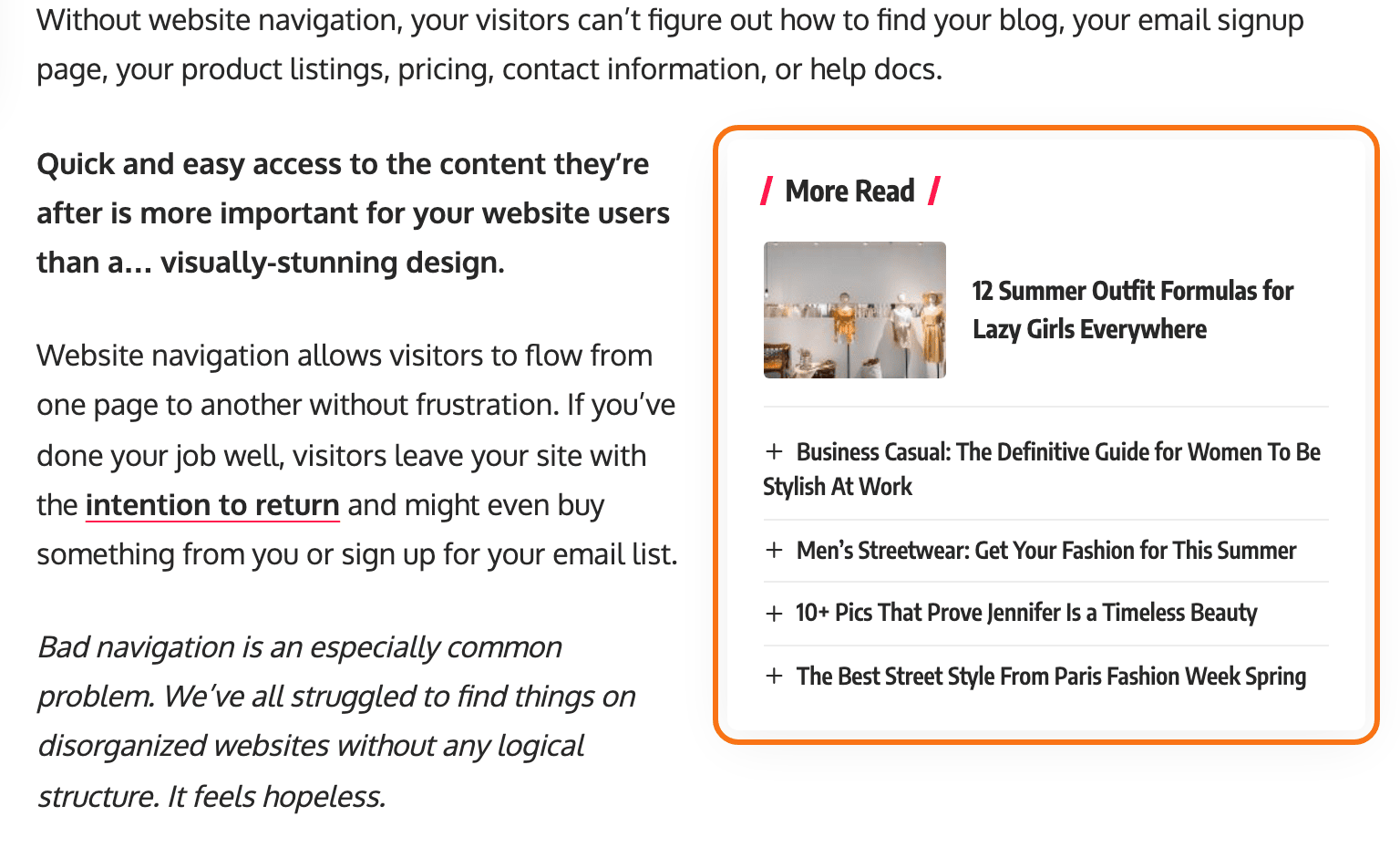
Four things stop the inline box appearing, and none of them says so on screen.
An empty Related Shortcode disables the feature outright, whatever the positions say.
A post shorter than the position gets nothing. Ask for position 5 in a three paragraph post and there is no fifth paragraph to insert after.
A post that already contains related content is skipped. If you placed a related block or a [ruby_related] shortcode in the content by hand, Foxiz leaves that post alone so you keep control of it.
A single post can turn it off. Single Post Settings > Inline Related has Inline Related Posts, with - Default - and Disable, and its own Display Positions that overrides the global one for that post.
The box never appears on products, web stories, Ruby Templates or bbPress content, and only on a single post view.
Do not put a Ruby Template shortcode in Related Shortcode if the template has a block using WP Global Query. The panel warns that it may stop the page loading.
The Section at the End of the Post
The section at the end of the post is a separate setting, at the top of the same panel, and it needs no shortcode.
Related Section is the switch and it decides which of the fields below you will see. It offers - Disable -, Standard Layout and Use Ruby Template. Its default is Standard Layout. Set it to - Disable - if you only want the inline box.
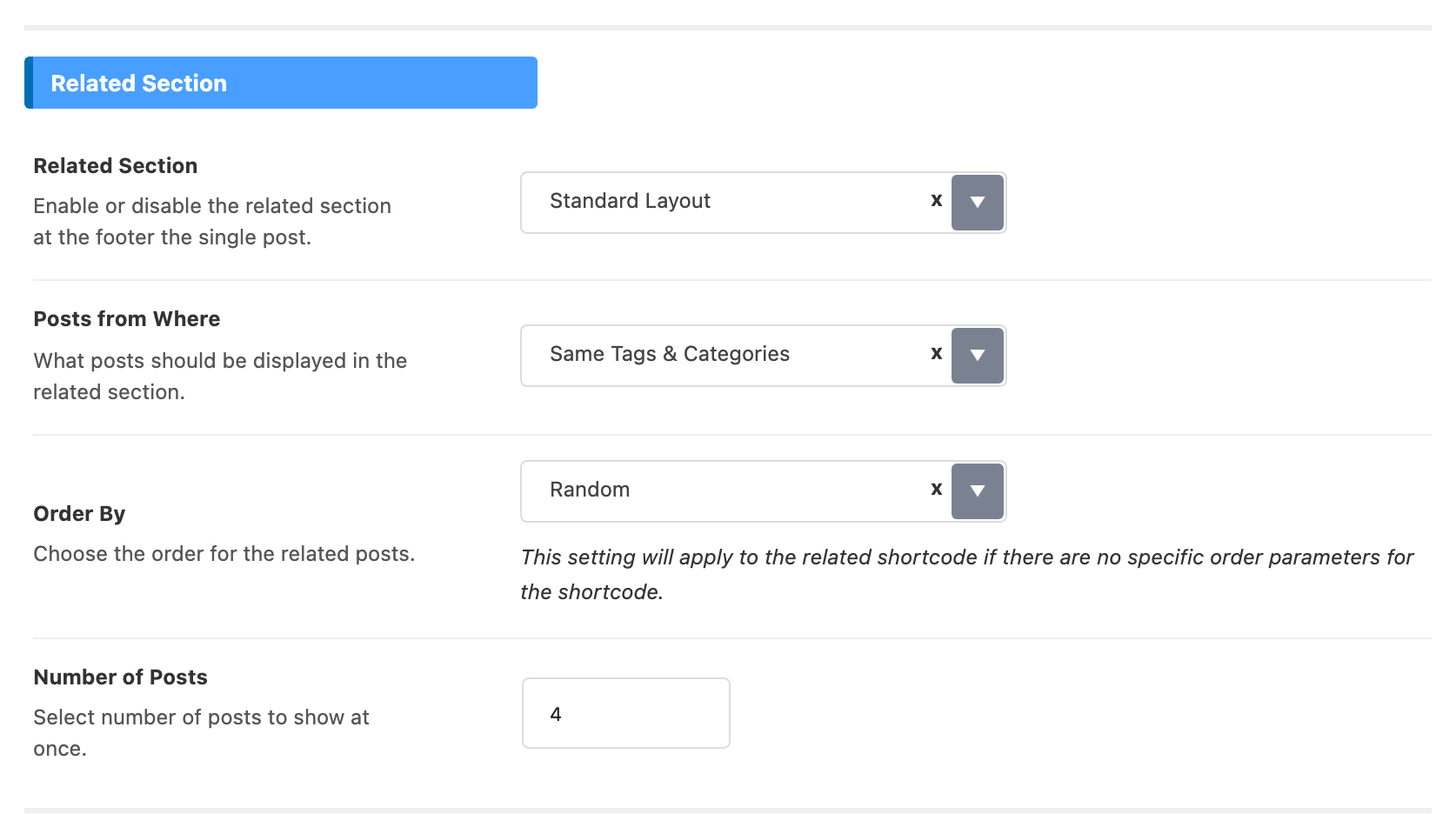
Three fields under it apply whichever layout you chose. The first two also feed the [ruby_related] shortcode whenever the shortcode does not name its own where or order. Number of Posts does not: a shortcode without total shows 2 posts.
- Posts from Where decides what counts as related: Same Tags & Categories, Same Tags or Same Categories. Its default is Same Tags & Categories, which is the widest of the three, so narrow it if the section keeps offering posts that are only loosely connected.
- Order By is Random, Relevance, Last Published or Last Updated. Its default is Random. For most sites keep Random: a much read article keeps looking fresh. Relevance sorts like Last Published, newest first, because WordPress only sorts by relevance on a search.
- Number of Posts defaults to 4.
On Use Ruby Template a single field appears, Template Shortcode, in the Related Template group. The block inside that template has to have its query mode set to use the WP global query, or the template has no way to know it is standing in for a related section.
On Standard Layout you get the Standard Related Layout group instead, six fields:
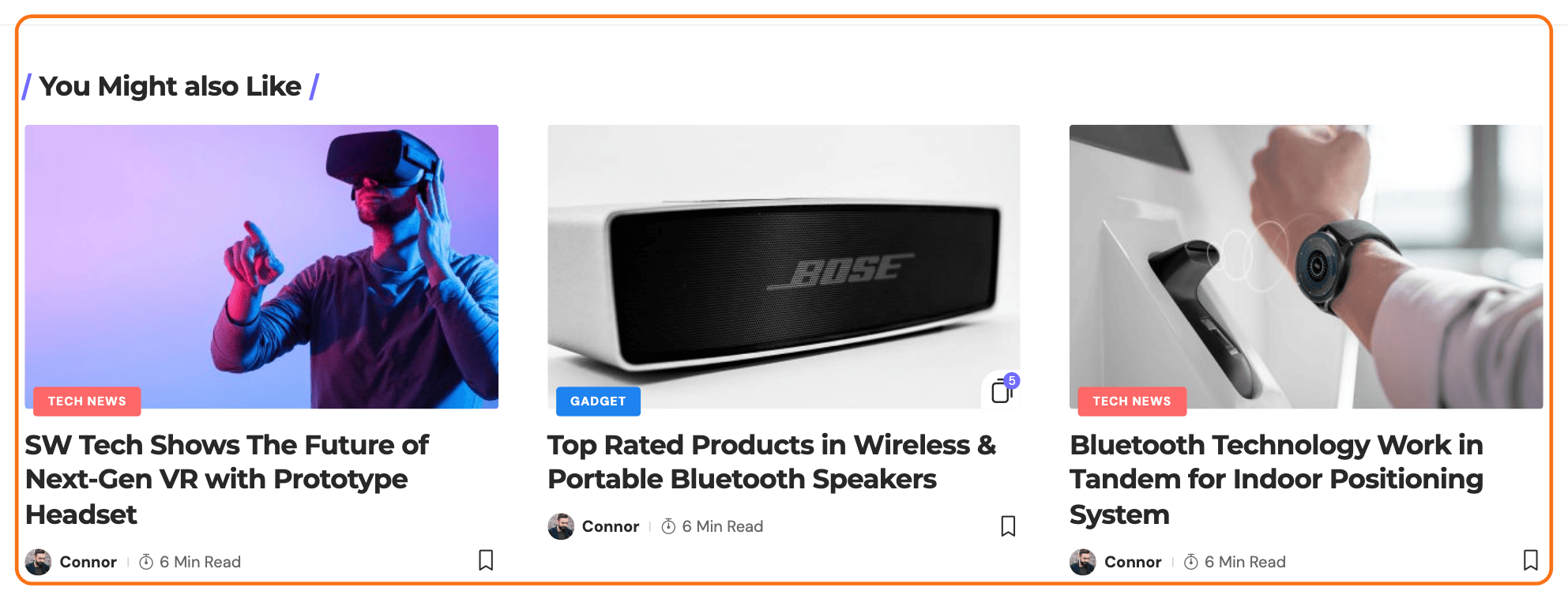
- Related Heading defaults to You Might Also Like. Put
-1in it to drop the heading and keep the posts. - Heading Layout and Heading HTML Tag both default to - Default -, which follows Theme Options > Heading Design.
- Heading Font Size (Desktop) is a pixel number and is empty by default, which uses the typography value.
- Blog Layout picks the listing shape from Grid 1, Grid 2, Boxed Grid 1, Boxed Grid 2 and Small Grid. Its default is Small Grid. Each of those is styled at Theme Options > Standard Blog Design, so the related section follows whatever you set for that module there.
- Pagination Style is set to - Disable - by default and offers Next Prev, Show More and Infinite Scroll, which is how you let a reader see more than Number of Posts without enlarging the section.
The panel has a third group, Popular Section, and it is not related posts. It takes one Template Shortcode and draws that template at the very bottom of the post, below the related section; leave it blank to have nothing there. Whether the template shows popular posts is decided by the block's own query settings inside it.
The section at the end of the post, and the popular section below it, are walked step by step in related and popular box.
Did this answer your question?