How to Finish a Post with the Checklist
The draft is written. Before you publish, open the Checklist tab of the Foxiz AI Assistant window. It holds three parts. Work through them in this order, which is bottom to top on the tab:
- Improve: one click edits for the whole post. It comes first because each of its buttons replaces the whole post.
- SEO check: the post against your focus keyword.
- Publish checklist: the fields the post still needs. Fill them once the text is final, so they describe it.
Last of all, run Fix grammar & spelling, the second Improve button.
The number on the Checklist tab is how many items are still open, so you can see from the Write tab that something is left.
Polish the whole post
Start here while the text can still change. Under Improve, each button rewrites the post for one purpose and returns the whole post as a card with its changes:
| Button | What it does |
|---|---|
| Improve readability | Makes the post easier to read where it needs it, and leaves clear passages alone |
| Fix grammar & spelling | Fixes grammar, spelling and punctuation, and changes nothing else |
| Make it shorter | Makes the post noticeably shorter, keeping every key fact |
| Expand thin sections | Fills out thin sections with reasoning or examples from the post |
| Update intro | Rewrites only the introduction, the text before the first heading |
| Add a conclusion | Adds a closing section with a takeaway or next step, not a recap |
Which one does a fresh draft need? Often none: a draft from the guided steps is already written to the outline you picked. Read it once and let what you see decide. A post that stops after its last section with no closing gets Add a conclusion; a post longer than you wanted gets Make it shorter; a section of only a sentence or two gets Expand thin sections. Click one button at a time and add its card, or leave it, before you click the next, since each one rewrites the whole post.
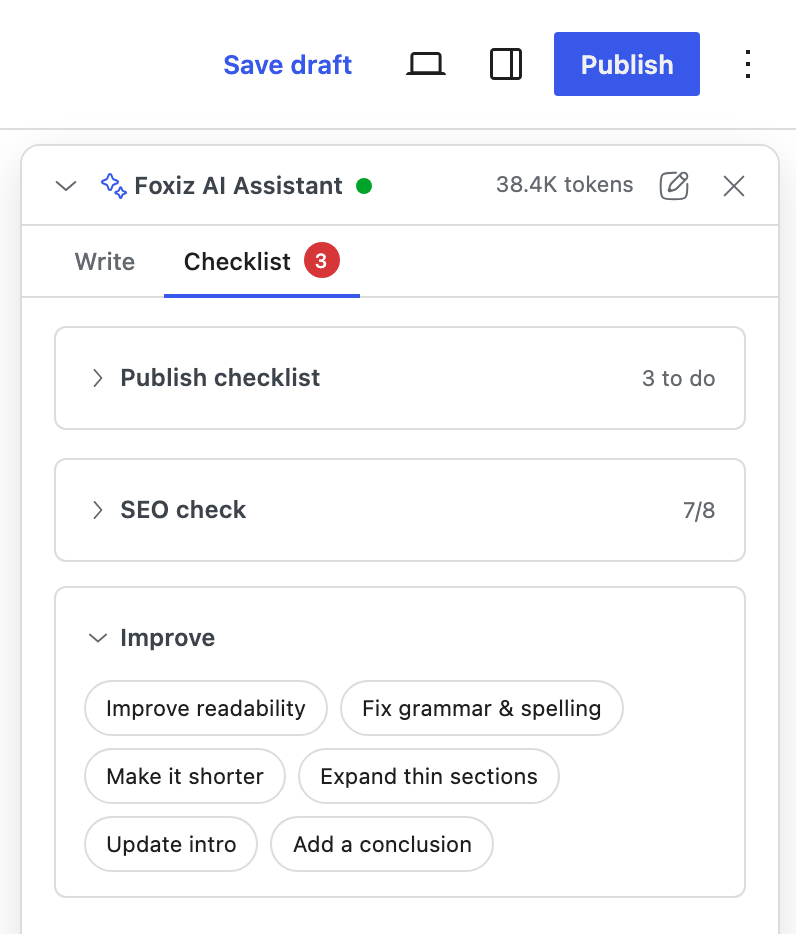
Add to editor replaces the post's content with the new version; Undo brings the old one back. Keep Fix grammar & spelling for the very end, below.
Improve needs text to work on. On an empty post it says "Write the post first in the Write tab."
Pass the SEO check
-
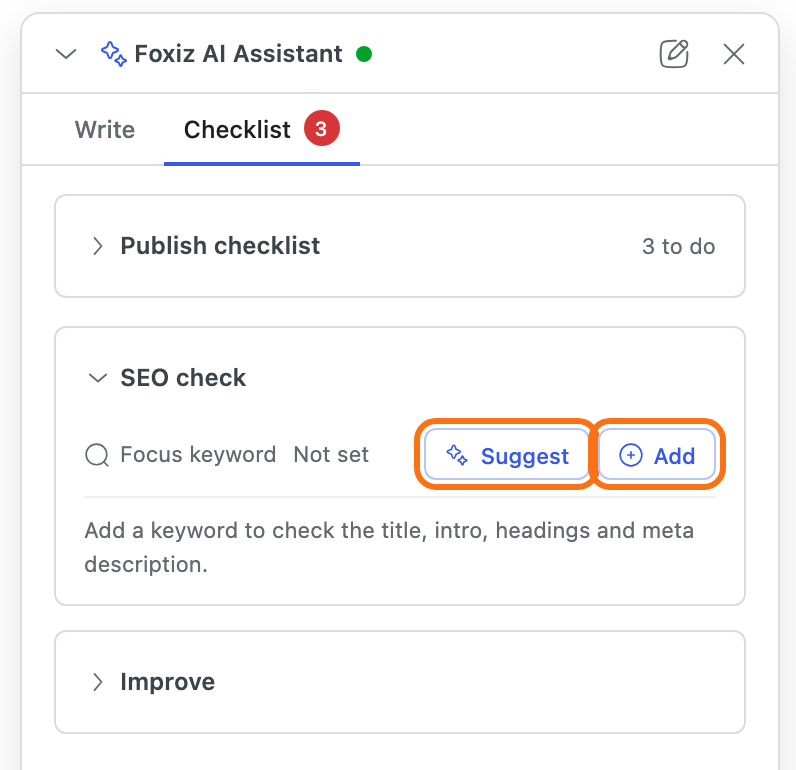
Under SEO check, set the Focus keyword: the phrase a reader would search for. Click Add and type it, or Suggest to get options from the AI.
-
Read the checks. The count beside the heading, such as "6/9", is how many pass.
Check Passes when Keyword in title The title contains the keyword Title length The title is 30 to 60 characters Keyword in the intro The keyword is in the text before the first heading Keyword in a subheading At least one heading contains it Meta description One is set Keyword in meta description It contains the keyword Meta description length It is 120 to 160 characters Keyword usage Not too few: the keyword's words make up at least 0.5% of the text, and a post of 300 words or more uses it at least twice. Not too many: it is used no more than once per 40 words (2.5%). The percentage beside the check counts uses only, so a keyword of several words passes below 0.5%: three words used twice in 1,000 words shows 0.2% and passes Content length The post has 300 words or more Image alt text Every image has alt text. Only shown when the post has images 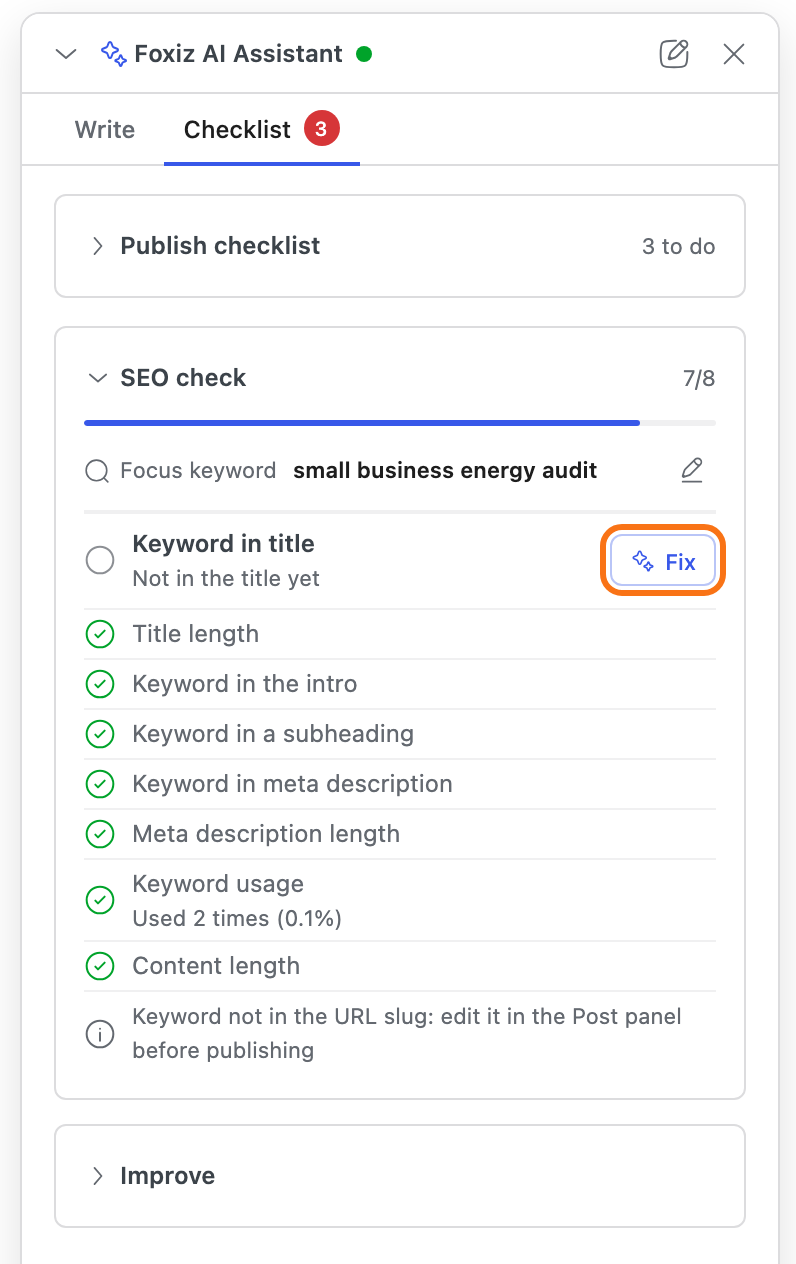
-
Click Fix on a failing check. With two failing checks or more, Fix all appears too, under a line such as "5 checks to fix, in one request"; it fixes them all at once. The fix changes only what the check needs. Review the card and add it as usual.
Image alt text has no Fix: the AI cannot see your images. Add the alt text yourself in each image block.
When the keyword is missing from the URL slug, the check tells you ("Keyword not in the URL slug: edit it in the Post panel before publishing") and leaves the edit to you. Change the permalink before you publish. On a published post, only change it with a redirect, because the old links break.
With an SEO plugin
With Yoast SEO, Rank Math, All in One SEO or SEOPress active, the focus keyword and meta description are that plugin's own: set one in the panel and the plugin shows it, and the other way round. With no SEO plugin, the keyword is saved with the post. With another SEO plugin that prints its own meta description, the meta row says Managed by that plugin.
The SEO check can be switched off for the site with the SEO Check switch, in the Editor Features section of Foxiz > AI Assistant.
Fill in what the post still needs
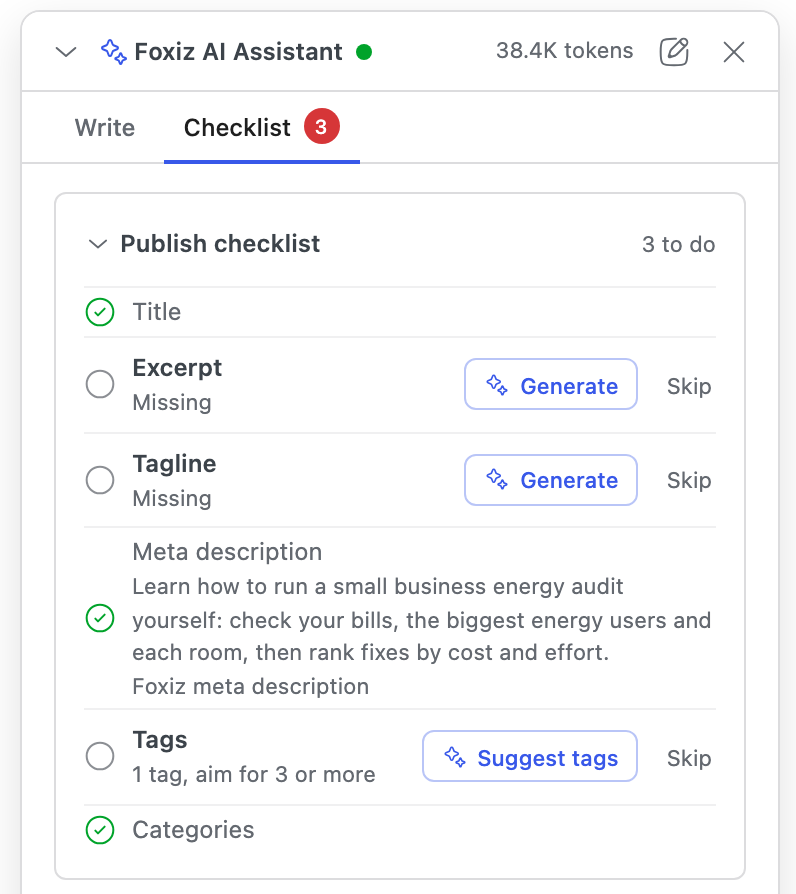
Publish checklist shows how many items are left, such as "3 to do", or "6 of 6 ready" once nothing is, and one row per field. A row only appears when the post has that field: no Tagline row on a post type without one, no Categories row while the site has only its default category.
| Row | Ready when | Button |
|---|---|---|
| Title | The title is 30 to 60 characters | Suggest titles |
| Excerpt | The excerpt is filled | Generate |
| Tagline | The Foxiz tagline, the subtitle under the post title, is filled | Generate |
| Meta description | The meta description is 120 to 160 characters | Generate |
| Tags | Three tags or more | Suggest tags |
| Categories | Something other than the default category | Suggest categories |
-
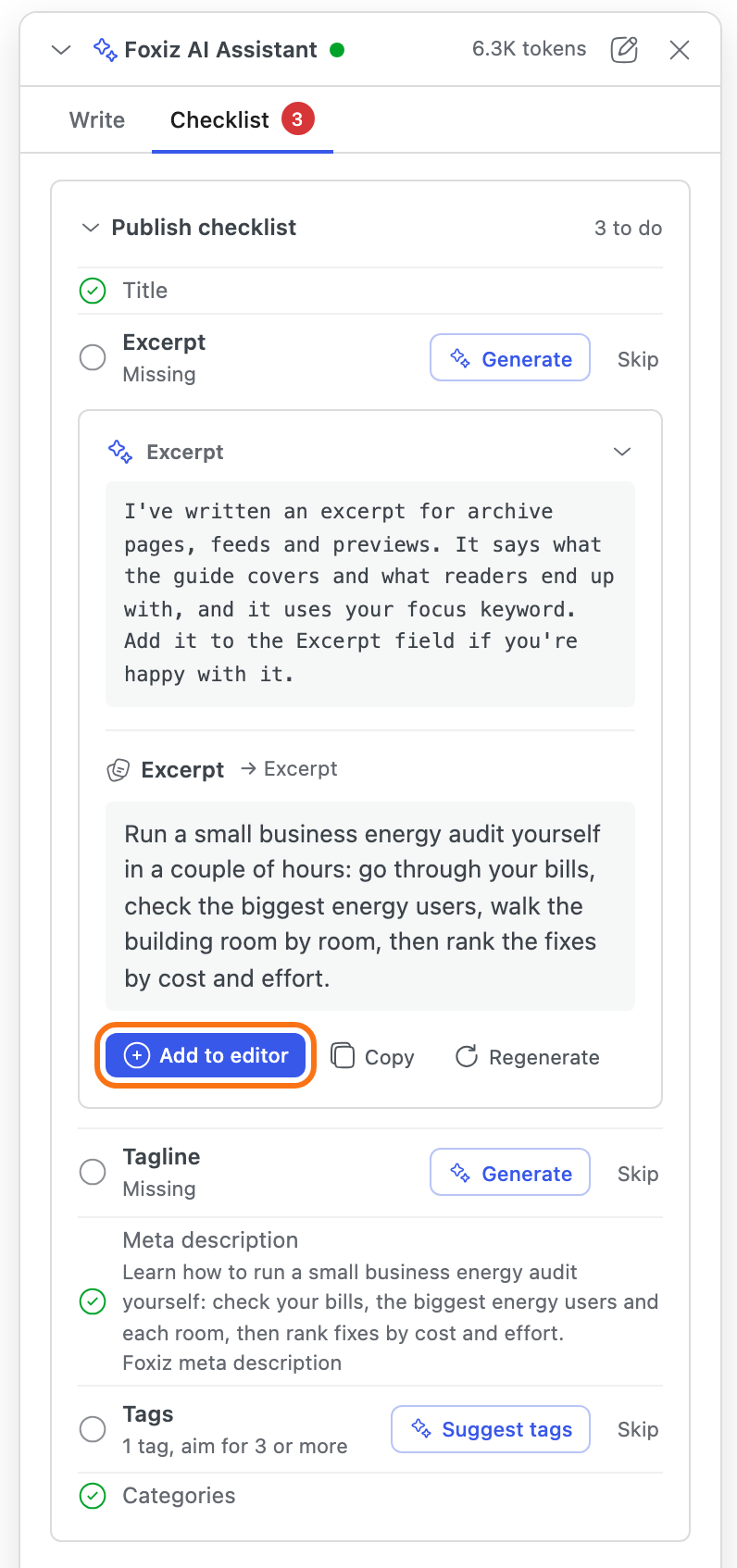
Click the button on a missing row. The answer opens as a card right under that row, in the Checklist tab.
-
Pick an option where it offers several (titles, tags, categories), then click Add to editor.
-
Go back to Checklist for the next row.
Categories are suggested from the ones your site already has. A suggestion that is not one of your categories is skipped when you add it, and the card says so.
Leaving a field empty on purpose, such as the tagline? Click Skip on its row. It counts as done, and Undo brings it back.
Last: fix grammar and spelling
Once the text and fields are final, click Fix grammar & spelling under Improve. It fixes grammar, spelling and punctuation and changes nothing else, so it is the safe last pass. Then save and publish the post as usual.
Did this answer your question?