How to Connect an AI Provider
Connect a provider once and Write with AI answers right in the post editor: no copying prompts, one click to add an answer to the post. You need WordPress 7.0 or newer and an API key from Anthropic (Claude), OpenAI or Google. Only an administrator can set it up.
On WordPress below 7.0, or without an API key, skip this article and use Prompt mode: it works with any web AI chat and needs no connection.
The requests run on your own provider account and are billed there, by the token: a piece of a word, the unit providers count text in. Foxiz shows the counts your provider reports.
Get an API key
Which provider? Foxiz treats the three the same: it only asks them for text, and every feature works with any of them. So pick the one you already have an account and billing with. With none yet, compare the price per token on each provider's pricing page, since that is what decides your bill.
Create the key in your provider's console, then copy it. Each provider shows a key only once, so paste it somewhere safe until it is in WordPress.
- Claude: the Anthropic Console, under API Keys. Add credit under Billing first, or every request fails.
- ChatGPT models: the OpenAI Platform, under API keys.
- Gemini: Google AI Studio, under Get API key.
While you are in the console, set a monthly spending limit. It is the one cap that holds whatever happens on the site.
Add the key to WordPress
-
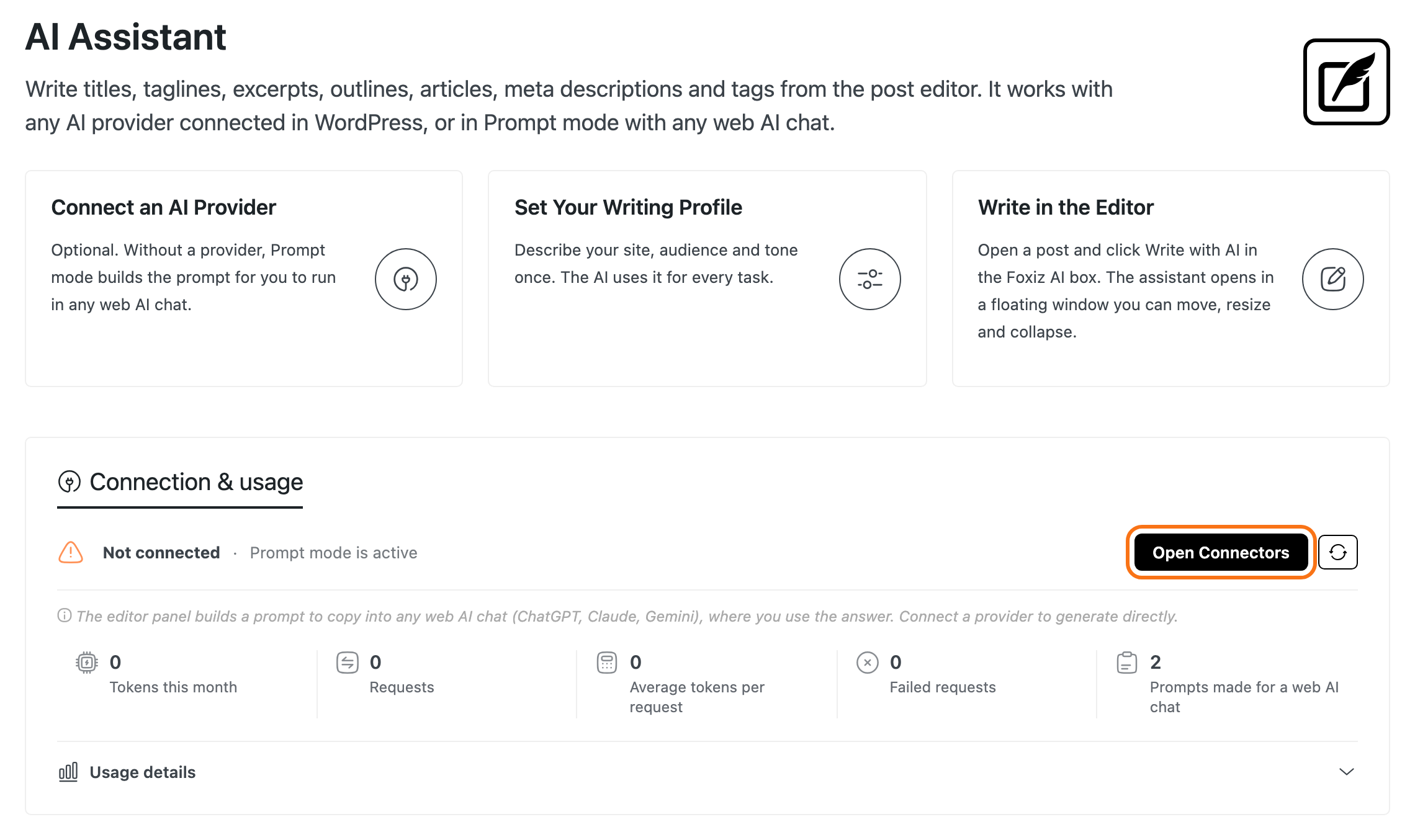
Go to Settings > Connectors. From Foxiz > AI Assistant, the Open Connectors button takes you there.
-
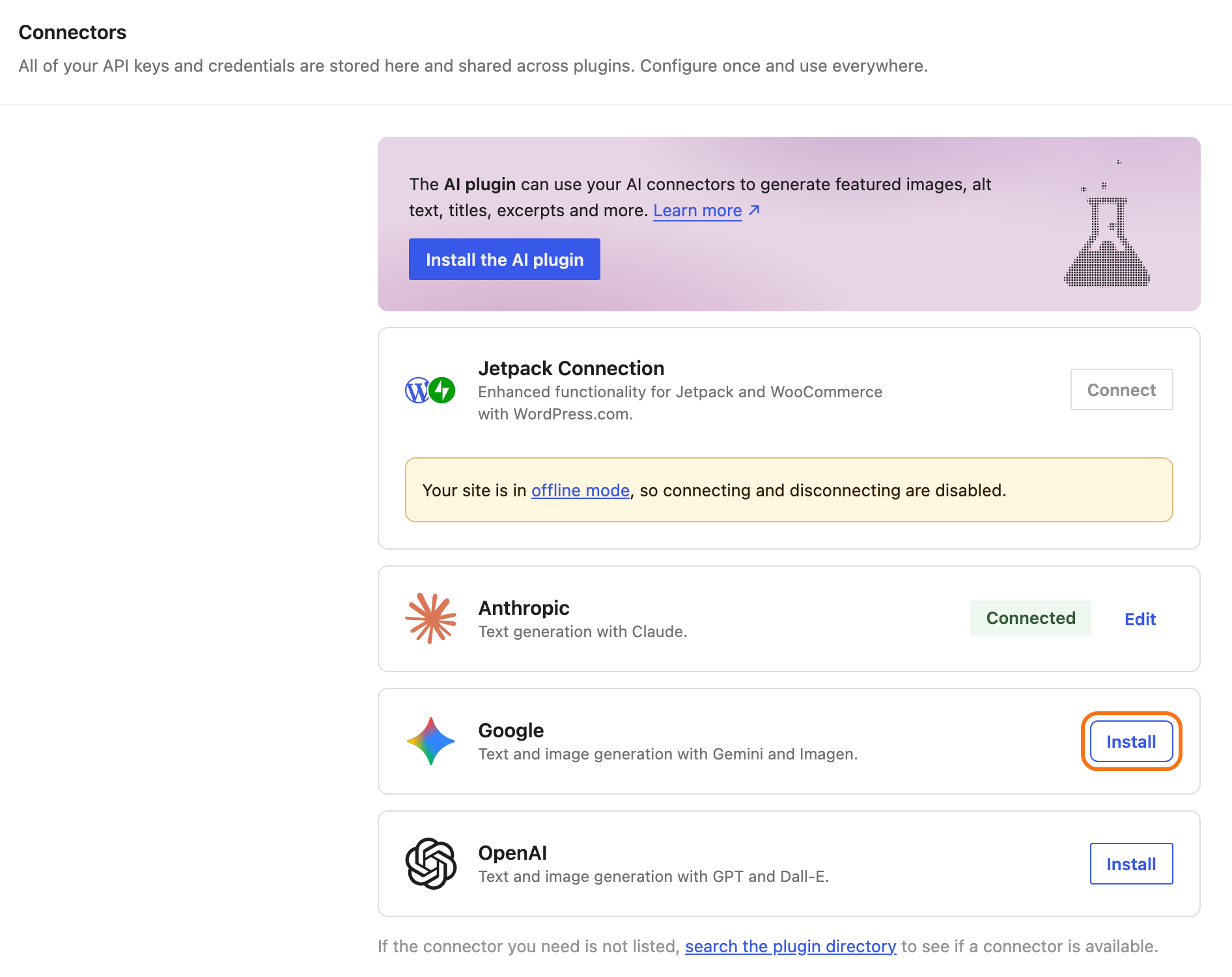
Find your provider's card in the list (Anthropic, Google or OpenAI) and click the button on it. The first time it reads Install: that installs and turns on the provider's small WordPress plugin, such as AI Provider for Anthropic, and opens the card. It reads Activate if that plugin is installed but off, and Set up once it is on.
-
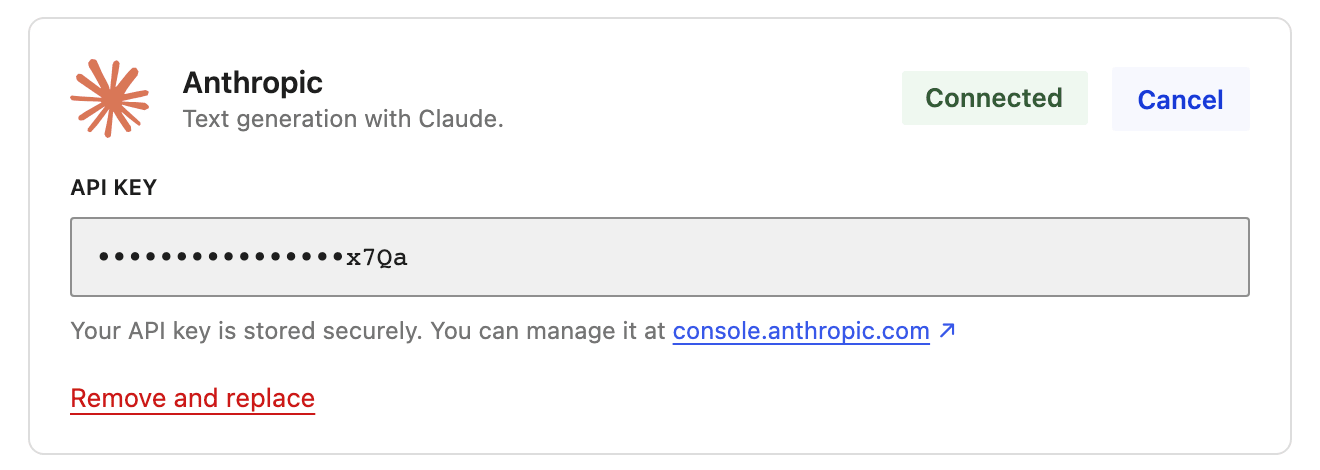
Paste the key into API Key and click Save. The card then reads Connected. A provider counts as connected once its plugin is active and has a key.
Skip the other boxes on that screen. Install the AI plugin offers WordPress's own AI plugin, and Foxiz does not need it: the assistant runs on the AI Client built into WordPress 7.0. Other cards, such as Jetpack Connection in the step 2 picture, come from other plugins on your site and are not needed either.
-
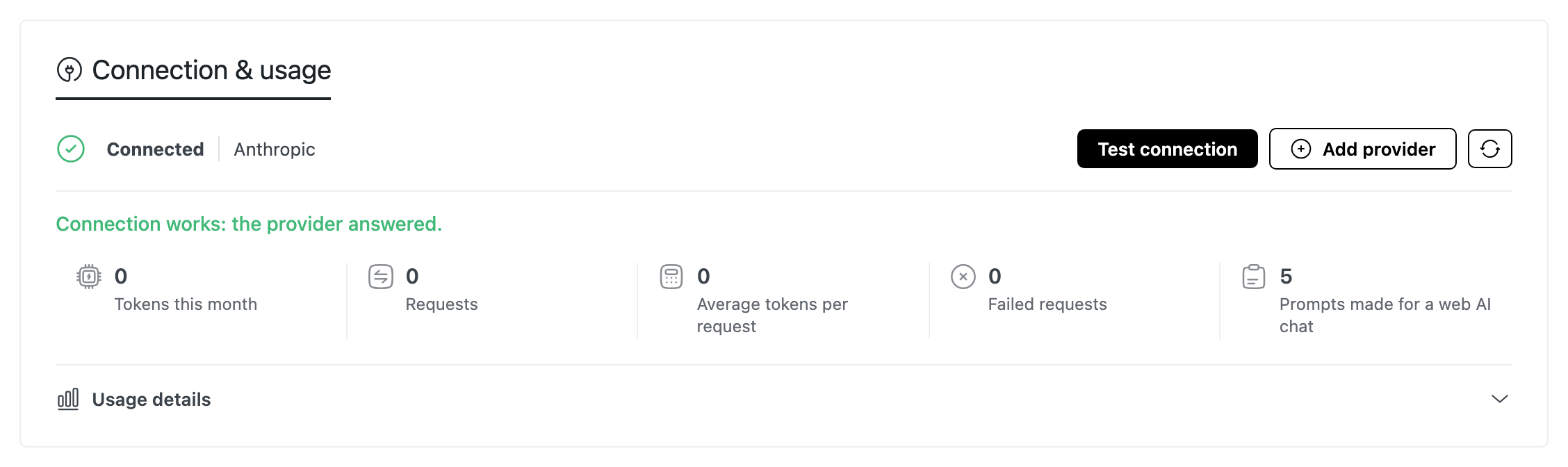
Go back to Foxiz > AI Assistant. The Connection & usage box at the top now reads Connected, with your provider's name.
-
Click Test connection. It sends a small check to the provider; "Connection works: the provider answered." means you are done.
Open any post: the Foxiz AI box now names your provider instead of Prompt mode.
When it does not say Connected
The status is checked again at most every ten minutes, so after a fix click the refresh button beside it (Refresh connection status) instead of waiting.
| What it says | What to do |
|---|---|
| Not connected | No provider has a key yet. Add one in Settings > Connectors. |
| Provider not responding | The provider refused the key or did not answer. Check the key and your credit, then refresh. |
| Waiting for approval | The WordPress AI plugin's Connector Approval blocks Foxiz Core. Approve it in Tools > Connector Approvals, then refresh. |
| WordPress 7.0+ needed | Update WordPress. Until then, use Prompt mode. |
| AI is switched off | AI is disabled for the whole site by the WP_AI_SUPPORT constant or the wp_supports_ai filter, usually in wp-config.php or a plugin. Prompt mode still works. |
| Switched off | Enable Foxiz AI Assistant is off. Turn it on and click Save Changes. |
Choose the model
In Foxiz > AI Assistant, scroll to the Editor Features section. AI Model starts on Auto (newest): the newest model your provider offers, which follows new releases by itself. To pin one, click Load models, pick it and click Save Changes. A stronger model writes better long articles and costs more per answer; a smaller one is enough for titles, excerpts and tags.

After the first answer a note under the list says which model answered last. If it is not the one you picked, your account may not have access to it.
With more than one provider connected, the Foxiz AI box names them all, and the model list names each model's provider.
Keep the bill under control
-
Monthly Token Limit, in the Access & Limits section further down the same page, stops direct generation for the rest of the month once the site has used that many tokens. 0, the default, means no limit. Prompt mode keeps working past it.
Set one on any site with more than one writer, so a busy month cannot surprise you. For example: one full guided run, from ideas to a finished draft, used about 38,000 tokens in our test. Five writers drafting 16 posts a month each make about 80 runs, roughly 3,000,000 tokens; enter
4000000to leave room for edits. After the first month, Tokens this month and Average tokens per request in Connection & usage tell you the real figure. -
Requests per User (10 min) stops one writer from running away with it: 40 requests per ten minutes by default. Administrators are not limited.
-
Connection & usage counts this month's tokens, requests and failed requests, and Usage details breaks them down by task, by model and by user.
The full reference for these settings is in Connection & usage and Access & Limits.
Did this answer your question?