How to Write a New Post with AI
Start from an empty post and let the assistant take you from an idea to a full draft. There are two ways in:
- Get ideas: the guided steps. The assistant suggests three ideas for your site, then title options, then outline options, and writes the post from the ones you pick.
- Describe my post: you already know what to write. Type the topic, your angle and the facts, and it answers in one go.
The guided steps need a connected provider, with the Titles, Outline and Content tasks on (they are by default). The tasks are switches under Tasks, in the Editor Features section of Foxiz > AI Assistant. In Prompt mode, Get ideas and Describe my post each build a prompt instead.
Start from an empty post
-
Go to Posts > Add New Post and leave the content empty. Type a working title, or leave the title empty so the title you pick in the steps fills in by itself. A working title steers the ideas toward your subject, since the assistant reads it with every request, but it stays in place: the title you pick only fills an empty title field.
-
Click Write with AI in the Foxiz AI box in the sidebar.
-
The Write tab asks What will you write about?
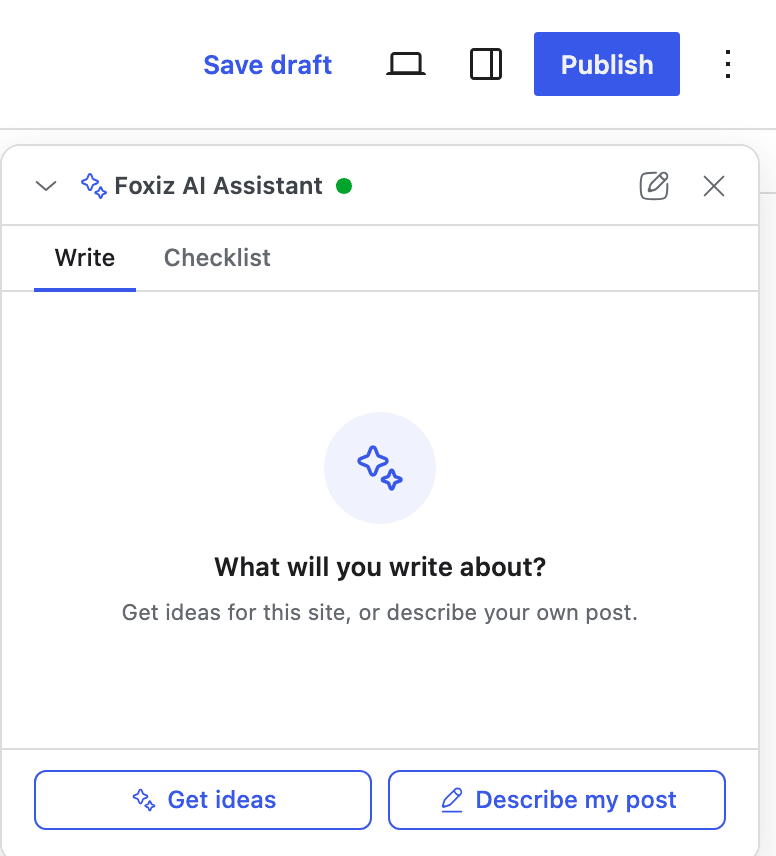
A post with 300 words of text or more opens as an existing post instead, straight to the chat: see How to Edit a Post with AI.
Route 1: the guided steps
-
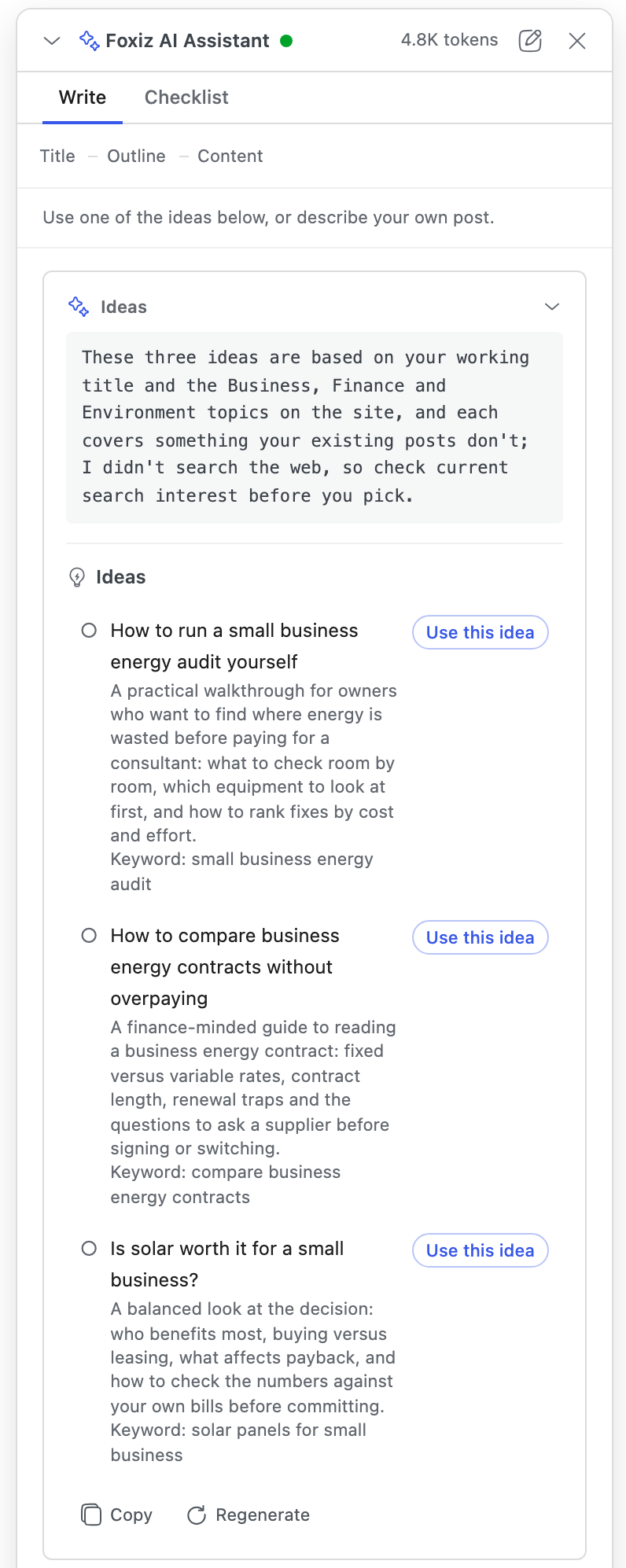
Click Get ideas. The three steps Title, Outline and Content appear across the top of the window, and the assistant suggests three post ideas that fit your site, each with its angle and the main keyword to target.
-
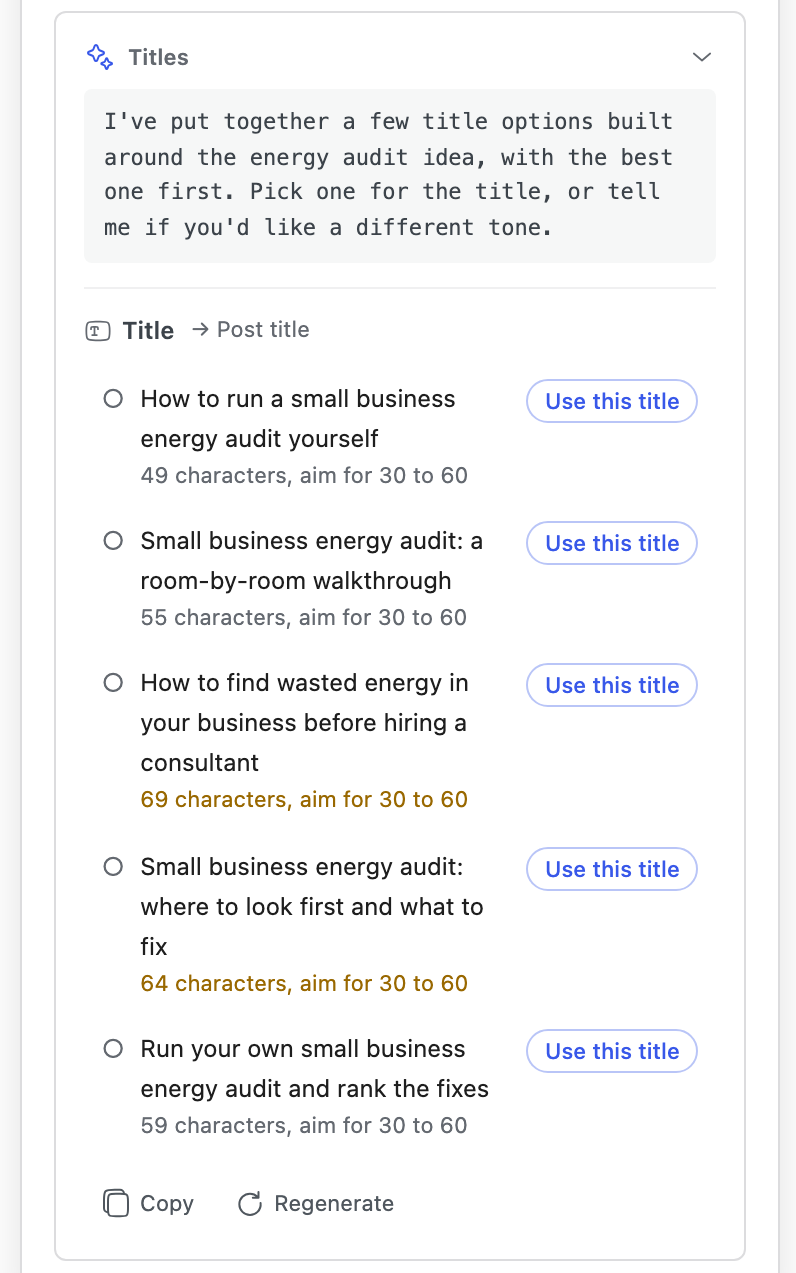
Click Use this idea on the one you like. The idea is marked Chosen and the assistant writes title options, each with its length, such as "49 characters, aim for 30 to 60".
None of them right? Click Regenerate on the card for a new set, or Describe my own to write your own brief.
-
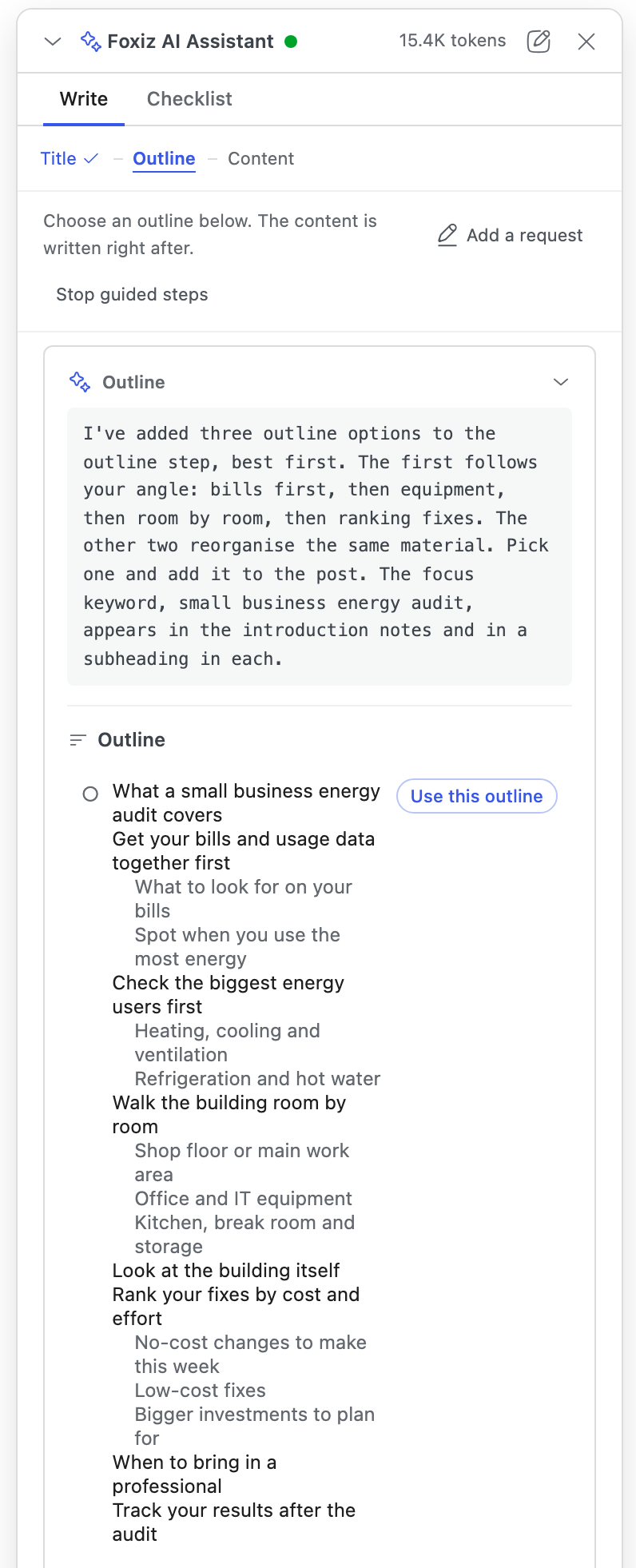
Click Use this title on the title you want. The assistant plans outline options. The title you pick goes into the post with the written post in step 5, and only if the title field is still empty: a working title stays. To use the new title, type it over yours.
-
Click Use this outline on the outline you want. The post is written straight after, from the idea, title and outline you picked; the bar reads "Writing the post…" until it is done.
-
Read the post in the card. The line above it says "Review the post below, then add it to the editor." When it reads right, click Add all to editor.
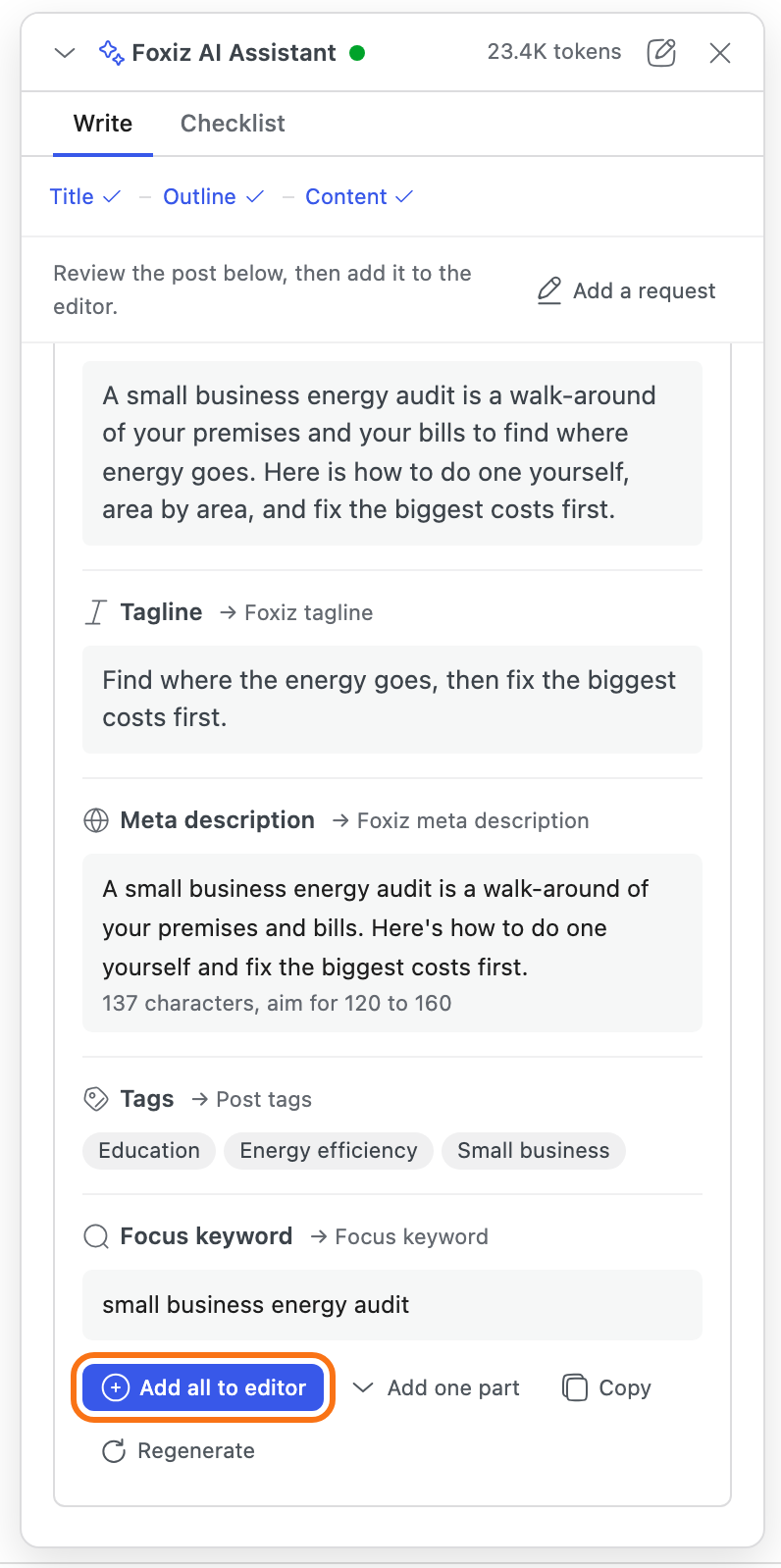
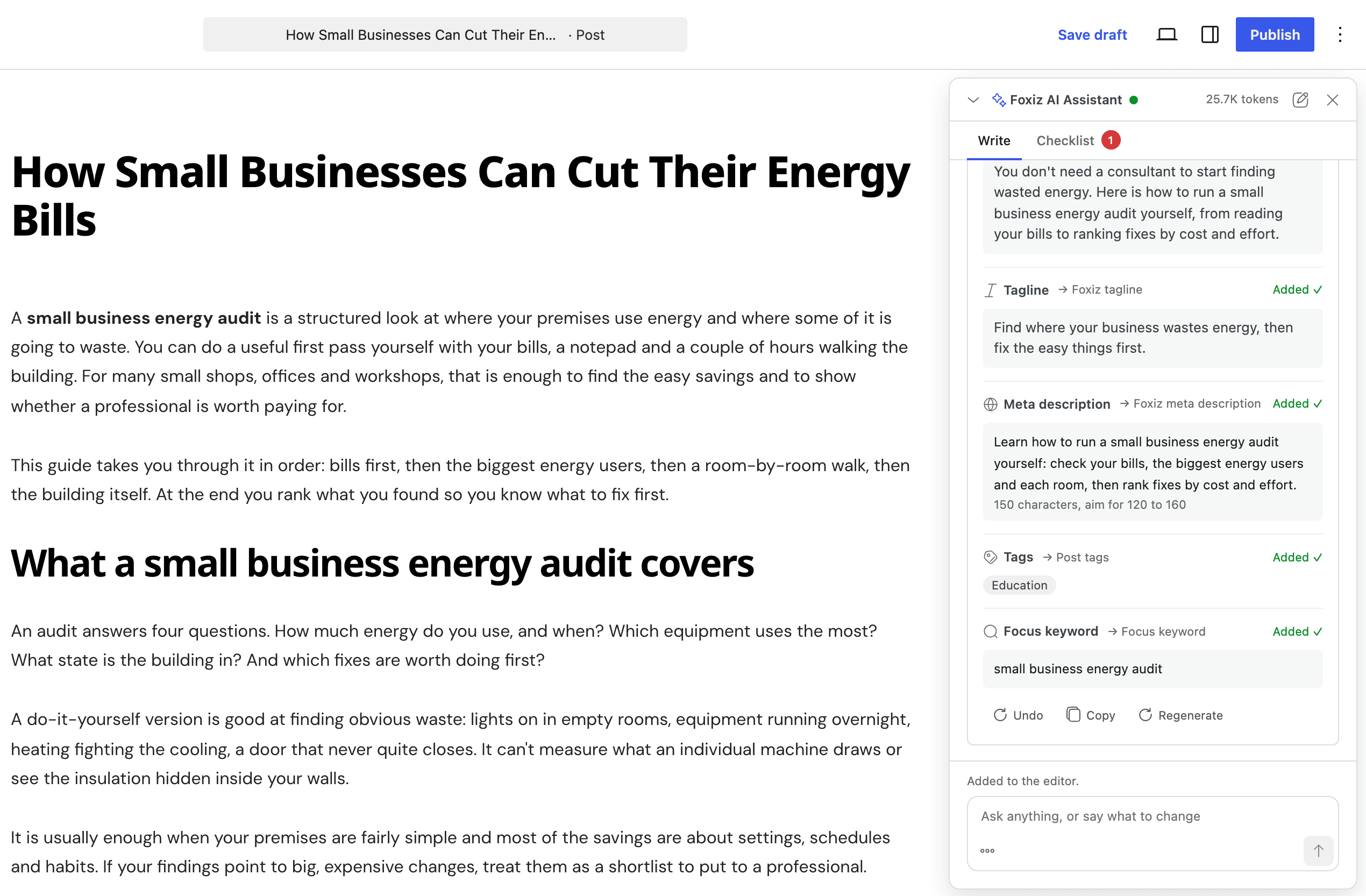
The card brings more than the article. The chosen title, an excerpt, a tagline (the subtitle under the post title), a meta description, tags, categories and a focus keyword come with it, each filling its field only if that field is still empty: a working title you typed before you started stays. Each part names the field it goes to, and shows Added ✓ once it is in. Add one part adds just the part you pick; Undo takes back what was just added.
You can leave the guided steps at any time: Stop guided steps switches to free writing, and so does typing your own request in the box. Either ends the steps for this chat; New chat in the window header starts over.
Route 2: describe your own post
-
Click Describe my post. The request box opens, asking for Your topic, angle, facts, notes.
-
Write the brief and say what you want back. For example:
Write a full post: 5 easy houseplants for a dark apartment.Angle: for renters who travel, so plants that survive two weeks without water.Facts to use: snake plant, ZZ plant, pothos, cast iron plant, peace lily.Our readers are beginners. Around 1,200 words, with an H2 per plant.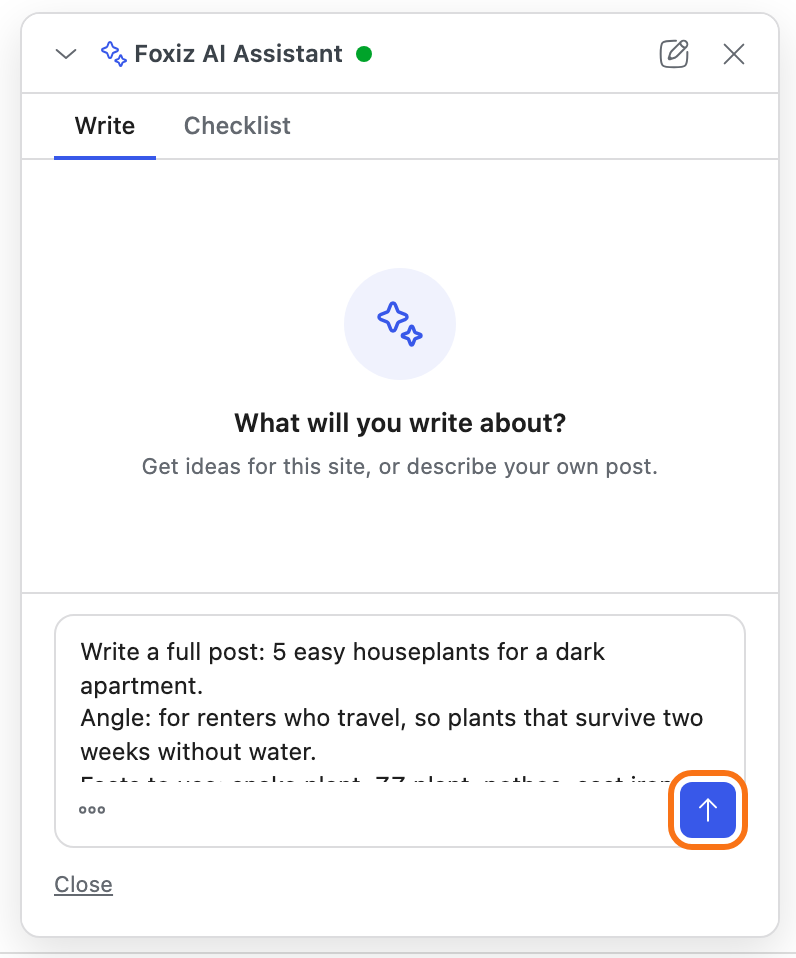
-
Click the send arrow. The answer comes back as one card; add it with Add to editor or Add all to editor, as above.
A request can be up to 10,000 characters, so paste your notes, quotes or a source text in full. A counter appears as you near the limit.
Write in another language
The assistant writes in the Default Language set in the Writing Profile section of Foxiz > AI Assistant, the site language unless you changed it. To write one post in another language, say so in your request, for example "Write this post in Spanish". The post keeps that language for the rest of the chat.
Then
The draft is in the editor, with the parts you added. The Checklist tab checks the post before you publish: it shows what is still missing, such as a part you did not add or fewer than three tags, and fills each one: How to Finish a Post with the Checklist. To change parts of the draft first, see How to Edit a Post with AI.
Nothing is saved until you save the post: click Save draft or Publish as usual.
Did this answer your question?