Break Page Selection
The Break Page Selection feature allows displaying a page selection when you use "Page Break" for a long post.
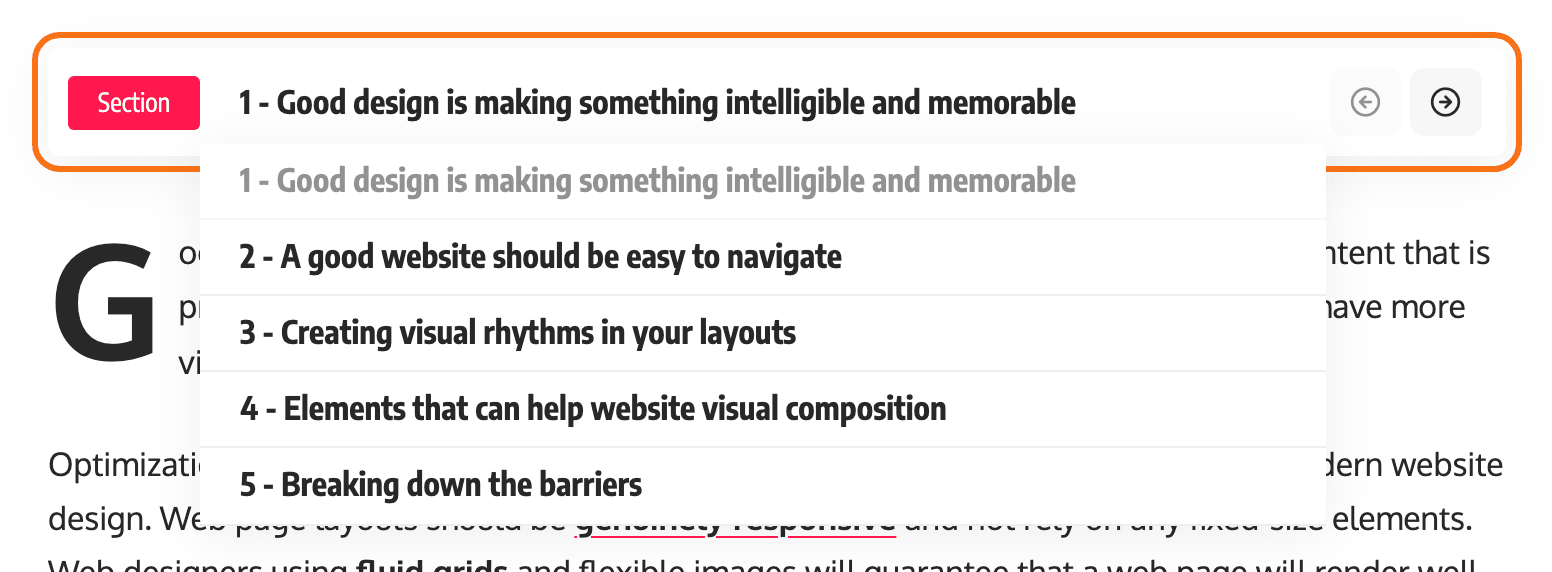
It renders above the post content, labelled Section, and each entry reads as the page number, then the heading you typed. It is not output on AMP pages.
Give every page a heading. With one missing, the selector does not show at all, and nothing tells you why.
To get started, follow the steps below:
-
Navigate to Posts > All Posts, then select and edit the post you would like.
-
In the editor, insert a Page Break block wherever a new page should start.

The block is called Page Break and the inserter files it under Design.
Count the pages, not the breaks. WordPress splits the content on each break, so two Page Break blocks give you three pages and you owe three headings.
-
At the bottom of the editor, open the Meta Boxes bar, find the Single Post Settings box and open its Break Page Selection tab. Then input a heading for every page.
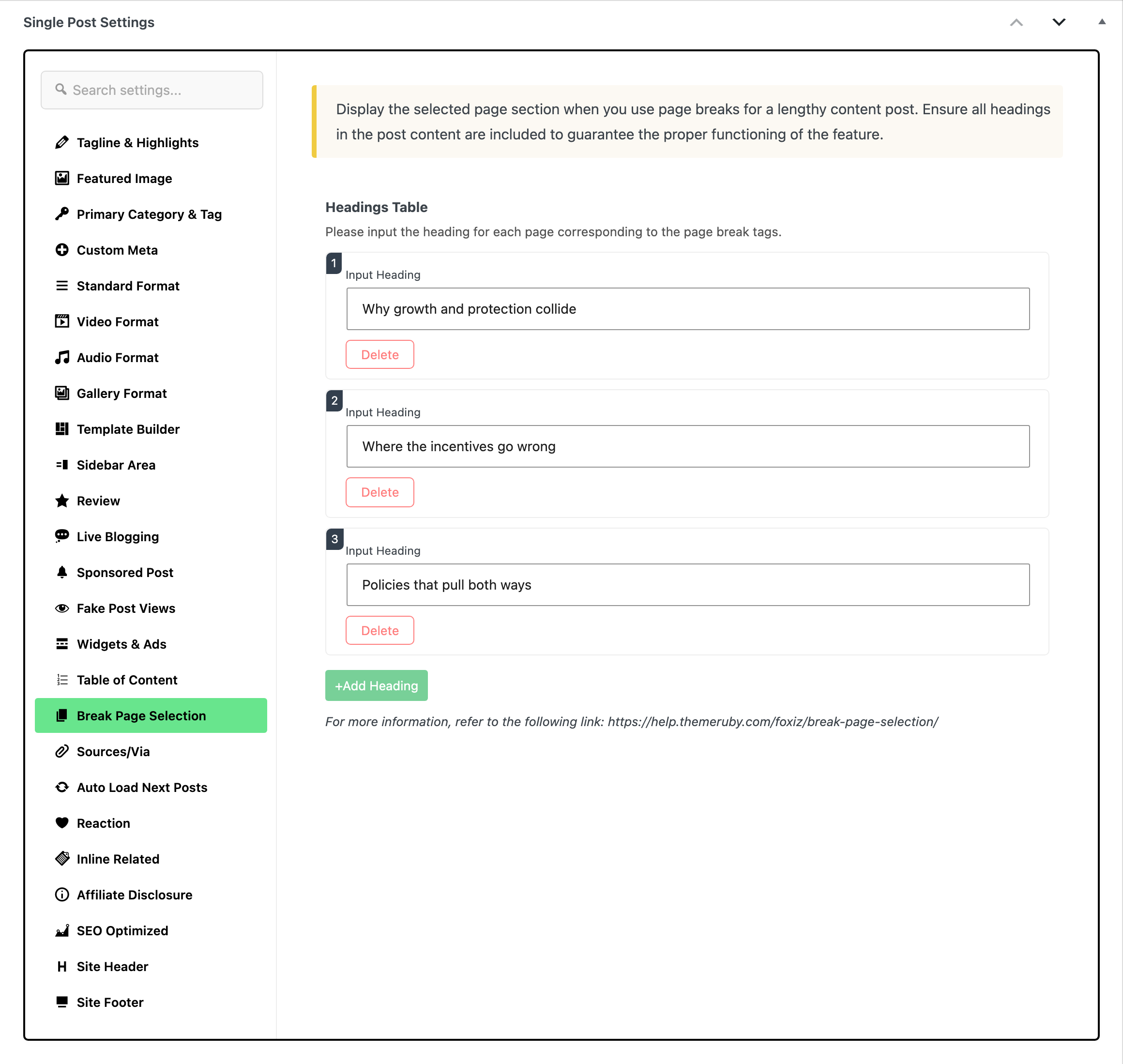
Inside the tab is one field, Headings Table: press +Add Heading once per page and type the page's heading into Input Heading. The rows are read in the order you leave them in, so row 1 is page 1.
On a custom post type the same tab is in the Single Post Type Settings box instead. Pages do not have it: Single Page Settings has no Break Page Selection tab.
-
Click Save, or Publish on a new post, to save the changes.
Refer to Page Break Block for more details.
Did this answer your question?