How to Open Post Images in a Lightbox
A lightbox opens an image full size over the page when a reader clicks it. WordPress has one built into the block editor: turn on Enlarge on click for an image. It works on any post and needs no plugin.
Turn on Enlarge on click
-
Open the post in the editor and select the Image block.
-
Click the Link button on the block toolbar.
-
Choose Enlarge on click.
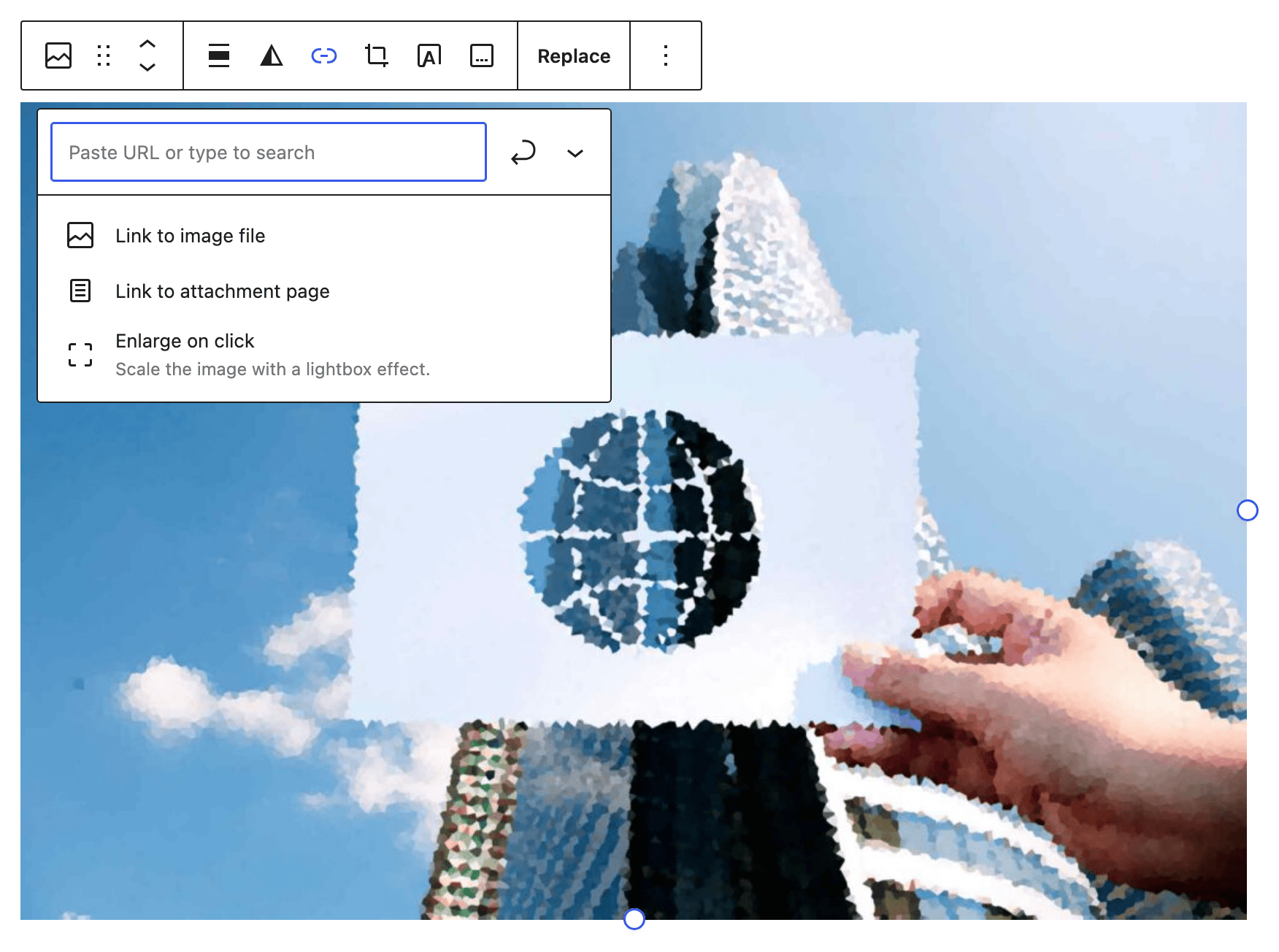
-
Save the post.
On the live post, click the image. It opens enlarged on a white overlay that covers the page. Click the X, or press Esc, to close it.
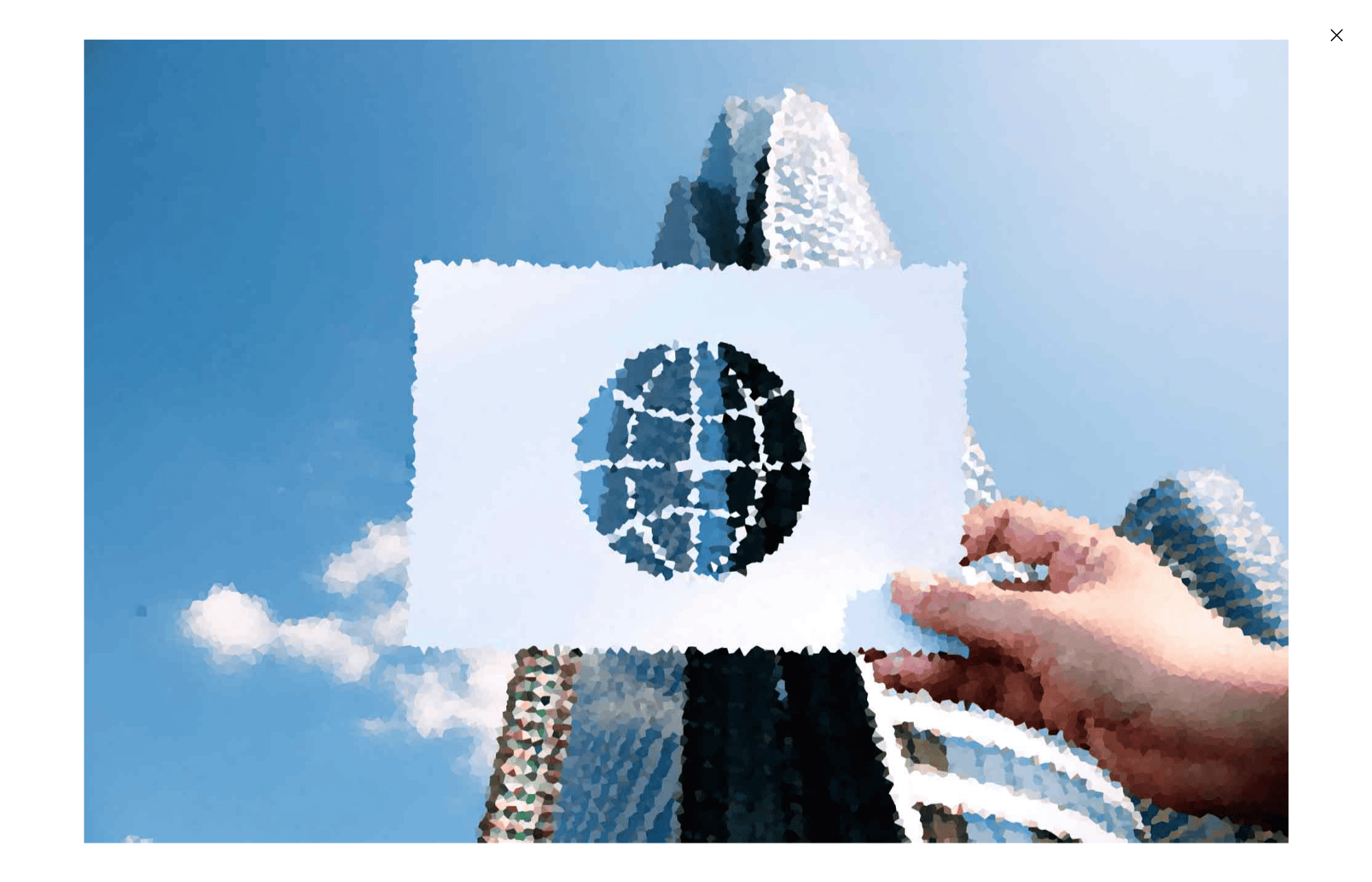
To turn it off, open the same Link menu and click Disable enlarge on click.
For a Gallery block, select the whole gallery, open Link on its toolbar and choose Enlarge on click. Every image in it opens the lightbox, with arrows to move through the gallery.
With Auto Load Next Posts on, images in the articles that load below the first one open no lightbox. On the article's own page they do. See How to Enable or Disable Auto Load Next Posts Feature on Single Post Page.
The featured image at the top of the post has its own lightbox, set by Featured Lightbox in Theme Options. See How to Create a New Post.
Did this answer your question?