How to Control Table of Content Position Manually
You can choose where the table of contents (TOC) appears in a post: a default for every post in Theme Options > Table of Contents, a different position for one post in its Single Post Settings box, or a code marker at an exact spot in the content. The most specific one wins, so a marker beats the post's setting and the post's setting beats Theme Options. Set the default once, then change single posts only where they need it.
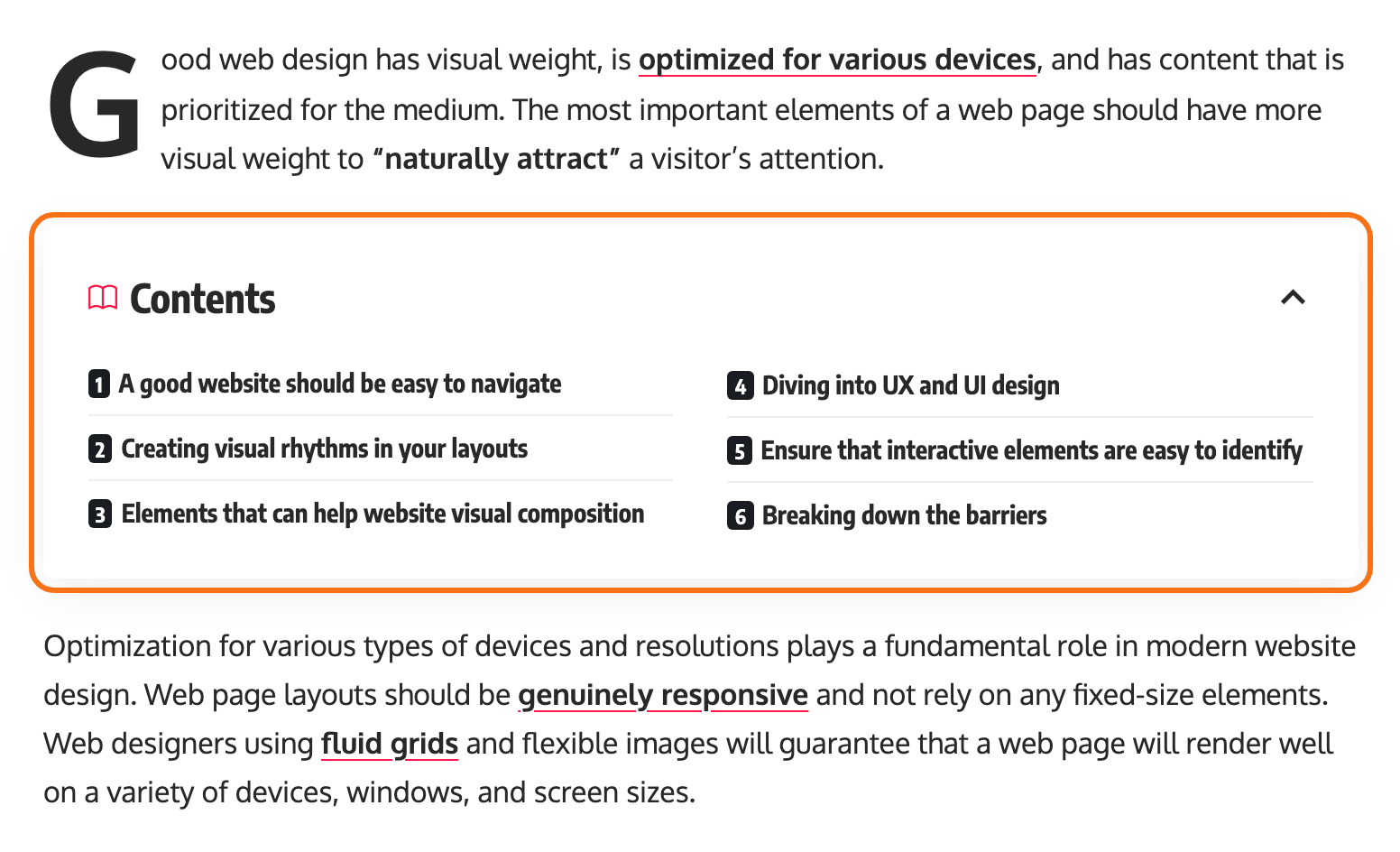
1. Set the default position for every post
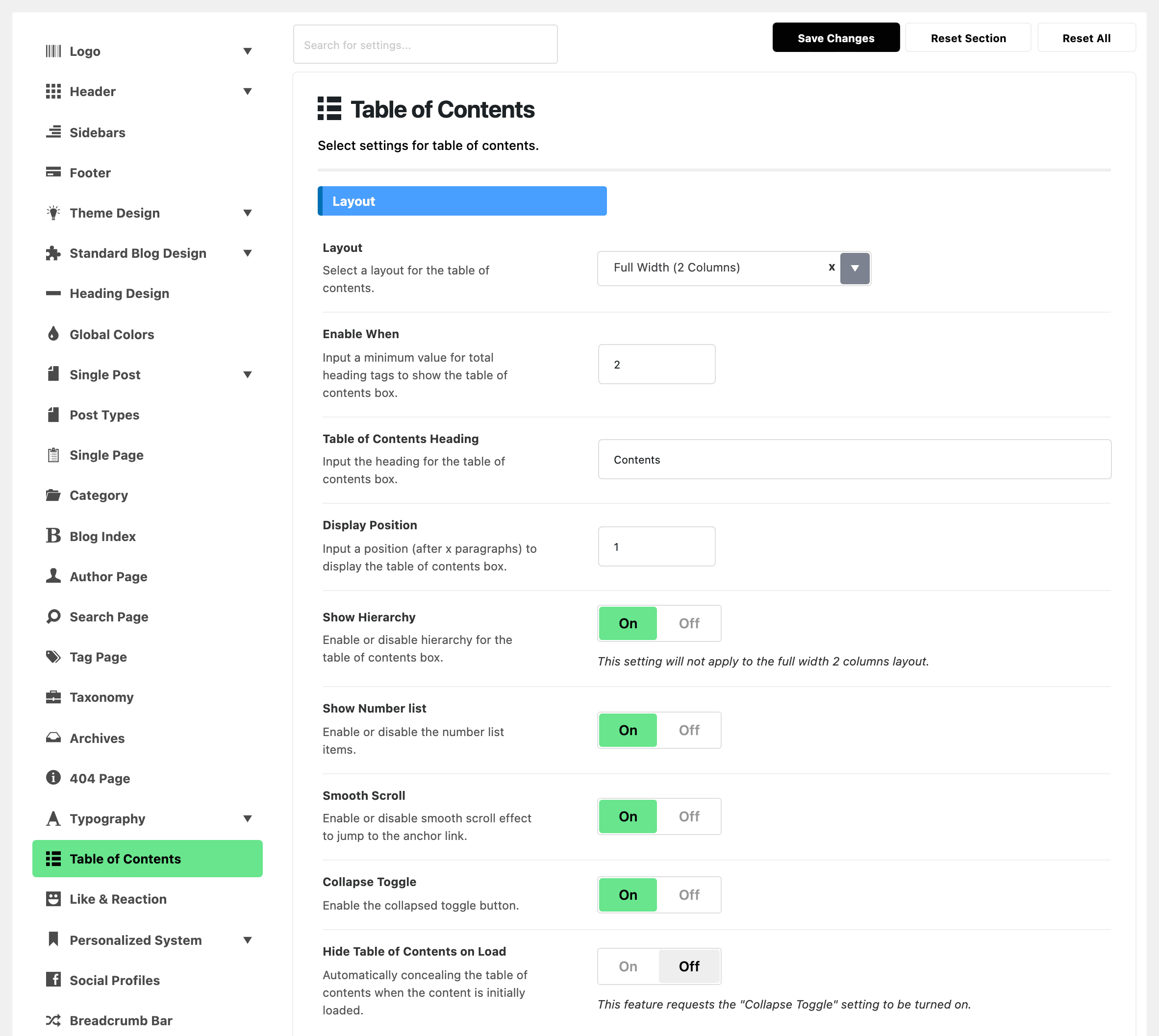
- Go to Theme Options > Table of Contents.
- In the Layout group, type a number in Display Position. The table appears after that many paragraphs. The default is 1, right after the first paragraph.
- Click Save Changes.
To put the table above the first paragraph on every post, clear the field.
2. Change it for one post
- Open the post in the block editor.
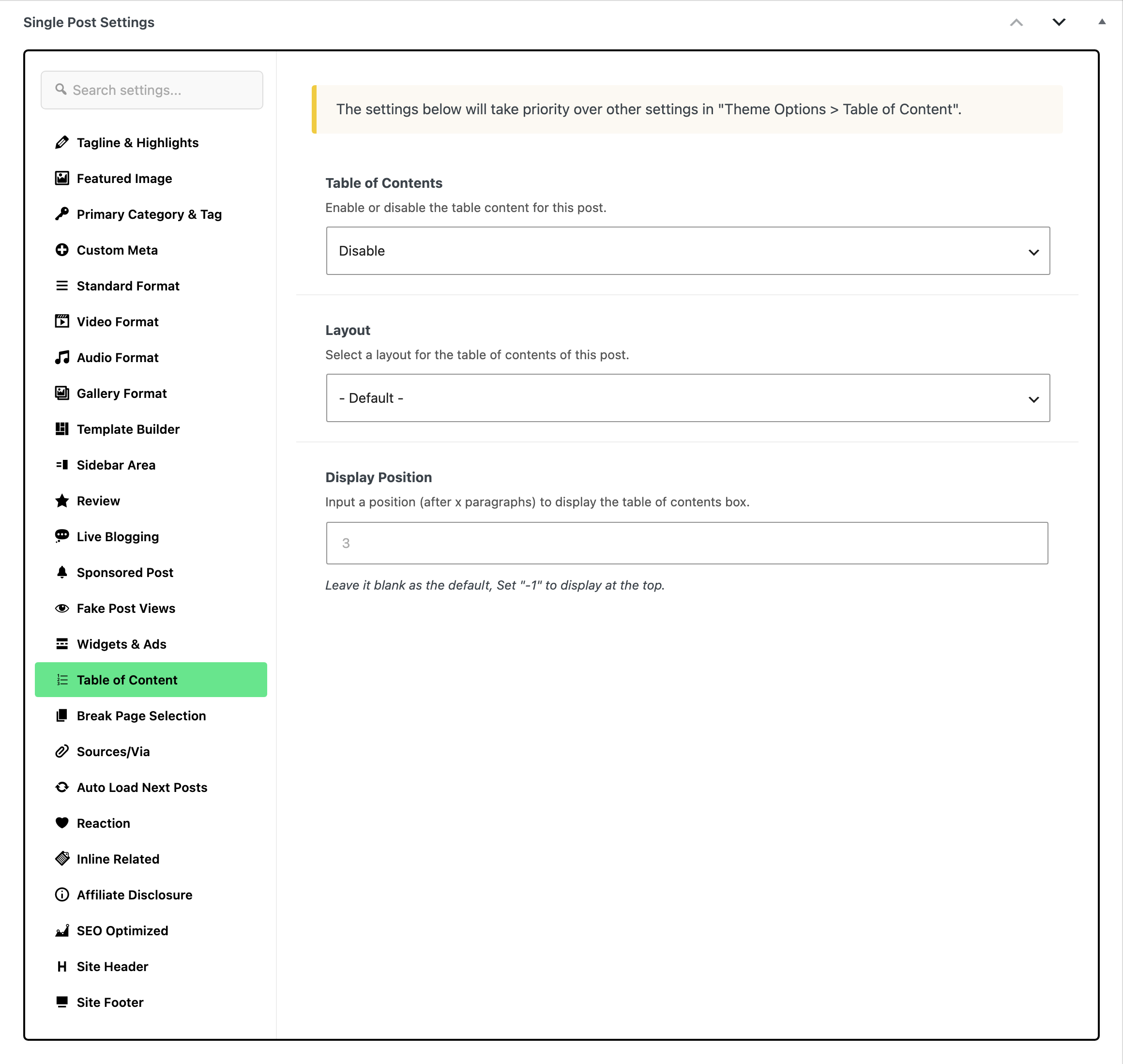
- At the bottom of the editor, open the Meta Boxes bar, find the Single Post Settings box and open its Table of Content tab.
- Type a number in Display Position: the table appears after that many paragraphs in this post.
- Leave it blank to use the Theme Options value. The grey 3 in the empty field is only a placeholder.
- Type
-1to show the table at the top of this post.
- Click Save, or Publish on a new post.
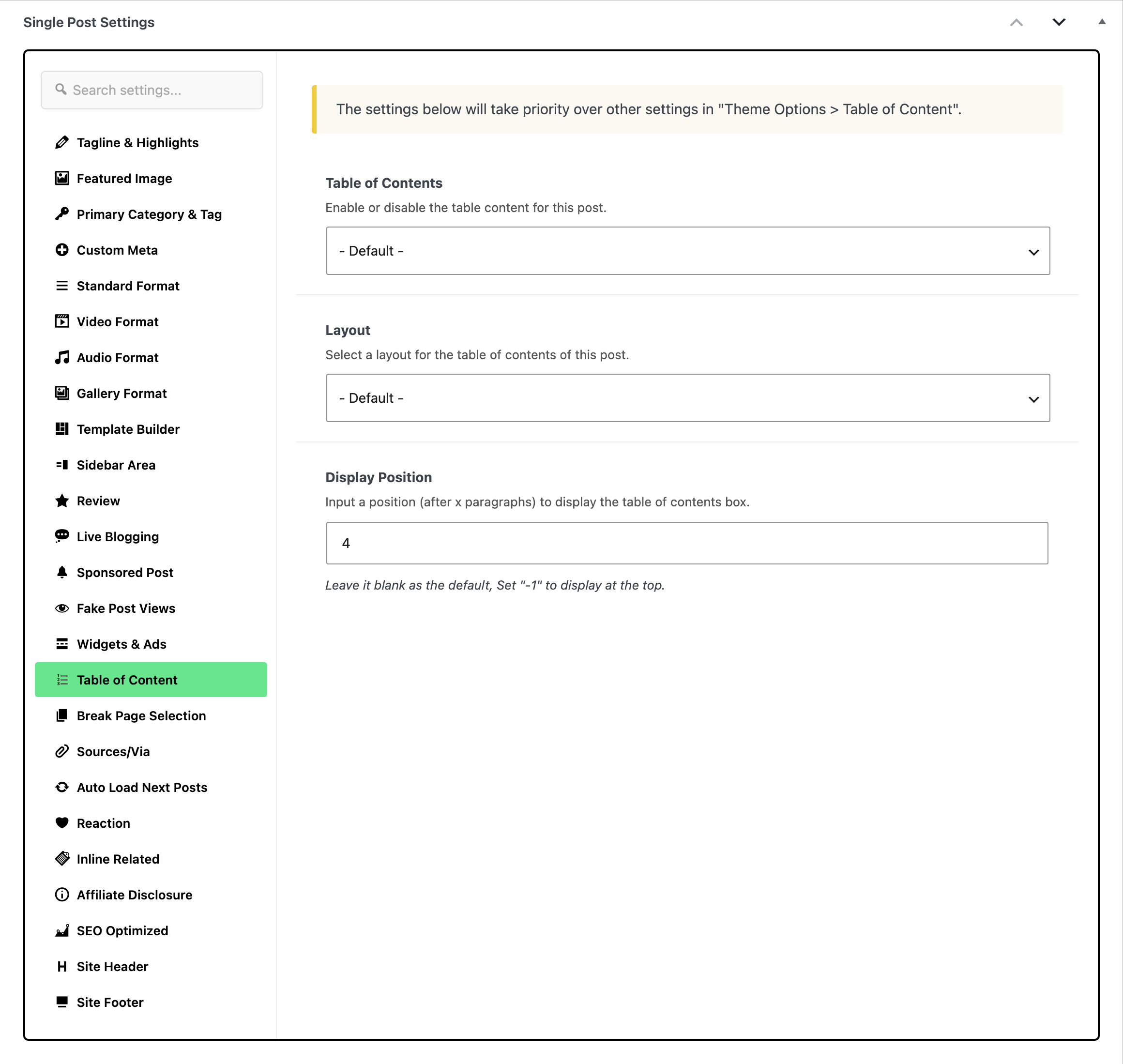
The same tab sets Table of Contents (on or off for this post) and Layout.
3. Put it at an exact spot with a code marker
When a paragraph count is not precise enough, put this marker where the table should appear:
<!--RUBY:TOC-->
- In the block editor, click where the table should go and add a Custom HTML block. Do not use a Paragraph block.
- Click Edit HTML, paste the marker and click Update. Copy the marker rather than retyping it: it has to match character for character, with no spaces inside.
- Save the post.

The Custom HTML block saves exactly what you paste, so the marker stays an HTML comment. Typed into a Paragraph block, the < is saved as text, the marker shows on the page as written, and the table goes back to its usual position.
Foxiz swaps the table in where the marker stands, whatever Display Position says in Theme Options or in the post. There is no setting to switch the marker on.
One quirk: the marker is ignored when it is the very first thing in the post content. Do not open the post with it.
If the table does not appear
If the table does not appear at all, it is not being built, whatever position you set and wherever the marker stands. Four things decide that, all of them before the marker is looked for:
-
The post type has to be listed in Theme Options > Table of Contents > Support Post Types, which defaults to
post, podcast. Pages needpageadding.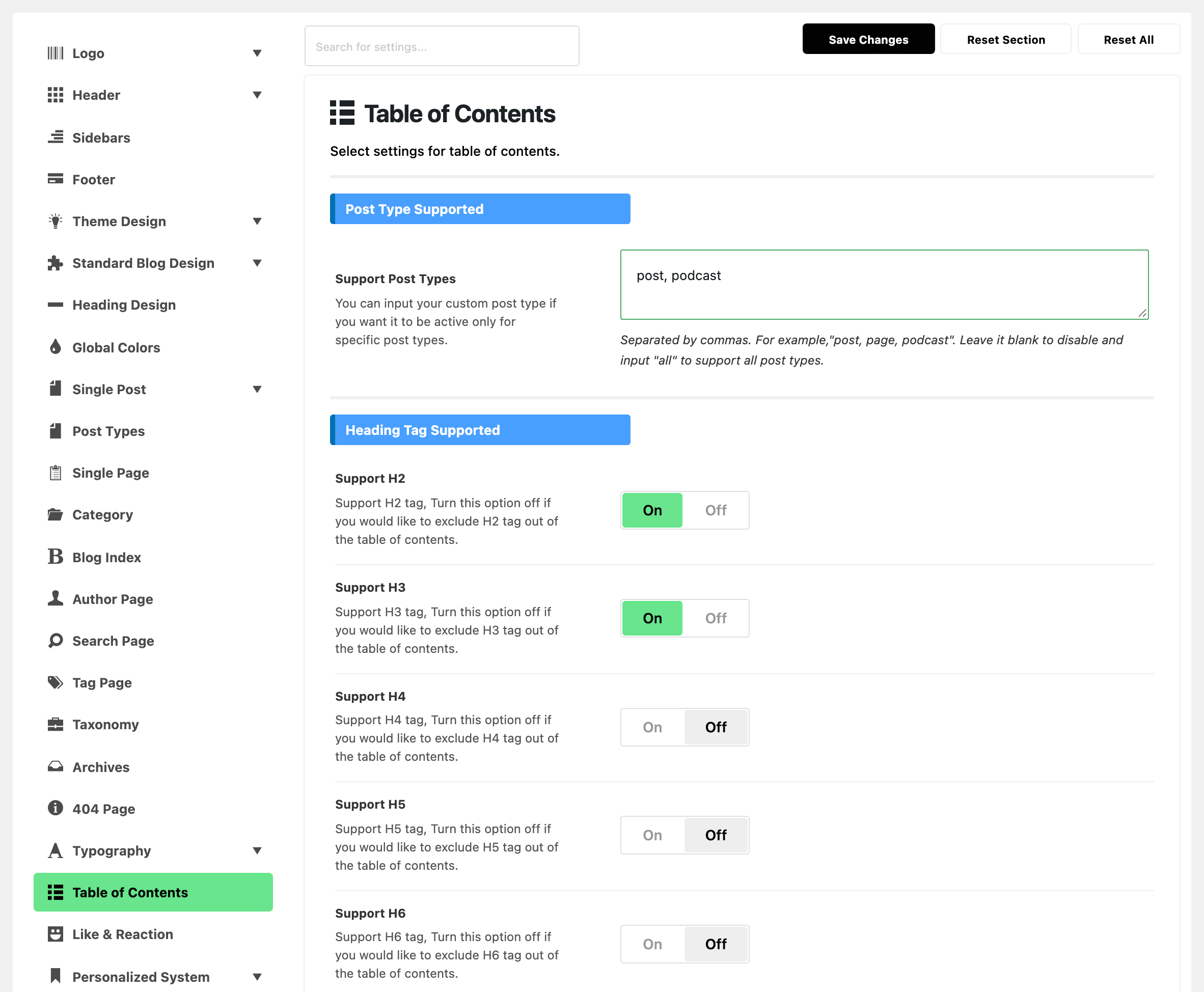
-
The post's own Table of Contents select, in the Table of Content tab of the Single Post Settings box, can force it off whatever the global says.
-
The post needs at least as many headings as Enable When, which defaults to 2. It is in the same Layout group as Display Position, pictured in the first section.
-
Only the heading levels switched on under Heading Tag Supported are counted. Support H2 and Support H3 are on by default, H4 to H6 off, so a post whose subheadings are all H4 has nothing to list.
Foxiz also stands down if the content already carries a rendered table of contents, so a post holding one from another plugin gets no second one and the marker stays inert.
Did this answer your question?