Site Is Slow After Importing a Demo
A demo is built to show everything Foxiz can do, so it arrives with more plugins, blocks and fonts than most sites need. Work through this list in order. Each step links to the article with the details.
1. Measure the right page
Test with PageSpeed Insights or in a private window, not while logged in. Logged in, WordPress adds the admin bar and skips most caching, so every page is slower than your visitors see.
Test the homepage and one post. Write the scores down, so you can tell which step helped.
2. Turn off plugins you do not use
The importer installs and activates every plugin the demo needs, at its Required Plugins step. A demo with a shop, forums or recipes brings those plugins with it.
Go to Plugins > Installed Plugins and deactivate what your site does not use, such as WooCommerce on a site that sells nothing. Keep Foxiz Core and Elementor. Install Default Plugins says what each Foxiz plugin is for.
3. Remove demo content you do not need
Hundreds of demo posts and images slow down the admin and the database, and the demo's homepage may show more sections than you need.
-
Delete demo posts with Cleanup Import on Foxiz > Demo Importer. It only removes what the importer added. See Demo Importer.

-
Edit the homepage in Elementor and delete sections you do not want. Every block on the page is another set of posts to fetch.
4. Add a cache plugin
A cache plugin serves a saved copy of each page instead of building it on every visit. It is the single biggest speed gain on most hosts. See Optimizing Your Site Speed and Google PageSpeed Insights.
Clear the cache after every design change, as in Changes Not Showing on the Site.
5. Shrink images
Your own photos are usually the heaviest part of a page. Upload them at about 2000 pixels wide, as JPEG or WebP, and use an image optimisation plugin for the ones already uploaded. Image Upload Errors explains the sizes; Optimize Your Site Speed with Performance Options covers the theme's lazy load switches.
6. Load fewer fonts
- Use one or two font families in Theme Options > Typography, with only the weights you need.
- Once every typography field has a font, turn on Disable Default Fonts in Theme Options > Performance, so the theme stops loading its own two. See Optimize Your Site Speed with Performance Options.
- Host the fonts on your own server: How to Host Google Font Locally.
- Stop Elementor loading its own fonts and colours: Optimizing Elementor Settings.
7. Check the hosting
Open Foxiz > System Info. A value shown in red is below what Foxiz needs, and a low Memory Limit or an old PHP Version slows every page. See System Info.
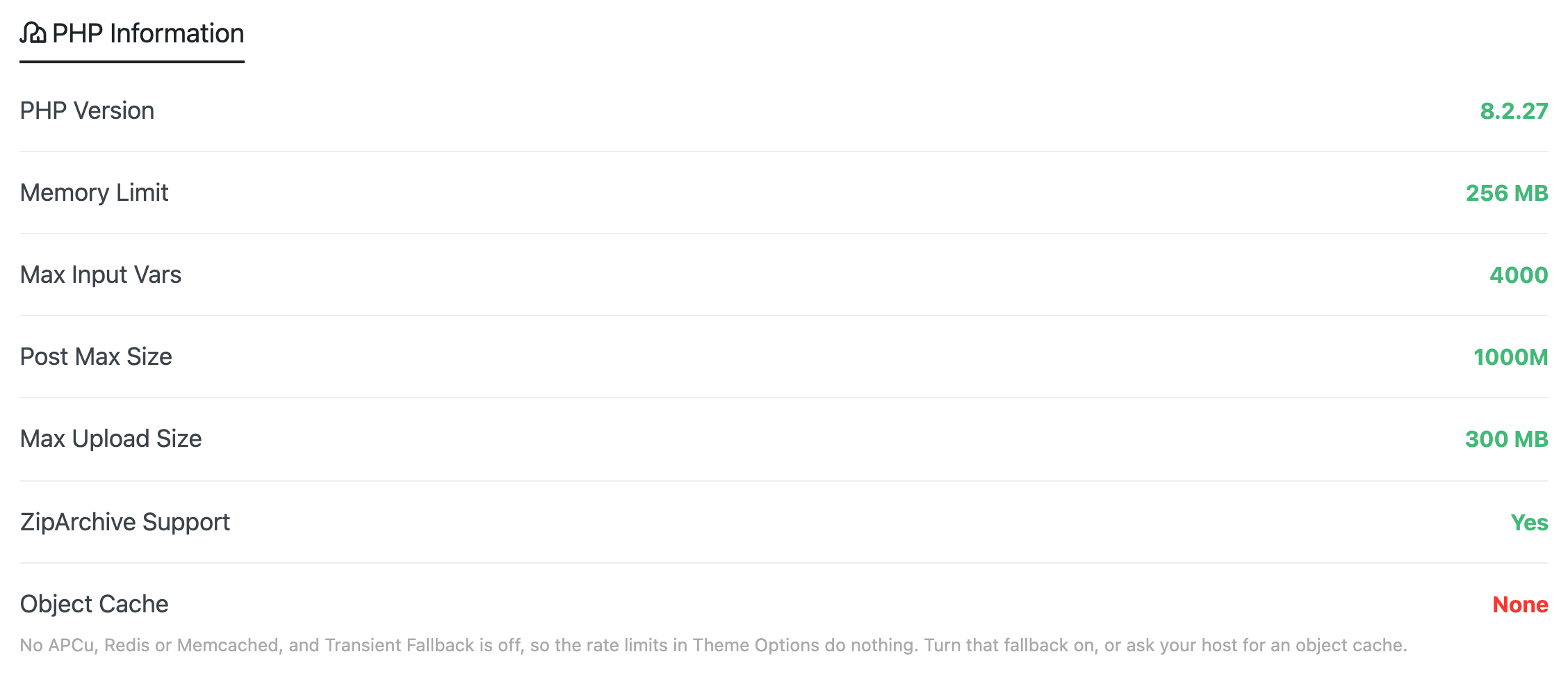
Cheap shared hosting has a ceiling no setting can lift. If the steps above did not help, a better plan or host is the next step.
Did this answer your question?