My Settings Changed After a Demo Import
You imported a demo on a site you had already set up, and now your logo, colours, ad codes or sidebars are the demo's. The importer did what its boxes said. Each box replaces something rather than adding to it:
| Box ticked | What it replaced |
|---|---|
| Theme Options | Every Theme Options setting, ad codes and logo included. |
| Widgets | The contents of every Foxiz widget area. Your widgets were taken out and the demo's put in. The custom sidebars list in Theme Options becomes the demo's six. |
| Content or Pages Only | Your homepage setting and your menu locations, which now point at the demo's homepage and menus. Your own posts and pages are still there. |
Restore Theme Options from a backup
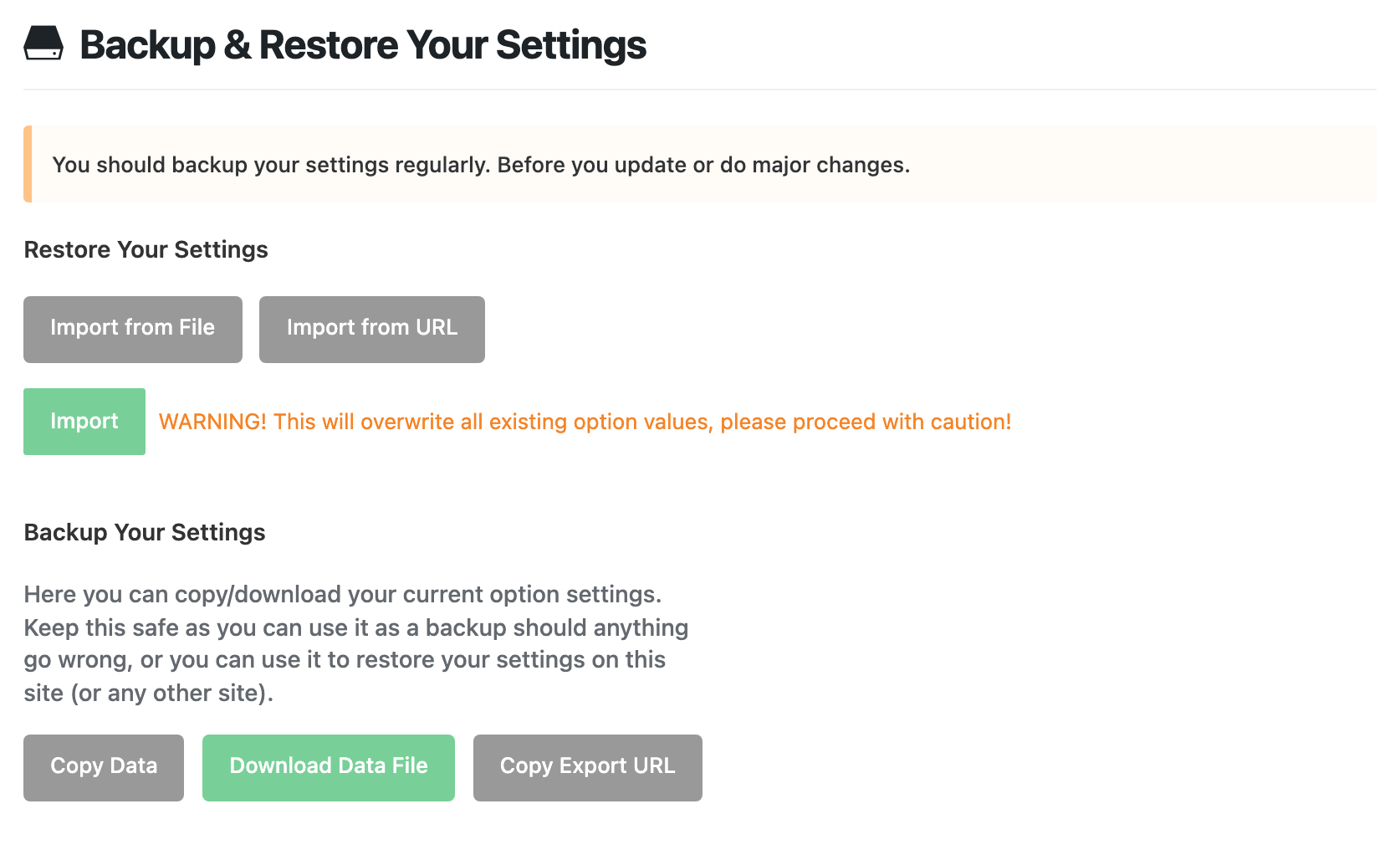
If you saved a Theme Options file before the import (Download Data File on Theme Options > Backup/Restore), you can have every setting back in a minute.
- Go to Theme Options > Backup/Restore. It is the last tab in the list.
- Click Import from File.
- Open your backup file in a text editor, copy everything in it, and paste it into the box.
- Click Import.
- Click Save Changes once the page reloads, so the theme rebuilds its colour and font styles.
A full site backup works too. Restoring it with your host's tool or All-in-One WP Migration puts back the settings, widgets, homepage and menus in one go, but also removes anything you posted since the backup. See Backup & Restore Website Data.
Without a backup: set them again by hand
The importer keeps no copy of the settings it replaced, so there is no undo button. Set back what matters most, in this order:
- Logo and favicon: How to Upload Logo & Favicon?
- Ad codes: paste your AdSense or ad codes again. Every Setting in the Ads & Slide Up Panel lists where each one goes.
- Colours and fonts: Color Options and Typography Options.
- Social profiles, analytics and the rest. Not sure where a setting lives? Type its name into the Theme Options search box, or use the command palette.
Then the parts outside Theme Options:
- Homepage: go to Settings > Reading, keep A static page under Your homepage displays, and pick your own page in Homepage.
- Menus: your own menus still exist. Go to Appearance > Menus, open the Manage Locations tab, and choose your menus again.
- Widgets: add your widgets back on Appearance > Widgets. See Editing Sidebars and Widgets.
To remove the demo's posts and pages as well, use Cleanup Import on Foxiz > Demo Importer. It deletes only what the importer created. See Demo Importer.
Import next time without losing anything
On a site you already run:
- Take a Theme Options backup first: Theme Options > Backup/Restore > Download Data File.
- In the importer, tick Pages Only and clear Theme Options and Widgets. You get the demo's page layouts and Ruby Templates, and your settings and sidebars stay as they are.
- After the import, check Settings > Reading and Appearance > Menus > Manage Locations, and set your own homepage and menus back if you want them.
Install Demo Content walks through every box in the importer.
Did this answer your question?