Every Setting in the Mobile Header Panel
Theme Options > Header > Mobile Header sets the header phones and tablets see, whichever desktop layout you picked. It has five groups, and this page walks them in the order the panel does: General, Collapse Section, Collapse Section Template, Colors and Dark Mode Colors.

Three things that show up on the mobile header are set somewhere else:
- The logo is Mobile Logo at Theme Options > Logo > Mobile Logos. Leave it empty and the desktop logo is used.
- The menu fonts are at Theme Options > Typography > Header Menus > Mobile Menu, and the social links come from Theme Options > Social Profiles. The panel says so in a notice at the top.
- The sign in button in the slide open panel is Mobile Header - Sign In at Theme Options > Login > Popup Sign In.
General
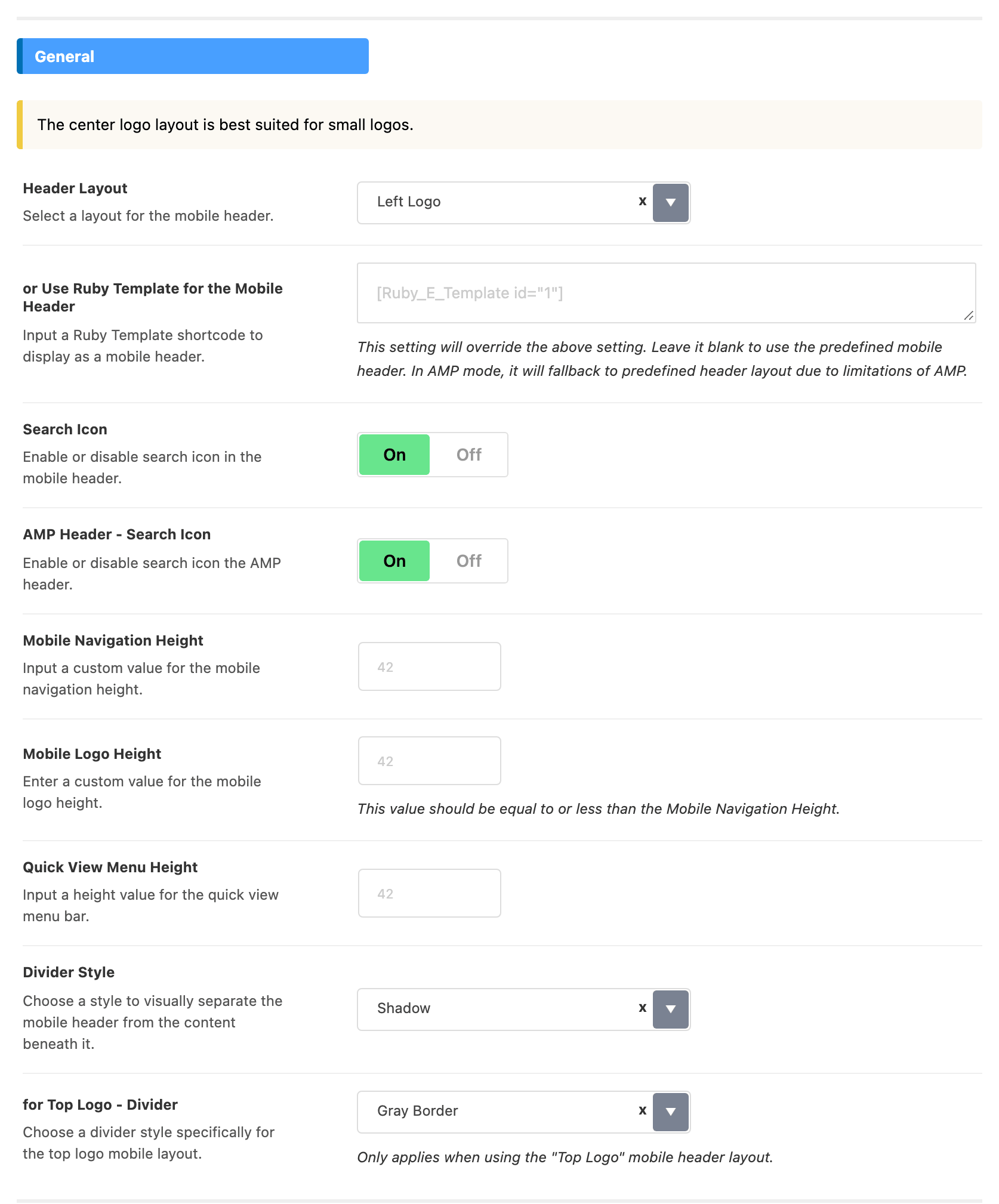
- Header Layout has four choices. Its default is Left Logo.
- Left Logo: the menu toggle and the logo on the left, the icons on the right.
- Center Logo: the toggle on the left, the logo in the middle, the icons on the right. The panel's own advice is that this suits a small logo.
- Left Logo 2: the logo on the left, and the toggle moves to the far right after the icons.
- Top Logo: the logo gets a row of its own above the bar, with the toggle and the icons on the bar beneath it.
- For most sites, keep the default Left Logo. Pick Center Logo only for a small logo, as the panel advises, and Top Logo for a wide logo that would crowd the icons.
- or Use Ruby Template for the Mobile Header takes a Ruby Template shortcode and replaces the layout above with your template. AMP pages keep the predefined layout. A page can set its own in Single Page Settings > Site Header > or Use Ruby Template for Mobile Header, which wins over this one. See Structuring Mobile Header Layout Using Ruby Template.
- Search Icon puts a search icon on the bar. It is on by default. Tapping it opens the slide open panel with the cursor already in its search box, so leave Search Form in Collapse Section on as well, or the icon opens a panel with nothing to type into.
- AMP Header - Search Icon is the same icon on AMP pages, and is on by default.
- Mobile Navigation Height is the height of the mobile bar in pixels. Blank means 42.
- Mobile Logo Height is the logo's height in pixels. Blank means it matches the bar, and the panel asks you to keep it no taller than Mobile Navigation Height.
- Quick View Menu Height is the height of the Mobile Quick Access row under the bar, in pixels. Blank means 42. The row only appears once a menu is assigned to that location.
- Divider Style separates the mobile header from the content under it. It offers Shadow, Gray Border, Dark Border and None. Its default is Shadow.
- for Top Logo - Divider is the line between the logo row and the bar, and it only does anything with Header Layout on Top Logo. Same four choices. Its default is Gray Border.
There is no mobile sticky switch here: Sticky Main Menu at Theme Options > Header > Main Menu governs the mobile bar too.
Collapse Section
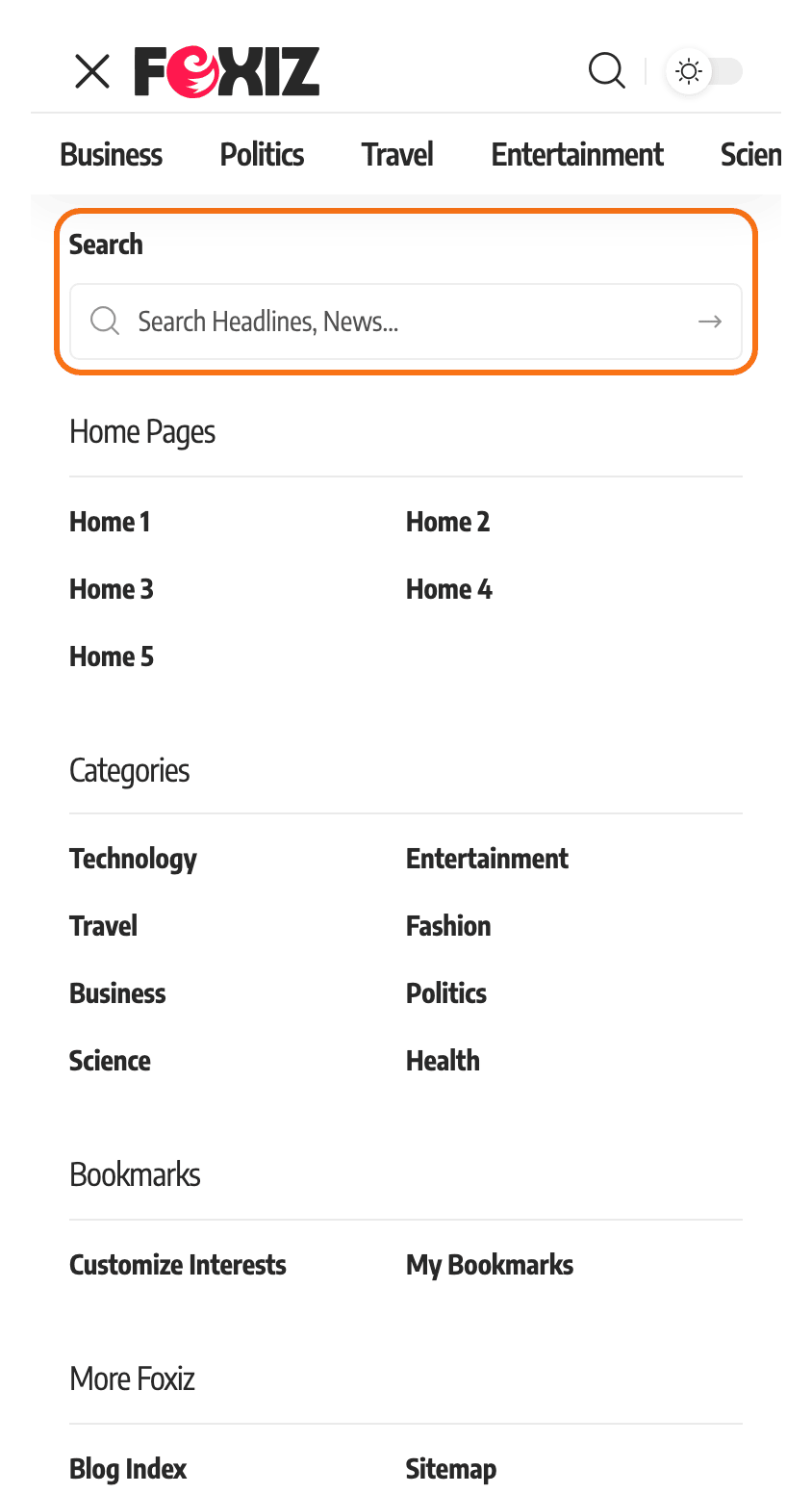
This is the panel that slides open when a visitor taps the menu toggle. The Mobile Menu location fills it, and these fields decide what sits around that menu.

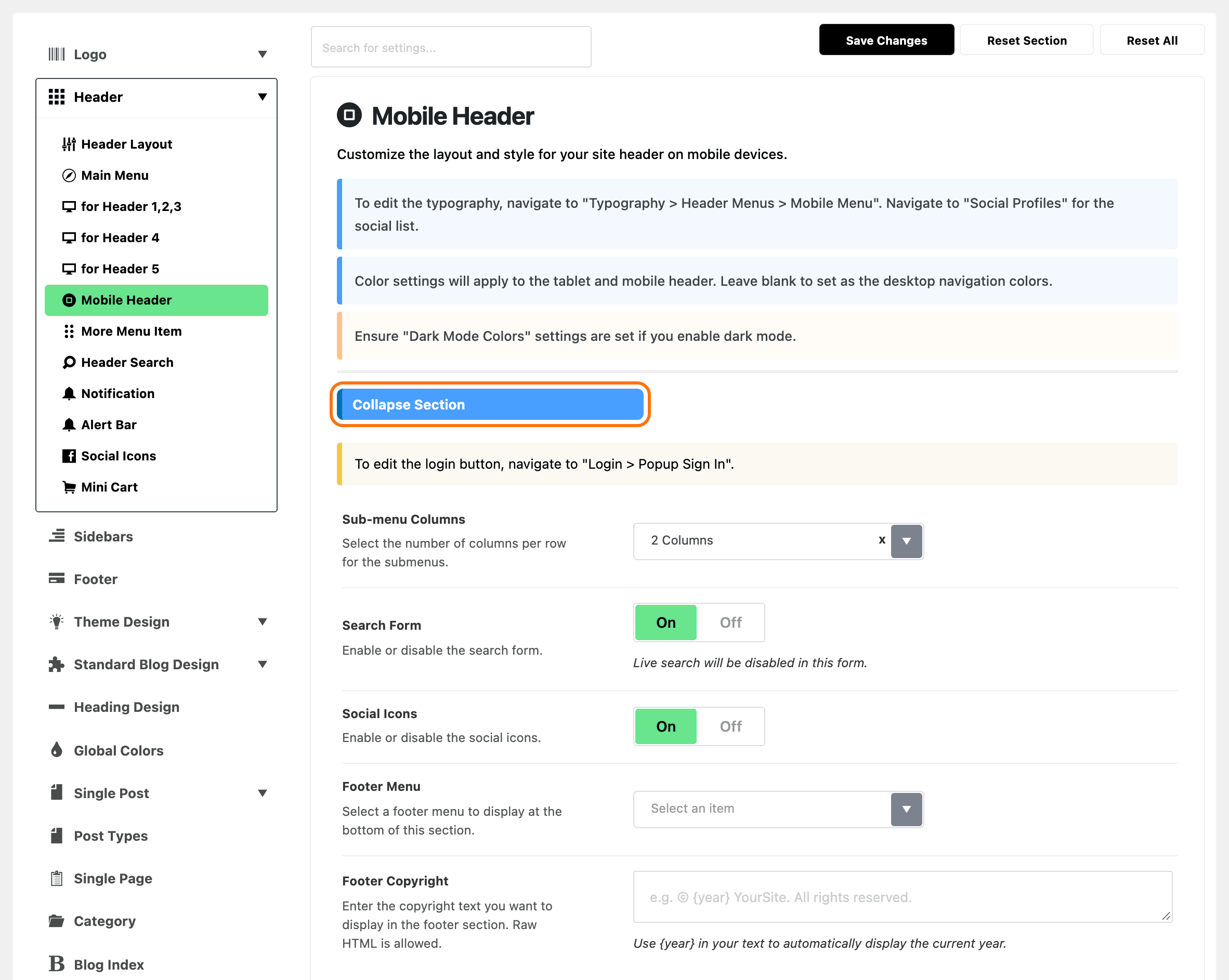
- Sub-menu Columns lays out submenu items in 2 Columns or 1 Column. Its default is 2 Columns.
- Search Form puts a search box at the top of the panel. It is on by default, and live results are always off in this box, whatever Header Search says. Its heading is Search Heading in Theme Options > Header > Header Search.
- Social Icons shows your social profiles under a "Follow US" heading. It is on by default.
- Footer Menu picks any menu you have built to show as a single row of links at the bottom of the panel. It is empty by default, which shows nothing.
- Footer Copyright is a line of text under that menu. HTML is allowed, and
{year}prints the current year.
Collapse Section Template
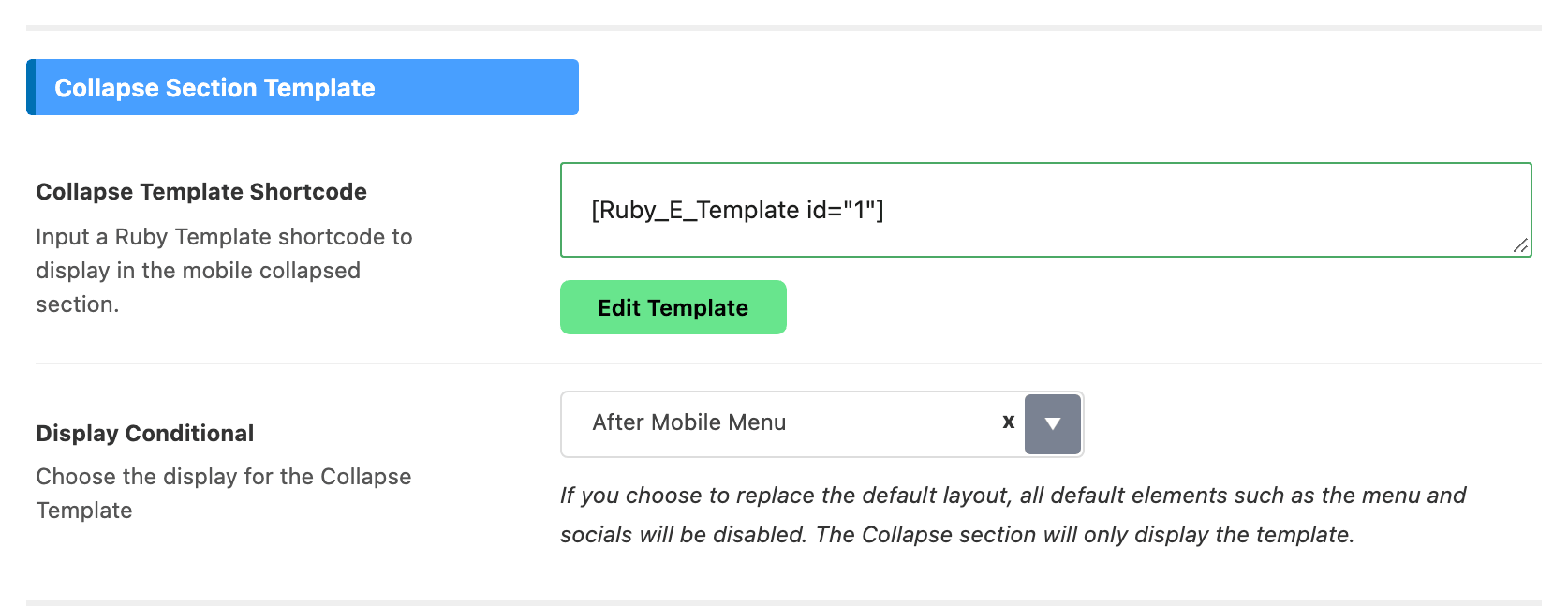
- Collapse Template Shortcode takes a Ruby Template shortcode to show inside the slide open panel. Empty means no template.
- Display Conditional appears once the shortcode box has something in it. After Mobile Menu, the default, adds your template under the menu. Replace Default Layout shows only your template: the menu, search form, social icons and footer line all go. AMP pages ignore the template either way.
A walkthrough with pictures, from building the template to checking it on a phone: How to Build the Mobile Collapse Section with a Ruby Template.
Colors
Every colour here is empty by default, and blank means the mobile header uses your desktop navigation colours.
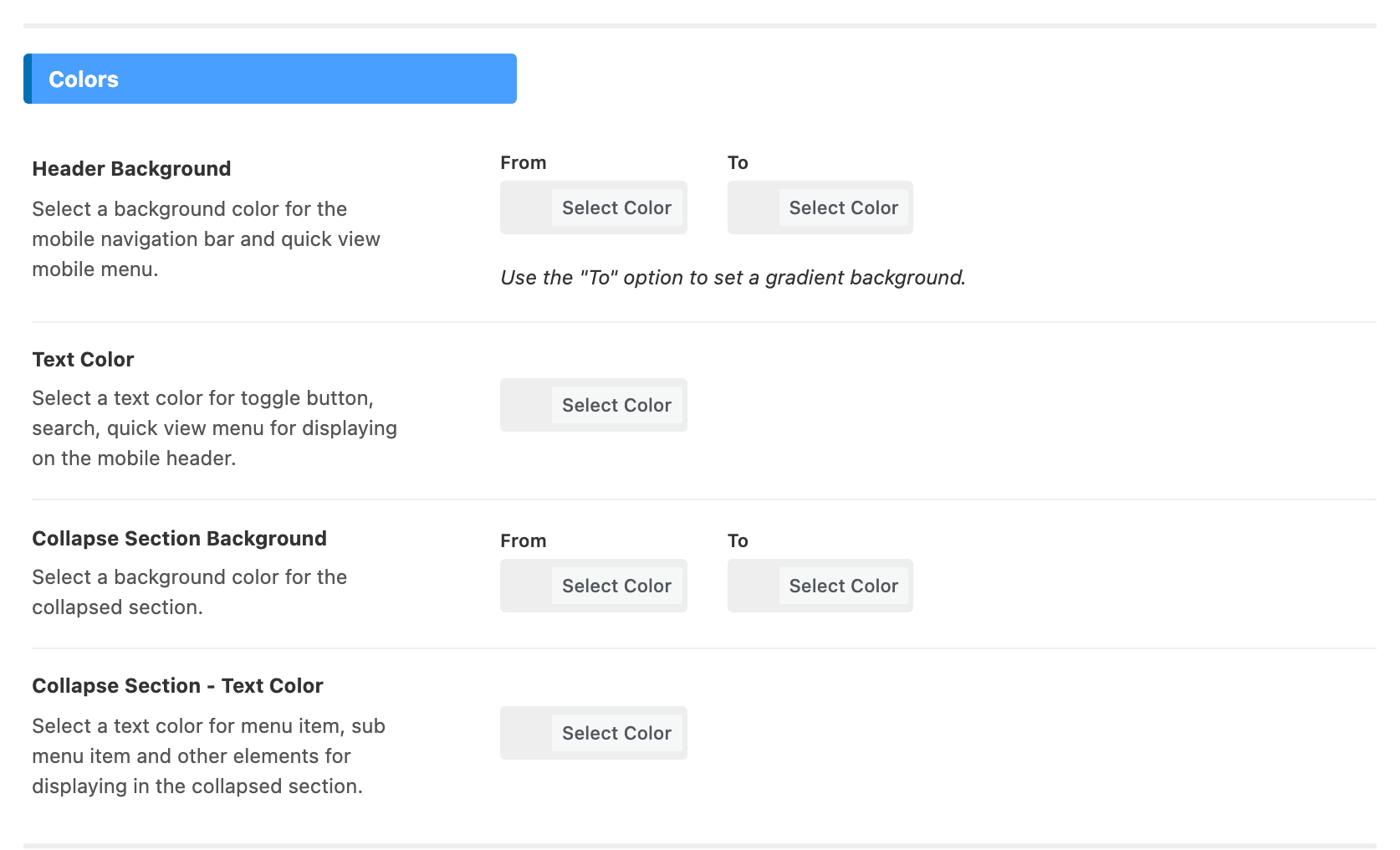
- Header Background colours the mobile bar and the Mobile Quick Access row. Use its "To" box for a gradient.
- Text Color colours the toggle, the search icon and the quick access links on the bar.
- Collapse Section Background colours the slide open panel behind the menu.
- Collapse Section - Text Color colours the menu items, submenu items and everything else inside that panel.
Dark Mode Colors
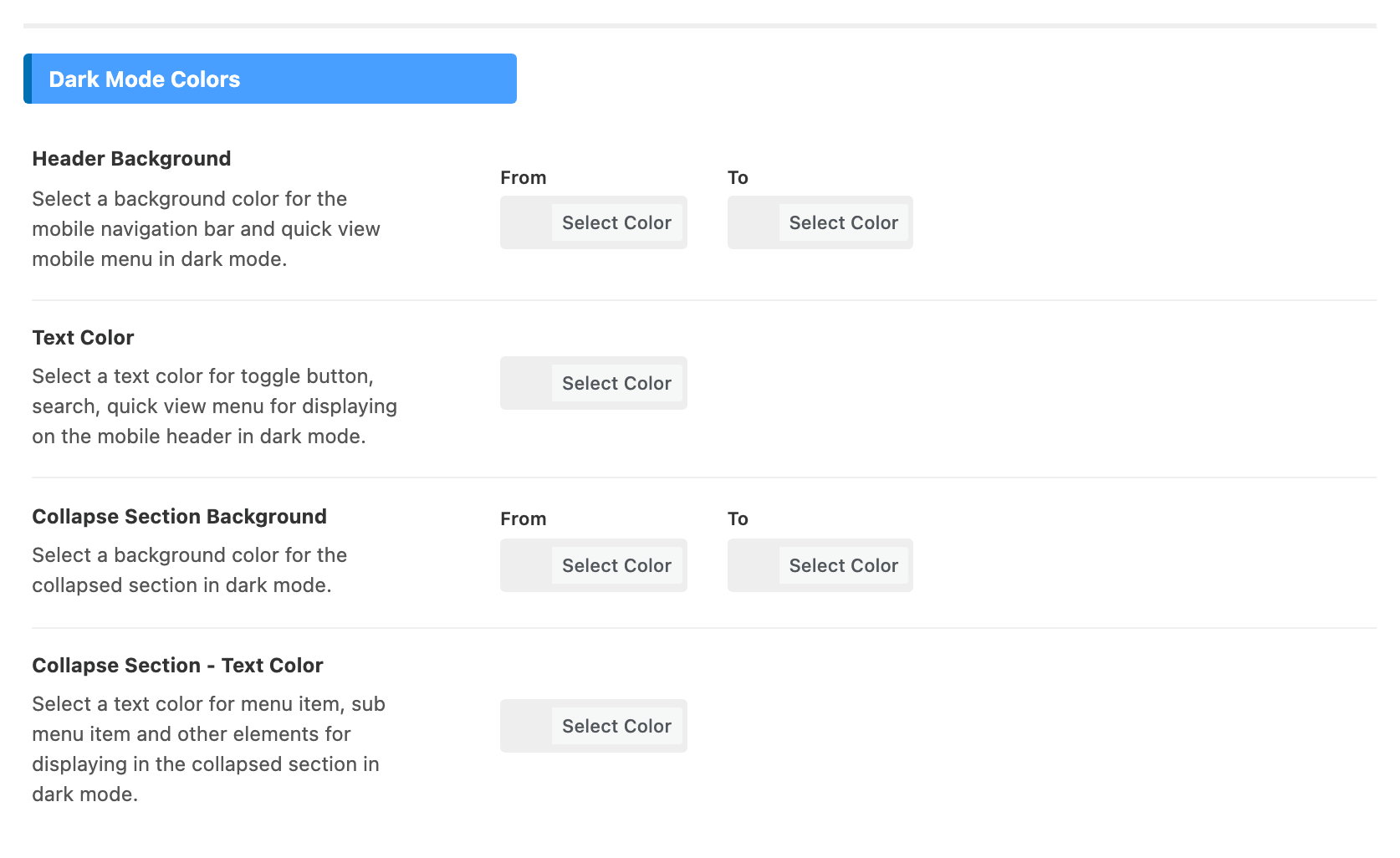
The same four fields, Header Background, Text Color, Collapse Section Background and Collapse Section - Text Color, for readers in dark mode. If you set a colour under Colors and your site offers dark mode, set its twin here too; the panel warns about it at the top.
The colour of the phone's own browser bar is a different setting, Mobile Navigation Color, under Theme Options > Theme Design.
Did this answer your question?