Editing the Author Card Box
The Author card box is a section that appears on the author page and at the end of single post pages. The card appears once the author has a Biographical Info.
The one field it insists on is Biographical Info. The card at the end of a single post is built by a function that returns nothing at all when that field is empty, before it reads anything else, so an author with a job title, an avatar and ten social links but no biography still gets no card.

Author Information
To add author information, follow the steps below:
-
Navigate Users > Profile.
-
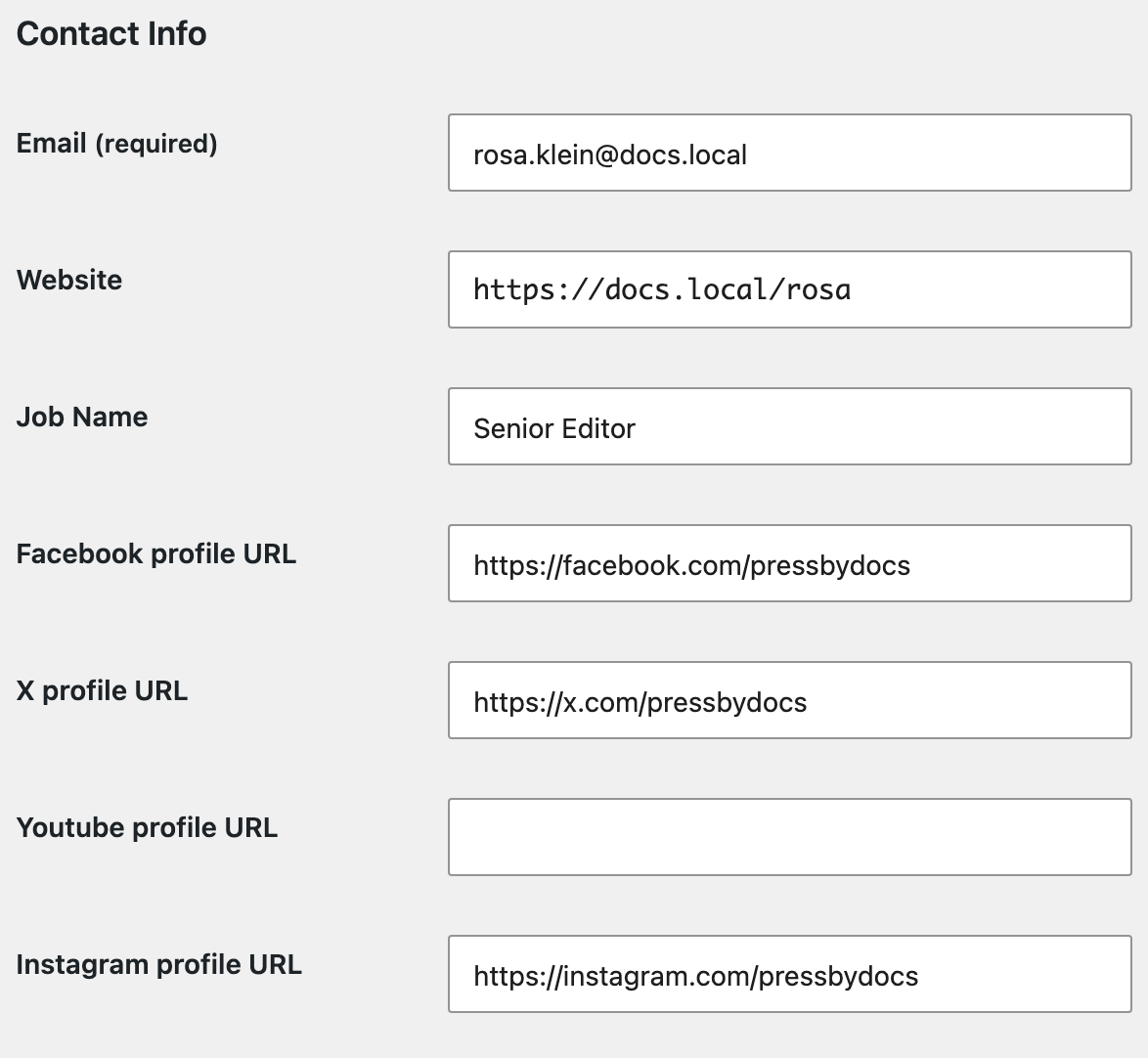
Input your information. The card reads four things from this screen: the biography from Biographical Info, the name from Display name publicly as, the avatar, and the line under the name from Job Name.
-
For social profiles and a job name, make sure the "Foxiz Core" plugin is installed and activated. It adds Job Name and thirty social profile fields to the contact block of the profile screen, from Facebook profile URL through Bluesky profile URL and Rss. Without the plugin those fields are not on the screen at all.
-
Click Update Profile to save. On another user's screen the button reads Update User.
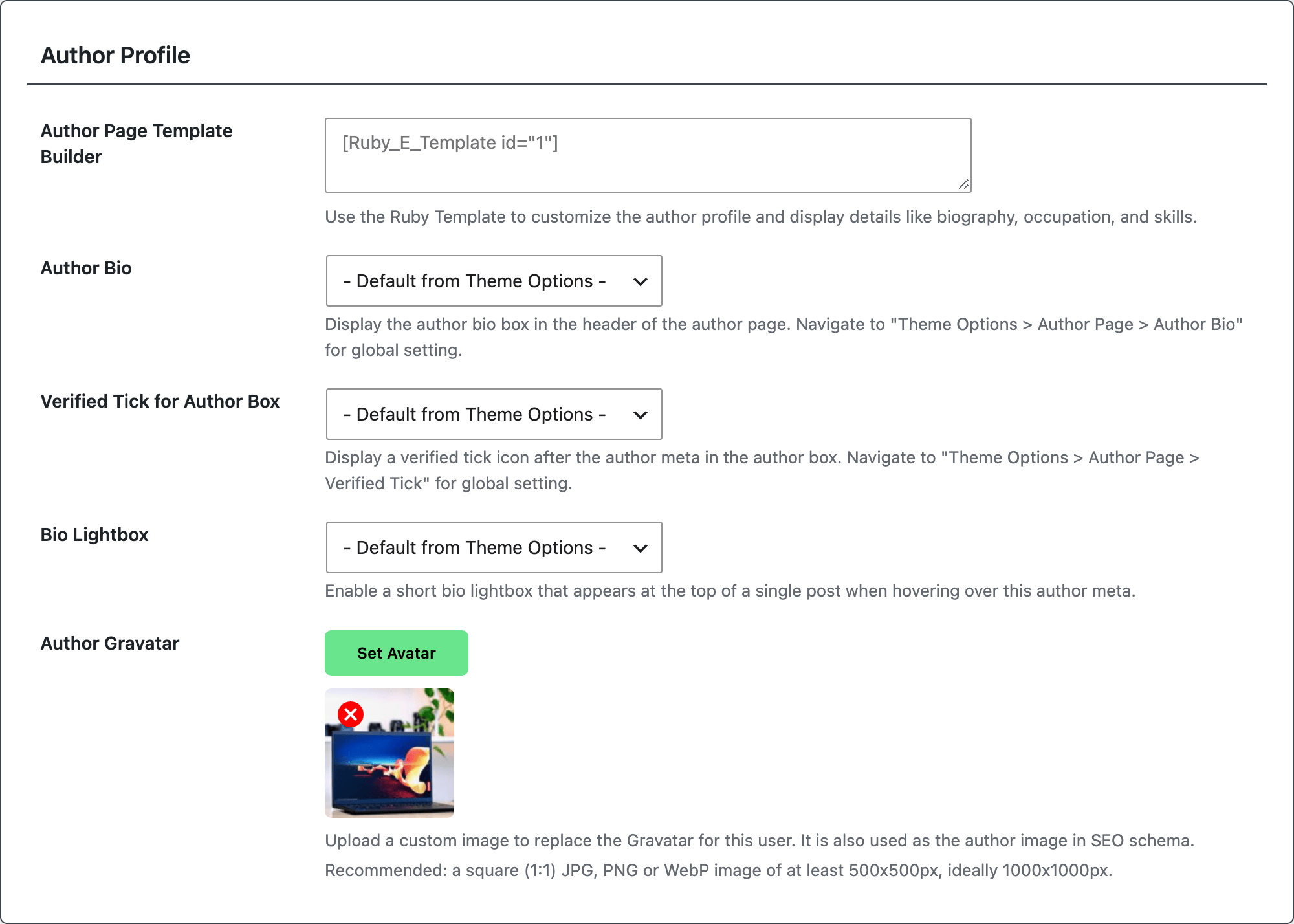
Foxiz Core also adds a table of its own to that screen, headed Author Profile, holding Author Page Template Builder, Author Bio, Verified Tick for Author Box, Bio Lightbox and Author Gravatar. It renders only for users who can manage options, so an author editing their own profile sees the WordPress fields and not this table.
Author Avatar Image:
Foxiz includes its own avatar uploader, so you do not need a plugin for this.
In the Author Profile table on the same profile screen, the Author Gravatar row has a Set Avatar button that opens the media library, and the image you pick overrides the Gravatar for that user. The field recommends a square JPG, PNG or WebP image of at least 500x500px, ideally 1000x1000px, and the same image becomes the author image in your site's SEO data. See How to Add a Custom Author Gravatar in Your Website.
You can add an avatar to your profile in two ways:
- Register a gravatar account on the Official website, and then upload your avatar. Using this way, your avatar will display on all websites you commented on.
- Use the Author Gravatar row in the Author Profile table on Users > Profile: click Set Avatar and pick an image from the media library.
Whichever route you take, the card falls back in one order: the Foxiz Author Gravatar image if that user has one, otherwise whatever get_avatar() returns, which is the Gravatar or a plugin's replacement for it.
Enable/Disable Author Box
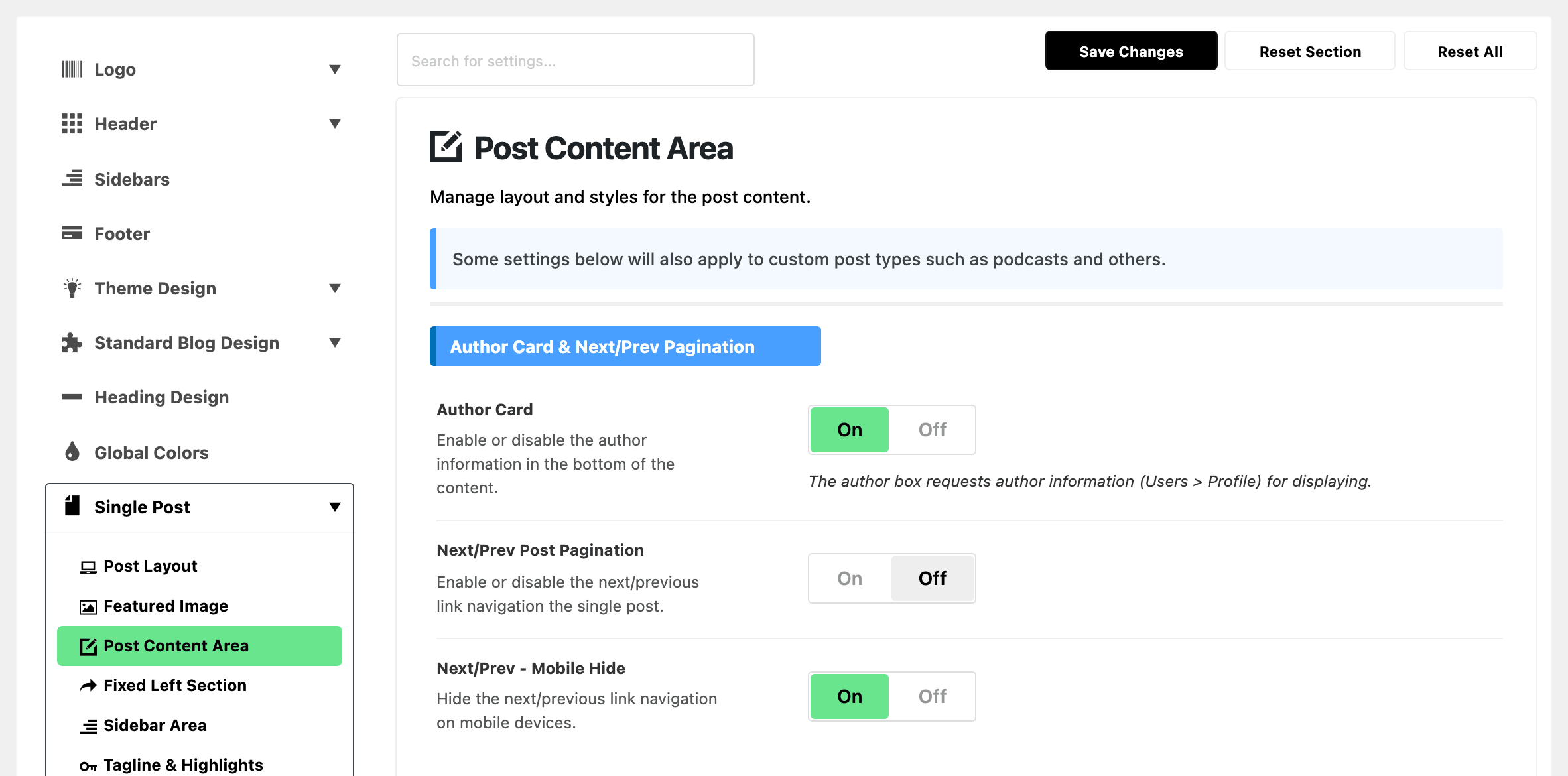
The enable/disable author option and other boxes in single post pages are located at: Theme Options > Single Post > Post Content Area, in the section headed Author Card & Next/Prev Pagination. The switch there is titled Author Card and it is on by default. The same section holds Next/Prev Post Pagination, off by default, and Next/Prev - Mobile Hide.
If the card is still missing after that switch is on, three things stop it, and the theme checks them in this order.
-
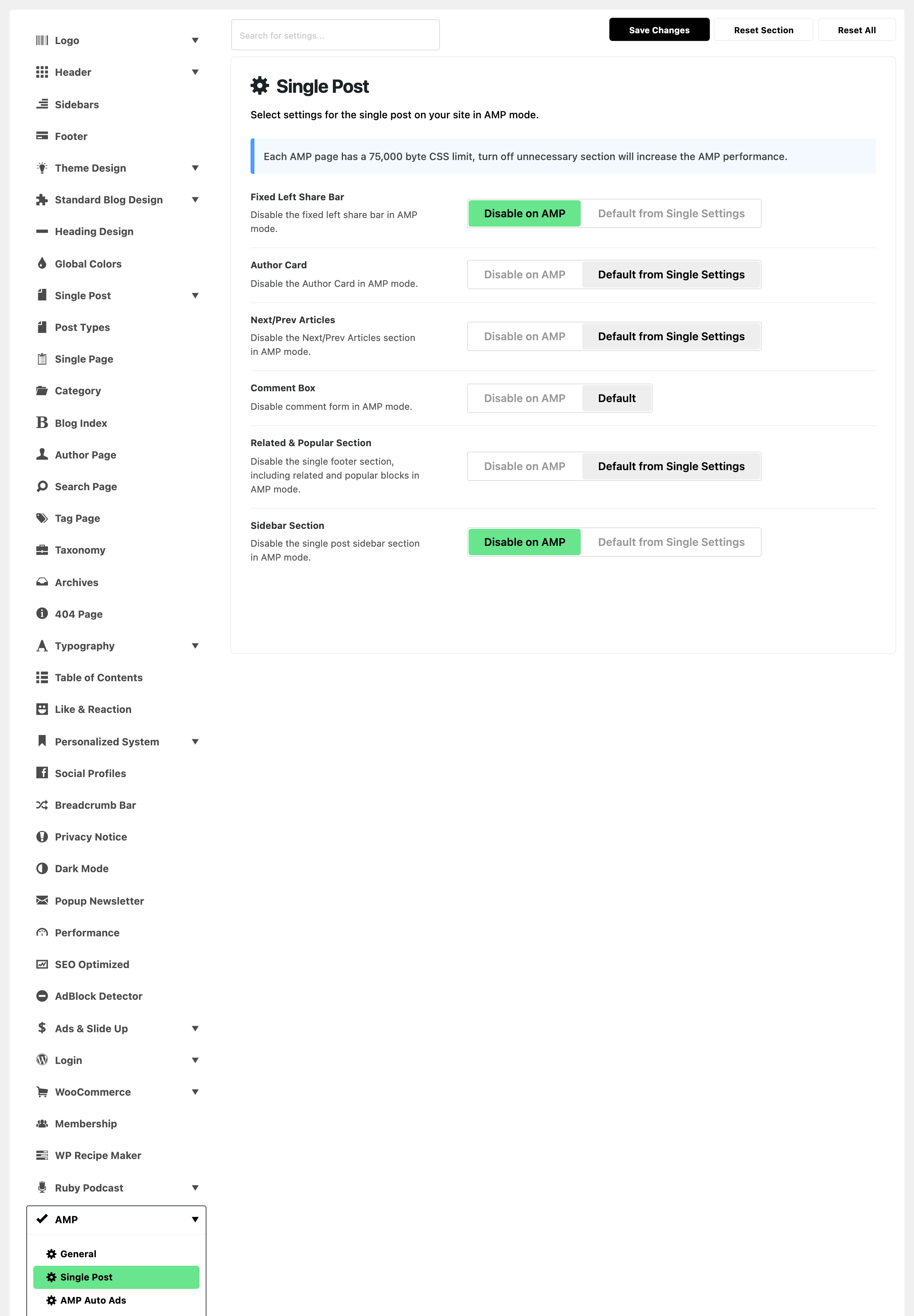
A second switch, also titled Author Card, in the AMP panel. Theme Options > AMP > Single Post carries its own Author Card, whose two positions are Default from Single Settings and Disable on AMP. It is read before the Single Post switch, so on an AMP page it wins outright. Its default is Default from Single Settings, so it only bites when somebody has flipped it.
-
The Single Post switch: Author Card at Theme Options > Single Post > Post Content Area, described above.
-
An empty Biographical Info. Past both switches the card is built only if that field has text in it. This is the commonest cause of a missing card, and neither settings screen mentions it.
The block at the top of the author page is a different thing with its own rules. It is switched at Theme Options > Author Page > Author Bio, it can be turned off for one author from that author's profile, and it still draws with an empty biography, showing the avatar, the name and the post count.
Did this answer your question?