How to Add a Custom Author Gravatar in Your Website

This allows you to upload a custom image for a user that will override their Gravatar. The control is called Author Gravatar and it sits in the Author Profile table that Foxiz Core adds to the user profile screen. Below are step-by-step instructions to set up a custom author avatar for any user.
Step 1: Access the User's Profile
-
Log in to your WordPress dashboard.
-
Navigate to Users > All Users in the left-hand menu.
-
Find the user whose avatar you want to customize and click Edit under their username.
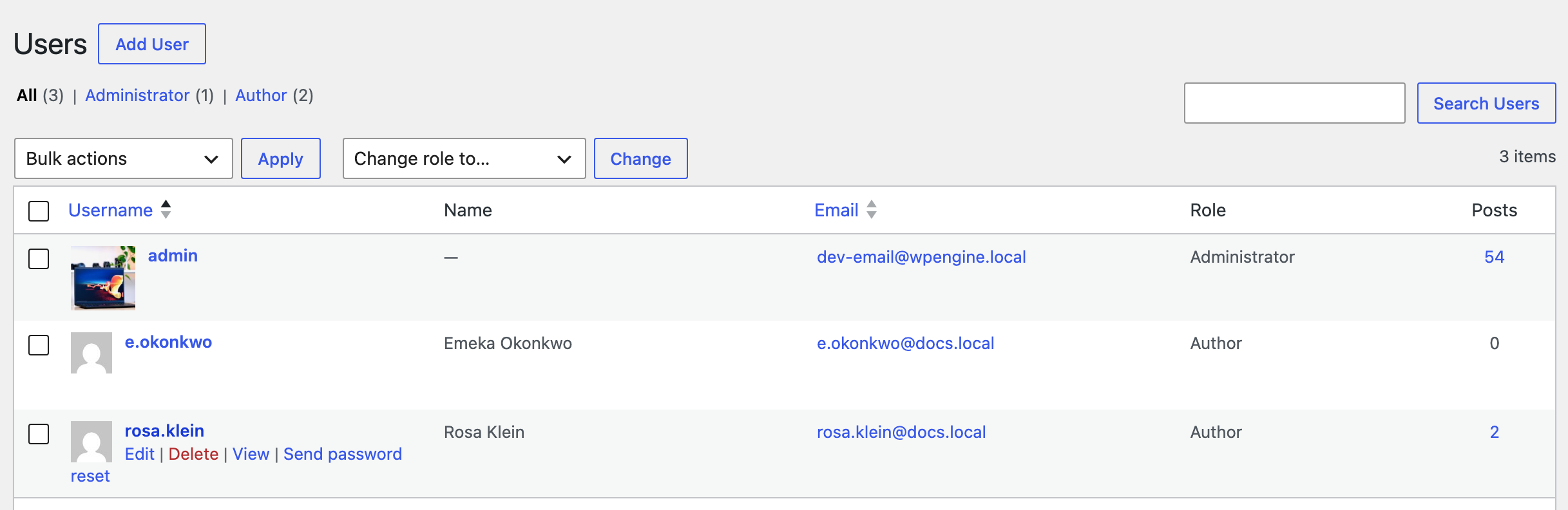
Your own account works the same way from Users > Profile. Either screen shows the table, and only to users who can manage options, so an Author or Editor opening their own profile will not find it.
Step 2: Locate the Author Gravatar Option
-
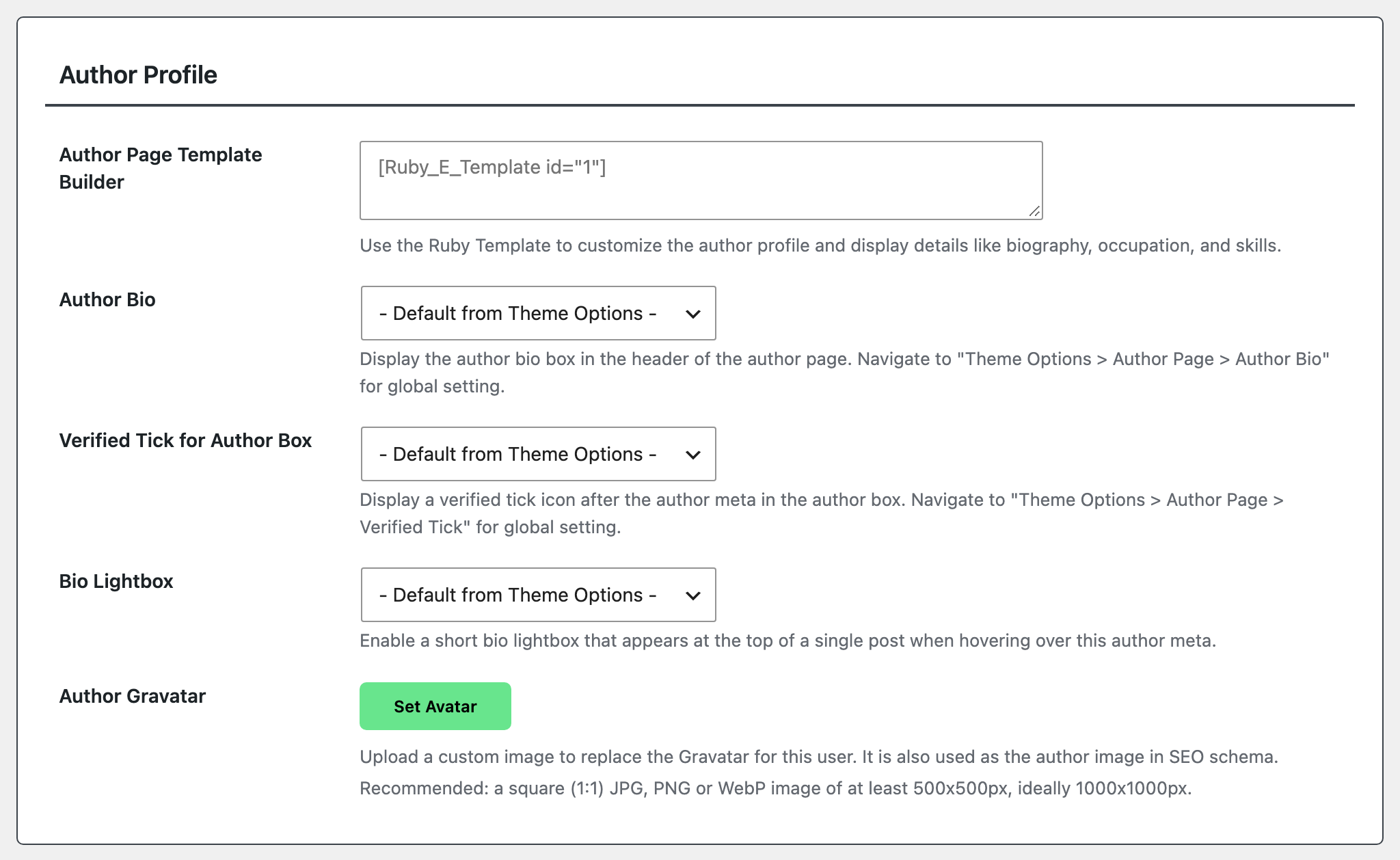
Scroll down to the table headed Author Profile in the user's profile settings. It is the block that also holds Author Page Template Builder, Author Bio, Verified Tick for Author Box and Bio Lightbox.
-
The last row is labelled Author Gravatar, with a Set Avatar button and two notes under it: Upload a custom image to replace the Gravatar for this user. It is also used as the author image in SEO schema. and Recommended: a square (1:1) JPG, PNG or WebP image of at least 500x500px, ideally 1000x1000px.
Step 3: Pick the Image
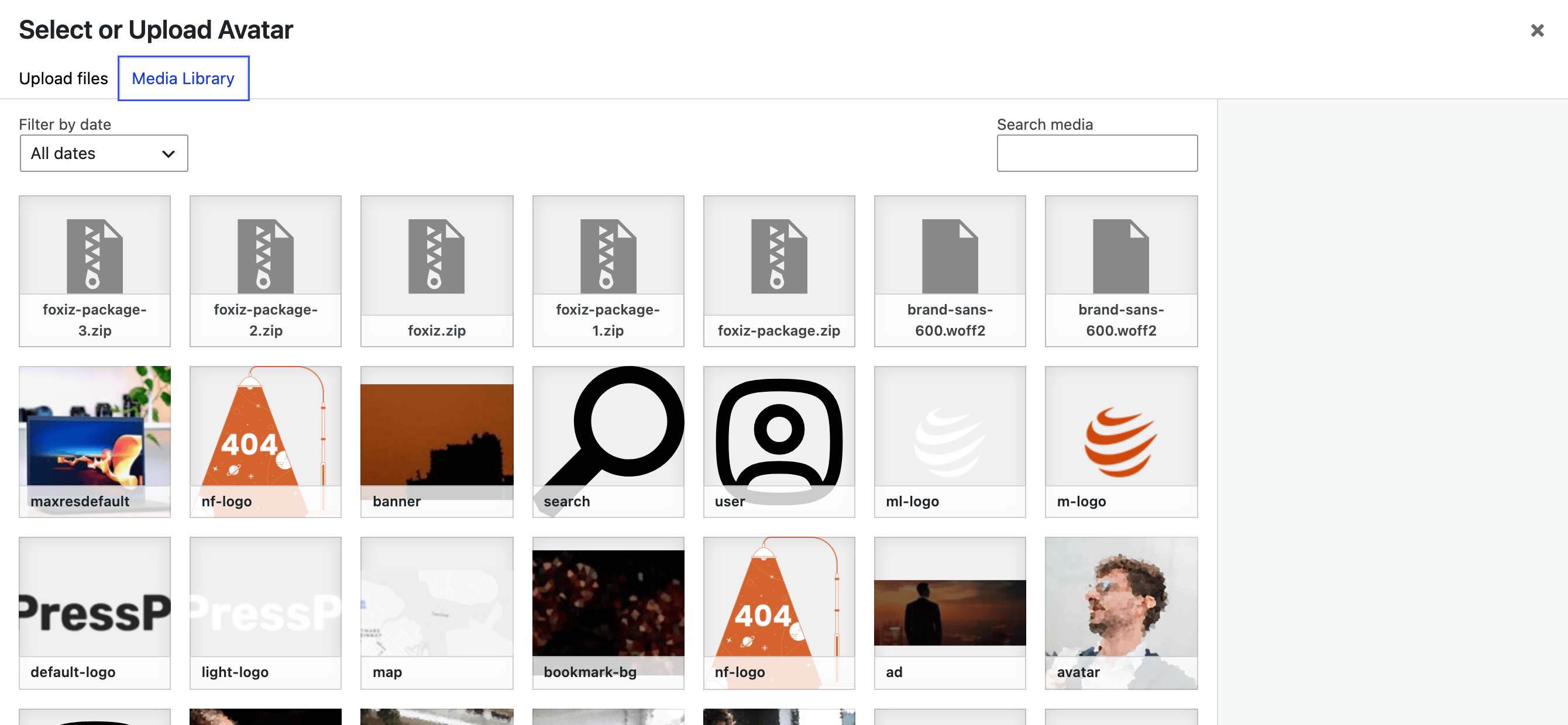
Click Set Avatar. The WordPress media library opens in a modal titled "Select or Upload Avatar".
-
If the image is already in the library, select it.
-
If it is not, use the upload tab in that modal to add it. The field recommends a square JPG, PNG or WebP image of at least 500x500px, ideally 1000x1000px.
-
Click Use This Media to close the modal.
Step 4: Check the Preview
The image you picked appears as a 100px thumbnail next to the button, with a small remove icon beside it. That icon clears the avatar and puts the user back on their Gravatar.
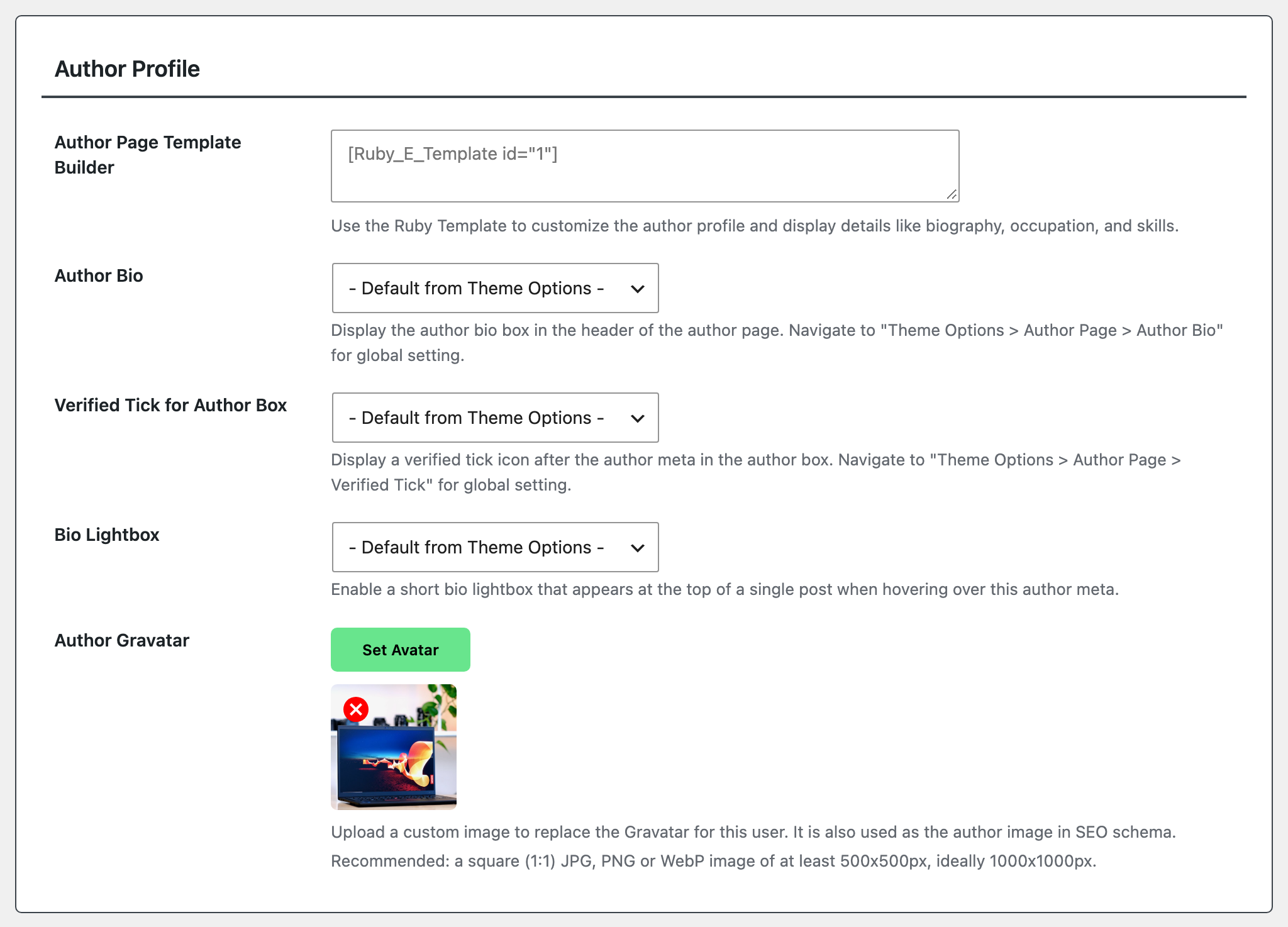
Nothing is saved yet. The picker only fills a hidden field on the form.
Step 5: Save Changes
- Scroll down to the bottom of the profile settings page.
- Click the save button to save your changes. On your own profile it is labelled Update Profile; on another user's screen, which is where Step 1 sent you, WordPress labels the same button Update User.
Notes:
- Ensure the image you upload is a square (1:1) JPG, PNG or WebP of at least 500x500px, ideally 1000x1000px, for the best results.
- The custom image will now display in place of the default Gravatar for this user wherever their avatar appears on your site. Foxiz Core filters WordPress's own
get_avatar()at priority 999 to do it, so comment avatars and any plugin that callsget_avatar()get the custom image too. - It is also the author image in your SEO data. Foxiz's own schema uses it, and it is served as the user's avatar address, which is where SEO plugins take an author's image from, so Yoast SEO and other SEO plugins that read the avatar show it in their author markup as well. If another avatar plugin already supplies an image for that user, that plugin's image is the one SEO plugins receive.
- Which crop is served depends on where the avatar sits. The author page header asks for the WordPress
mediumsize; the author card at the end of a post and the filteredget_avatar()both ask forthumbnail; the SEO schema uses the full image. Upload something at least 500px square and every one of those has enough pixels to work with. - The setting lives on the user, not on the post, so it follows that author across every post, archive and comment. Deactivating Foxiz Core removes the Author Profile table and puts the Gravatar back in comments, in other plugins and in SEO data; the author card and the author page header keep showing the image, because the theme reads it from the user directly. The uploaded image is not lost either way.
Did this answer your question?