How to Change Your Twitter Username When Sharing a Post
Your Twitter username will be fetched from your user profile when sharing on Twitter. If you've added your Twitter details in your profile, the theme will use this information to display accordingly.

The field is labelled X profile URL, after Twitter's new name. On a single post the theme reads it from that post's author, not from whoever is logged in, so the profile you need to edit is the author's.
To add Twitter details to your profile, please follow the steps below:
-
Go to Users > Profile. For another author's posts, open Users > All Users and click Edit under that author's name instead.
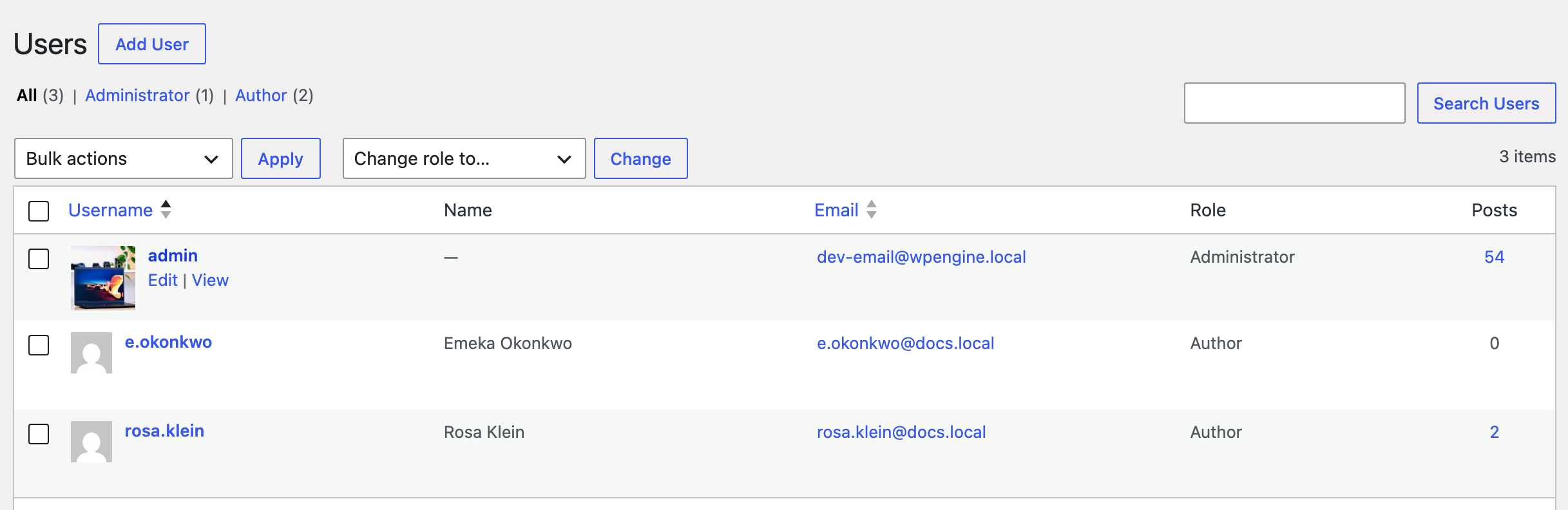
-
On the profile screen, find X profile URL in the contact fields, between Facebook profile URL and Youtube profile URL.
-
In this option, you should input the URL of your Twitter profile page.
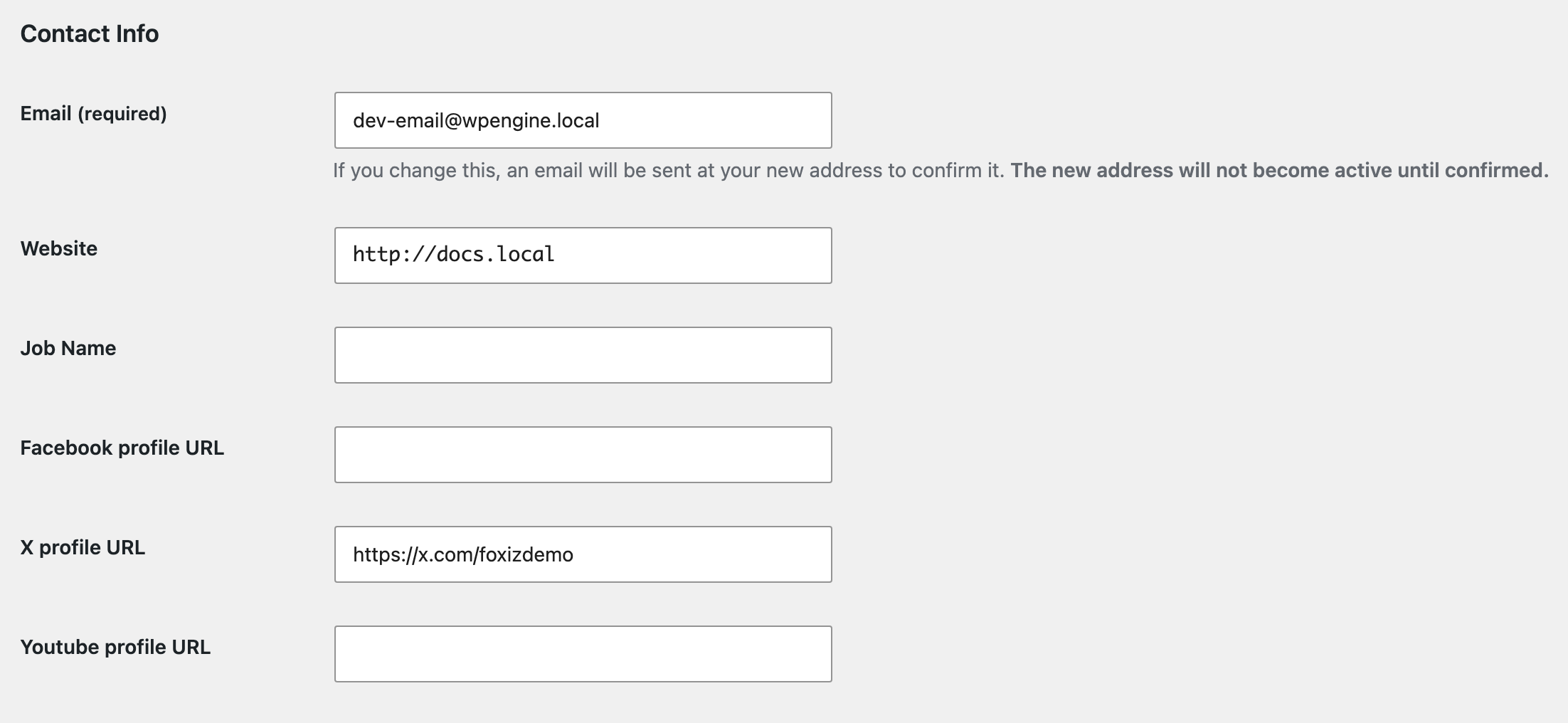
Give the whole profile URL and nothing deeper. The theme takes the path out of what you type and deletes the slashes, so
https://x.com/yournamebecomesyourname, while a link to one of your posts becomes the whole of that path run together. A bare handle with no scheme leaves nothing for it to take, and the share link ends up with an empty name. -
Click "Update Profile"
That is the button on your own profile. On somebody else's it reads Update User.
If the author has no X profile URL, the share button falls back to Theme Options > Social Profiles > X (Twitter) URL, and if that is empty too it uses your site title, which is almost never what you want in a tweet.
Did this answer your question?