Guide to Customizing the Author Page Using Ruby Templates
A Ruby Template is a layout you build once in Elementor and then paste somewhere as a shortcode. Here it replaces the post listing on author pages. The Foxiz block inside it gets its posts in one of two ways, chosen by its Query Mode setting:
- Use WP Global Query lists the posts of the author being viewed, exactly as WordPress loaded them for that page. How many per page comes from Posts per Page in Theme Options > Author Page, and the pagination can be page numbers.
- Use Custom Query (default) runs the block's own query from its Query Settings: its own count, order and filters. Set its Author Filter to Dynamic Query and it follows the author too. Its pagination is AJAX only: Next Prev, Show More or Infinite Scroll.
For most sites, pick Use WP Global Query: it needs no filter and author pages keep normal page links. Its one drawback is that the Elementor editor cannot preview it, so check the result on the front end. Use the custom query when you want the block to choose its own order or count.
Using the "Use WP Global Query" Option
Follow the steps below to customize the author page using the WP Global Query option:
-
Navigate to Ruby Templates:
- Go to Ruby Templates > Add New Template. The menu sits near the top of the admin sidebar under an art palette icon, and the submenu item is Add New Template.
- Enter a title for your new template, then click Edit with Elementor to open the template in the builder. The Foxiz blocks are only there.
-
Add Foxiz Blocks:
- Utilize Foxiz blocks integrated with Elementor.
- Drag and drop the desired block into the template layout.
- Only fifteen of the Foxiz blocks carry the Query Mode setting the next step asks for. Any other block draws its own fixed content and will not follow the author. The fifteen are:
- Foxiz - Classic
- Foxiz - Grid 1
- Foxiz - Grid 2
- Foxiz - Boxed Grid 1
- Foxiz - Boxed Grid 2
- Foxiz - Small Grid
- Foxiz - Flex Grid 1
- Foxiz - Flex Grid 2
- Foxiz - List 1
- Foxiz - List 2
- Foxiz - Boxed List 1
- Foxiz - Boxed List 2
- Foxiz - Flex List
- Foxiz - Overlay
- Foxiz - Flex Overlay
-
Configure Query Mode:
-
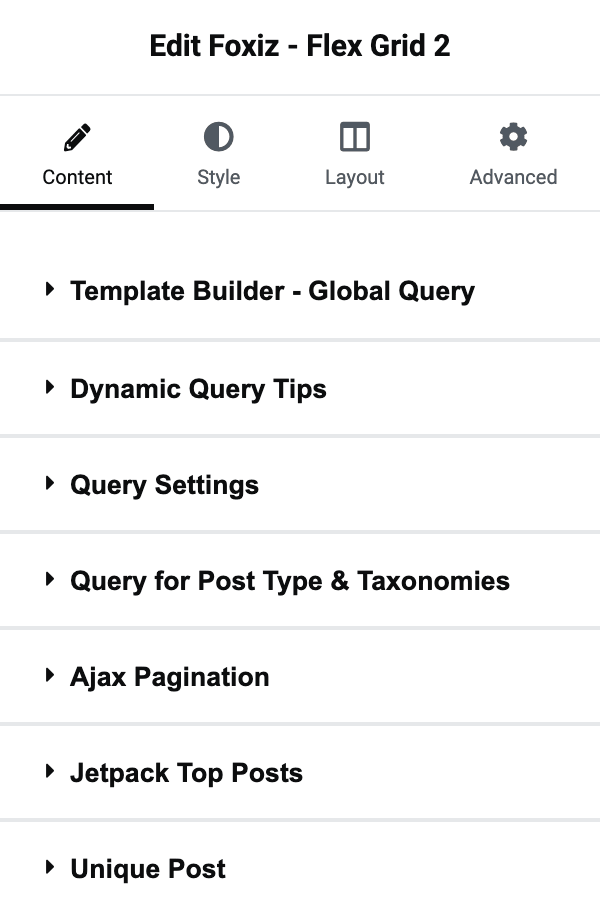
Open the Content tab.
-
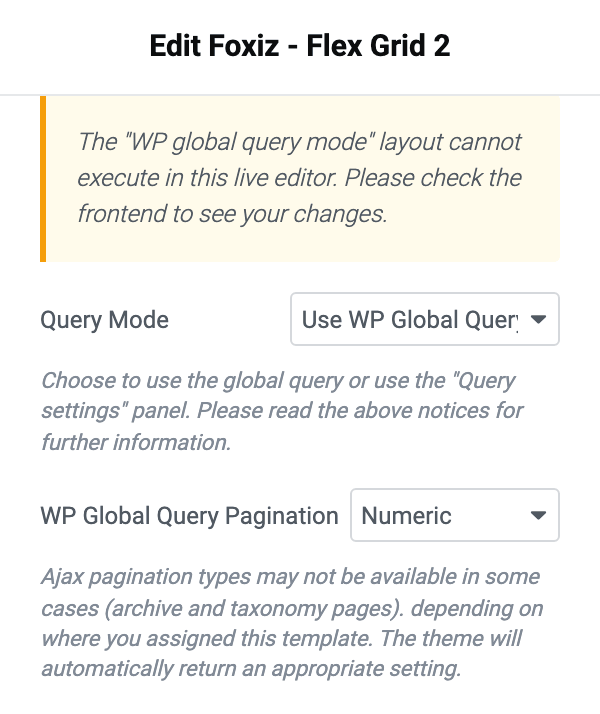
Navigate to Template Builder - Global Query.
-
Set Query Mode to Use WP Global Query. Its default is Use Custom Query (default), which is the mode the second half of this article covers.
-
Set WP Global Query Pagination, in the same section, to Numeric, Simple, Show More (ajax) or Infinite Scroll (ajax). Its default is - Disable -, and in global query mode the theme draws no pagination at all at that value, so an author with more posts than one page shows only the first page and no way forward.
-
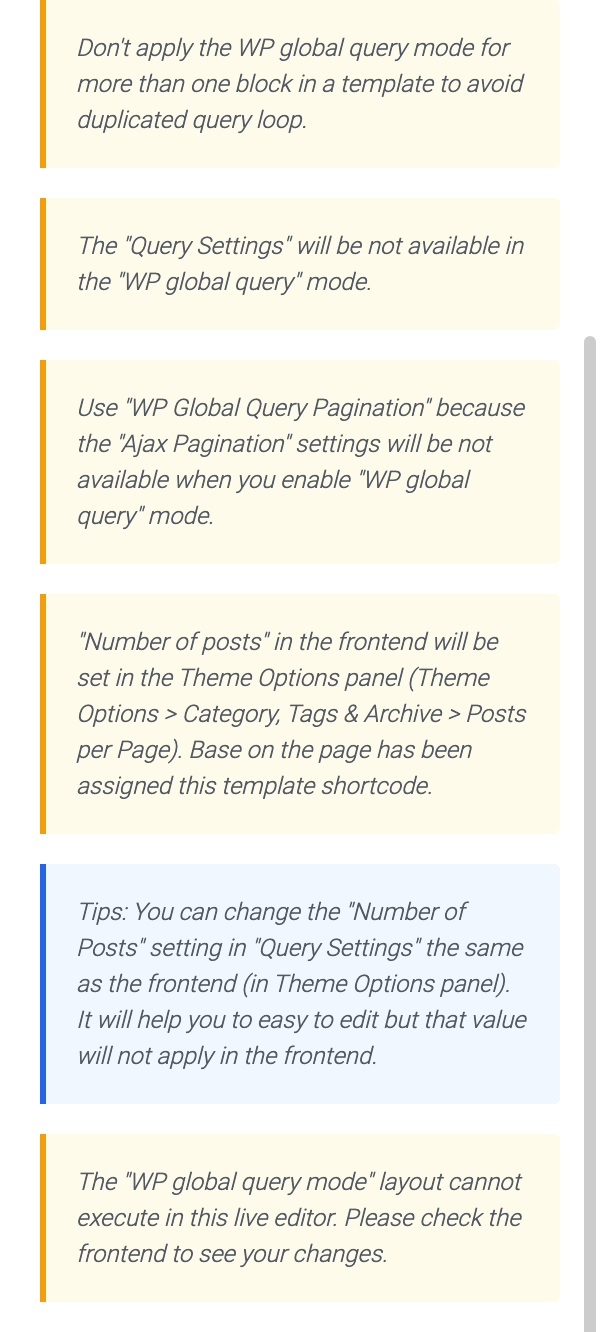
Note: "Query Settings" will not be available in WP Global Query mode.
-
Save and Apply the Template:
-
After creating the template, go to Ruby Templates and copy its shortcode. The list screen has a Template Shortcode column holding a ready made
[Ruby_E_Template id="1"]for each template, and the same string sits in a Template Shortcode box in the template's own editor sidebar.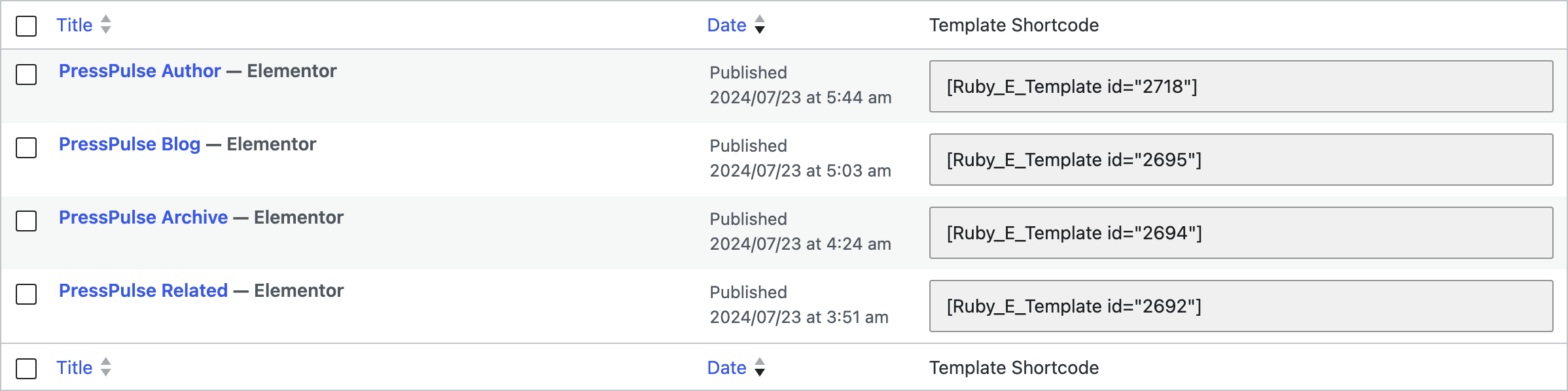
-
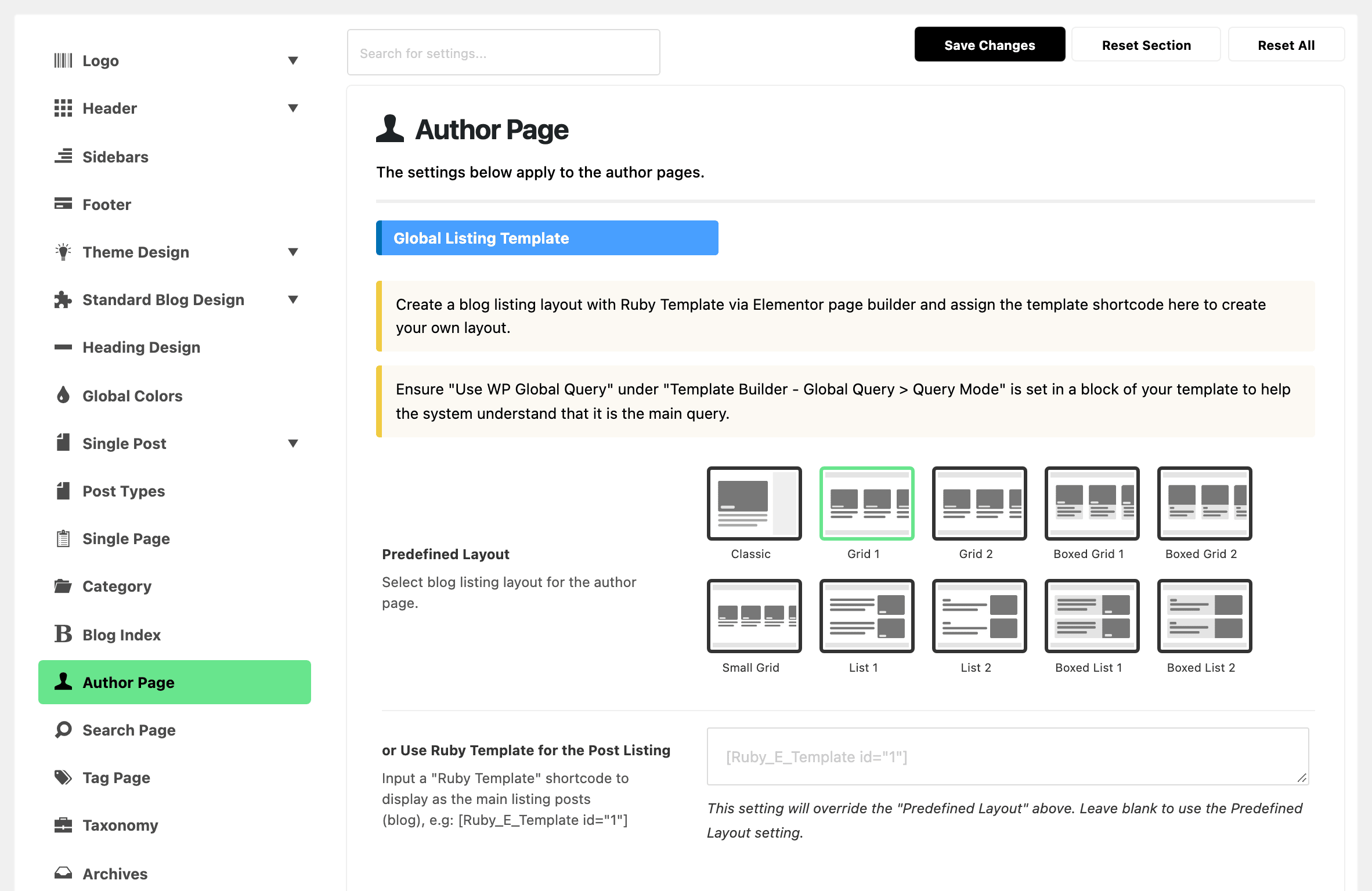
Navigate to Theme Options > Author Page > Global Listing Template, and find the field named or Use Ruby Template for the Post Listing. The leading "or" is part of the label, because the field sits directly under Predefined Layout and overrides it.
-
Paste the copied shortcode into this field and click Save Changes.
-
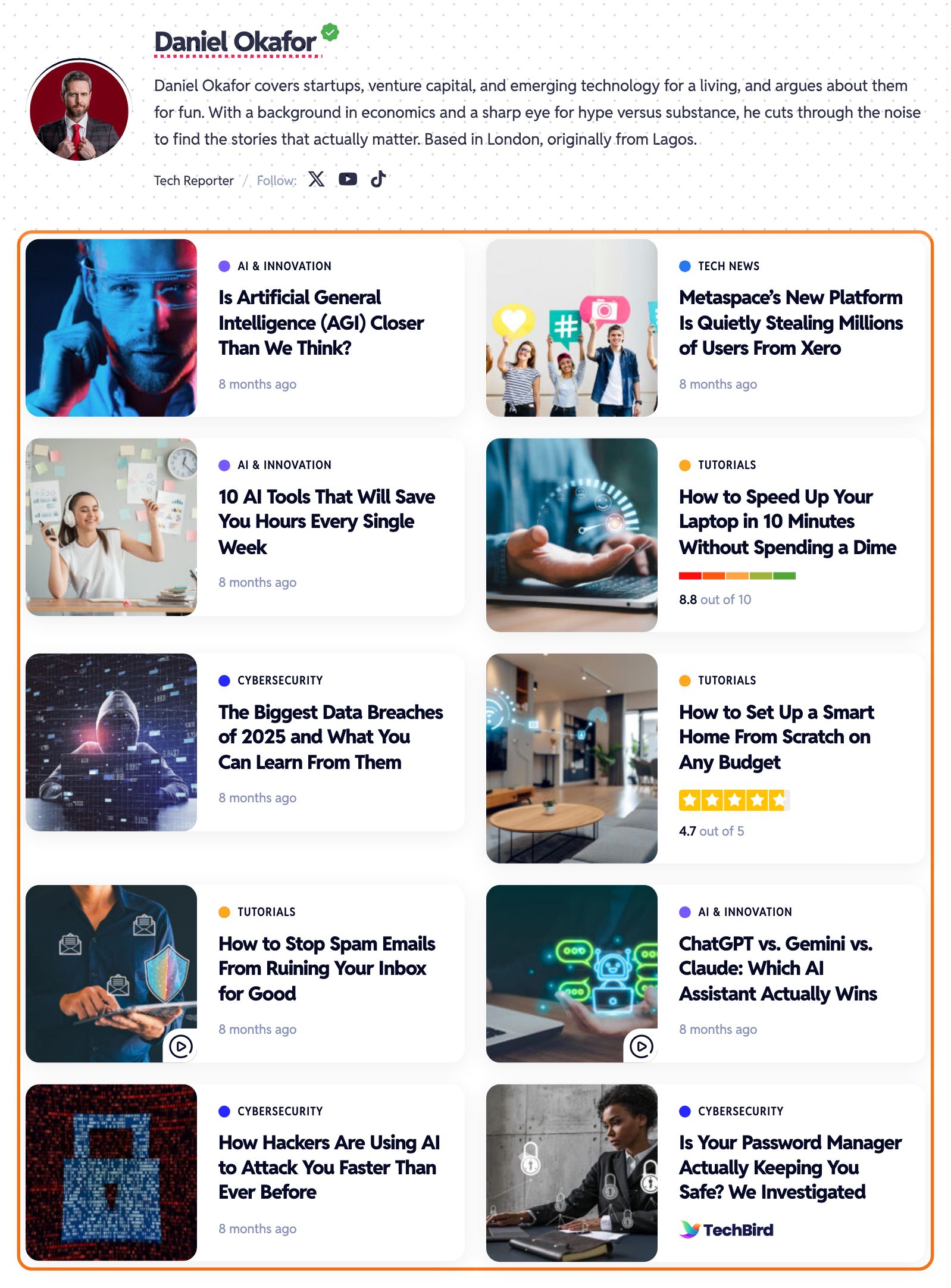
Once the field holds a shortcode, the Post Listing - Columns, Post Listing - Sidebar, Post Listing - Design and Post Listing - Pagination sections disappear from the Author Page panel. The template owns all four now. Clear the field to get them back.
Using the "Use Custom Query (Default)" Option
Follow these steps to customize the author page using the Custom Query option:
-
Navigate to Ruby Templates:
- Go to Ruby Templates > Add New Template.
- Enter a title for your new template, then click Edit with Elementor.
-
Add Foxiz Blocks:
- Utilize Foxiz blocks integrated with Elementor.
- Drag and drop the desired block into the template layout. It has to be one of the fifteen blocks listed in the first half of this article.
-
Configure Query Mode:
- Open the Content tab.
- Navigate to Template Builder - Global Query.
- Set Query Mode to Use Custom Query (default). That is already the default value, so there is nothing to change unless you switched it. The admin spells it with a lower case "default".
-
Adjust Query Settings:
-
Within the Content tab, go to Query Settings.
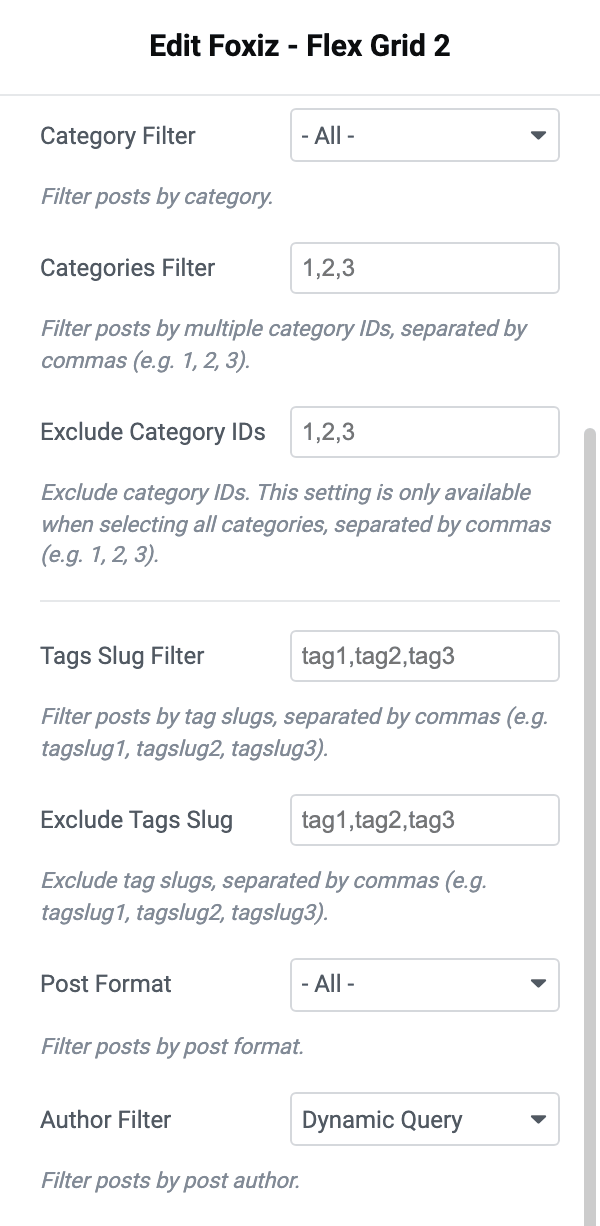
-
Customize filters to control post queries. The Query Settings section carries:
- Categories: Category Filter, Categories Filter and Exclude Category IDs.
- Tags: Tags Slug Filter and Exclude Tags Slug.
- Format and author: Post Format and Author Filter, the one the next step sets.
- Single posts: Exclude Post IDs and Post IDs Filter.
- Order and count: Order By, Number of Posts and Post Offset.
-
-
Set Up Author Filtering:
- You have two options, and you can use both. A shortcode on one author's profile (Option 2) wins for that author; the one in Theme Options (Option 1) covers every other author.
Option 1: Dynamic Query (Recommended)
-
This dynamically queries posts for each respective author page.
-
In Query Settings, set Author Filter to Dynamic Query. That option only appears while you are editing a Ruby Template, which is why you will not see it on a block placed on an ordinary page. On an author archive the theme swaps it for the author being viewed; anywhere else, including the Elementor editor preview, it falls back to no author filter and the block shows everybody's posts.
-
You can insert the shortcode in Theme Options instead of creating multiple author templates.
-
Navigate to Theme Options > Author Page > or Use Ruby Template for the Post Listing.
-
Paste the shortcode and click Save Changes.
Option 2: Static Author Assignment
-
Assign a specific author layout.
-
In that template, set Author Filter to Dynamic Query as in Option 1 (or use Use WP Global Query). The template only runs on that author's own page, so it lists that author's posts.
-
Copy the shortcode and manually insert it in the author's profile:
-
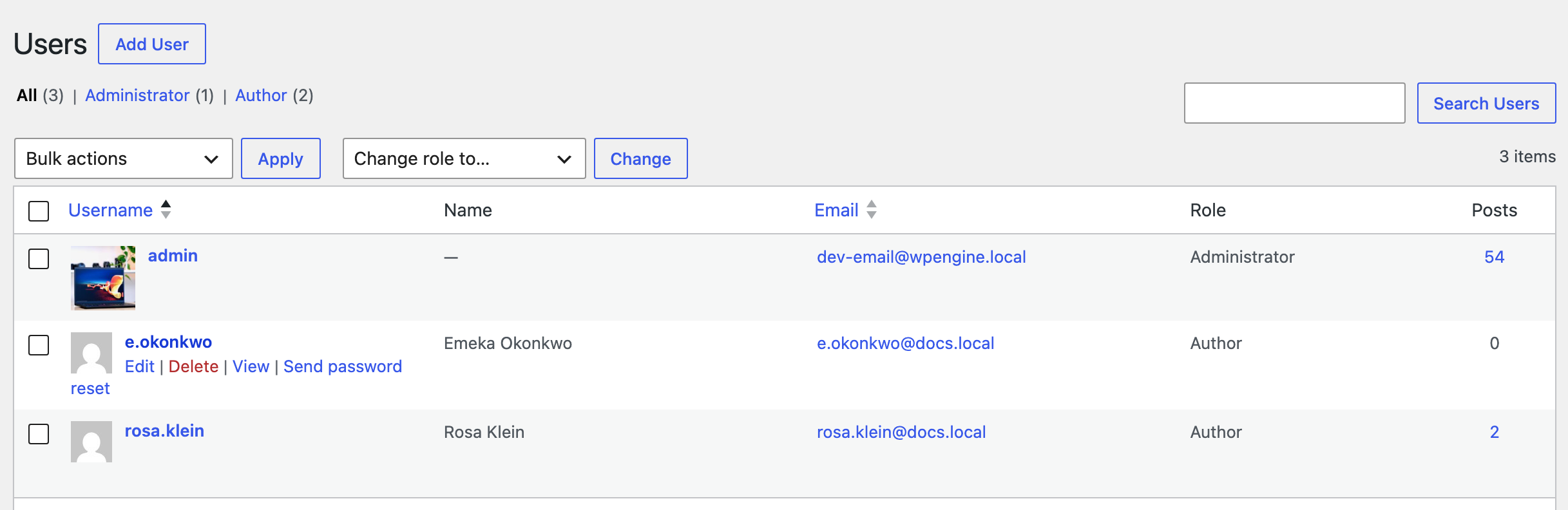
Go to Users > All Users.
-
Select the specific author and click Edit.
-
Locate Author Page Template Builder. It is the first field of the Author Profile table, below the WordPress fields, on that user's edit screen.
![The Author Profile table on Emeka Okonkwo's edit screen, with [Ruby_E_Template id="2718"] pasted into Author Page Template Builder, then Author Bio, Verified Tick for Author Box and Bio Lightbox on - Default from Theme Options - and Author Gravatar with its Set Avatar button](/docs/assets/images/author-profile-template-builder-emeka@2x-5507d468bf638e14c69b281f539bace1.png)
-
Paste the shortcode and save.
-
-
This method allows unique layouts for different authors.
A shortcode in Author Page Template Builder beats the one in Theme Options > Author Page: the theme reads the Theme Options value first and then replaces it with the user meta whenever that is not empty. So you can set a site wide template in Theme Options and override it for one or two authors here. Clear the field to hand that author back to the global template.
For more details on creating Ruby Templates, refer to the official documentation: Foxiz Ruby Templates Documentation
Did this answer your question?