Every Setting in the Easy Submission Panel
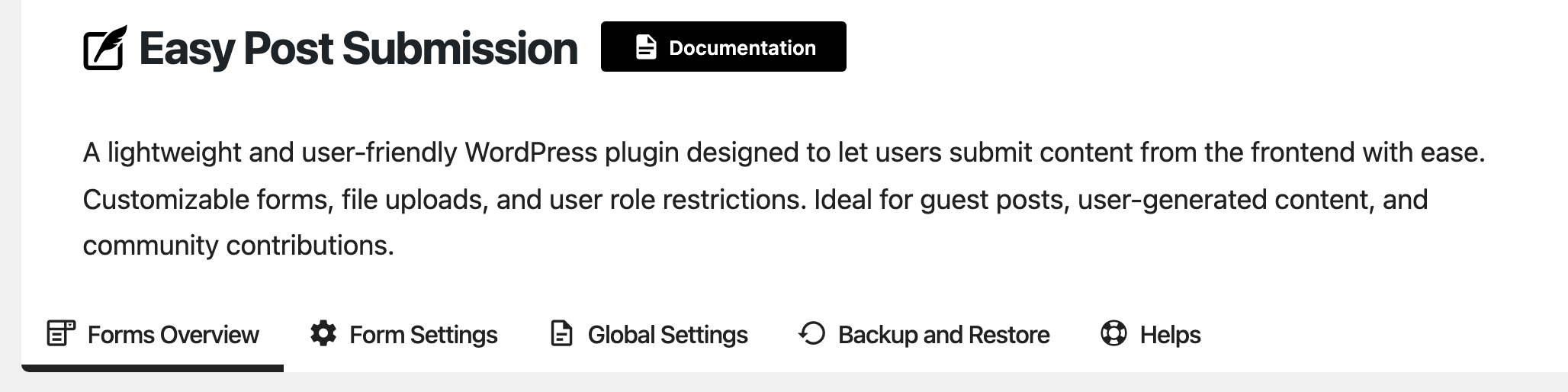
Foxiz > Easy Submission is where the Easy Post Submission plugin is set up. It has five tabs: Forms Overview, Form Settings, Global Settings, Backup and Restore and Helps. Settings on Form Settings belong to one form, so two forms on two pages can behave differently; Global Settings apply to every form at once.
For the task from start to finish, see How to Let Visitors Submit Posts with Easy Submission: five steps, one article each.
Until you run it once, the screen shows the Quick Setup Wizard in place of these tabs. How to Run the Easy Submission Setup Wizard walks through it.
Forms Overview
Your Forms lists every form as a card: its name, its shortcode, for example [easy_post_submission_form id=2], and two buttons. Settings opens the form on the Form Settings tab; Delete removes it after a Confirm Deletion prompt.
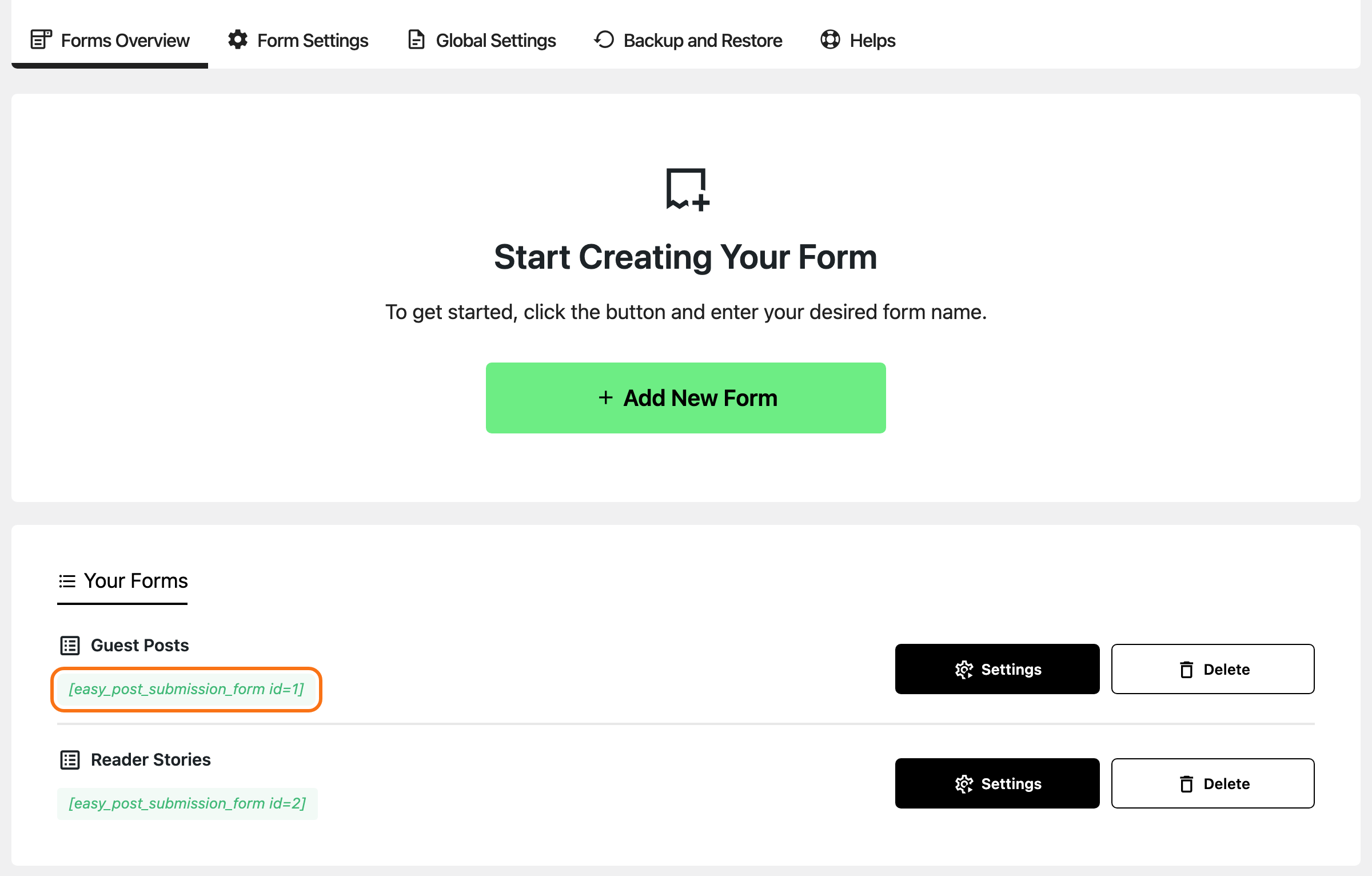
Add New Form asks for a name and creates the form with Save New Form. The name must be one no other form uses. A new form starts with the defaults listed below.
Deleting a form does not delete the posts it collected. A page still carrying its shortcode shows "This submission form has been removed by the webmaster. Please check back later."
Form Settings
The tab opens on Form Settings for: the form you chose, with Select a form: to switch. Its five groups fold open and shut. At the bottom, Preview shows the form as a visitor will see it and Save Settings stores the changes; nothing is saved until you click it.
General
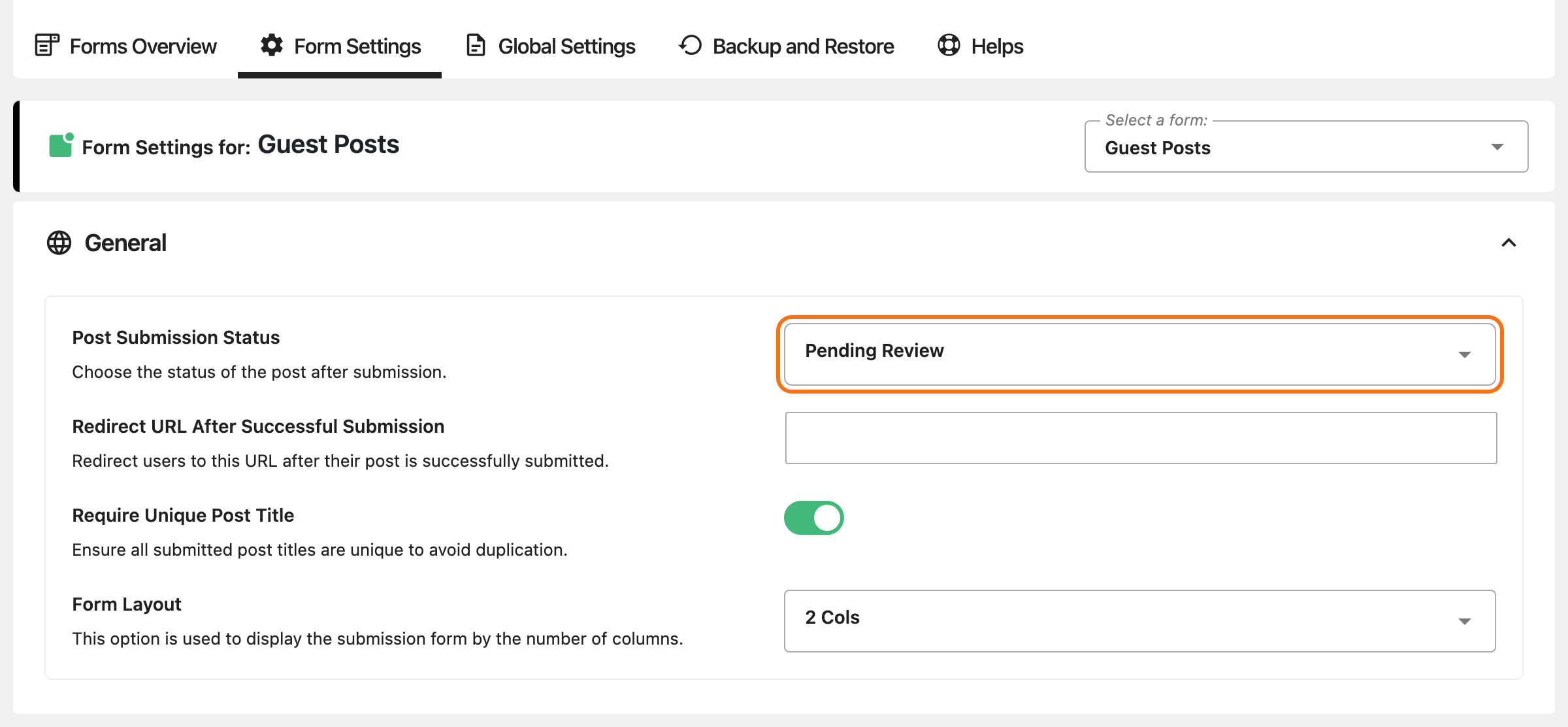
- Post Submission Status: Draft (default), Pending Review or Publish. This is the status a post is saved in, both when it is submitted and each time its writer edits it.
- Redirect URL After Successful Submission: where the visitor goes when they close the success message. Empty, the default, keeps them on the form. It has to be a full address; an invalid one is refused on save.
- Require Unique Post Title: on by default. A post whose title matches one already on the site, in any status, is refused with "The title already exists."
- Form Layout: 1 Col or 2 Cols (default).
User Login
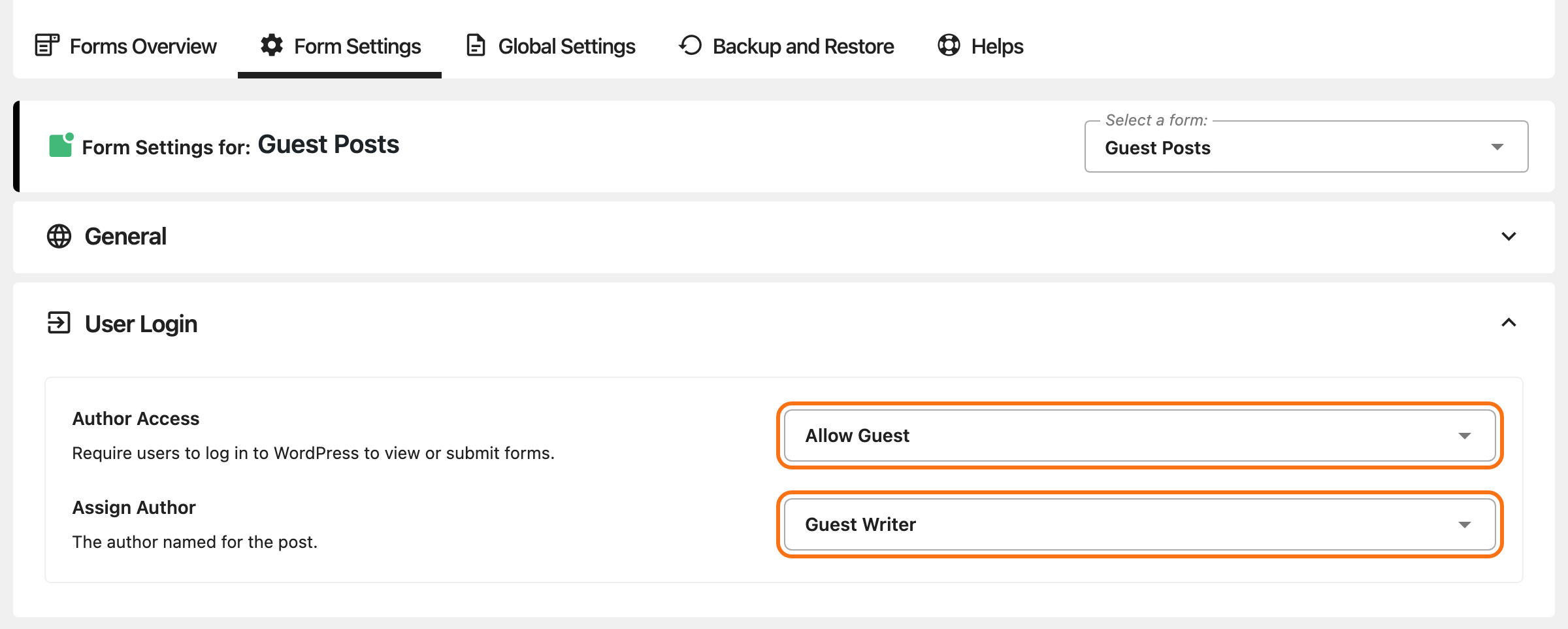
- Author Access: Allow Guest (default) lets anyone submit; Only Logged User requires a WordPress account.
- Assign Author, shown with Allow Guest: the user a guest's post is credited to. A logged in writer is always credited to themselves.
- Login Action Choice, shown with Only Logged User: what a signed out visitor gets. Show Login Message (default) or Redirect to Login Page.
- Notification Title and Notification Message, shown with Show Login Message: the notice text. They start as "Login Required to Submit" and "You must be logged in to submit a new post. Please log in to continue."
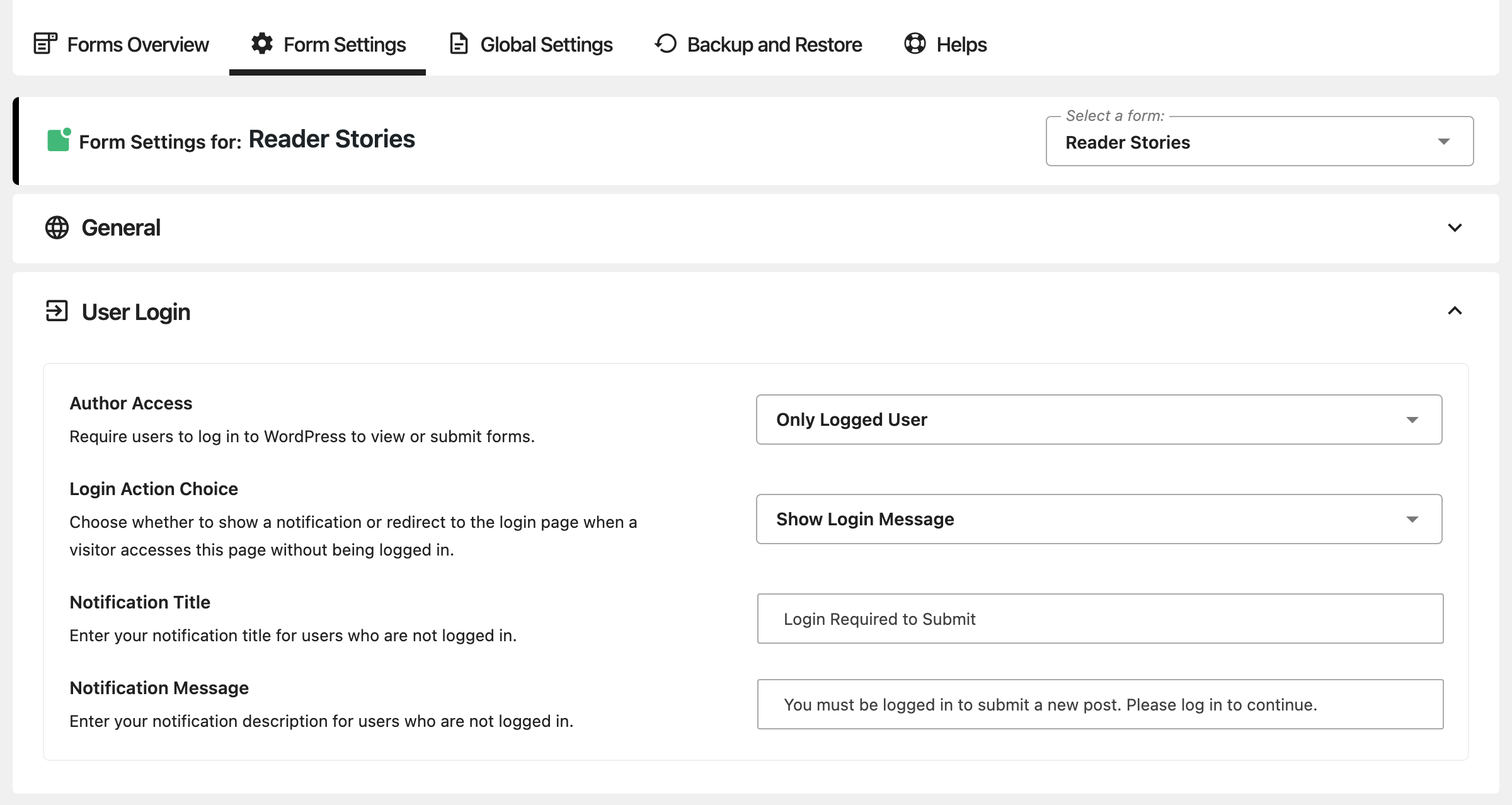
The login and register buttons in the notice, and the page Redirect to Login Page goes to, come from Global Settings > Login and Registration Buttons.
Form Fields
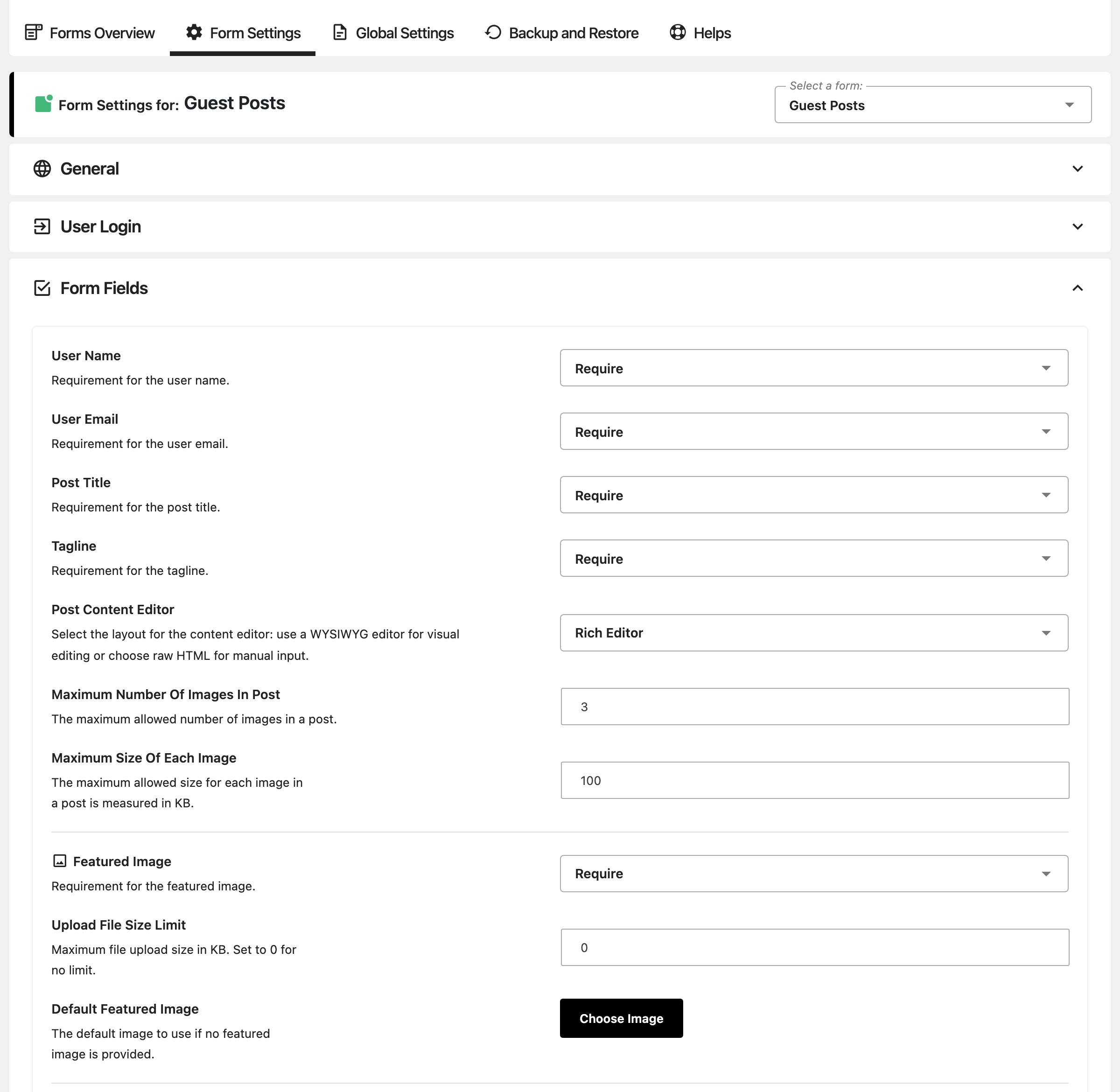
Four fields each take Require, Optional or Disable, and all four default to Require:
- User Name and User Email: shown only to guests.
- Post Title: the post's title.
- Tagline: the field the visitor sees as Add Excerpt. It becomes the post's excerpt.
-
Post Content Editor: Rich Editor (default), a visual editor with formatting buttons, or RawHTML, a plain box for HTML.
-
Maximum Number Of Images In Post: how many images the content may hold. Default: 3; 0 removes the limit. Images placed in the content are uploaded to your media library when the post is sent.
-
Maximum Size Of Each Image, shown while the number above is more than 0: the largest image allowed in the content, in KB. Default: 100.
-
Featured Image: Require (default), Optional or Disable. The visitor may upload a JPG, PNG, GIF or WEBP file.
-
Upload File Size Limit, shown unless Featured Image is Disable: the largest featured image allowed, in KB. Default: 0, no limit.
-
Default Featured Image, shown unless Featured Image is Disable: an image from your media library to stand in for one the visitor did not supply. It is applied today only when the visitor's upload fails, so set Featured Image to Require if every post needs one.
-
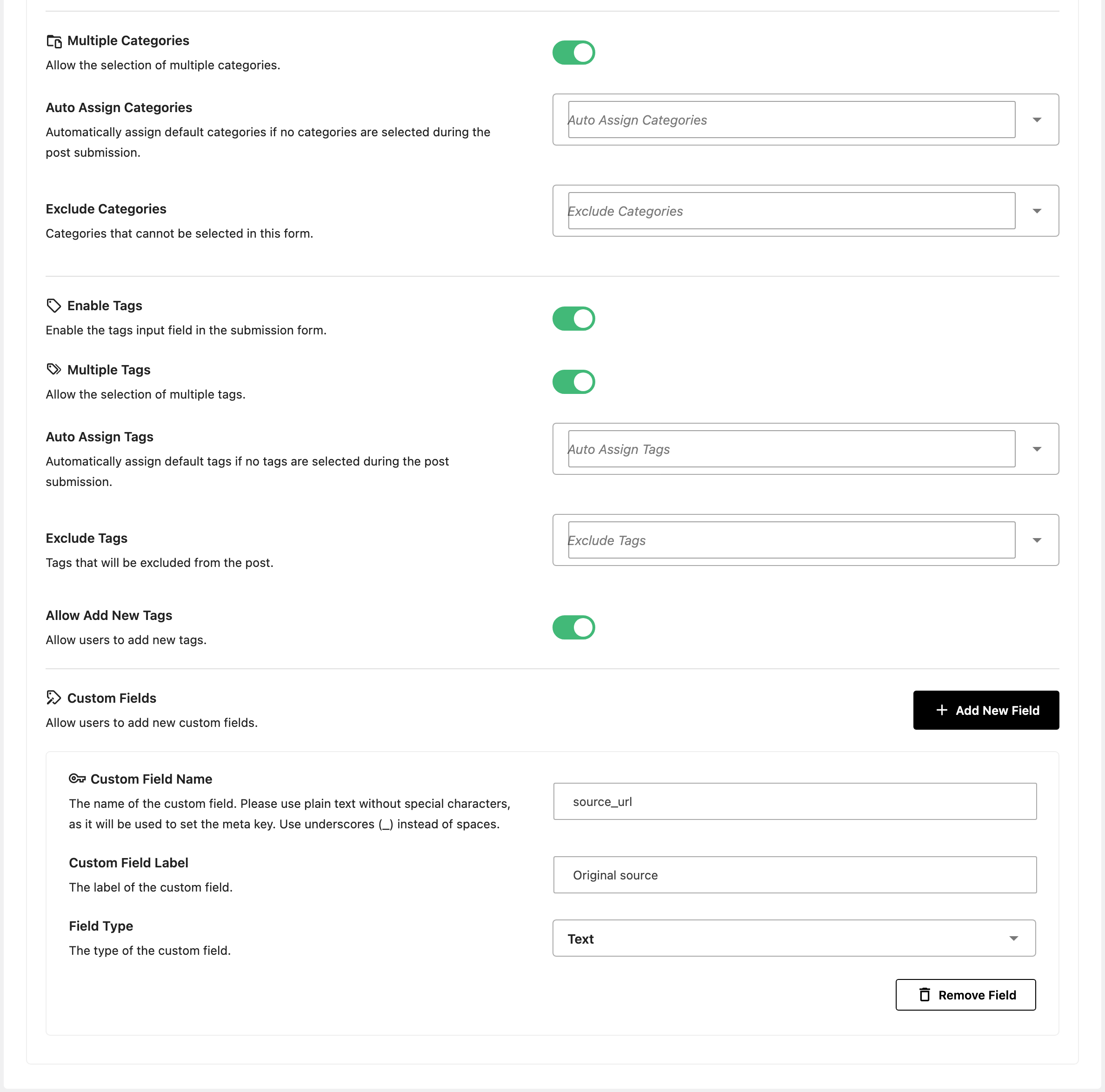
Multiple Categories: on by default; off limits a post to one category.
-
Auto Assign Categories: categories given to a post whose writer picked none.
-
Exclude Categories: categories left out of the form's list.
-
Enable Tags: on by default. Off removes the tags field, and the four settings below it with it.
-
Multiple Tags: on by default.
-
Auto Assign Tags: tags given to a post whose writer added none.
-
Exclude Tags: tags left out of the form's list.
-
Allow Add New Tags: on by default. Off keeps only tags that already exist on your site and drops any the writer typed.
-
Custom Fields: up to two extra fields. What the visitor types is saved with the post as a custom field under the name you gave. Add New Field adds one, and each field has three settings:
- Custom Field Name: plain text, underscores for spaces.
- Custom Field Label: the label the visitor sees.
- Field Type: Text or Textarea.
Remove Field takes a field away.
Security Fields
- Challenge: off by default. On, the visitor has to answer your question before the post is accepted.
- Challenge Question and Challenge Response, shown while Challenge is on: the question, and the answer you accept. The answer is compared without regard to capitals or surrounding spaces, and it is never sent to the visitor's browser.
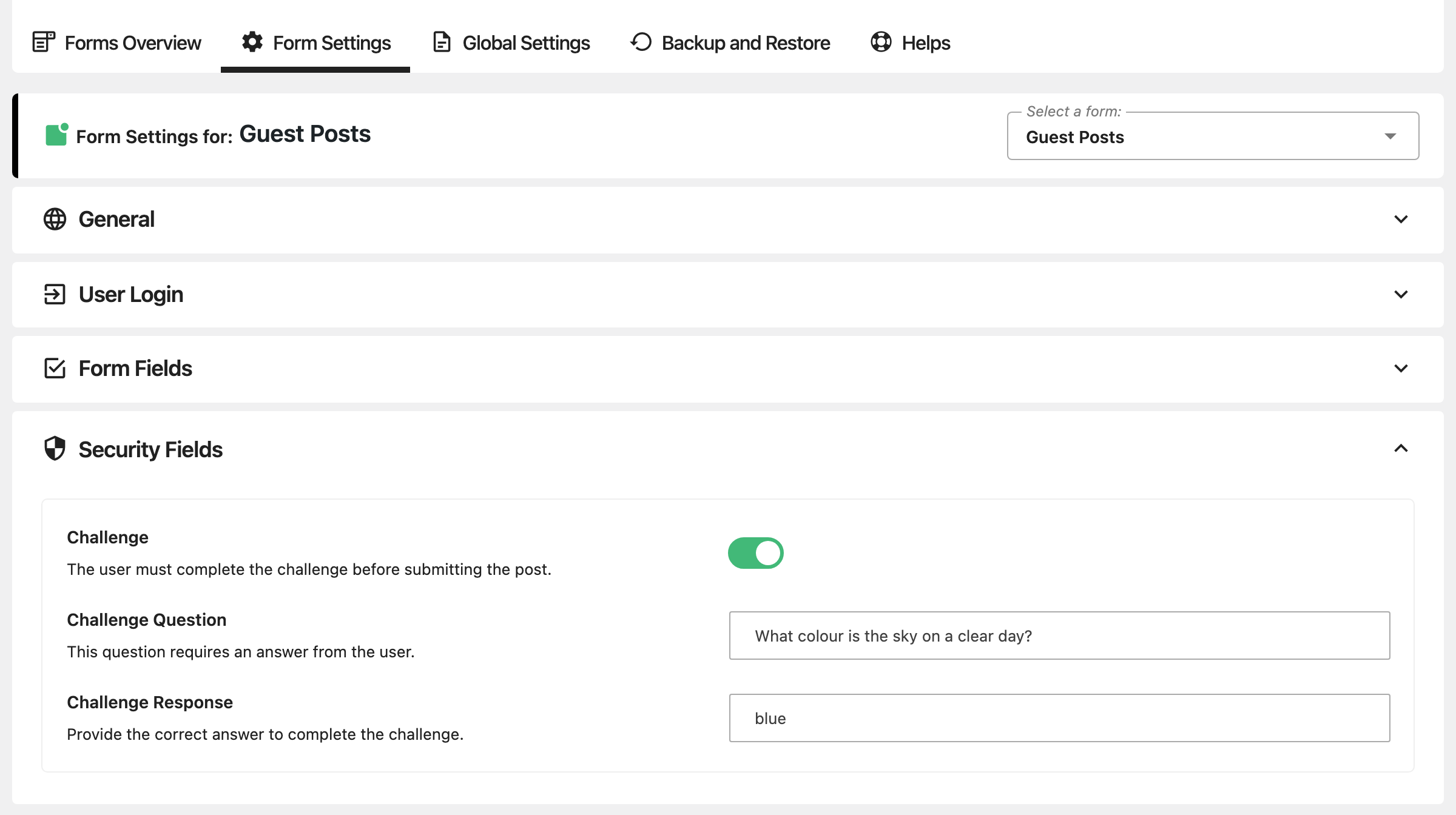
A captcha is not set here. It is one setting for all forms, under Global Settings > Global Captcha Settings.
Emails
Four notifications, all off by default. Each one's switch reveals a Subject, an Email Title and a Message, filled in with a ready written text you can keep or replace. {{post_title}} and {{post_link}} in the subject or message become the post's title and address. The email that goes out is built from Subject and Message.
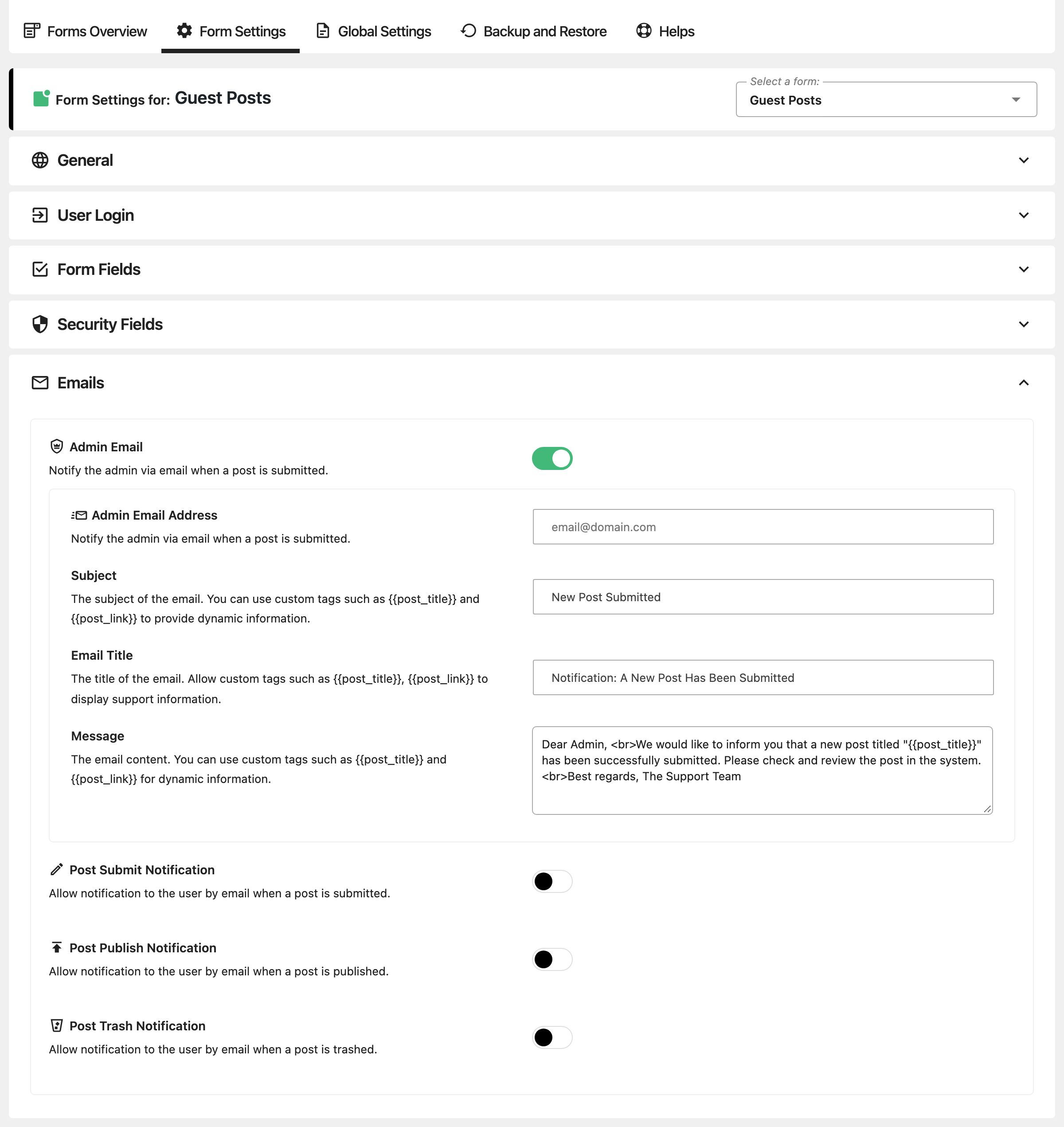
- Admin Email: to you, on each submission and each edit. Admin Email Address is where it goes; empty means the site's administration email. Subject "New Post Submitted".
- Post Submit Notification: to the writer, confirming their post arrived. Its subject is sent with
[NEW POST]:or, after an edit,[POST EDITED]:in front. - Post Publish Notification: to the writer, when the post goes live, whether the form published it or you did.
- Post Trash Notification: to the writer, when they delete their own post from the post list. Its subject is sent with
[POST TRASHED]:in front.
The writer's emails go to the address a guest typed into Your Email, or to a logged in writer's account email. A guest who left the email empty gets none.
Global Settings
Four groups, saved together with Save Settings at the bottom.
User Posts Management
This group is about the page that lists a writer's own posts, which you make by placing [easy_post_submission_manager] on a page.
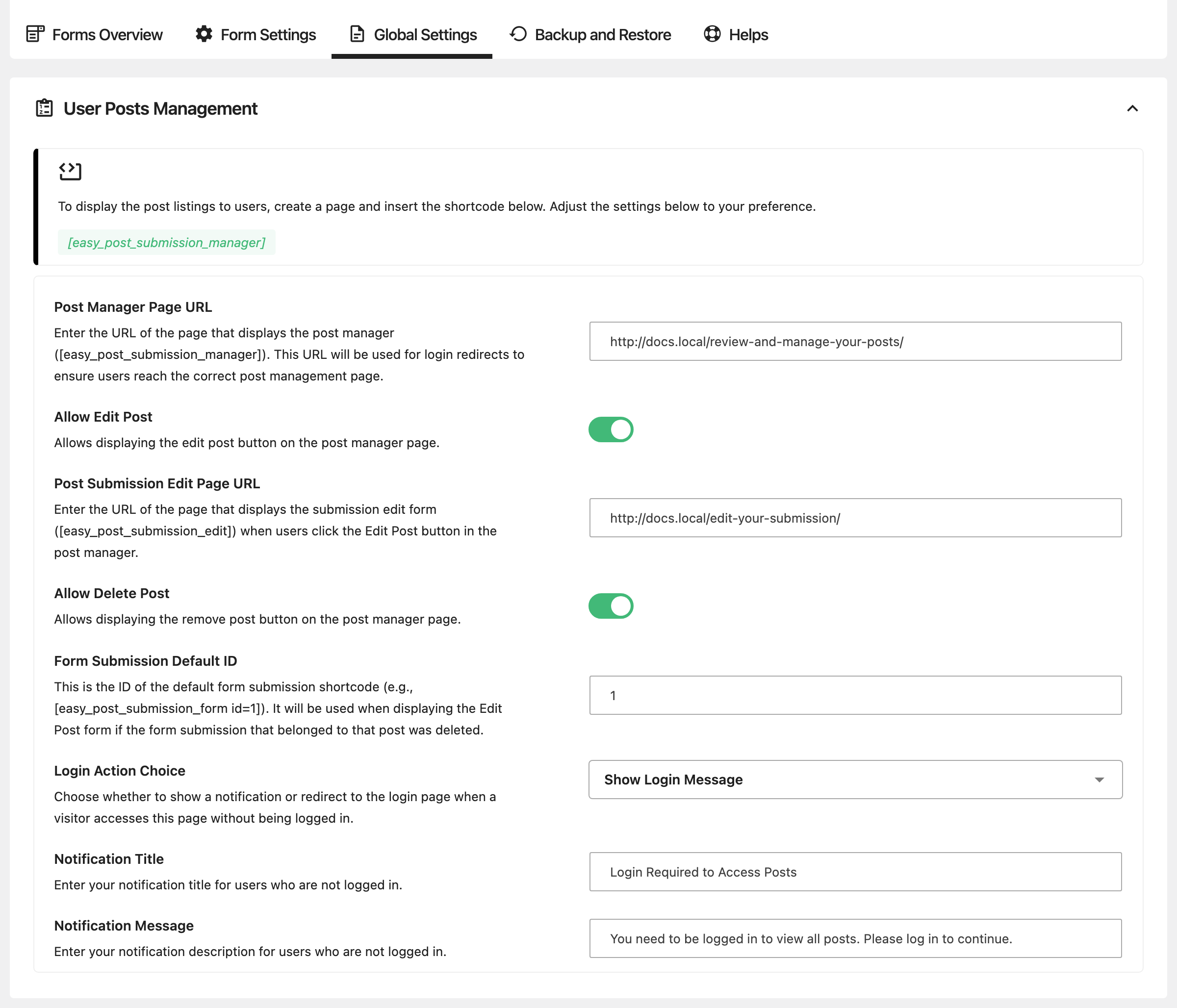
- Post Manager Page URL: that page's address. The plugin's own login page sends writers there after they sign in.
- Allow Edit Post: off by default. On, each post in the list gets an Edit Post button.
- Post Submission Edit Page URL: the address of the page holding
[easy_post_submission_edit], where Edit Post opens the post. Leave it empty and the button goes nowhere. - Allow Delete Post: off by default. On, each post gets a Delete button that moves it to the trash.
- Form Submission Default ID: the form whose fields the edit page uses when the post's own form has been deleted. Default: 1.
- Login Action Choice, Notification Title and Notification Message: what a signed out visitor sees on the list page, as on a form. The notice starts as "Login Required to Access Posts".
Both buttons only work for writers whose WordPress role can edit and delete their own posts, so a Subscriber cannot use them.
Submission Edit Post Form
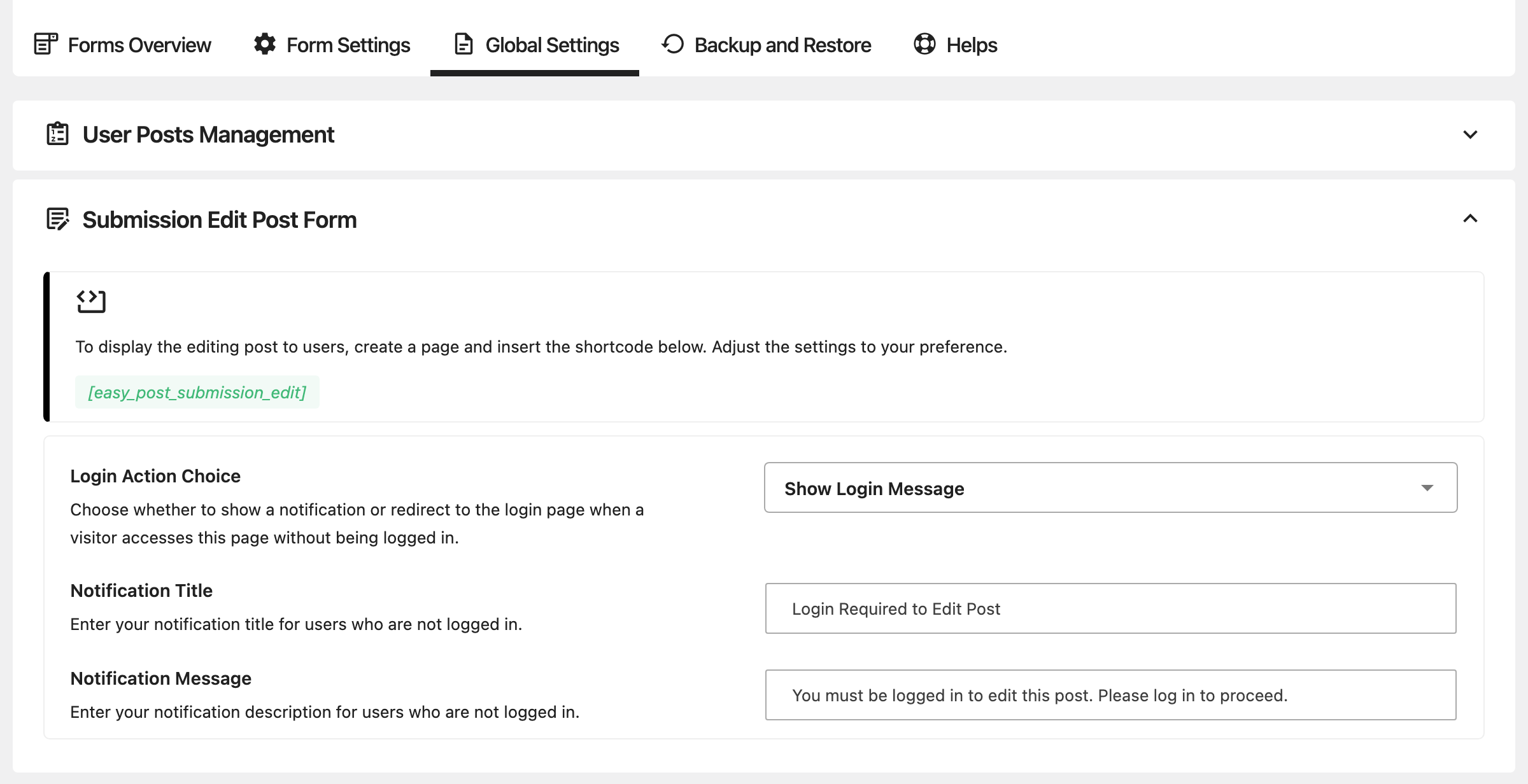
The page holding [easy_post_submission_edit]. It has only the signed out notice: Login Action Choice, Notification Title and Notification Message, starting as "Login Required to Edit Post". A writer who opens a post that is not theirs sees "Permission Denied".
Global Captcha Settings
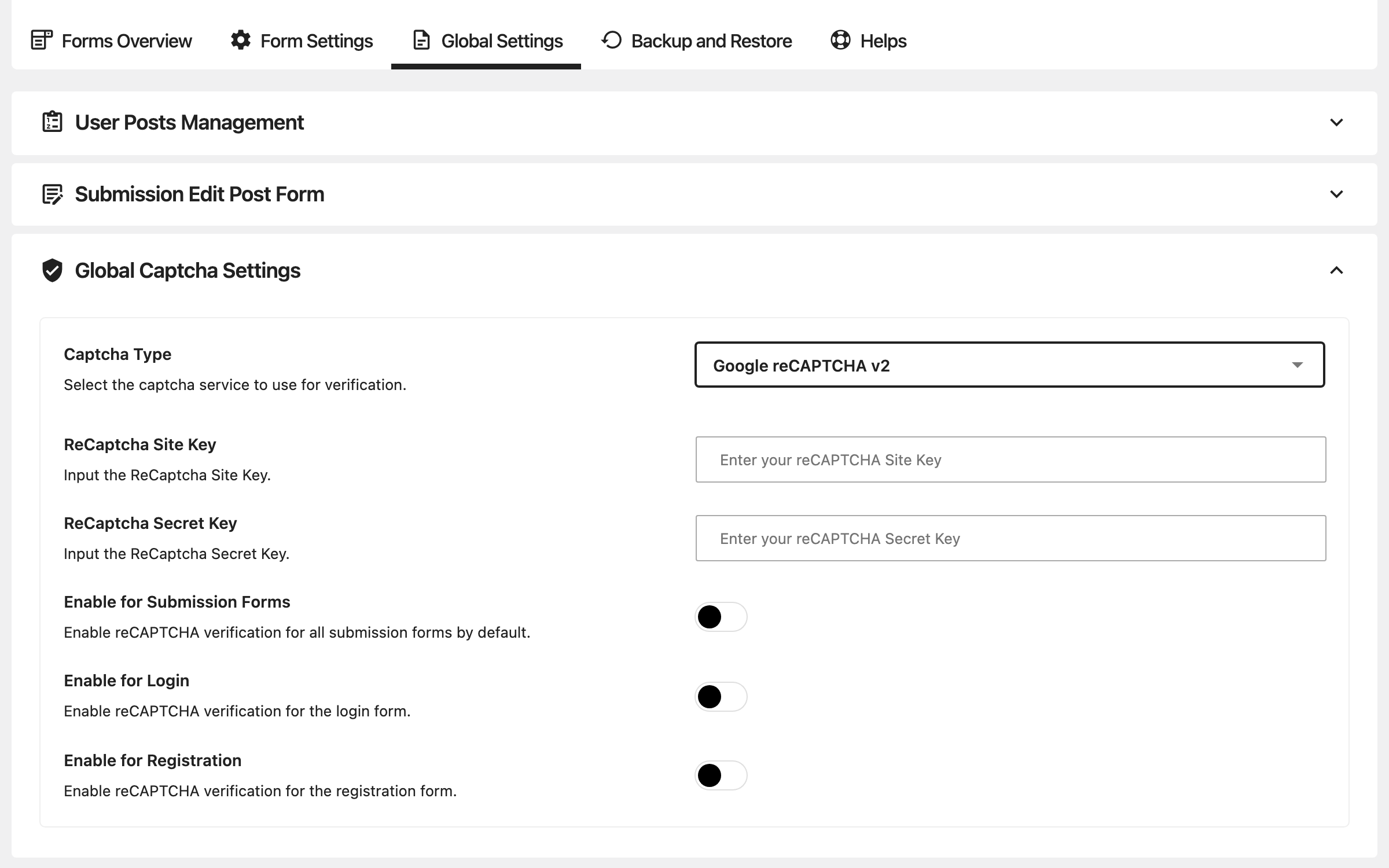
- Captcha Type: None (default), Google reCAPTCHA v2 or Cloudflare Turnstile.
- ReCaptcha Site Key and ReCaptcha Secret Key, shown with Google reCAPTCHA v2.
- Turnstile Site Key and Turnstile Secret Key, shown with Cloudflare Turnstile. These are not shared with Foxiz > Turnstile; enter them here too.
- Enable for Submission Forms, Enable for Login and Enable for Registration, shown unless the type is None: where the captcha appears. All three are off by default. Enable for Login also covers the plugin's lost password form.
Login and Registration Buttons
- Login Button Label: the text on the login button in every signed out notice.
- Custom Login Page URL: where that button, and Redirect to Login Page, send visitors. Empty means your site's login page: the WordPress login screen, or the Foxiz login page once Custom Login Page URL is set in Theme Options > Login.
- Registration Button Label: the text on the register button.
- Custom Registration Page URL: where the register button goes. Empty means your site's registration page when Anyone can register is on at Settings > General (the WordPress screen, or the Foxiz one once Custom Registration Page URL is set in Theme Options > Login), and no register button when it is off.
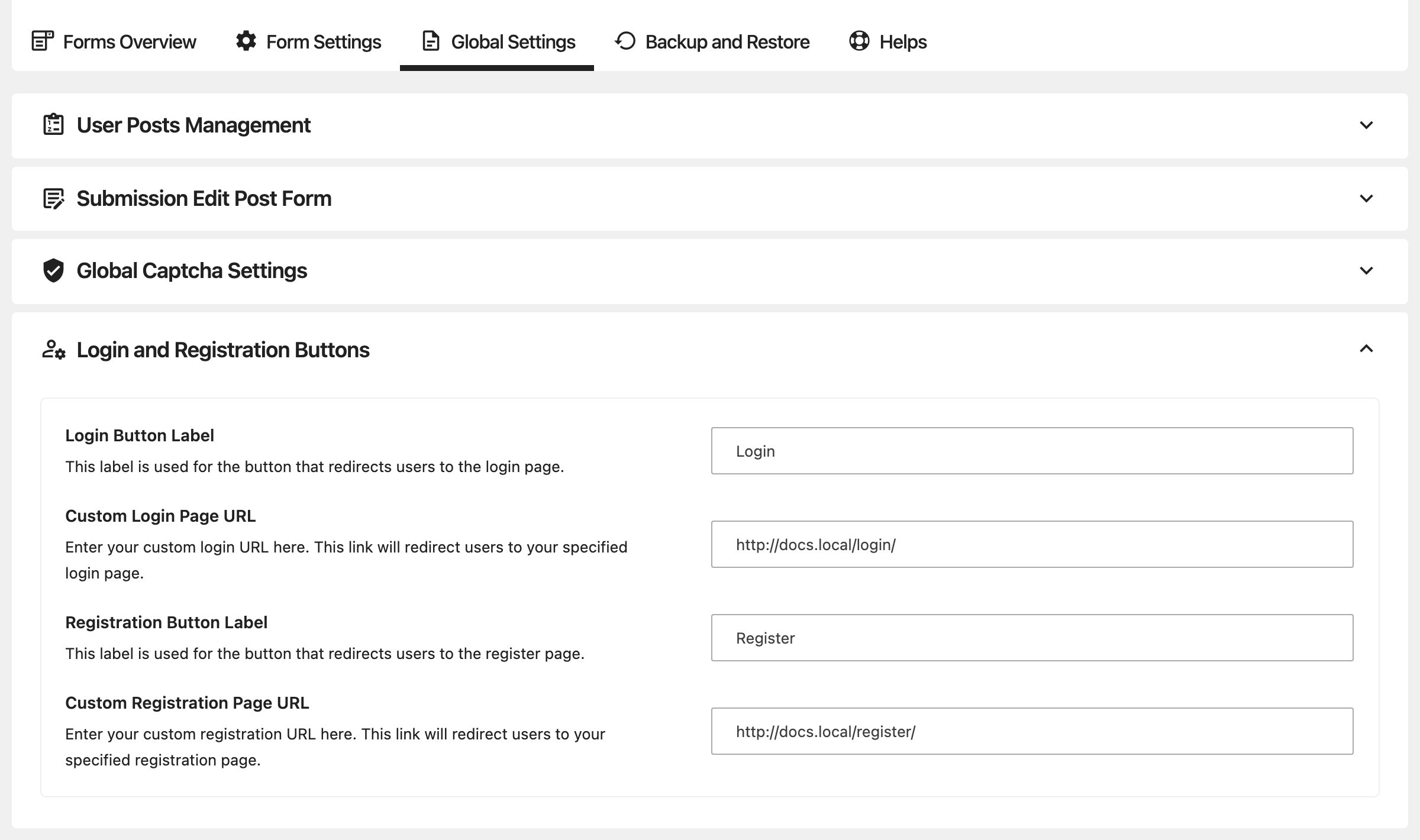
For a front end login or registration page, place [easy_post_submission_login] or [easy_post_submission_register] on a page and give its address here. Both take a redirect address for where to go afterwards.
Backup and Restore
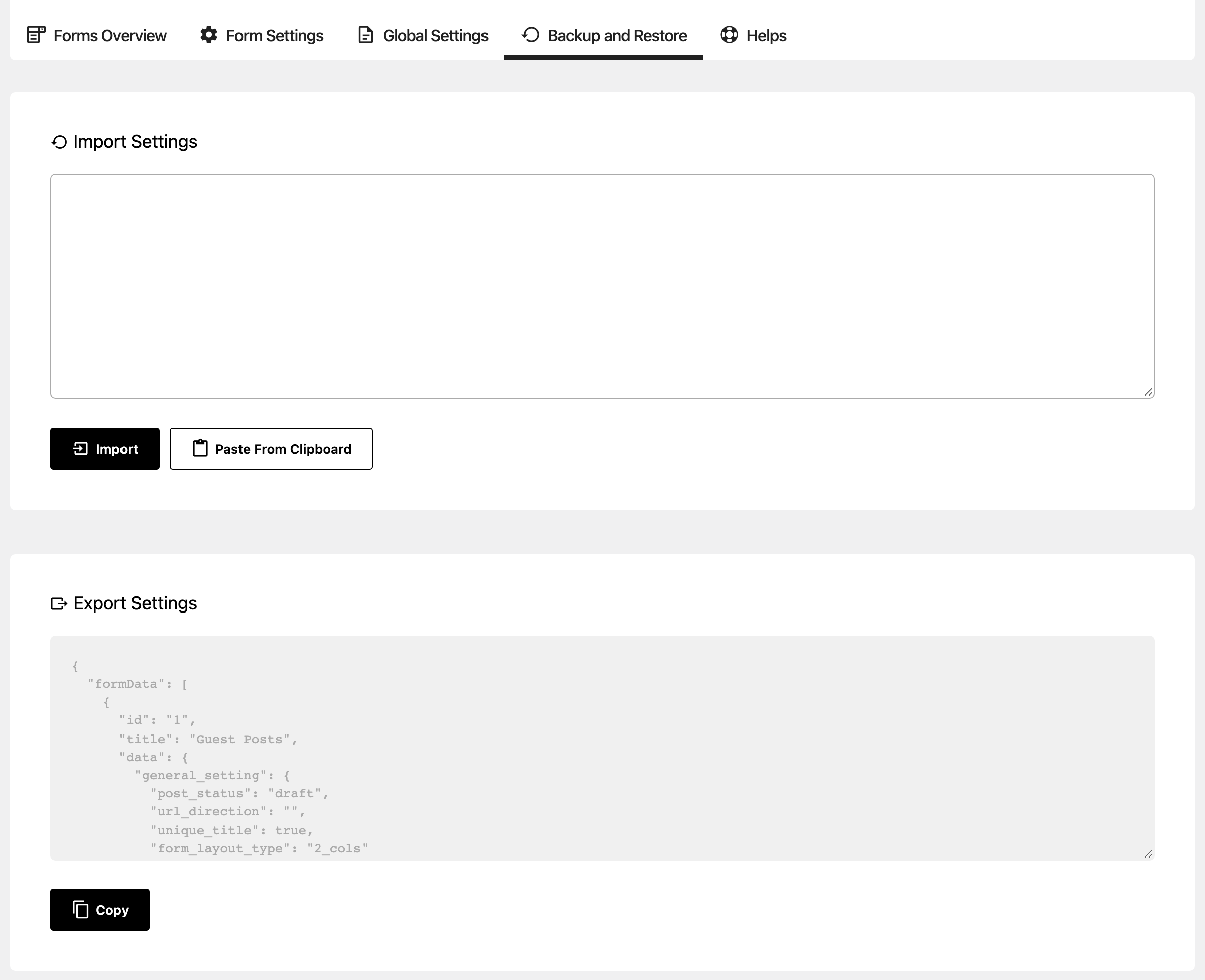
Export Settings shows every form and the Global Settings as text, with a Copy button. Keep it somewhere safe, or take it to another site.
Import Settings takes that text back: paste it, or use Paste From Clipboard, then click Import. A form whose number already exists on this site is skipped, not overwritten, so delete the old form first if you mean to replace it.
Helps
Every shortcode the plugin offers, each with a line on where it goes, and a link to the plugin's own documentation.
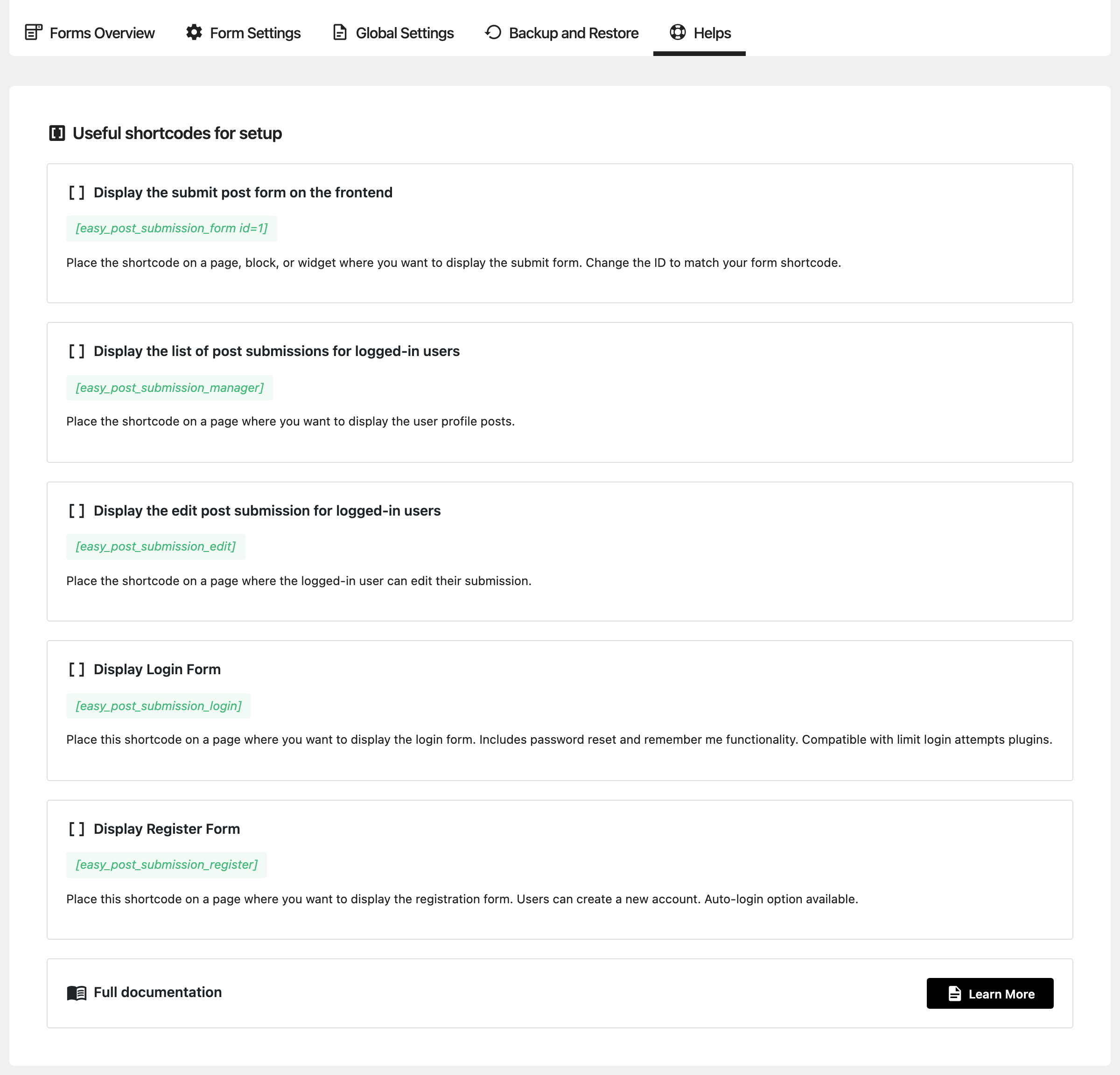
| Shortcode | Put it on |
|---|---|
[easy_post_submission_form id=1] | the page with the submission form; id is the form's number from Forms Overview |
[easy_post_submission_manager] | the page listing a writer's own posts |
[easy_post_submission_edit] | the page that opens a post for editing |
[easy_post_submission_login] | a front end login page |
[easy_post_submission_register] | a front end registration page |
Did this answer your question?