How to Configure Easy Submission Forms
The wizard's defaults let anyone submit, save every submission as a draft and send no emails. This article walks through the settings you are most likely to change.
This is step 4 of How to Let Visitors Submit Posts with Easy Submission. Every field, with its default, is in Every Setting in the Easy Submission Panel.
Where the settings are
Foxiz > Easy Submission has two kinds of settings:
- Form Settings: settings for one form. Two forms can behave differently.
- Global Settings: settings shared by every form.
To open a form's settings, click Settings on its card in Forms Overview. Switch forms with Select a form:. Click Save Settings at the bottom when you are done.
Choose who can submit
Open the form's User Login group and set Author Access.
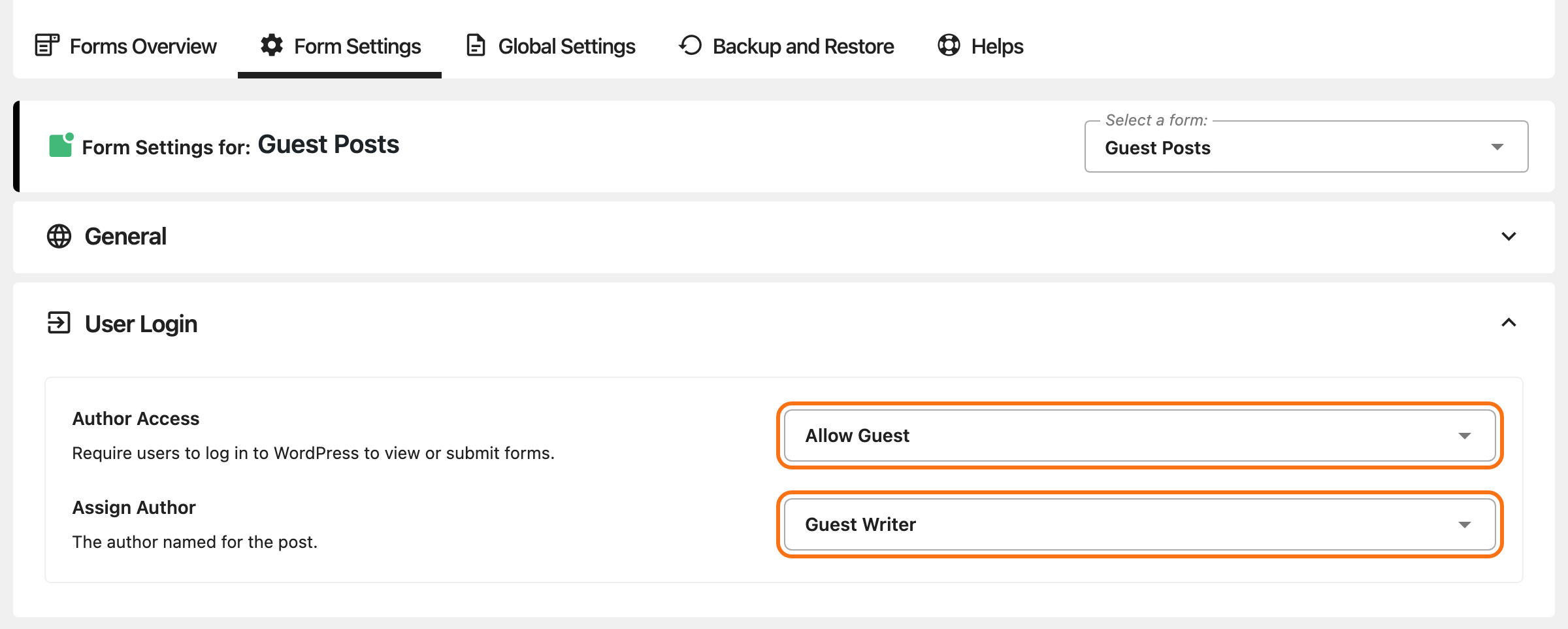
- Allow Guest (the default): anyone can submit.
- A guest's post needs a WordPress author. Pick the user it is credited to in Assign Author; that user is the byline on the published post. It starts as user 1, usually the account that installed the site, so every guest post would carry your name. Create a user just for guest posts, such as "Guest Writer", and pick it here.
- The guest types a name and email into Your Name and Your Email. They are kept with the post for the emails below.
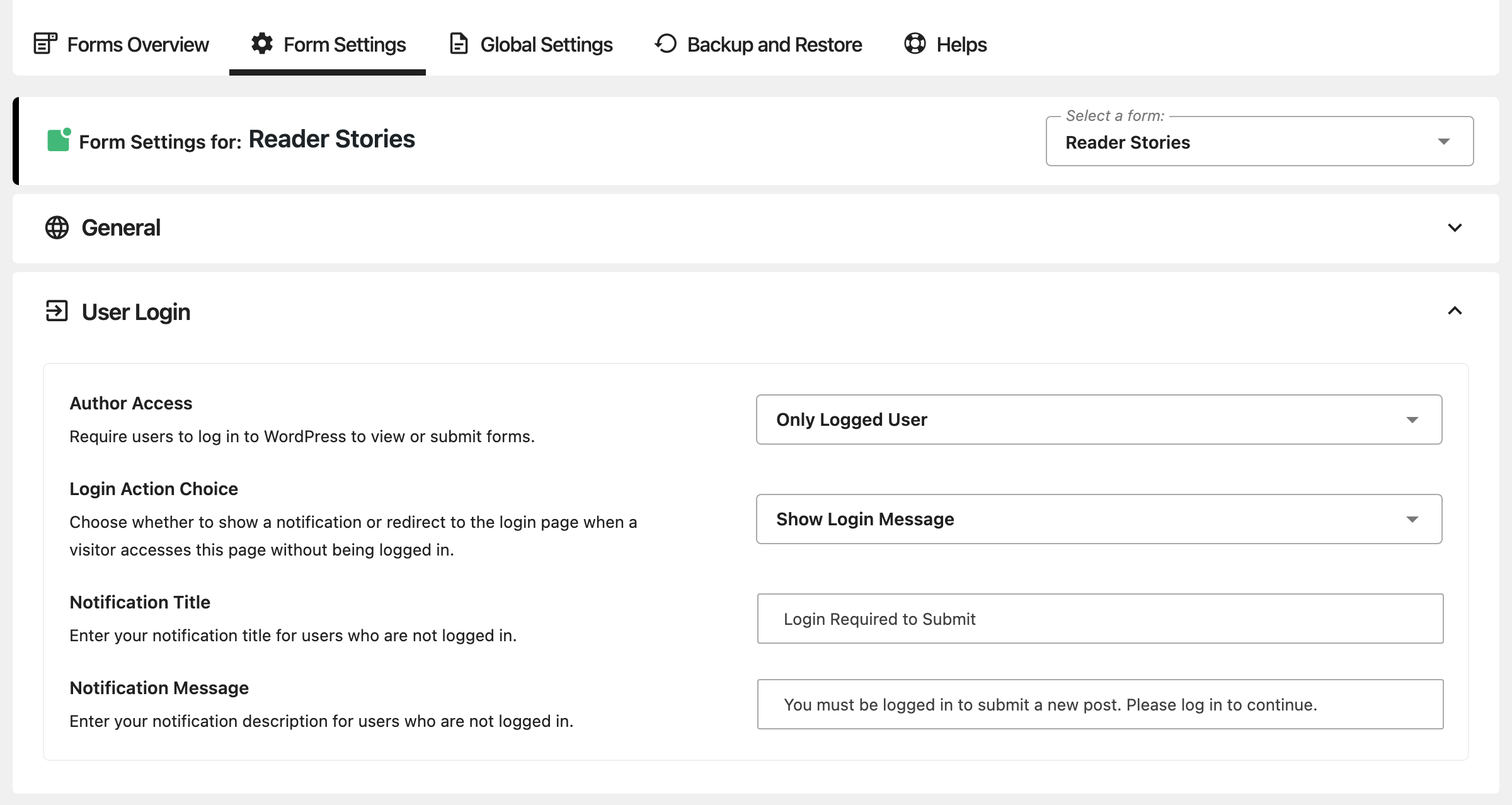
- Only Logged User: only signed in visitors can submit.
- A signed in writer is the post's author. The form skips the name and email fields and uses their account.
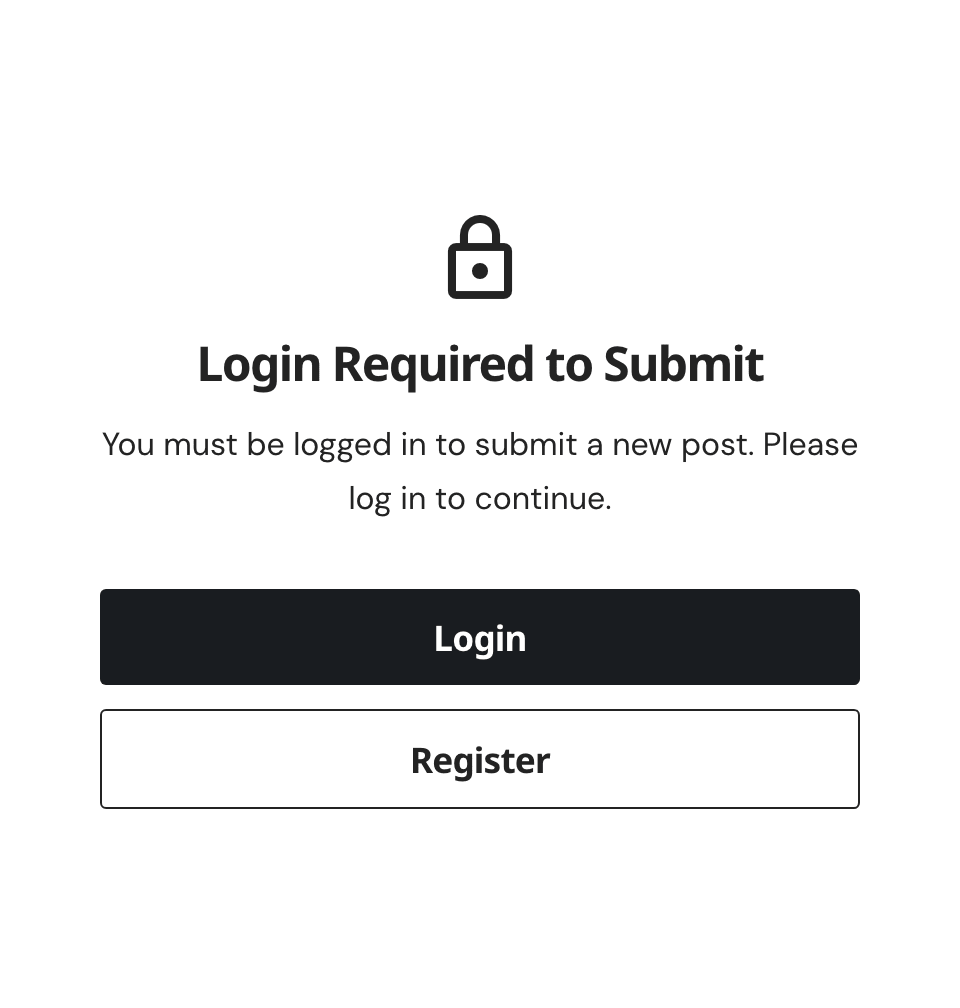
- Login Action Choice decides what a signed out visitor sees: Show Login Message draws a notice with your Notification Title, Notification Message and a login button; Redirect to Login Page sends them straight to the login page.
Which login page the button opens is set once, for every form. See How to Set Up Login for Easy Submission.
Decide what happens to a submission
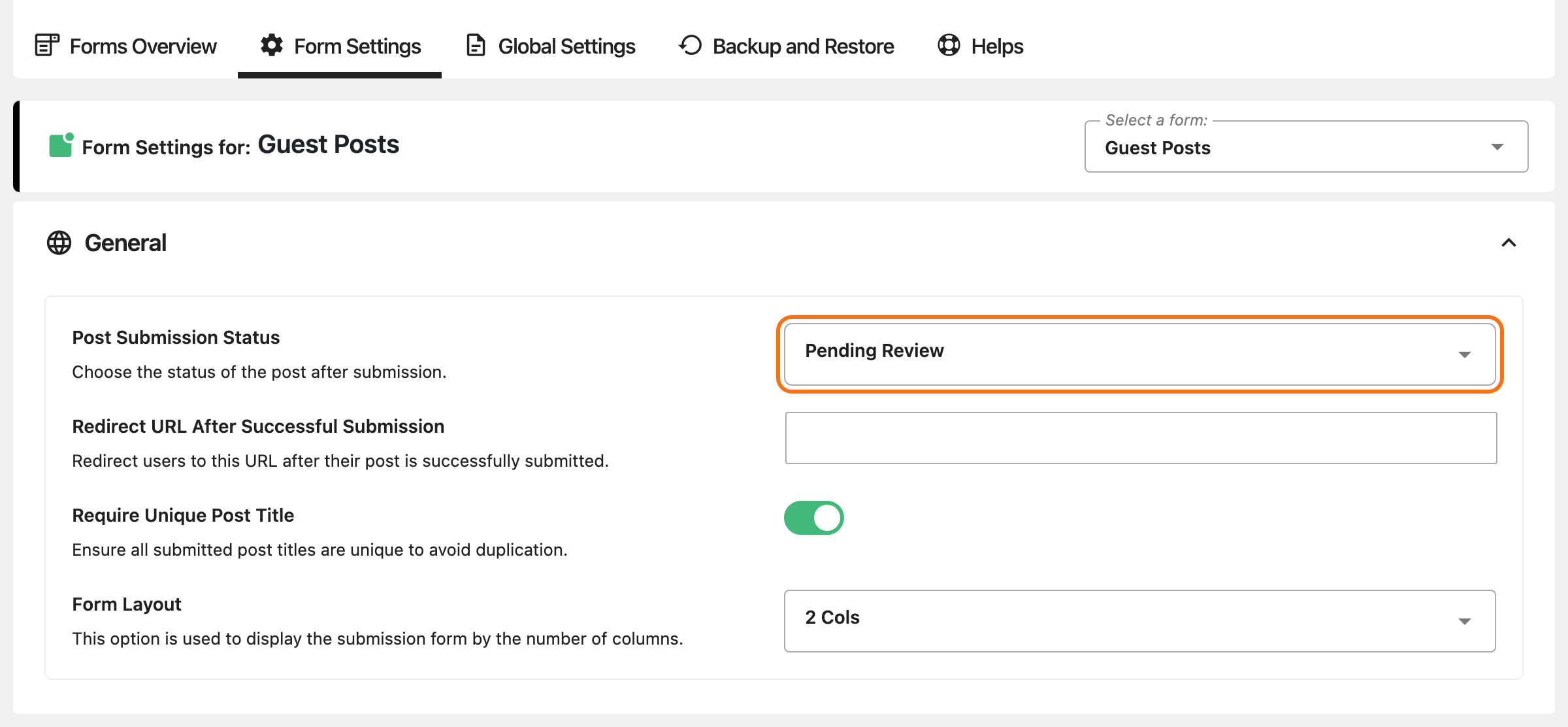
Post Submission Status, in the form's General group, decides where a submitted post lands.
- Draft (the default): saved as a draft.
- Pending Review: saved as pending, the status WordPress built for moderation. It waits in Posts > All Posts under Pending until you publish it.
- Publish: live the moment it is sent.
Pending Review is the safe choice for most sites: nothing goes live until you approve it, and submissions wait in their own Pending list instead of among your drafts. Keep Publish for a form only trusted, signed in writers can reach; on a guest form it puts spam straight on the site.
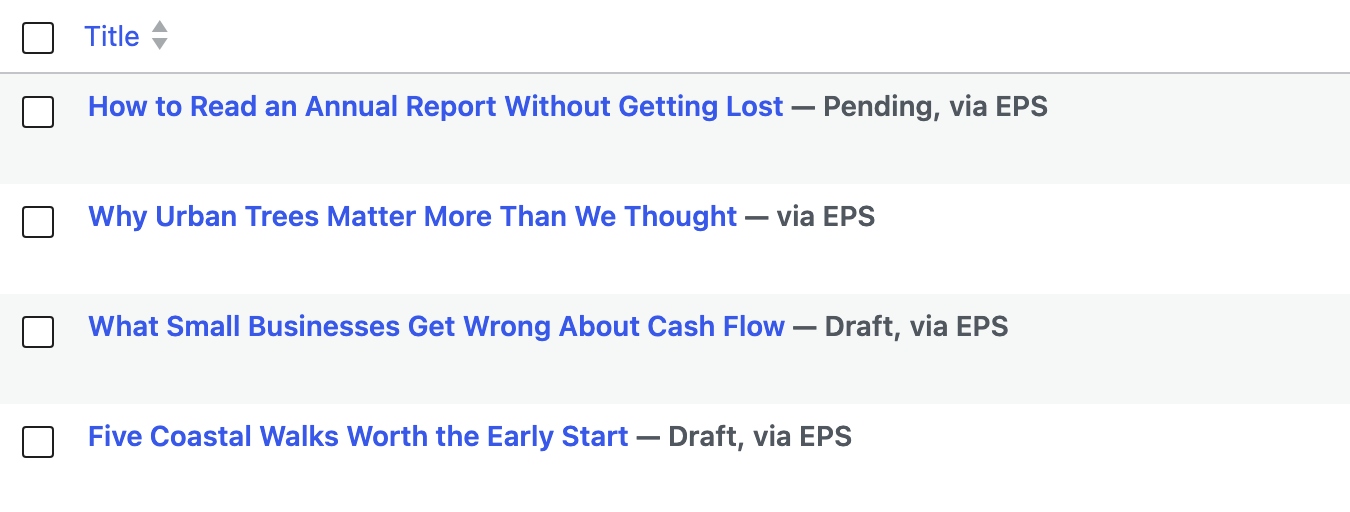
In Posts > All Posts, a post that came through a form carries the label "via EPS" after its title.
When a post is accepted, the submitter sees "Post submitted" and the line "your title was added successfully." Fill in Redirect URL After Successful Submission to send them to that address when they close the message.
Turn on emails
The four emails are in the form's Emails group. All four are off by default. Each has a Subject, an Email Title and a Message; all three accept {{post_title}} and {{post_link}}. The email that is sent is built from the Subject and the Message.
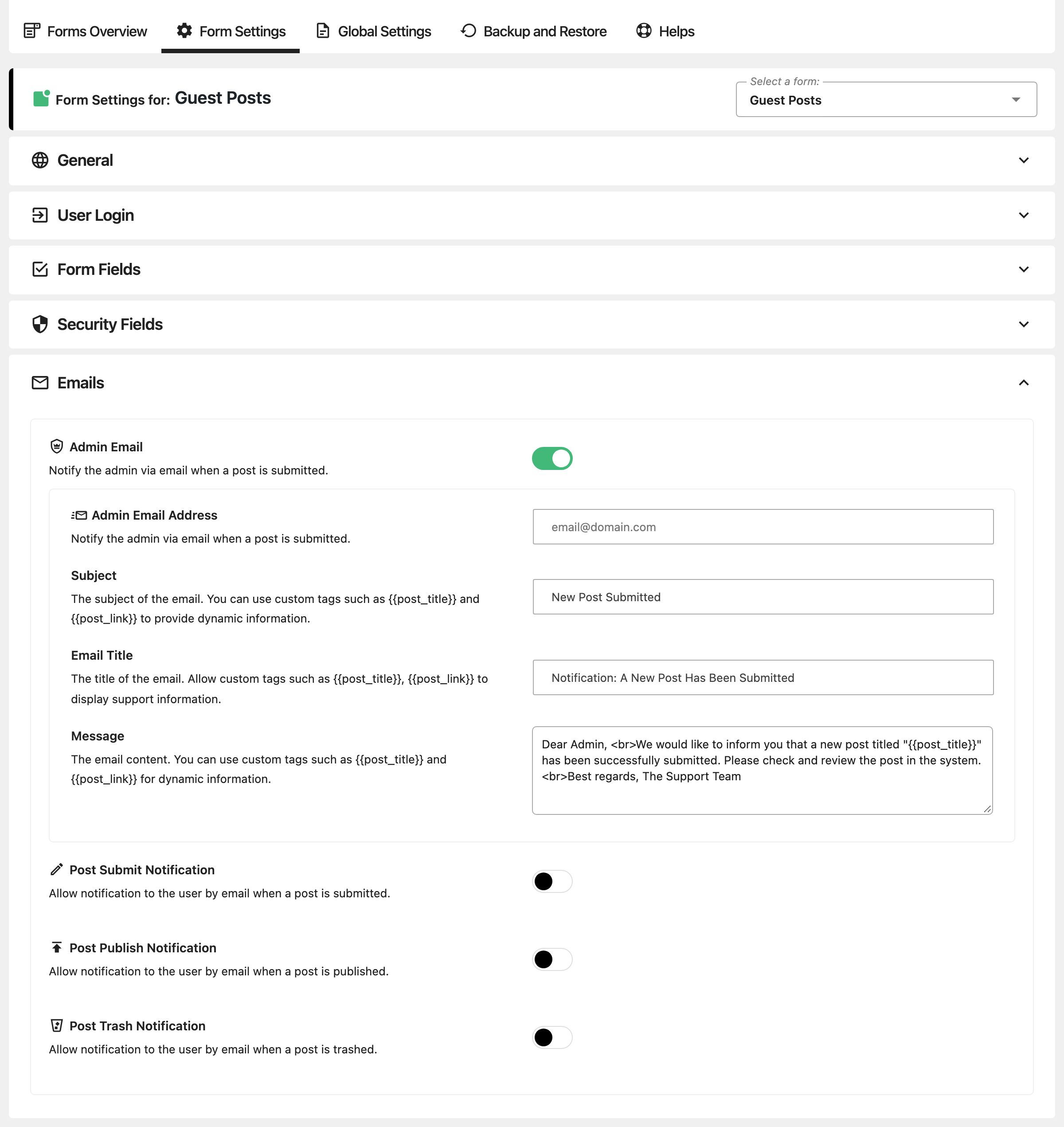
- Admin Email: tells you a post has arrived, on every submission and every edit. It goes to Admin Email Address, or to the site's administration email when that is empty.
- Post Submit Notification: confirms receipt to the submitter. The subject starts
[NEW POST]:for a new post and[POST EDITED]:for an edit. - Post Publish Notification: tells the submitter their post is live. It is sent when the form publishes directly, and when you publish a draft or pending submission yourself.
- Post Trash Notification: sent when the submitter deletes their own post from the post list. Trashing a submission yourself in Posts does not send it.
The submitter's emails go to the address they typed on the form, or to their account email when they were signed in.
Let writers edit and delete their posts
Editing and deleting are off until you turn them on. They need the post list and edit pages.
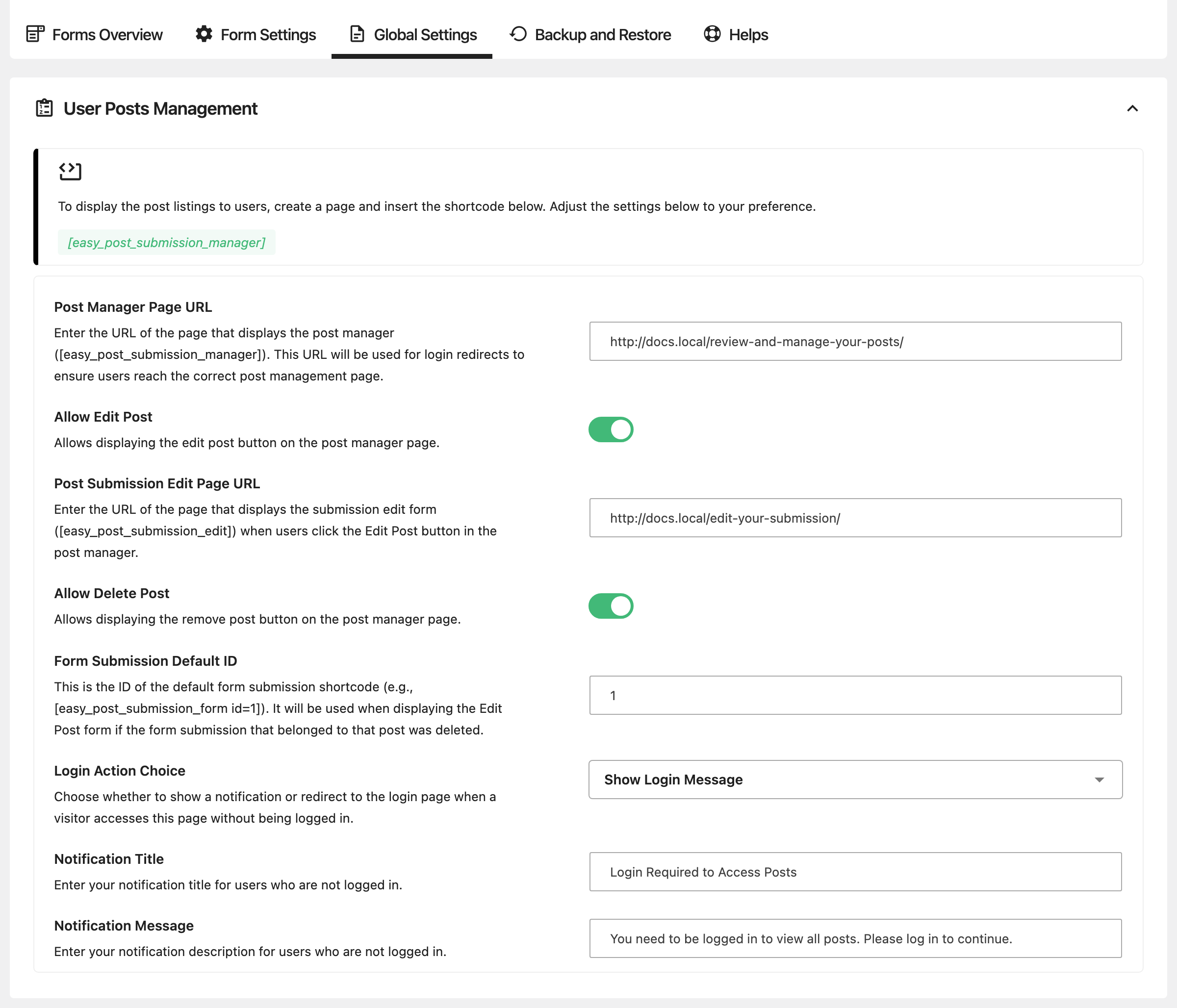
- Go to Global Settings > User Posts Management.
- Turn on Allow Edit Post. Each row of the post list gets an edit icon, which opens the post on your edit page.
- Turn on Allow Delete Post for a delete icon on each row. A deleted post goes to the trash, not away for good.
- Click Save Settings.
The buttons use WordPress's own permissions, so the writer's role decides whether they work:
- Subscriber: cannot edit or delete posts at all. It is the role WordPress gives new accounts unless you change New User Default Role at Settings > General.
- Contributor: can edit and delete their posts until they are published.
- Author: can edit and delete their published posts as well.
Pick Contributor as the New User Default Role if writers sign up to submit and should edit their submissions: it can edit and delete its own posts until they are published, and cannot publish.
An edited post is saved back into the form's Post Submission Status. With Draft or Pending Review, a published post the writer edits leaves the site until you publish it again. Every change stays under review.
If you delete the form a post came from, its edit page uses the form in Form Submission Default ID instead. It defaults to 1.
Keep spam out
Two checks are available. You can use both.
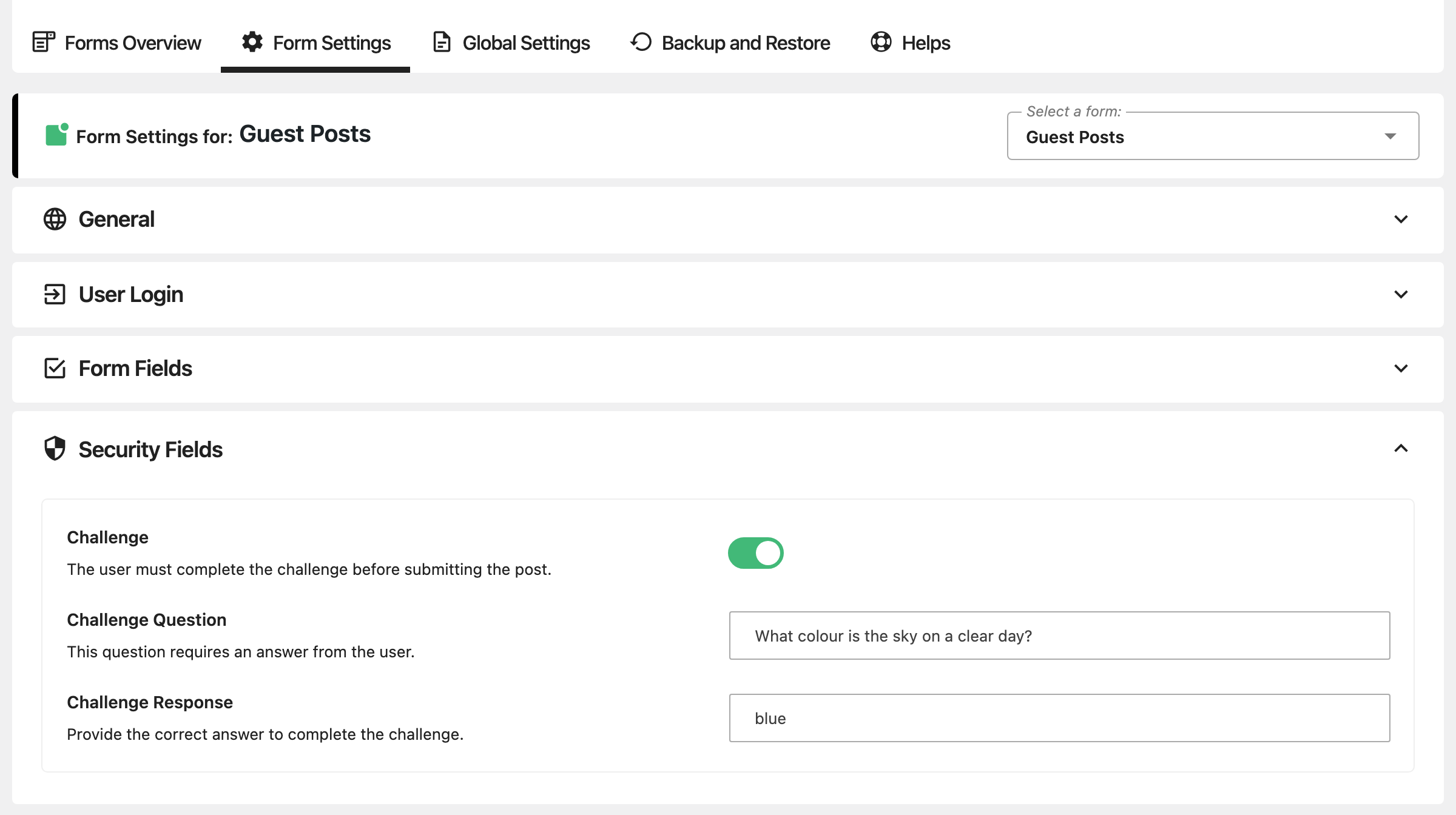
Challenge asks a question before the post goes through. It is in the form's Security Fields group. Write the question in Challenge Question and the answer in Challenge Response; capitals do not matter.
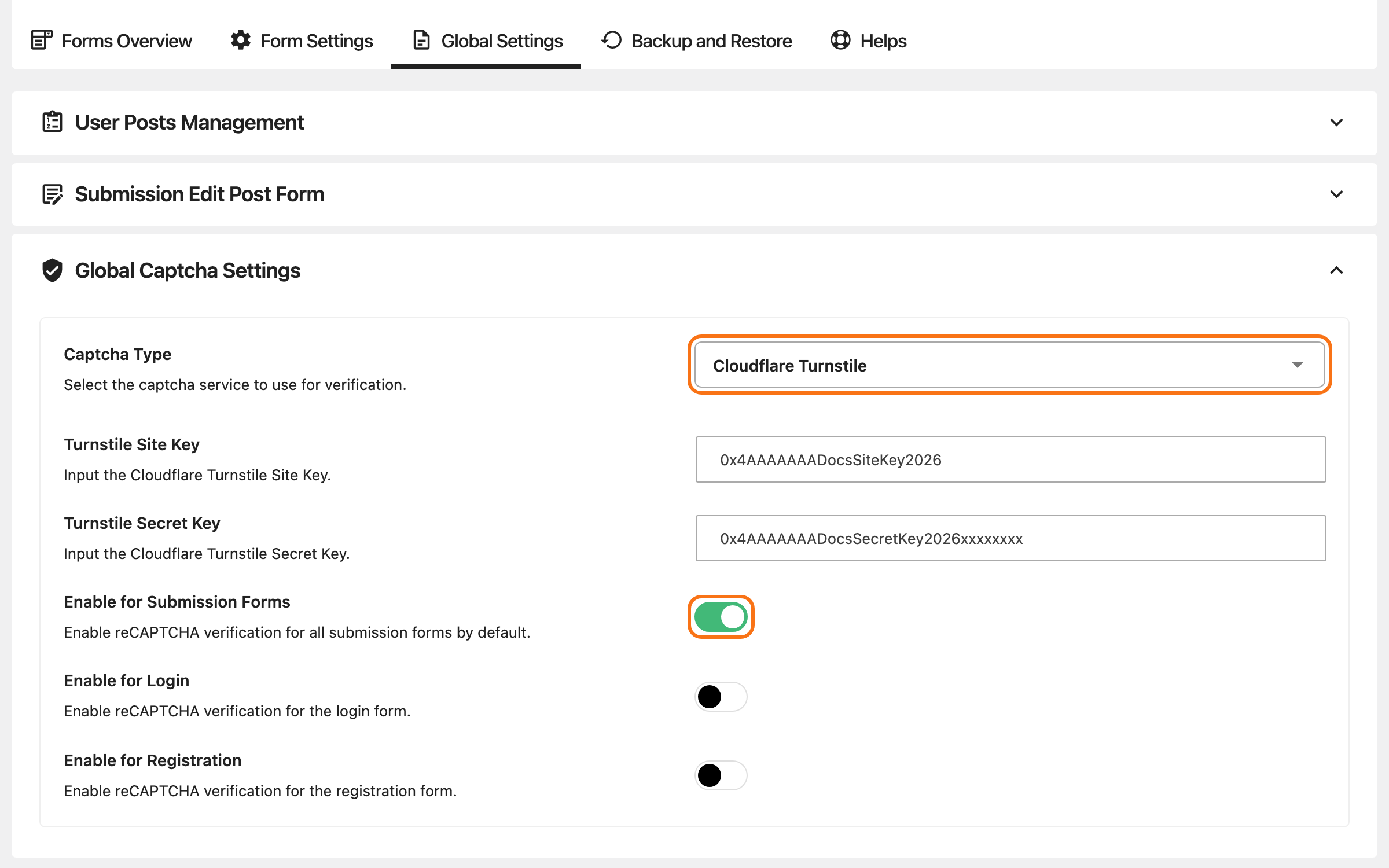
A captcha is set once for every form, under Global Settings > Global Captcha Settings:
-
Set Captcha Type to Google reCAPTCHA v2 or Cloudflare Turnstile. Its default is None.
-
Paste the two keys for that service. They are separate from the keys at Foxiz > Turnstile, so enter them here as well.
-
Turn on Enable for Submission Forms. All three switches are off by default, and the captcha does nothing until at least one is on. Enable for Login and Enable for Registration only cover the plugin's own login and register pages.
-
Click Save Settings.
Next
How to Set Up Login for Easy Submission: where writers sign in and register.
Did this answer your question?