Related Box Shortcode
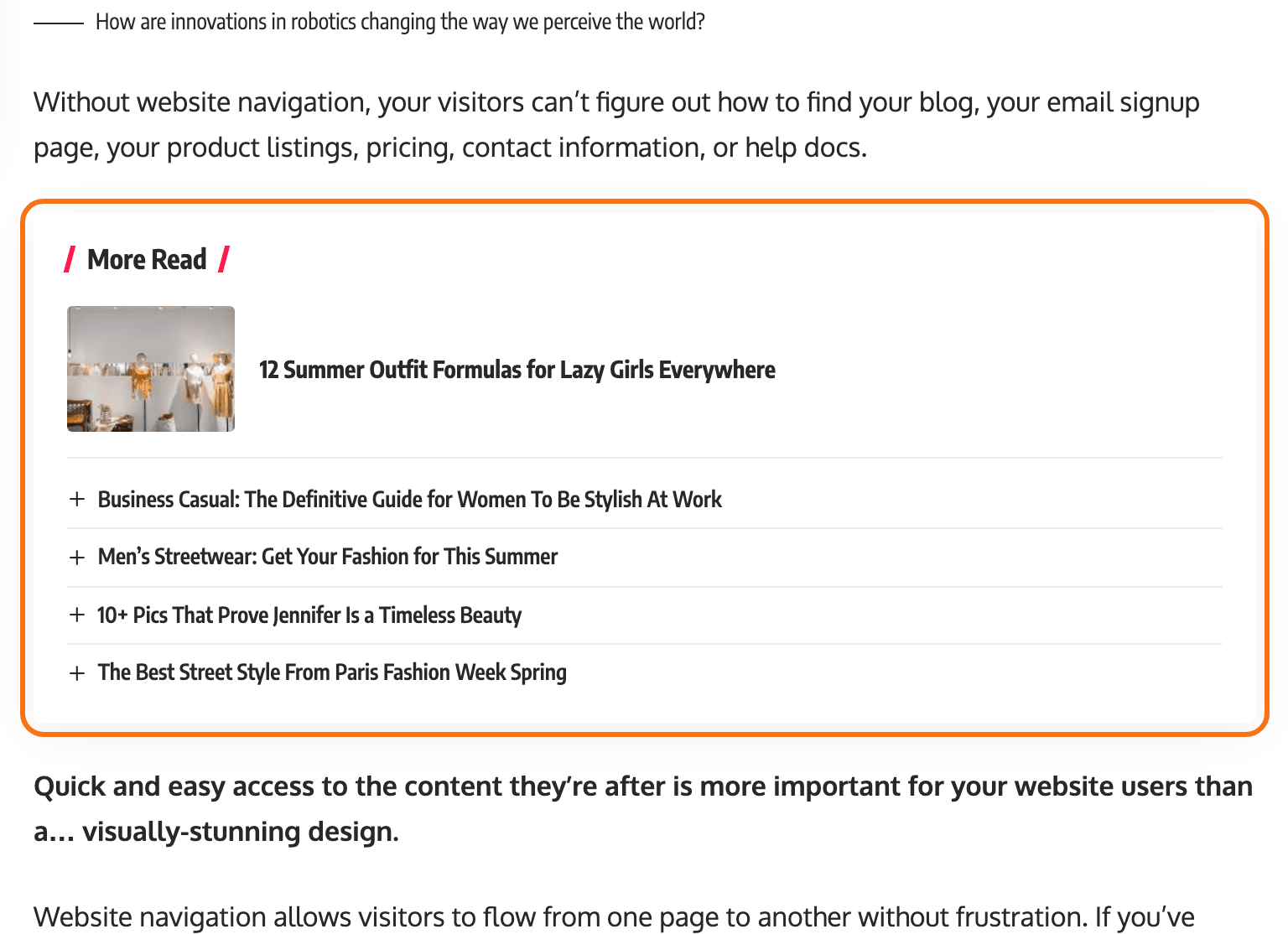
[ruby_related] draws a box of related posts inside a post's content: a heading, then a few posts that share a category or a tag with the post being read.
You use it in two places:
- Theme Options, to put the box in every post automatically. Most sites only need this. See Add the box to every post.
- Inside one post, to place the box at an exact spot in that post. See Add the box to one post.
The shortcode to start with
Copy this one. It shows four related posts in a full width box under the heading More Read:
[ruby_related heading="More Read" total="4" layout="1" where="all" order="rand" style="default" width="wide"]
It is the example the theme itself puts in the Theme Options field, with total lowered from 5 to 4.
Always write total. Left out, the box shows only 2 posts.
More shortcodes to copy are in Ready-made shortcodes, and what each part means is in Every parameter.
Add the box to every post
Foxiz can insert the box into every post after a set number of paragraphs. This is the Inner Content Related feature, and it runs on the shortcode you paste into Theme Options.
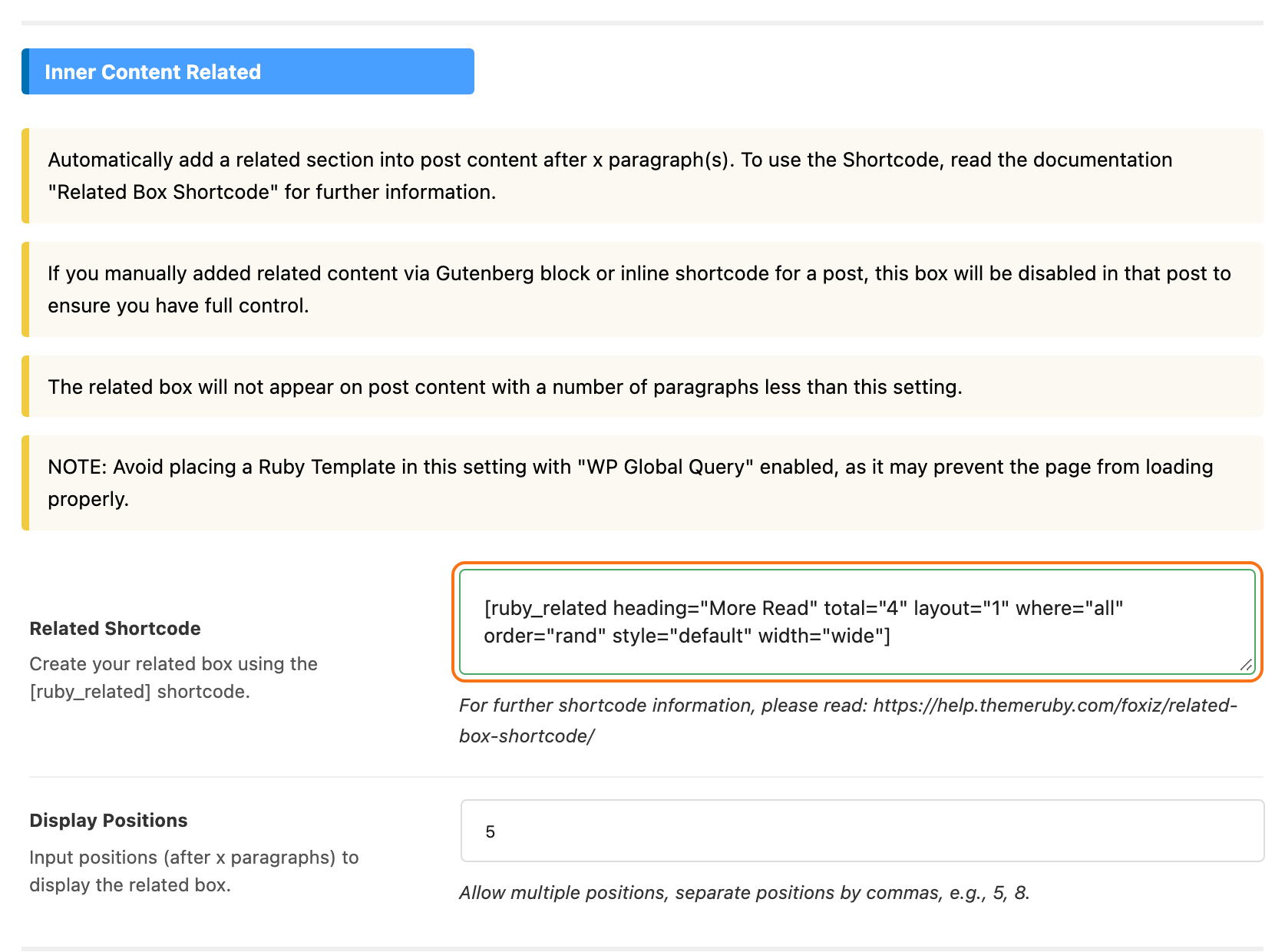
- Go to Theme Options > Single Post > Related & Popular.
- Scroll to the Inner Content Related group.
- Paste your shortcode into Related Shortcode. The field is empty on a new site, and while it is empty no box appears in any post.
- In Display Positions, type after how many paragraphs the box goes. The default is
5. Separate several positions with commas, such as5, 8, to show the box more than once. - Click Save Changes.
Open a long post to check. A post with fewer paragraphs than the position gets no box.
The other reasons a box does not show, and the related section at the end of the post (a separate setting in the same panel), are in Automatically Adding Related Posts via Theme Options.
Change or turn off the box on one post
Each post can override the Theme Options setting:
-
Open the post: Posts > All Posts, then Edit under its title.
-
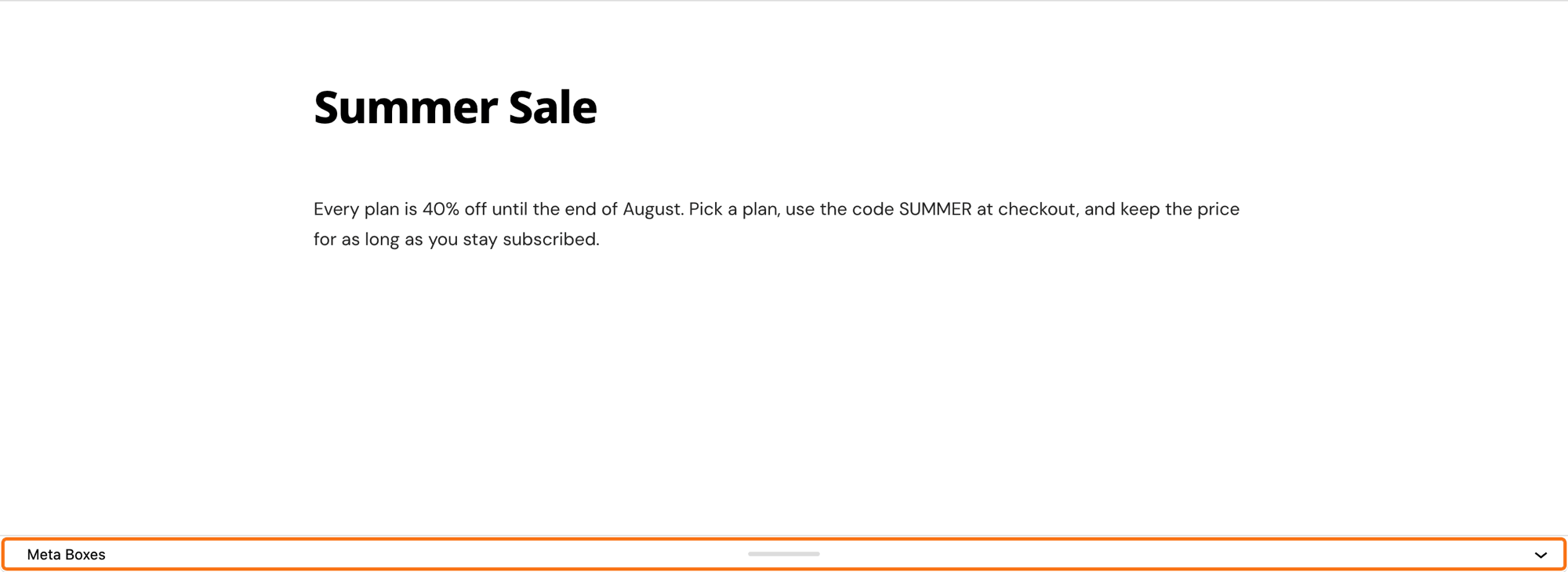
Scroll below the content to the Single Post Settings box and open its Inline Related tab.
-
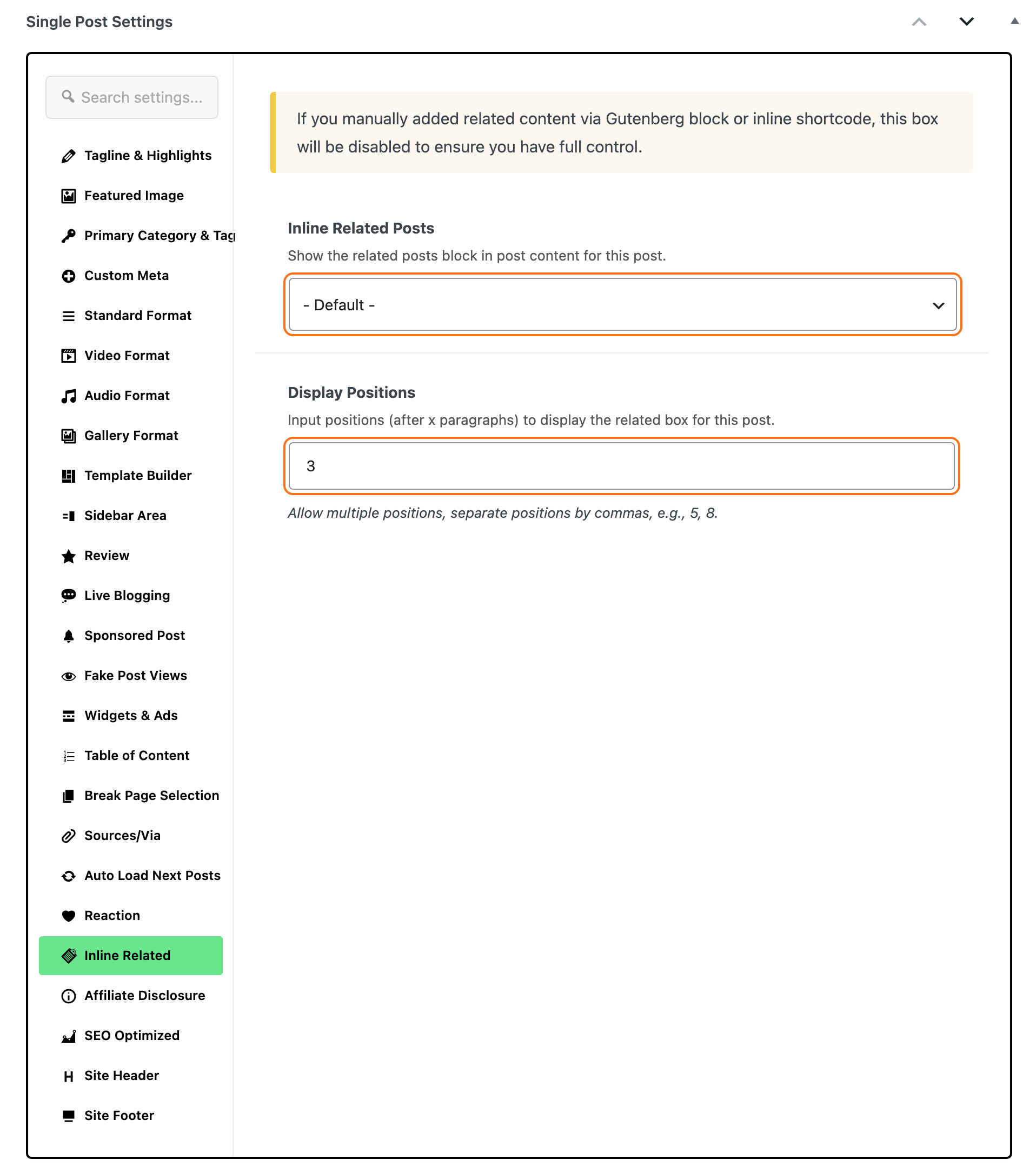
Set it up:
- Inline Related Posts: Disable removes the box from this post. - Default - keeps it.
- Display Positions: positions for this post only, such as
3for a short post. Leave it empty to use the Theme Options positions.
-
Click Update.
Add the box to one post
For one box at an exact spot, for example in the middle of a long guide:
- Open the post: Posts > All Posts, then Edit under its title.
- Click where the box should go and add a block with the + button.
- Choose one of these:
- Related Posts - Ruby, the easier way for most sites. Search Related and add it. It writes the shortcode for you from dropdowns and shows a preview. See How to Use the Related Posts Block.
- Shortcode, to type the shortcode yourself. Search Shortcode, add the block and paste a shortcode into it.
- Click Update.

![A Shortcode block in the post editor holding [ruby_related heading="More Read" total="4" layout="1" where="all" order="rand" style="default" width="wide"].](/docs/assets/images/related-box-shortcode-block@2x-2c47f96b5f95b1d2e6adbbd3cfabf26c.png)
The shortcode also works in the Classic Editor and in Elementor's Shortcode widget.
A post that holds its own related box skips the automatic one, so a reader never sees two. You can leave the automatic box on for every post and still place it by hand where one post needs it somewhere else.
Ready-made shortcodes
Copy one, paste it into Related Shortcode or into a post, and change the heading to your own words.
A small box beside the text. Three posts with thumbnails, in a column on the right that the text wraps around:
[ruby_related heading="Read Also" total="3" layout="2" width="right"]
A list of titles only. No images, five posts:
[ruby_related heading="Related Stories" total="5" layout="4" width="wide"]
A grid of image cards. Three cards in a row, one per row on phones:
[ruby_related heading="You May Also Like" total="3" layout="6" width="wide"]
One large image, then titles. The first post as a card with a big image:
[ruby_related heading="More Read" total="4" layout="3" width="wide"]
Newest posts from the same category. Leaves tags out:
[ruby_related heading="More in This Category" total="4" layout="1" where="category" order="date" width="wide"]
Posts that share a tag. Tags are usually narrower than categories, so these are closer to the post's topic:
[ruby_related heading="Related Articles" total="4" layout="2" where="tag" width="wide"]
On a post with no tags, where="tag" falls back to tags and categories.
Recently updated posts. For a site that keeps old articles up to date:
[ruby_related heading="Recently Updated" total="4" layout="1" order="modified" width="wide"]
Posts you choose yourself. Put your own post IDs in place of 101,102,103. They show in the order you type them:
[ruby_related heading="Start Here" ids="101,102,103" layout="2" width="wide"]
To find a post's ID, open it from Posts > All Posts: the number after post= in the address is the ID. post.php?post=345&action=edit is post 345.
A box with a thin border instead of a shadow:
[ruby_related heading="More Read" total="4" layout="1" style="border" width="wide"]
No heading and no frame. The posts only, blended into the text:
[ruby_related total="3" layout="4" style="plain" width="wide"]
The six layouts
layout | What it shows |
|---|---|
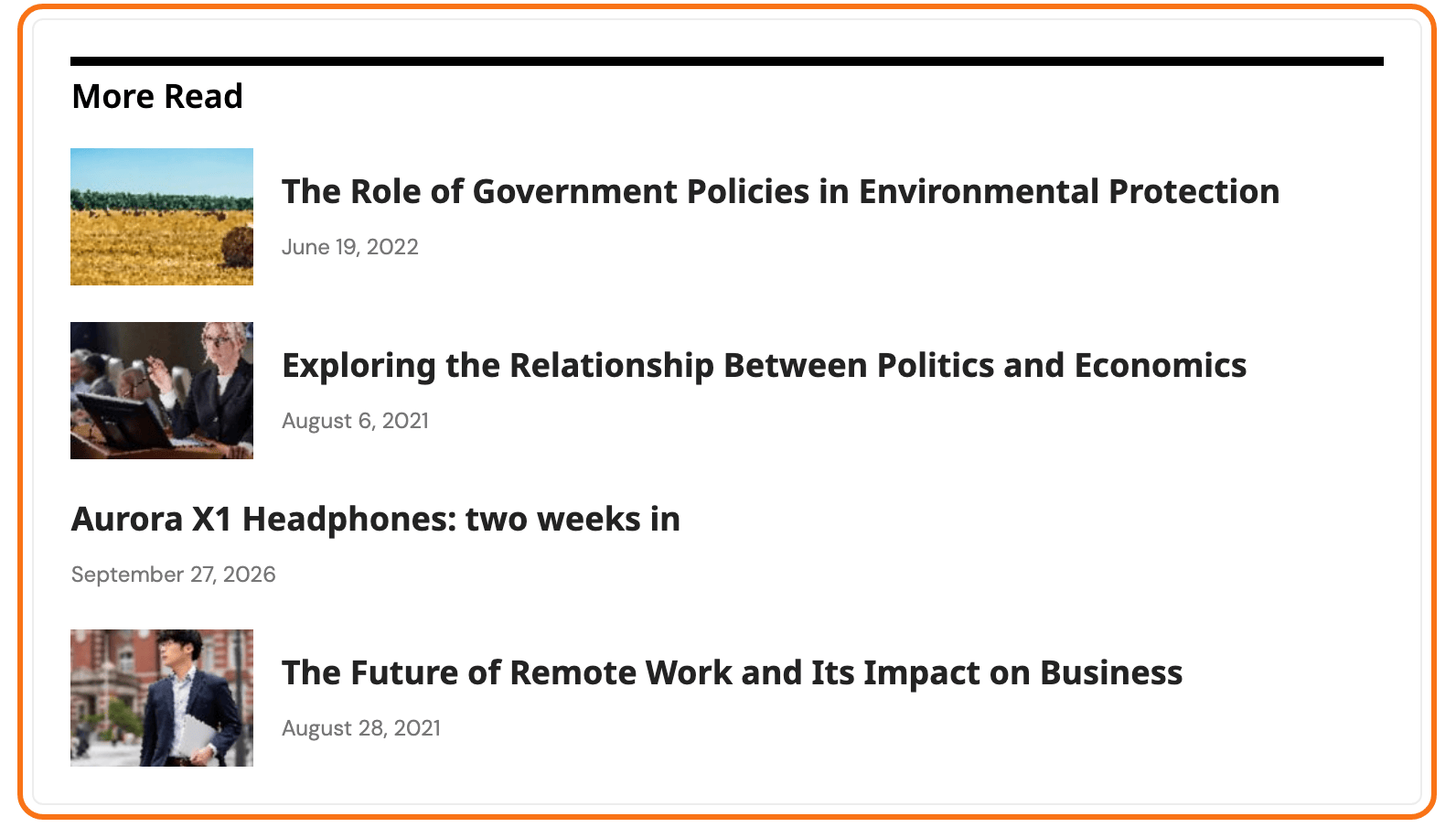
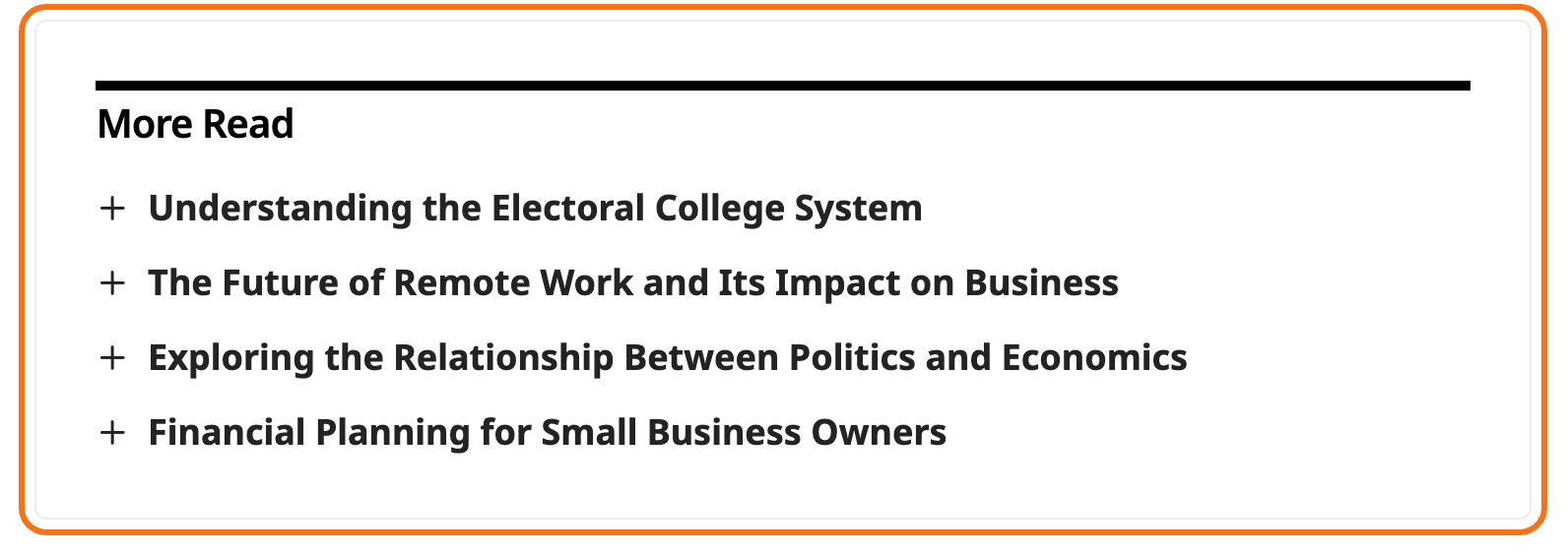
1 | the first post with a small thumbnail, the others as title links |
2 | every post with a small thumbnail; at full width, each also shows its updated date |
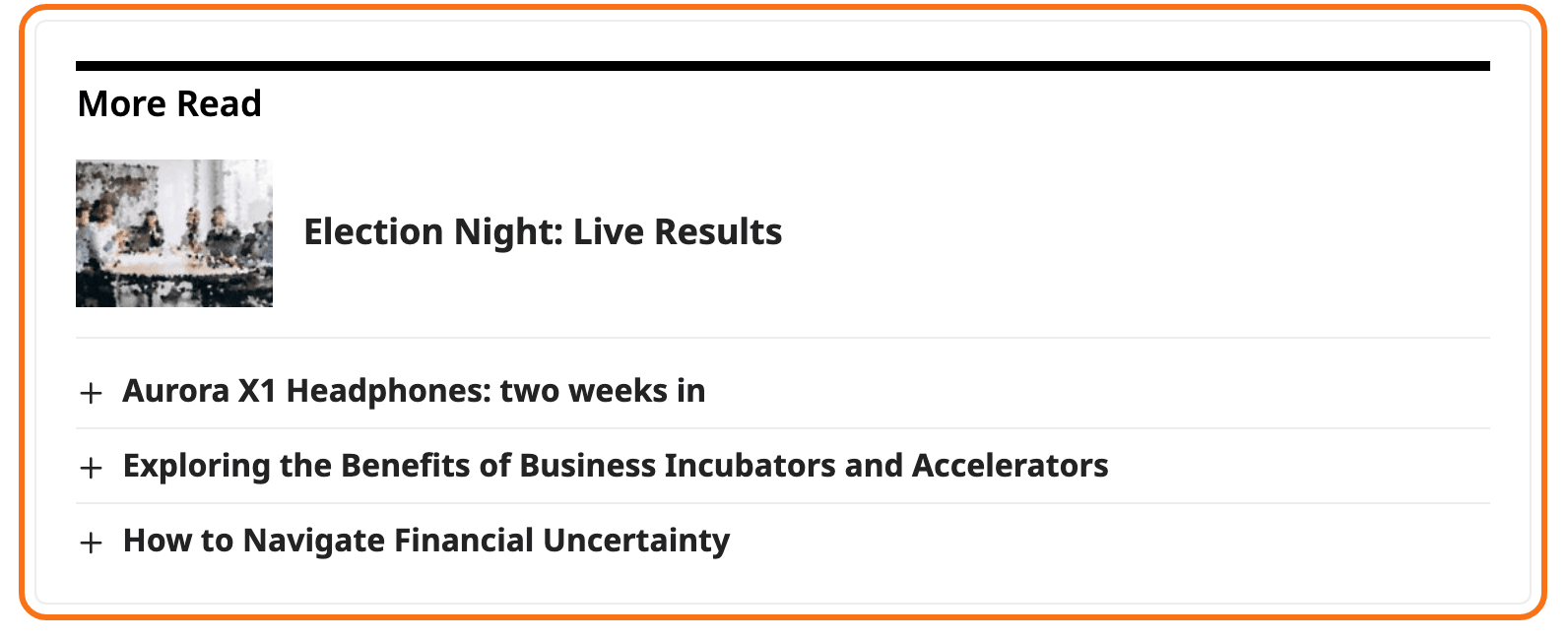
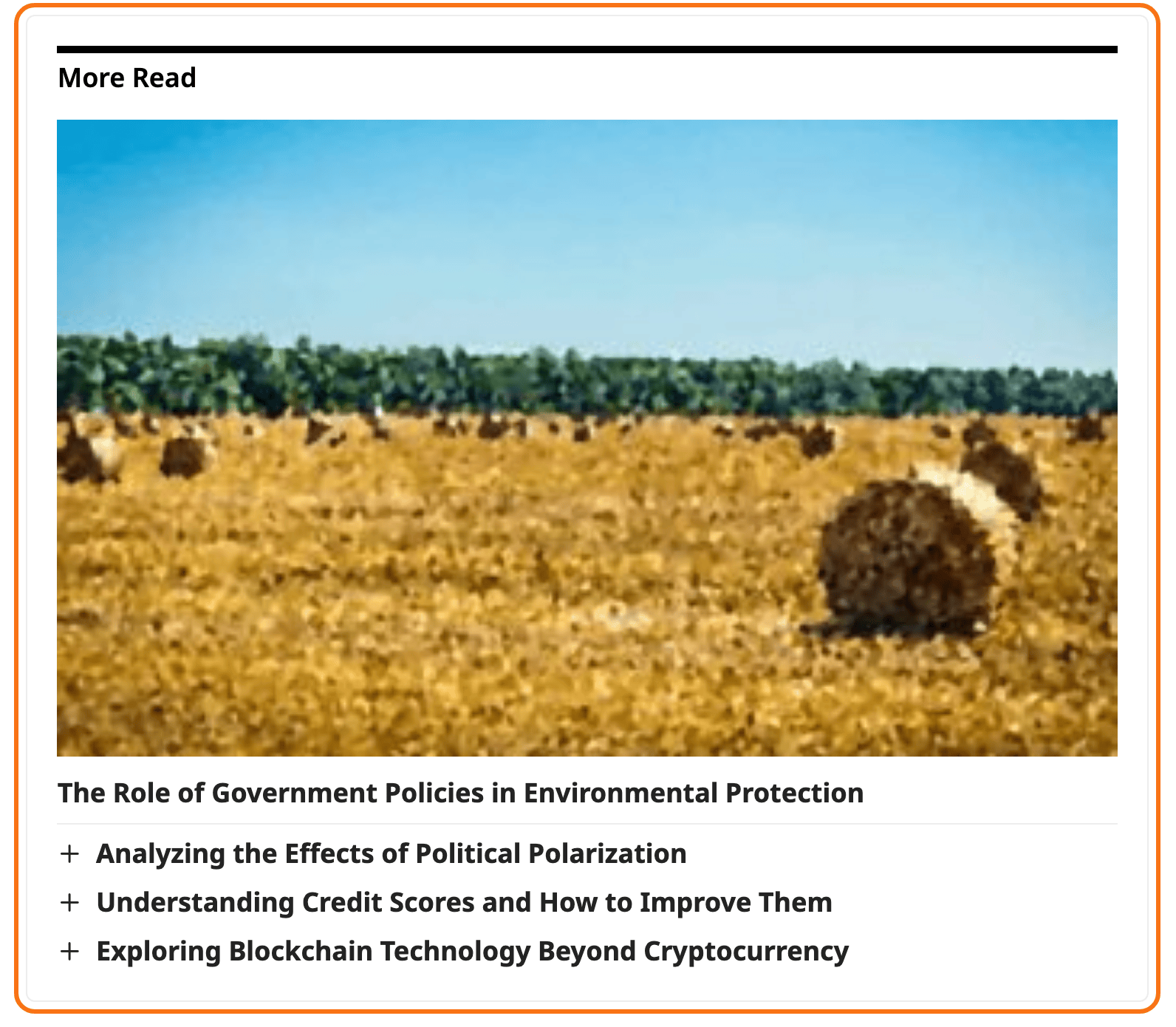
3 | the first post as a card with a large image, the others as title links |
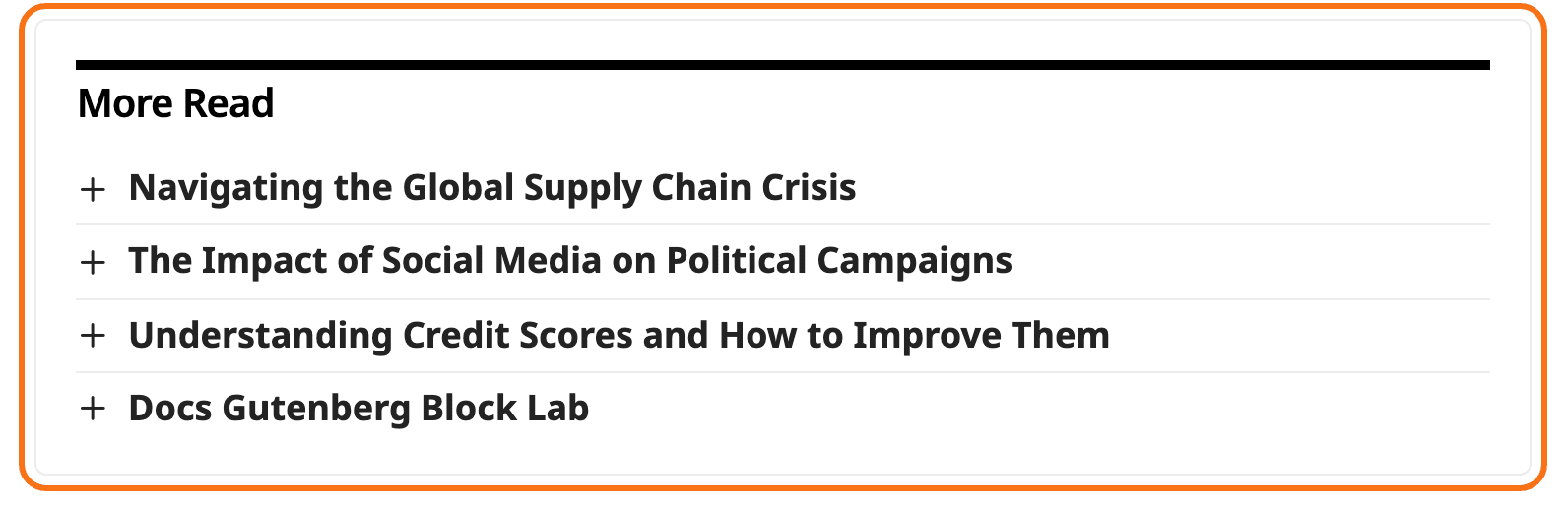
4 and 5 | titles only, no images. 4 is the compact one: a thin line between titles. 5 has no lines, more space between titles and, above phone width, more padding inside the box |
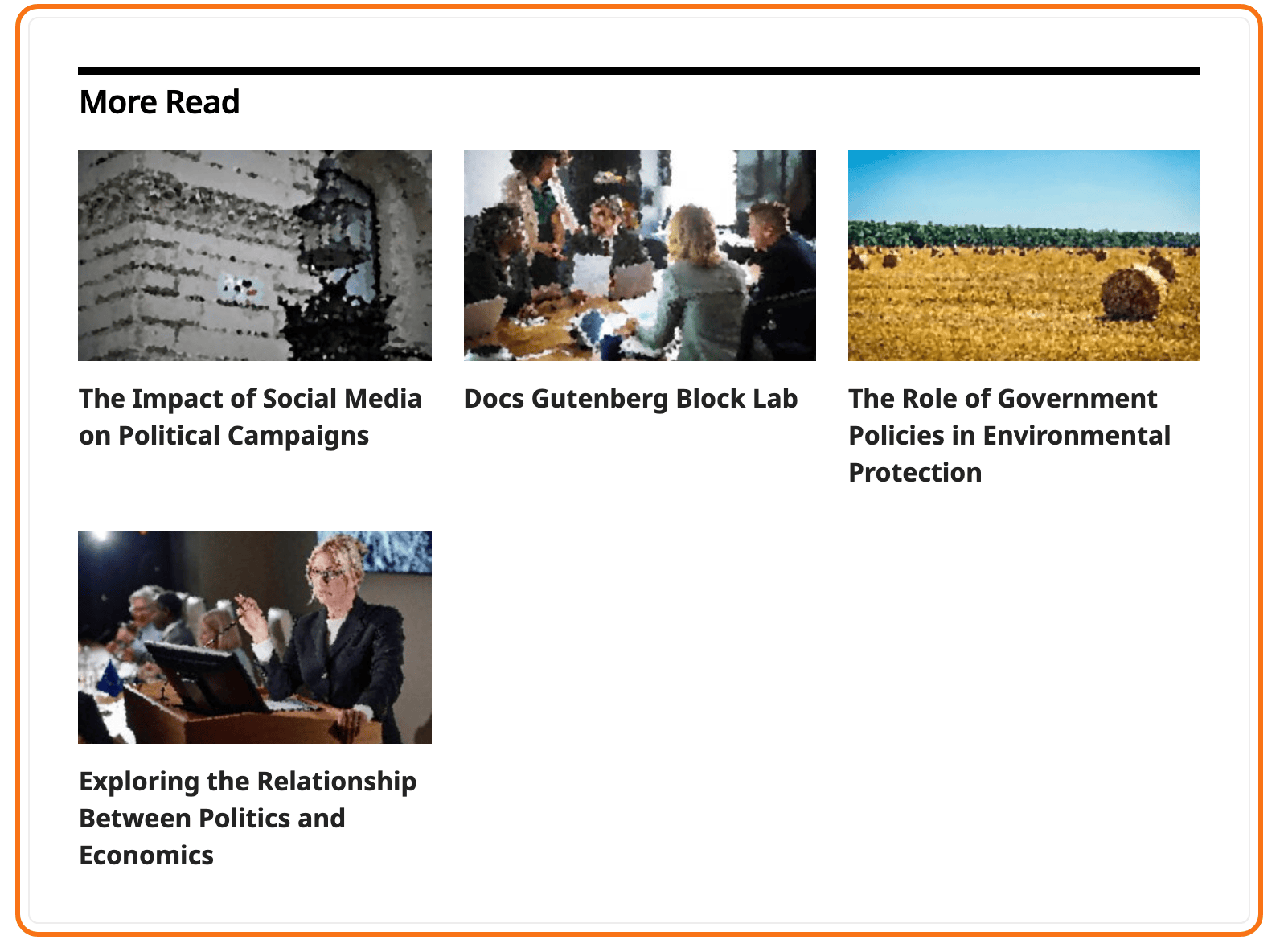
6 | a grid of image cards, three per row, one per row on phones |
Any other number prints nothing at all.
Every parameter
All parameters are optional. A parameter you leave out does not take the Related Posts - Ruby block's default; it takes the value in the last column.
| Parameter | What it does | Values | Left out |
|---|---|---|---|
heading | the title above the box | any text | no title |
total | how many posts to show | a number, at most 50 | 2 |
layout | the look of the list | 1 to 6 | 1 |
where | which posts count as related | all (same tags and categories), category, tag | Posts from Where in Theme Options, which starts on Same Tags & Categories |
order | the order of the posts | rand (random), date (newest first), modified (last updated) | Order By in Theme Options, which starts on Random |
ids | hand-picked posts instead of related ones | post IDs separated by commas | related posts |
style | the frame | default (shadow), border, plain (no frame) | shadow |
width | the size of the box | wide (full width), right (a column on the right) | right for layouts 1 to 5, wide for layout 6 |
heading_tag | the HTML tag of the title | h1 to h6, p, div, span | h4 for layouts 1 to 3, h3 for 4 to 6 |
heading_layout | the style of the title | 1 to 23, or c1 to c15 for centred | Theme Options > Heading Design |
post_id | the post the related posts are found from | a post ID | the post the box is in |
A few details:
width:rightmakes a column at most 350px wide on screens 768px and wider, with the text wrapping around it. On phones every box is full width. For most sites, usewidein the automatic box: it reads well wherever it lands.total: capped by Theme Options > Performance > Query Limits > Max Posts Per Page, 50 by default. See Optimize Your Site Speed with Performance Options.ids: takes over the whole query. The posts appear in the order you listed them, andtotal,whereandorderstop having any effect.order:relevanceis accepted but sorts likedate, newest first. WordPress only sorts by relevance on a search.whereon a podcast episode:categorymeans the episode's Shows.post_id: almost always left out. Set it to show another post's related posts instead.
When the box does not show
If no other post shares a category or a tag with the post, the box prints nothing rather than an empty frame. A missing box on one post usually means that. Add a category or tag the post shares with others, or use ids.
Did this answer your question?