Every Setting in the Header Search Panel
Where: Theme Options > Header > Header Search.
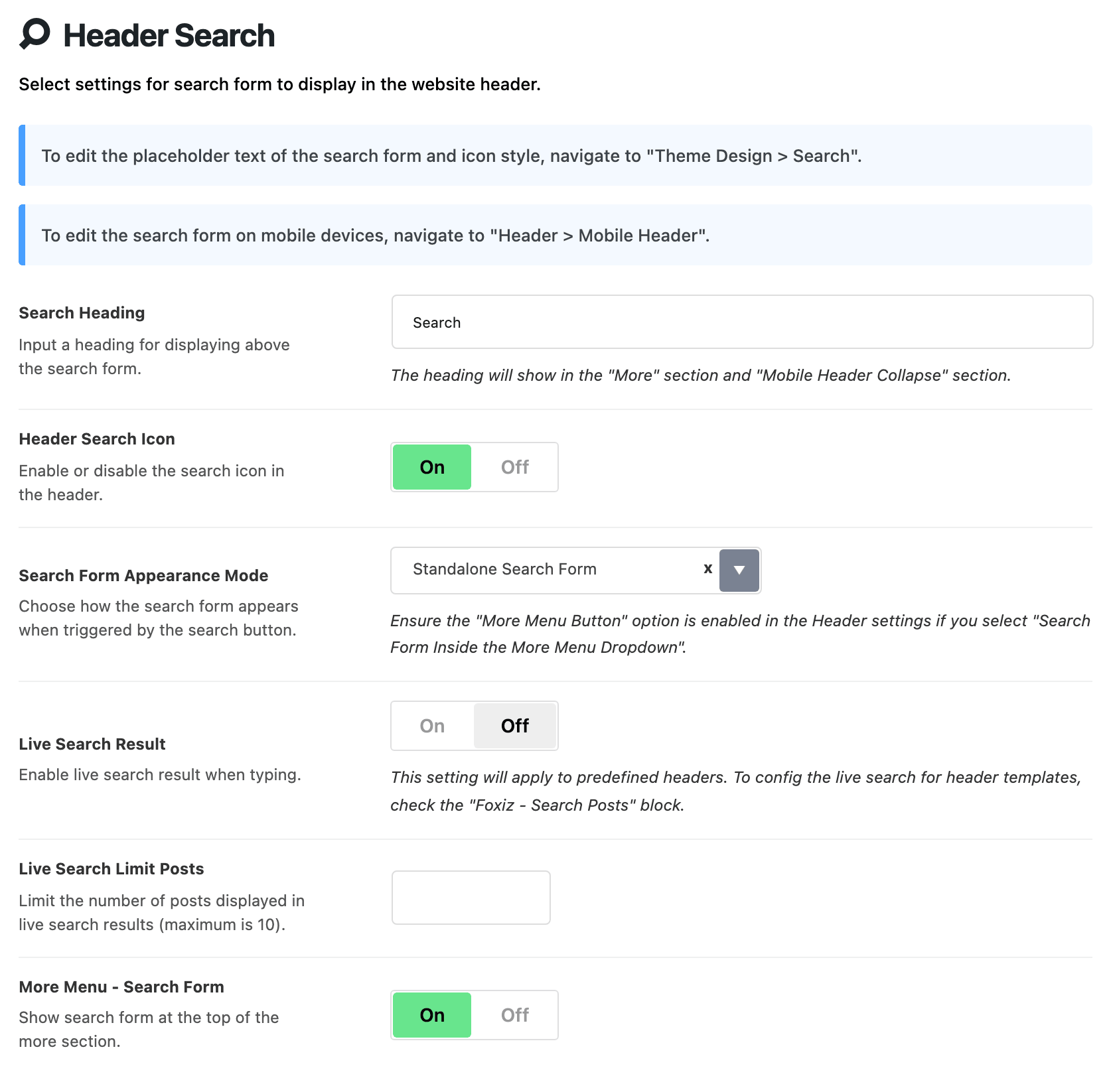
Theme Options > Header > Header Search controls the search icon in the desktop header and the search box it opens. It holds six settings, and they apply to the five predefined header layouts.
Search on phones and on AMP pages is switched in another subsection, Header > Mobile Header. This page covers those settings too, further down.
- The placeholder text and the icon itself: Theme Options > Theme Design > Search, in Placeholder Text, Custom Search SVG and Icon Size. See Search.
- A header built as a Ruby Template: this panel does not reach it. Add the Foxiz - Search Posts block to the template; it has its own Live Results and Limit Posts controls.
Common setups
Pick what you want, then set these fields.
- A search icon that opens a box under it. This is the default.
- Header Search Icon: on.
- Search Form Appearance Mode: Standalone Search Form.
- Search inside the More dropdown, together with your extra links.
- More Menu Button: on, in the for Header subsection of your layout.
- Search Form Appearance Mode: Search Form Inside the More Menu Dropdown.
- More Menu - Search Form: on.
- See the More menu mode below before you switch.
- Results that appear while the visitor types.
- Live Search Result: on.
- Live Search Limit Posts: how many results, up to 10.
- No search in the header at all.
- Header Search Icon: off, for desktop.
- Search Icon and AMP Header - Search Icon in Mobile Header: off, for phones and AMP pages.
The six settings
-
Search Heading: the word shown above the search box. Default: "Search".
- It appears in two places only: at the top of the More dropdown, the menu behind the three dots, and in the menu that slides open on phones.
- Leave it empty to show no title.
-
Header Search Icon: turns the magnifier icon in the desktop header on or off. On by default.
With Layout 4 (Border) there is no icon. The header shows a full search box at the right of the logo instead, without a title, and this switch turns that box on or off.
-
Search Form Appearance Mode: what a click on the search icon opens.
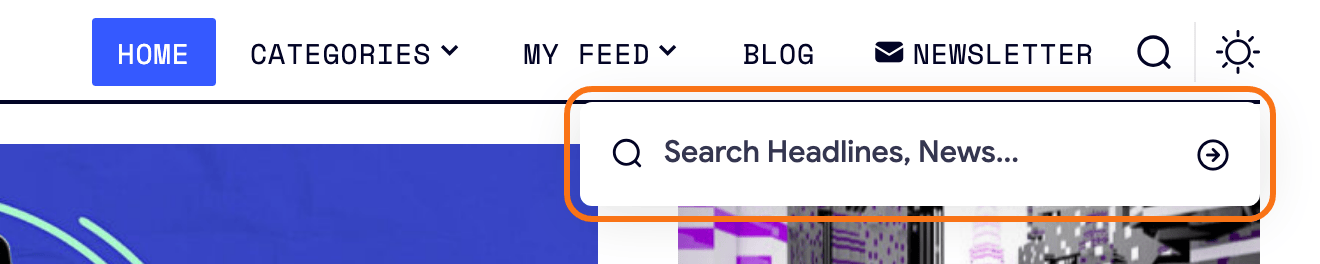
- Standalone Search Form: a search box opens under the icon. This is the default.
- Search Form Inside the More Menu Dropdown: the icon opens the More dropdown, with its search box at the top. Read the More menu mode first.
- Layout 5 (Center Logo) always uses the standalone form, whatever this says.
-
Live Search Result: matching posts appear under the box while the visitor types, without loading the search page. Off by default.
- Works in the header's own search box and the Layout 4 box.
- The box in the mobile panel never shows live results.
-
Live Search Limit Posts: how many posts the live results show.
- Blank means 4.
- Anything over 10 is cut to 10.
- Only matters with Live Search Result on.
-
More Menu - Search Form: a search box at the top of the More dropdown. On by default. Only shows when the More button itself is on.
How to Add More Button Menu to the Main Navigation covers the rest of that dropdown.
On a live site, the standalone form and the live results look like this:

The More menu mode
With Search Form Appearance Mode on Search Form Inside the More Menu Dropdown, the search icon opens the More dropdown instead of its own box. That is the panel behind the three dots at the end of the menu, and the cursor goes straight into the search box at its top.
Use it when you want one dropdown for search and your extra links, instead of two.
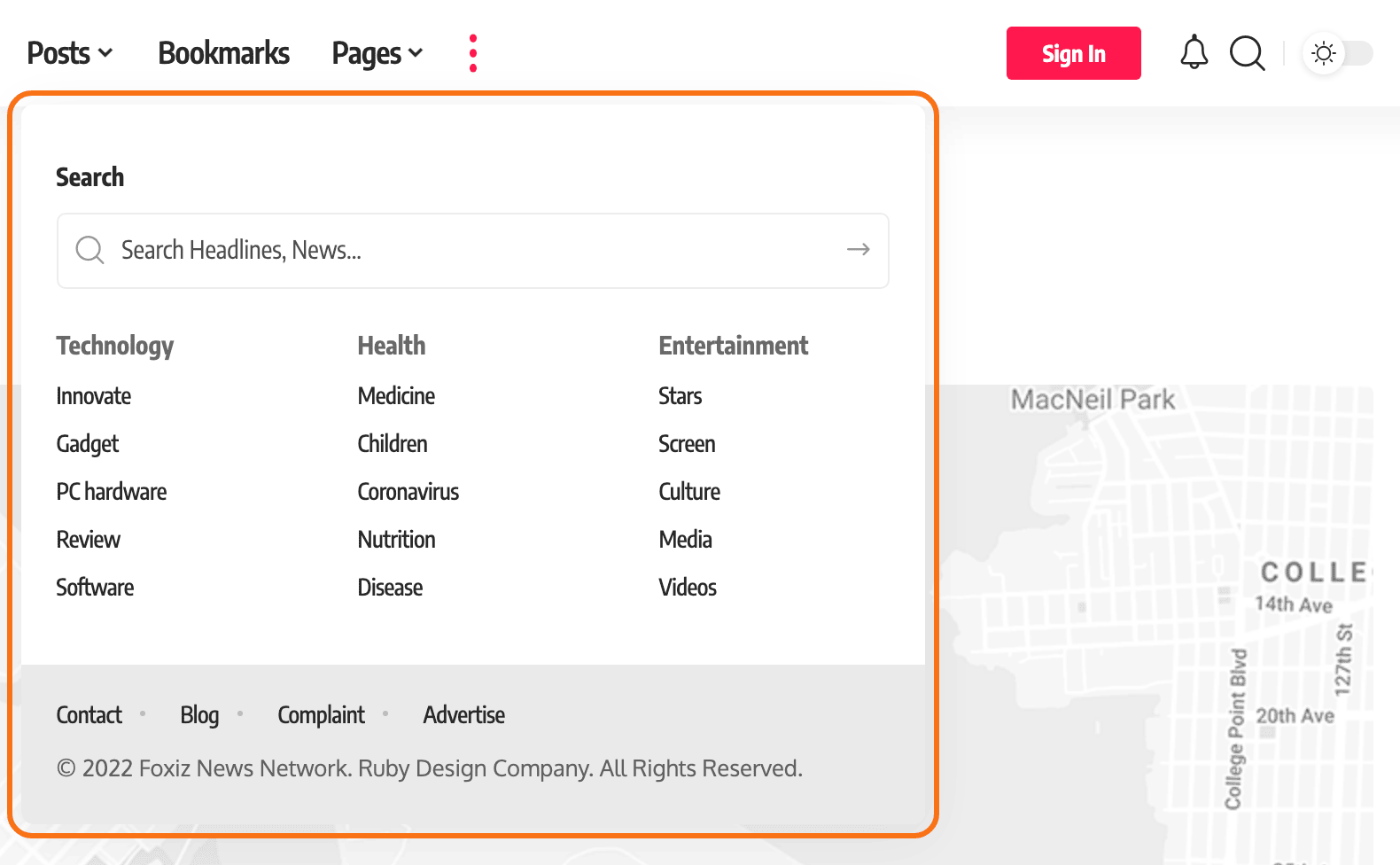
It needs two other settings on. The panel warns about the first one under the field:
- More Menu Button, in the for Header subsection of your layout (for Header 1,2,3, for Header 4 or for Header 5). It is off by default.
- More Menu - Search Form, on this page. It is on by default.
This is the usual mistake with this mode. The mode is on, but More Menu Button is still off.
- With the button off, the theme does not build the More dropdown at all.
- The search icon then has nothing to open, so a click does nothing.
To fix it, do one of these:
- Turn on More Menu Button in the for Header subsection of your layout, or
- Set Search Form Appearance Mode back to Standalone Search Form.
A related case: the dropdown opens, but has no search box. Then More Menu - Search Form is off. Turn it on.
On phones and tablets
The mobile header has its own search settings, in Theme Options > Header > Mobile Header. The fields on this page do not reach it, except Search Heading.
- Search Icon, in the General group: the search icon in the mobile header. On by default. A tap opens the mobile slide open panel and puts the cursor in its search box.
- Search Form, in the Collapse Section group: the search box at the top of that slide open panel. On by default.
- It never shows live results, even with Live Search Result on.
- Search Heading from this page is its title.
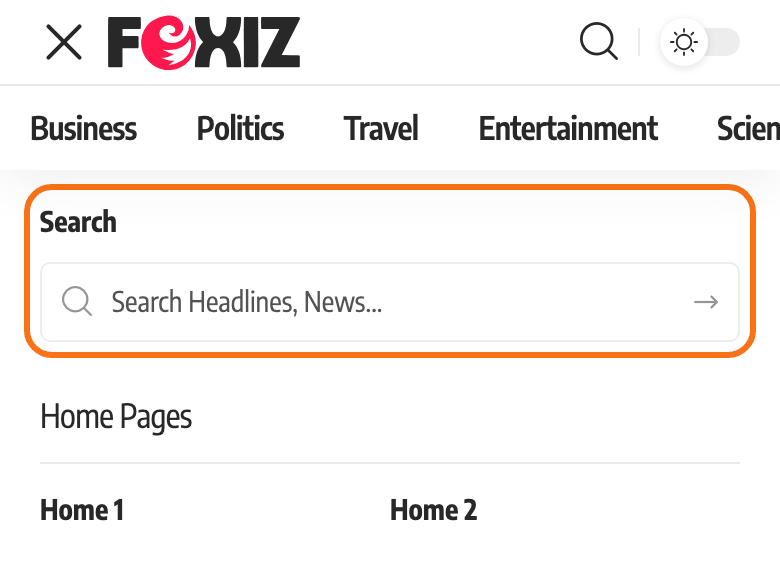
Keep the two on together. With Search Icon on and Search Form off, a tap on the icon opens the panel with no search box in it.
All the mobile header settings are in Every Setting in the Mobile Header Panel.
On AMP pages
AMP pages use the mobile header, with one search setting of their own, also in Mobile Header > General:
- AMP Header - Search Icon: the search icon in the header of AMP pages. On by default. A tap opens the same slide open panel, with the Search Form box at its top.
AMP pages always use the predefined mobile header. A mobile header built as a Ruby Template is not used there, so this switch still matters if your normal pages use a template.
Setting up AMP itself: AMP: setting up and testing AMP for WordPress.
Did this answer your question?