How to Choose a Custom Header Style for a Elementor Page
Set the header for one page
To set up a transparent header or a different header for an Elementor page, follow the steps below.

A header set on the page wins over the site header. So set the site header in Theme Options first, then change it only on the pages that should look different.
-
Navigate to Pages > All Pages
-
Then select the page you want to edit and click on the edit link

Not the Edit with Elementor link beside it. These settings are a WordPress meta box, so they live on the ordinary editor screen and you will not find them inside the Elementor builder.
-
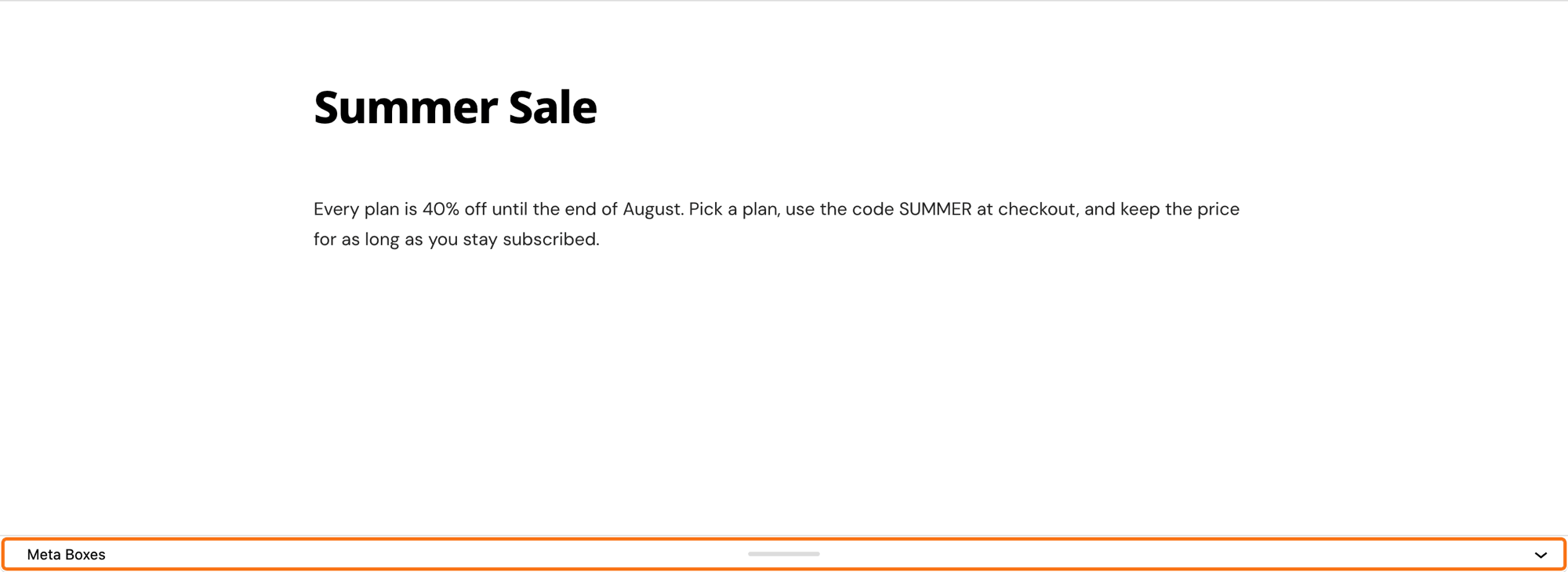
On the editor screen, scroll down to the bottom to find Single Page Settings. If you do not see it, click the Meta Boxes bar at the foot of the editor to open it.
-
Select Site Header tab
-
Select a header style you would like under Predefined Header Layout setting. A predefined header is one of the header layouts built into the theme, as opposed to a header you build yourself in step 6.
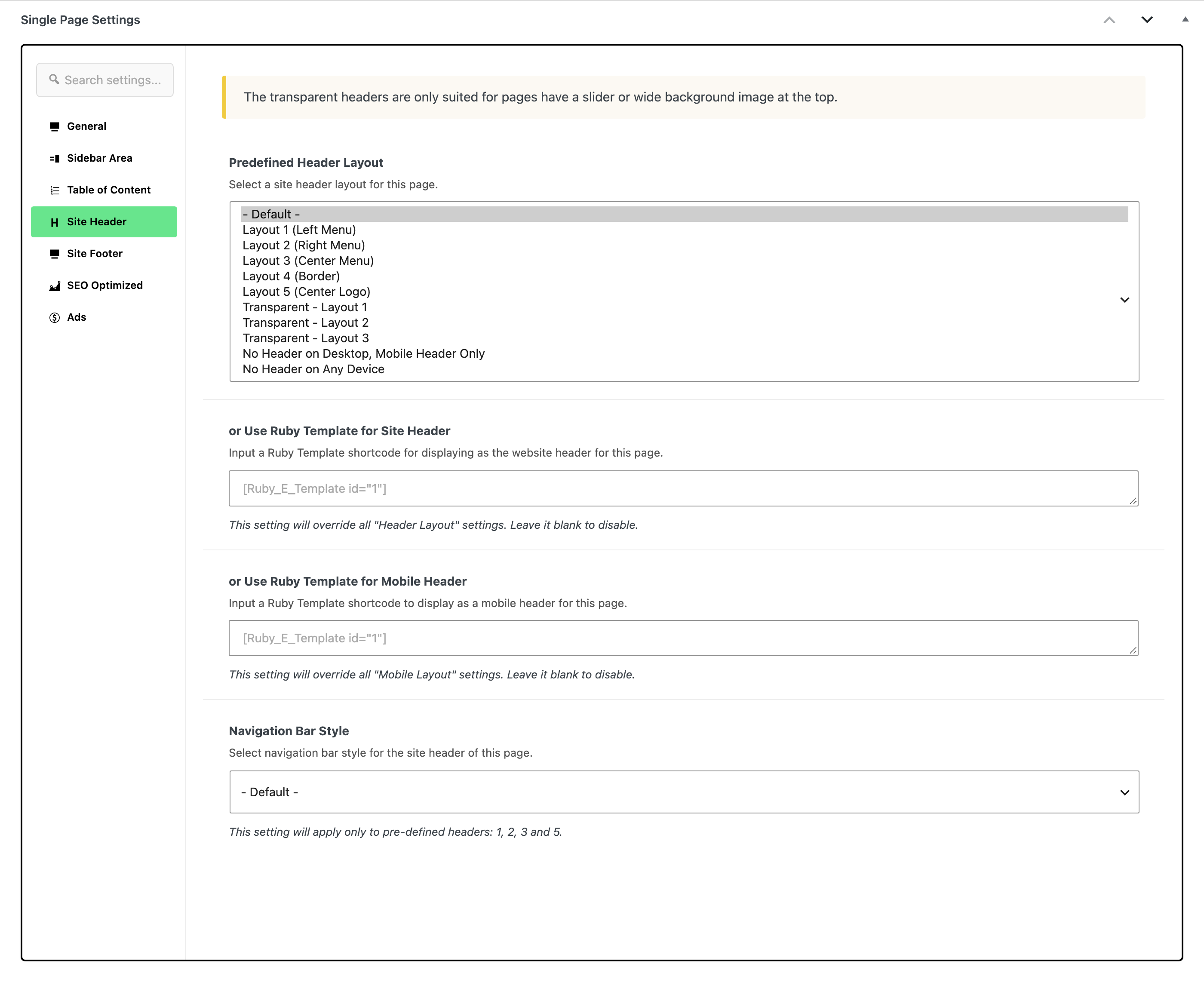
Pick the entry that matches the header you want:
-
The site header from Theme Options: - Default -.
-
A normal header: one of the five numbered layouts, Layout 1 (Left Menu) to Layout 5 (Center Logo).
-
A transparent header, one that lies over the top of the page with no background of its own:
- Transparent - Layout 1: logo and menu together on the left, like Layout 1 (Left Menu).
- Transparent - Layout 2: logo on the left, menu on the right, like Layout 2 (Right Menu).
- Transparent - Layout 3: logo on the left, menu in the centre, like Layout 3 (Center Menu).
Because the page shows through, start the page with a dark or image background, such as a first container with a background colour or picture (How to Set Background Color for a Elementor Section). Then give the header light text in Text Color under Theme Options > Header > for Header 1,2,3 > Transparent Headers (for Header 1,2,3), and upload a light logo as the Transparent Logo (Transparent Logos). The transparent look shows on screens wider than 1024px; phones and tablets get the normal header.
-
No header on desktop, the mobile header only: No Header on Desktop, Mobile Header Only.
-
No header at all: No Header on Any Device.
Leaving it on - Default - is not a choice of layout. It means this page keeps whatever the site header is set to in Theme Options, which is what you want on every page except the ones you are deliberately making different.
-
-
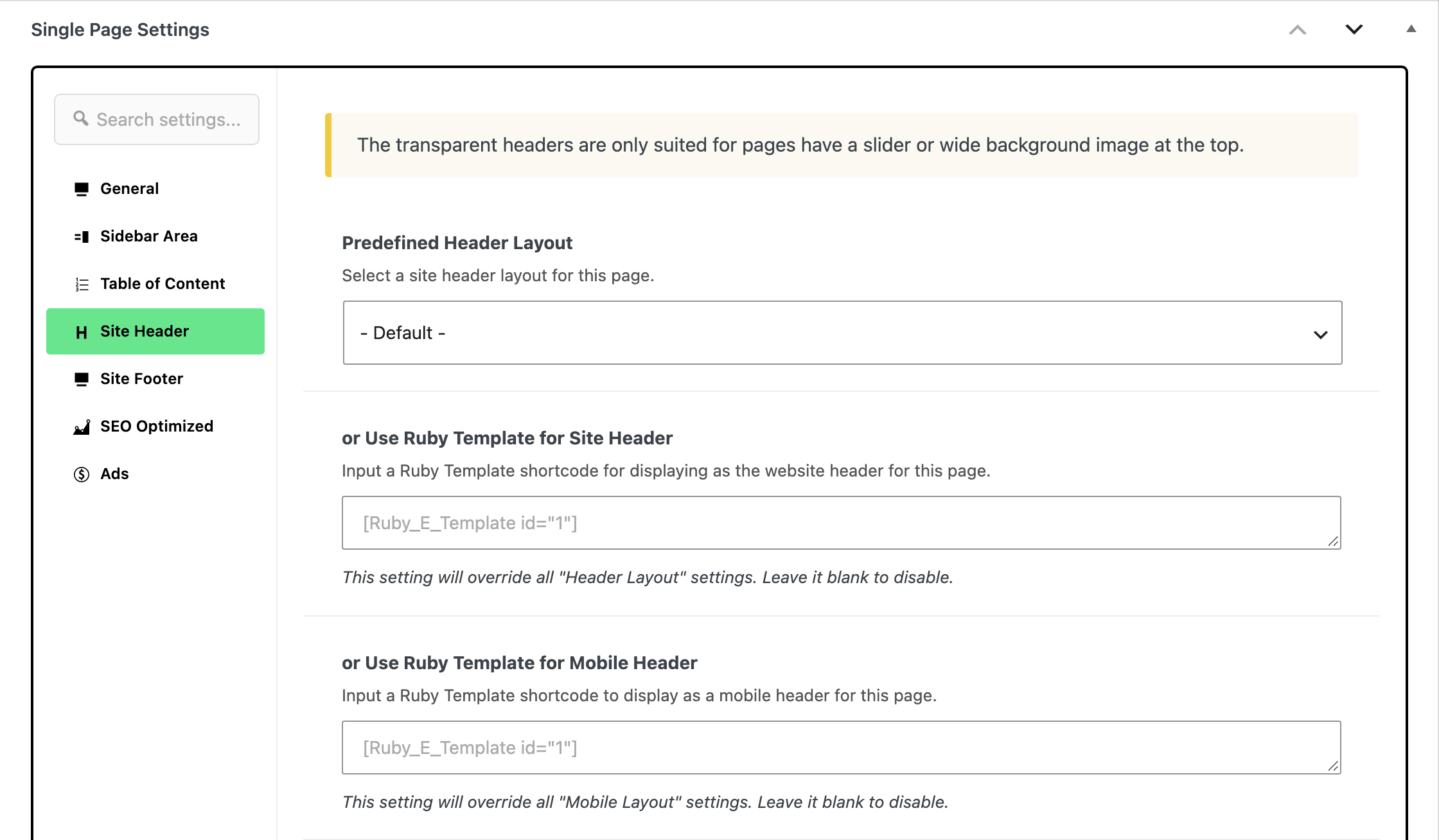
Or input a Ruby Template shortcode into or Use Ruby Template for Site Header for displaying as the website header. A Ruby Template is a layout you build once in Elementor and reuse; its shortcode is the short code in square brackets, such as
[Ruby_E_Template id="1"], that you copy from the Template Shortcode column of Ruby Templates > All Templates (Ruby Templates).Use step 5 or step 6, not both. A shortcode here replaces the layout you picked in step 5; leave this field empty when you want the step 5 layout.
Under it is or Use Ruby Template for Mobile Header, which does the same job for phones and is separate, so a custom desktop header leaves the mobile header alone unless you fill that one in too.
-
Click on the "Update" button to save your changes
On a page that has never been published the same button reads Publish. Either way the meta box saves with the page, not separately.
Foxiz uses the first of these that is set:
- or Use Ruby Template for Site Header in the page's own Single Page Settings box: a header template for this page only.
- Predefined Header Layout in the same box: a header layout for this page only. Left on - Default -, it hands the decision to the next level.
- Theme Options > Header > Header Layout: the header of every page on the site.
Did this answer your question?