Copy specific sections from one page to another on Elementor Page
This feature will save you hours of work: you can take any style or element from one page and paste it into other pages on your site.
To get started, follow the steps below:
-
Navigate to Pages > All Pages.
-
Find the page you would like to edit and click its "Edit with Elementor" link.
-
The website will redirect to another URL and the panel will appear on the page. Then find the section you need to copy.
-
Right-click on the section which you want to copy.
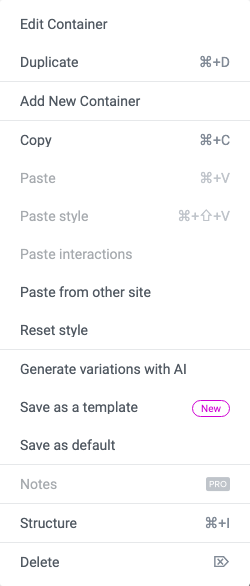
Newer Elementor calls the outer layout element a Container rather than a Section. Right click works the same way on either one, and on a single Foxiz block inside it.
Copy one kind of element at a time. Select a container and a widget together and Elementor refuses the copy with a toast rather than copying part of it.
-
Click on "Copy" to copy this section. The copy can also be done by CTRL + C in Windows or Command + C in macOS.

Copy sits in the clipboard group of the right click menu, between Duplicate above it and Paste below.
What you copied is written into your browser's own storage, not into the page, which is why it is still there after you leave the editor and open a different page. It is also one slot: the next Copy overwrites it, so paste before you copy the next thing.
-
The section will be copied, and then you can "Paste" the section to the new location on another page. The paste can also be done by CTRL + V in Windows or Command + V in macOS.
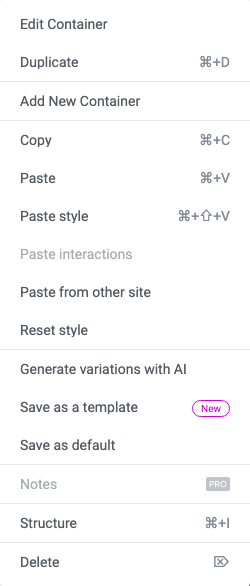
Right click an empty area of the target page to get Paste.
Two neighbours in the same menu do the jobs this one does not. Paste style drops the copied element's styling onto an element that is already on the page and leaves its content alone, which is the "take any style" half of what this article promises. Paste from other site takes the copied element into a different WordPress site, where the browser storage from step 5 is not shared.
Did this answer your question?